Salesforce has always been a business process platform. For over two decades, developers have encoded complex business logic, such as deal scoring, customer segmentation, and approval routing, into Apex classes that power the world’s largest enterprises. But that logic has historically been consumed through Salesforce’s own UI layers: Lightning pages, flows, and Visualforce. The business intelligence lives on the platform, locked behind a browser tab.
Headless 360 and Salesforce Hosted MCP Servers introduce a shift from UI-first to agent-first. Every capability on the platform — data access, business logic, automation — becomes consumable through CLIs, APIs, and the Model Context Protocol (MCP), an open standard that lets AI agents discover and call tools hosted on external servers. AI agents running in Slack, Claude, ChatGPT, Cursor, or any MCP-compatible client can now reach into Salesforce and invoke your business logic directly. No login screen. No navigation. No UI at all.
In this blog post, we’ll show you how to write custom Apex business logic, expose it as a Hosted MCP Server on Salesforce, deploy the necessary metadata to configure authentication, and connect an external AI agent like Claude to invoke your logic.
What makes Salesforce Hosted MCP different
A Salesforce Hosted MCP Server is a platform-managed endpoint that exposes Apex actions, Apex REST, and external APIs as discoverable tools for AI agents through the Model Context Protocol. Unlike self-hosted MCP servers, it runs on Salesforce infrastructure handling authentication, tool discovery, and request routing without external deployment.
A Salesforce Hosted MCP tool delivers three things that no raw database can match out-of-the-box:
- Pre-built business object graphs (e.g., Account → Opportunity → Product → Revenue) with relationships already modeled
- A record-level sharing model that automatically scopes results to what this specific caller is allowed to see
- Decades of accumulated business process metadata that each customer’s org has already encoded over years of operation
Example: Pipeline intelligence
The example exposes a pipeline intelligence tool built in Apex. An AI agent passes an account name, and the tool returns a complete analysis: open deals with risk levels, weighted pipeline value, product line items, and an overall health assessment.
The Apex @InvocableMethod (see docs) that powers flows and Agentforce actions now also serves external AI agents through MCP. Write the logic once; it runs everywhere.
The Apex class uses global access (required for MCP tool discovery) and structures the method as a deep module, absorbing interpretive logic so that the Agent receives insight, not raw data.
The method starts by resolving the account using fuzzy matching: trying an exact name match first, then falling back to a LIKE pattern.
1global with sharing class AccountPipelineService {
2    @InvocableMethod(
3        label='Get Account Pipeline'
4        description='Returns open opportunities with line items and computed business intelligence (risk levels, weighted pipeline, health summary) for a given account name. Supports fuzzy matching.'
5    )
6global static List getAccountPipeline(List requests) {
7  // All private methods is invoked here..
8}
9private static Account resolveAccount(String accountName, PipelineResult result) {
10     List accounts = [
11         SELECT Id, Name, Industry, AnnualRevenue
12         FROM Account
13         WHERE Name = :accountName
14         WITH USER_MODE
15         LIMIT 1
16     ];
17
18     if (!accounts.isEmpty()) {
19         result.matchType = 'exact';
20         return accounts[0];
21     }
22
23     String fuzzyPattern = '%' + accountName + '%';
24     accounts = [
25         SELECT Id, Name, Industry, AnnualRevenue
26         FROM Account
27         WHERE Name LIKE :fuzzyPattern
28         WITH USER_MODE
29         LIMIT 1
30     ];
31
32     if (!accounts.isEmpty()) {
33         result.matchType = 'partial';
34         return accounts[0];
35     }
36
37     result.accountFound = false;
38     result.message = 'No account found matching: ' + accountName;
39     return null;
40 }
41
42}
When no account matches, the tool returns a structured response with accountFound: false and a descriptive message, giving the AI agent a clear signal to ask the user for clarification rather than failing silently.
Once the account is resolved, a single SOQL query traverses the full business object graph.
1List opportunities = [
2     SELECT Id, Name, Amount, StageName, Probability, CloseDate,
3         Owner.Name,
4         (SELECT Id, Product2.Name, Quantity, UnitPrice, TotalPrice
5          FROM OpportunityLineItems)
6     FROM Opportunity
7     WHERE AccountId = :acc.Id
8         AND IsClosed = false
9     WITH USER_MODE
10     ORDER BY Amount DESC NULLS LAST
11 ];
Each deal is then scored for risk based on probability and proximity to close date.
1private static String assessRisk(Decimal probability, Integer daysUntilClose) {
2     if (daysUntilClose <= 30 && (probability == null || probability < 60)) {
3         return 'High';
4     }
5     if (probability == null || probability < 50) {
6         return 'Medium';
7     }
8     return 'Low';
9 }
The overall pipeline health is a multi-factor assessment combining high-risk ratio and weighted conversion strength.
1private static String assessPipelineHealth(
2     Integer totalDeals, Integer highRiskCount,
3     Decimal weightedValue, Decimal totalValue
4 ) {
5     if (totalDeals == 0) {
6         return 'Empty — no open deals';
7     }
8     Decimal highRiskRatio = (Decimal) highRiskCount / totalDeals;
9     Decimal conversionStrength = totalValue > 0 ? weightedValue / totalValue : 0;
10
11     if (highRiskRatio > 0.5) {
12         return 'Weak — majority of deals are high risk';
13     }
14     if (conversionStrength < 0.4) {
15         return 'At Risk — low weighted conversion across pipeline';
16     }
17     if (highRiskRatio <= 0.2 && conversionStrength >= 0.6) {
18         return 'Strong — high confidence, low risk';
19     }
20     return 'Moderate — mixed signals, review recommended';
21 }
Key design decisions:
- Fuzzy matching: The tool resolves partial account names (“Acme” finds “Acme Corporation”), reducing errors for AI agents that may not know exact names.
- Computed fields:
riskLevel,weightedPipelineValue, andpipelineHealthSummaryare calculated inside the method. The AI agent never needs to interpret raw probabilities or close dates. WITH USER_MODE: SOQL queries enforce the running user’s field-level and object-level security automatically.- Cross-object traversal: This is a single tool call that spans Account, Opportunity, OpportunityLineItem, Product2, and User.
Registering the Hosted MCP Server
With the Apex class deployed, the next step is the MCP Server Definition, the metadata that maps your Apex action to a named tool and controls how AI agents discover it.
Below is an example deployable metadata for registering the hosted MCP server. The metadata can be source controlled and CI/CD deployed alongside the Apex class.
1<?xml version="1.0" encoding="UTF-8"?>
2<McpServerDefinition xmlns="http://soap.sforce.com/2006/04/metadata">
3    <description>Analyzes account pipeline health with deal risk scoring
4    and weighted forecasts by traversing Salesforce's native business
5    object graph.</description>
6    <masterLabel>Pipeline Intelligence</masterLabel>
7    <tools>
8        <apiDefinition>
9            <apiIdentifier>aa:apex-AccountPipelineService</apiIdentifier>
10            <apiSource>API_CATALOG</apiSource>
11            <operation>AccountPipelineService</operation>
12        </apiDefinition>
13        <descriptionOverride>Returns open opportunities with line items
14        and computed business intelligence (risk levels, weighted pipeline,
15        health summary) for a given account name.
16        Supports fuzzy matching.</descriptionOverride>
17        <toolName>getAccountPipeline</toolName>
18        <toolTitle>Get Account Pipeline</toolTitle>
19    </tools>
20</McpServerDefinition>
Note: MCP Registration can also be done via Salesforce User Interface. The steps are documented in the official documentation.
Why every field here matters
AI agents don’t read your code. When an MCP client calls tools/list, the agent sees exactly four things per tool: a name, a description, an inputSchema, and an outputSchema. That’s the entire basis for deciding whether to call your tool, what to pass, and how to interpret the response.
Each metadata field controls part of that picture.
| Metadata Field | Maps To | Role |
| toolName | MCP name | Identifier that the agent uses to invoke the tool. |
| descriptionOverride | MCP description | The tool’s pitch — drives whether the agent selects it. Falls back to @InvocableMethod description if empty. |
| apiDefinition | MCP inputSchema + outputSchema | Points to the API Catalog entry. Salesforce generates both JSON Schemas from your @InvocableVariable annotations. |
| description (server-level) | Server description | Helps agents decide whether to explore this server’s tools at all. |
| toolTitle | Display label | Human-readable name in client UIs. Not used for tool selection. |
From Apex annotations to agent-readable schemas
The apiDefinition is the bridge. It references the API Catalog entry auto-created from your global class. Salesforce reads the @InvocableVariable annotations on your input and output classes and generates the inputSchema and outputSchema that agents see.
1// Input class → becomes inputSchema (wrapped in an inputs[] array)
2 @InvocableVariable(required=true description='The name of the Account to look up pipeline for. Supports partial matching.')
3 global String accountName;
4
5 // Output class → becomes outputSchema (nested inside a response envelope as outputValues)
6 @InvocableVariable(description='Overall pipeline health: Strong, Moderate, At Risk, or Weak')
7 global String pipelineHealthSummary;
8
9 @InvocableVariable(description='Pipeline value weighted by probability — realistic expected revenue')
10 global Decimal weightedPipelineValue;
The description text you write in each @InvocableVariable annotation becomes the documentation that the agent reads. Without it, the agent sees field types but not meaning. Write them with the agent as your audience for example:
- Input fields: What to provide. “Supports partial matching” tells the agent it doesn’t need an exact name.
- Output fields: How to interpret. “Negative means overdue” on
daysUntilCloseprevents misreading. - Enumerated values: List them. “Strong, Moderate, At Risk, or Weak” — no guessing.
Writing an effective descriptionOverride
The descriptionOverride drives tool selection for the Agent. A good description answers three questions:
- What does it return? “Returns open opportunities with line items and computed business intelligence (risk levels, weighted pipeline, health summary)”
- What input does it need? “For a given account name”
- Any behavioral nuances? “Supports fuzzy matching”
Anti-patterns to avoid:
- Too vague: A description like “Gets pipeline data” gives the agent no signal about what makes this tool different from a generic query tool. The agent is unlikely to select it when multiple tools are available
- Too implementation-focused: A description like “Executes SOQL against Opportunity with USER_MODE” tells the agent how the tool is built rather than what it delivers. The agent needs to know what business value the tool provides, not the internal mechanics.
- Missing input guidance: If the description does not mention that the tool expects an account name, the agent has no way to know whether it should pass an account ID, an opportunity name, or something else entirely.
Activate the MCP Servers
After deploying, verify the server appears in Setup → MCP Servers and activate it. The server must be active before any MCP client can connect.
Setting up the External Client App
For an MCP client like Claude to authenticate, an External Client App with OAuth is required. This is configured through Setup as follows:
- Navigate to Setup → External Client App Manager → New External Client App
- Provide a label, description, and contact email
- Enable OAuth with the following settings:
| Setting | Value |
| Callback URL | https://claude.ai/api/mcp/auth_callback |
| OAuth Scopes | mcp_api, refresh_token |
| JWT-based access tokens | Enabled |
| PKCE | Required |
| All other security options | Unchecked |
Once saved, the Consumer Key becomes available under Settings → Consumer Key and Secret. This is the client identifier that Claude uses to initiate the OAuth flow.
Note: External Client Apps can take up to 30 minutes to become fully active after creation. If Claude’s connection fails immediately after setup, wait and retry.
Connecting Claude
Connecting Claude to a Hosted MCP Server requires a server URL and an OAuth Client ID — nothing else.
- In Claude.ai on the web, navigate to Settings → Connectors → Add custom connector.Note this assumes you have a Claude account and you are signed in. If you are signed in you can also directly add a connector.
- Copy the Server URL from Salesforce Setup:
- Navigate to Setup → Integrations → MCP Servers
- Click the MCP Server name (e.g., “Pipeline Intelligence”)
- Under Authentication Details, copy the Server URL
The URL follows the pattern below:
| Org Type | URL Pattern |
| Sandbox / Scratch | https://api.salesforce.com/platform/mcp/v1/sandbox/custom/{MCP_SERVER_API_NAME} |
| Production / Developer Edition | https://api.salesforce.com/platform/mcp/v1/custom/{MCP_SERVER_API_NAME} |
For this project, the URL is https://api.salesforce.com/platform/mcp/v1/sandbox/Pipeline_Intelligence
Note: You can also copy this from the user interface by navigating to the following:
- Set the Server URL in Claude by pasting the URL from Step 2
- Paste the OAuth Consumer Key from the External Client App settings
- Click Connect and authenticate with the Salesforce org credentials
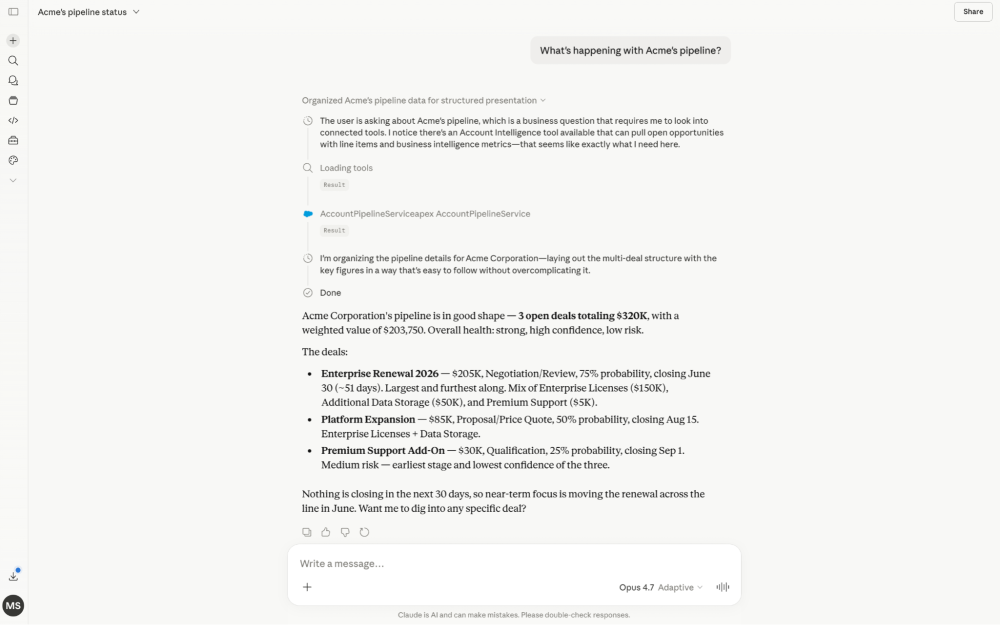
Once connected, Claude can invoke the tool naturally:
“What’s happening with Acme’s pipeline?”
The response includes the matched account, open deals with per-deal risk levels, weighted pipeline value, product line items, and an overall health assessment — all computed by the Apex running on Salesforce, all respecting the user’s security context.
Note: If you are having issues connecting to MCP servers refer to the troubleshooting section in the official docs.
The Headless 360 shift
For Apex developers, Headless 360 is a fundamental shift in how you design code. The consumer is no longer a human clicking through a UI; it’s an AI agent that reads tool descriptions, passes structured inputs, and reasons over structured outputs.
Designing for agents means returning computed insight (not raw fields), writing precise descriptions (not UI labels), and building tools that are self-contained (not steps in a wizard).
For AI developers exploring MCP, Salesforce is a uniquely deep server: a pre-modeled business graph, governed security, and computed intelligence — not just another database behind an API.
A note on tool governance
Too many MCP tools overwhelm AI agents, they struggle to pick the right one, leading to irrelevant calls or confused responses. As more teams expose Apex logic as MCP tools, governance becomes important. The Salesforce Hosted MCP Servers Best Practices guide recommends keeping tools self-contained (each returns a useful result on its own), avoiding both over-granular tools that require prescribed sequences and over-broad tools that bundle unrelated operations. Give each tool
Get started
The complete source code for this blog post, setup scripts, and sample data are available on GitHub: headless-apex-mcp-tool.
While this post demonstrates the connection with Claude, MCP is an open protocol. Any MCP-compatible agent — Slack, ChatGPT, or your own custom agent — can connect to the same Hosted MCP Server using the same URL and OAuth flow. Check the resources below to learn more.
Resources
- Connect MCP Clients
- External Client App Setup for MCP
- Connecting Claude to Salesforce MCP
- Hosted MCP Servers Developer Guide
- GitHub: Headless Apex MCP Tool
About the author
Mohith Shrivastava is a Principal Developer Advocate at Salesforce with 15 years of experience building enterprise-scale products on the Agentforce 360 Platform. Mohith is currently among the lead contributors on Salesforce Stack Exchange, a developer forum where Salesforce Developers can ask questions and share knowledge. You can follow him on LinkedIn.