Create Flow Element to Get Contact ID from Email Address
A Flow Builder element represents an action that a flow can execute. Create an element to retrieve the Contact ID from the user’s email address, allowing the agent to surface relevant information.
-
On the flow you created in Step 2 - Create Flow to Retrieve File ID, click the + button, search and select the Get Records element.
-
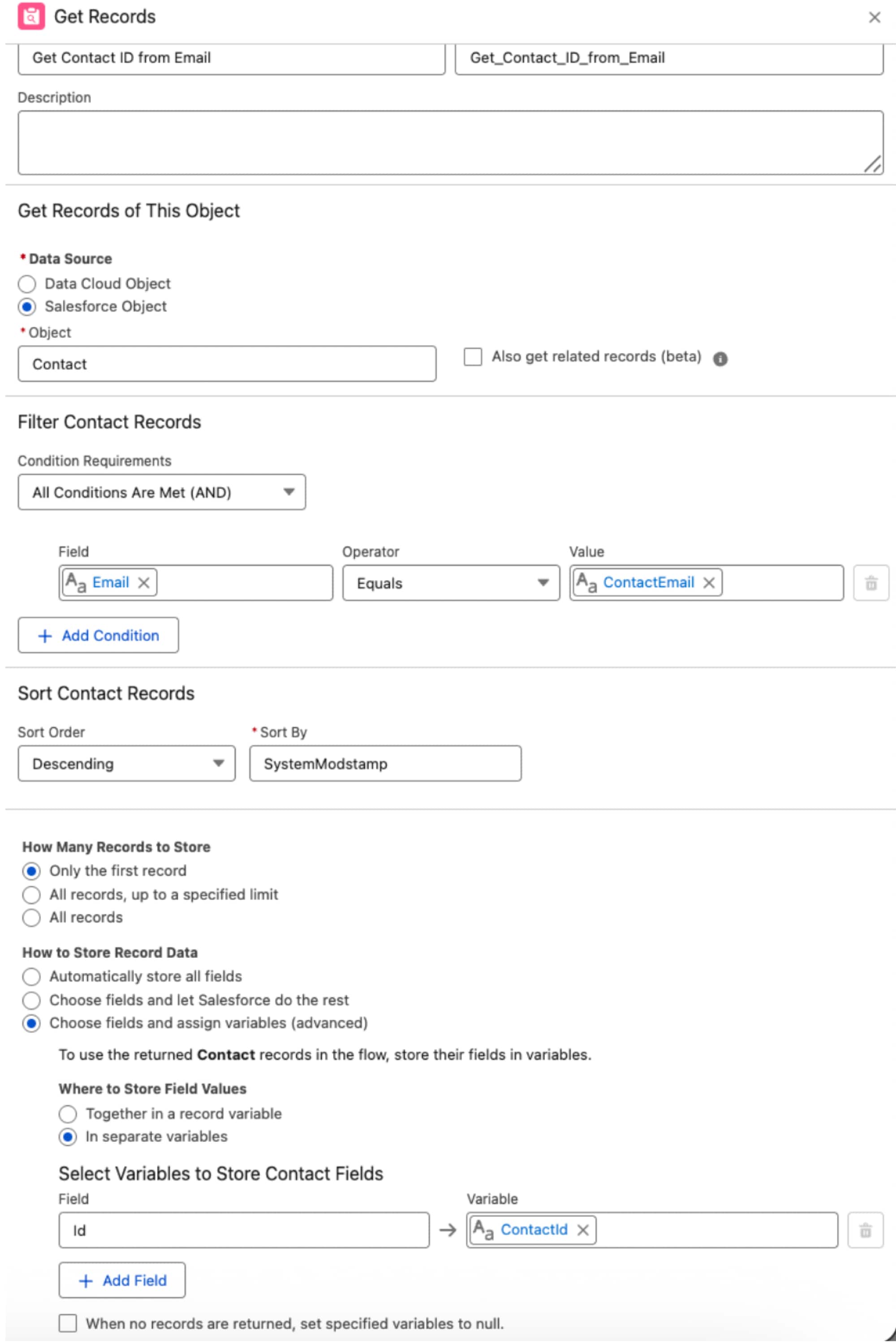
Configure the Get Records element:
-
Label:
Get Contact ID from Email Address -
Get Records for This Object:
- Select Salesforce Object as Data Source.
- For the Object field, search and select Contact.
-
-
Under Filter Contact Records, enter the condition values:
- Field: Email
- Operator: Equals
- Value: +New Resource:
- Resource Type: Variable
- API Name:
contact_email - Data Type: Text
- Under Availability Outside the Flow, check the Available for input and Available for output checkboxes.
- Click Done.
-
Under Sort Contact Records:
- Sort Order: Descending
- Sort By:
SystemModstamp
-
Under How to Store Record Data:
- Select Choose fields and assign variables (advanced).
- Under Where to Store Field Values, select In separate variables.
-
Under Select Variables to Store Contact Fields:
- Field: ID
- Variable: New Resource
- Resource Type: Variable
- API Name:
contact_ID - Data Type: Text
- Under Availability Outside the Flow, check the Available for input and Available for output checkboxes.
- Click Done.
- Click Save on the top right and enter values in the flow saving modal fields.
- The flow saving modal opens. For Flow Label enter
Document ID from Email. - Click Show Advanced to open advanced settings.
- Under How to Run the Flow, select System Context Without Sharing–Access All Data.
- Click Save.
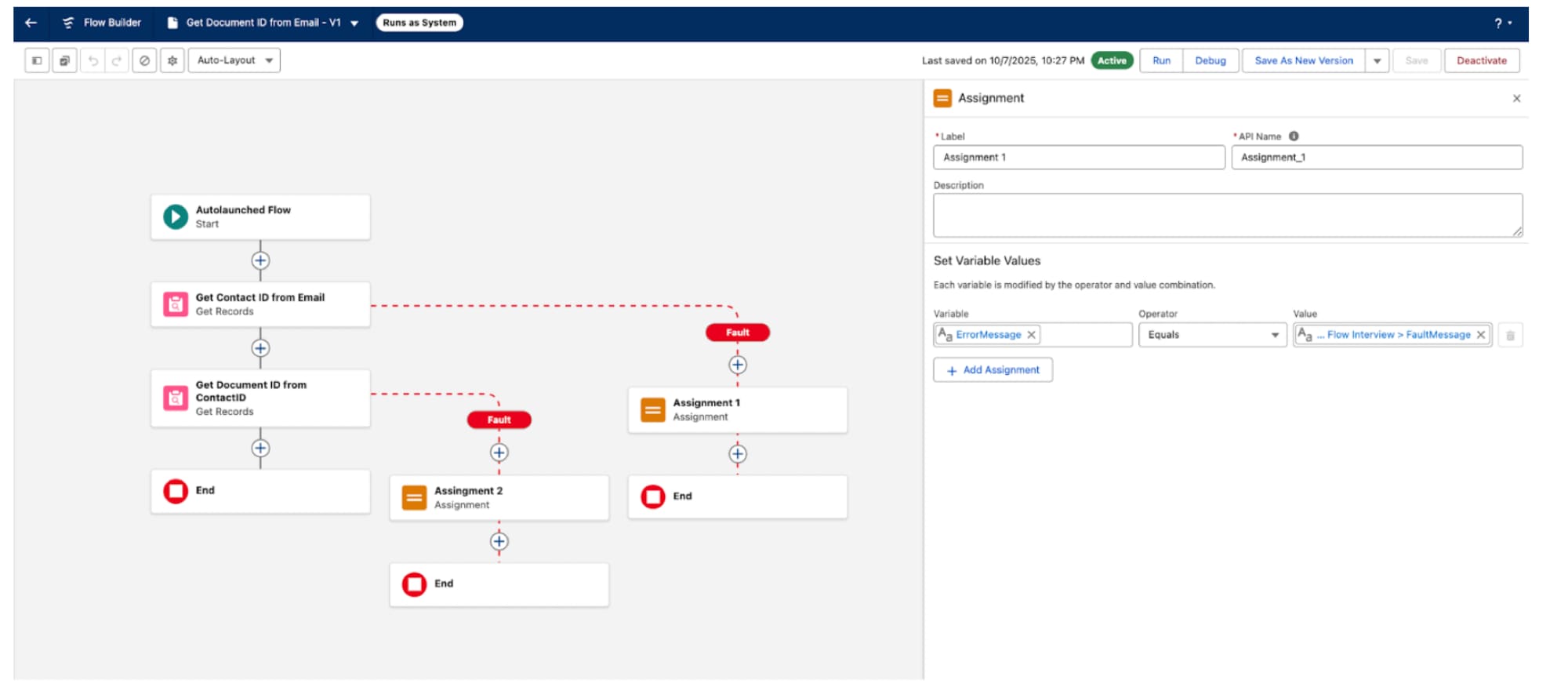
- On the Get Contact ID from Email tile, click the 3-dot menu and select Add Fault Path.
- After the Fault path, click the + to add an Assignment element.
- Enter as Label: error_message (Text).
- Under Set Variable Values:
- Variable: Select New Resource and enter the details.
- Resource Type: Variable
- API Name:
error_message - Data Type: Text
- Click Done.
- Operator: Select Equals.
- Value: Select Global Variables > Running Flow Interview > FaultMessage (
$Flow.FaultMessage).
- Variable: Select New Resource and enter the details.