1{
2 "label": "Stock Quotes",
3 "mobileDisabled": false,
4 "state": {
5 "dataSourceLinks": [],
6 "filters": [],
7 "gridLayouts": [
8 {
9 "name": "Default",
10 "numColumns": 12,
11 "pages": [
12 {
13 "label": "Untitled",
14 "name": "b177a6e6-8ab6-4914-af36-09c7fa23e0c8",
15 "widgets": [
16 {
17 "colspan": 6,
18 "column": 0,
19 "name": "pillbox_1",
20 "row": 0,
21 "rowspan": 1,
22 "widgetStyle": {
23 "borderEdges": []
24 }
25 },
26 {
27 "colspan": 5,
28 "column": 7,
29 "name": "text_1",
30 "row": 0,
31 "rowspan": 1,
32 "widgetStyle": {
33 "borderEdges": []
34 }
35 },
36 {
37 "colspan": 6,
38 "column": 0,
39 "name": "table_1",
40 "row": 1,
41 "rowspan": 7,
42 "widgetStyle": {
43 "borderEdges": []
44 }
45 },
46 {
47 "colspan": 6,
48 "column": 6,
49 "name": "chart_1",
50 "row": 1,
51 "rowspan": 7,
52 "widgetStyle": {
53 "borderEdges": []
54 }
55 }
56 ]
57 }
58 ],
59 "rowHeight": "normal",
60 "selectors": [],
61 "style": {
62 "alignmentX": "left",
63 "alignmentY": "top",
64 "backgroundColor": "#F2F6FA",
65 "cellSpacingX": 8,
66 "cellSpacingY": 8,
67 "fit": "original",
68 "gutterColor": "#C5D3E0"
69 },
70 "version": 1
71 }
72 ],
73 "layouts": [],
74 "steps": {
75 "CompaniesList_1": {
76 "datasets": [],
77 "dimensions": [],
78 "groups": [],
79 "label": "CompaniesList",
80 "numbers": [],
81 "selectMode": "singlerequired",
82 "strings": [],
83 "type": "staticflex",
84 "values": [
85 {
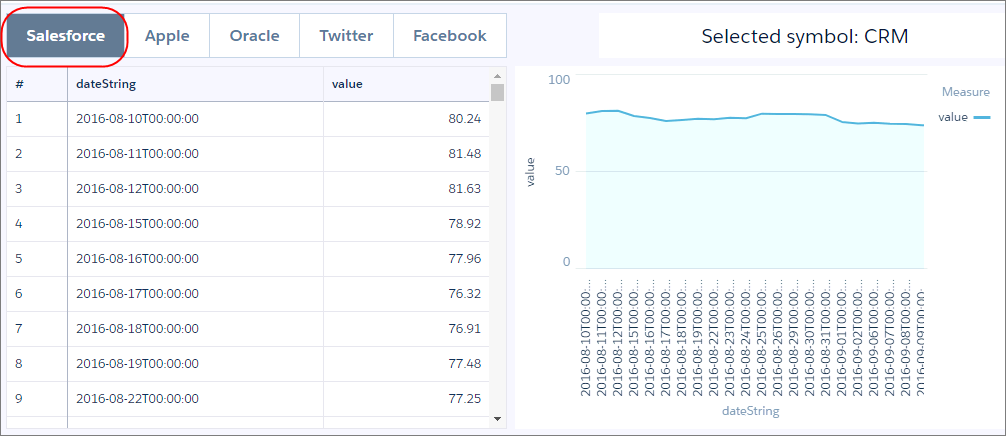
86 "display": "Salesforce",
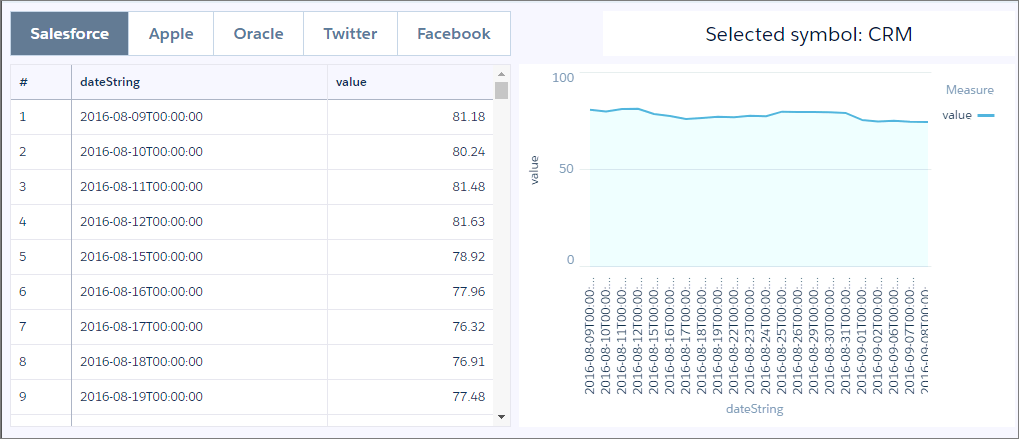
87 "value": "CRM"
88 },
89 {
90 "display": "Apple",
91 "value": "AAPL"
92 },
93 {
94 "display": "Oracle",
95 "value": "ORCL"
96 },
97 {
98 "display": "Twitter",
99 "value": "TWTR"
100 },
101 {
102 "display": "Facebook",
103 "value": "FB"
104 }
105 ],
106 "broadcastFacet": true
107 },
108 "StockData": {
109 "query": {
110 "body": {
111 "symbol": "{{cell(CompaniesList_1.selection, 0, \"value\").asString()}}"
112 },
113 "path": "stocks"
114 },
115 "type": "apex"
116 }
117 },
118 "widgetStyle": {
119 "backgroundColor": "#FFFFFF",
120 "borderColor": "#E6ECF2",
121 "borderEdges": [],
122 "borderRadius": 0,
123 "borderWidth": 1
124 },
125 "widgets": {
126 "table_1": {
127 "parameters": {
128 "borderColor": "#e0e5ee",
129 "borderWidth": 1,
130 "cell": {
131 "backgroundColor": "#ffffff",
132 "fontColor": "#16325c",
133 "fontSize": 12
134 },
135 "columns": [],
136 "customBulkActions": [],
137 "exploreLink": false,
138 "header": {
139 "backgroundColor": "#f4f6f9",
140 "fontColor": "#16325c",
141 "fontSize": 12
142 },
143 "innerMajorBorderColor": "#a8b7c7",
144 "innerMinorBorderColor": "#e0e5ee",
145 "mode": "fittocontainer",
146 "numberOfLines": 1,
147 "step": "StockData",
148 "verticalPadding": 8,
149 "evenRowColor": null,
150 "oddRowColor": null
151 },
152 "type": "table"
153 },
154 "pillbox_1": {
155 "parameters": {
156 "compact": false,
157 "exploreLink": false,
158 "step": "CompaniesList_1"
159 },
160 "type": "pillbox"
161 },
162 "text_1": {
163 "parameters": {
164 "fontSize": 20,
165 "text": "Selected symbol: {{ cell(CompaniesList_1.selection, 0, \"value\").asString() }}",
166 "textAlignment": "center",
167 "textColor": "#091A3E"
168 },
169 "type": "text"
170 },
171 "chart_1": {
172 "parameters": {
173 "autoFitMode": "keepLabels",
174 "showPoints": false,
175 "legend": {
176 "showHeader": true,
177 "show": true,
178 "customSize": "auto",
179 "position": "right-top",
180 "inside": false
181 },
182 "axisMode": "multi",
183 "tooltip": {
184 "showBinLabel": true,
185 "measures": "",
186 "showPercentage": false,
187 "showDimensions": true,
188 "showMeasures": true,
189 "customizeTooltip": false,
190 "dimensions": ""
191 },
192 "visualizationType": "line",
193 "dashLine": {
194 "measures": "",
195 "showDashLine": false
196 },
197 "exploreLink": false,
198 "title": {
199 "fontSize": 14,
200 "subtitleFontSize": 11,
201 "label": "",
202 "align": "center",
203 "subtitleLabel": ""
204 },
205 "trellis": {
206 "flipLabels": false,
207 "showGridLines": true,
208 "size": [
209 100,
210 100
211 ],
212 "enable": false,
213 "type": "x",
214 "chartsPerLine": 4
215 },
216 "fillArea": true,
217 "showZero": true,
218 "measureAxis2": {
219 "sqrtScale": false,
220 "showTitle": true,
221 "showAxis": true,
222 "title": "",
223 "customDomain": {
224 "showDomain": false
225 }
226 },
227 "measureAxis1": {
228 "sqrtScale": false,
229 "showTitle": true,
230 "showAxis": true,
231 "title": "",
232 "customDomain": {
233 "showDomain": false
234 }
235 },
236 "theme": "wave",
237 "step": "StockData",
238 "dimensionAxis": {
239 "showTitle": true,
240 "customSize": "auto",
241 "showAxis": true,
242 "title": "",
243 "icons": {
244 "useIcons": false,
245 "iconProps": {
246 "fit": "cover",
247 "column": "",
248 "type": "round"
249 }
250 }
251 },
252 "drawArea": {
253 "measure": "",
254 "showDrawArea": false,
255 "bounding1": "",
256 "bounding2": ""
257 }
258 },
259 "type": "chart"
260 }
261 }
262 },
263 "datasets": []
264}


 j
j