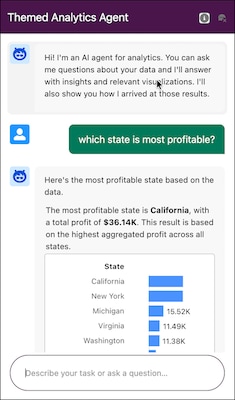
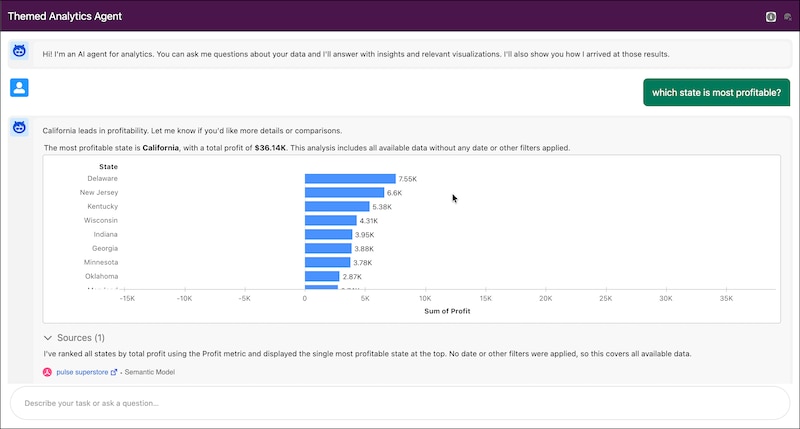
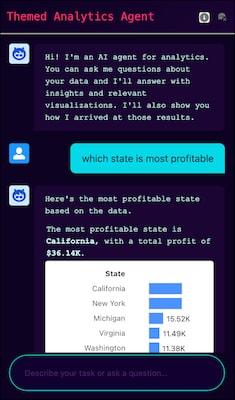
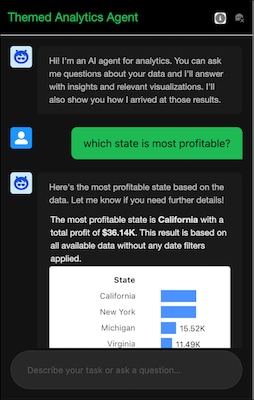
Bring your Analytics and Visualization agent directly into your app. This agent helps your users see and understand data with conversational analytics. The agent generates natural language insights, visualizations, and proactive alerts in your flow of work.
Use the AnalyticsAgent class to embed your agent as a component in your app.
From Setup, in the Quick Find box, enter Agentforce, and select Agentforce Agents.
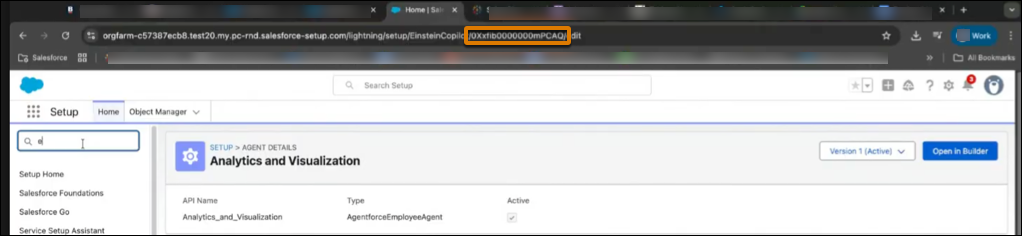
In the list of agents, click your agent name.
To get the ID of the agent, the ID from the Agent Details page URL.
Add the AnalyticsAgent Component to Your App
Embedding the AnalyticsAgent component is the same as embedding the other analytics components, using a container, the authentication configuration, and the SDK initialization.
Construct the AnalyticsAgent component, using the AgentProps. The AgentProps specify the container name and agent ID, along with the agent context type and the
API name for the context type.
The AUTH_CREDENTIAL value is the Frontdoor URL or access token provided by the code you created to authorize your users with Salesforce. The orgUrl is the URL for your Salesforce org.
The AnalyticsAgent component is designed to be embedded independent of other analytics components and works on its own. You can embed one or more corresponding analytics
components to give your user context for asking the agent questions, but it isn’t required for the agent to work.
Single Component Mode
To track a single analytics asset, provide a contextConfig with contextType and contextTypeIdOrApiName. The AgentContextConfig specifies the analytical view or data
scope for the agent to use.
The agent context specifies the analytical view or data scope for the agent to use. The agent uses this context to answer user questions.
You must reference the ID or API name of a semantic model, dashboard, or metric that exists in the same org as your Analytics and Visualization agent.
You can find the API name using the asset URL from Salesforce. In Tableau Next, view the asset you want to embed. When viewing the asset, the URL for the asset provides the asset API name.
Set the context type to the matching enum value, AgentContextType.SDM, AgentContextType.DASHBOARD, or AgentContextType.METRIC of the component type you selected.
Multiple Component Mode
To have the agent automatically track all embedded AnalyticsDashboard and AnalyticsMetric components on a page, omit the contextConfig. Omitting the contextConfig
runs the agent in multiple component mode. The agent receives context updates from every dashboard and metrics component and can answer questions across all of them.
Because contextConfig isn’t provided, the agent picks up context from both the dashboard and metric components automatically. You can embed as many dashboard
and metric components alongside the agent as you need.
Header Settings
You can also show the agent header and header actions, which aren’t visible by default. The header actions include the agent information and restart session actions.
When a user restarts a session, it clears their current session history.
Use the COMPONENT_LOADED event to listen for when the agent component is successfully loaded with an active session and is ready for interaction. Listen for ERROR events, using the payload to get details for troubleshooting.
1import {EventName} from '@salesforce/analytics-embedding-sdk';23agent.addEventListener(EventName.COMPONENT_LOADED, () => {4 console.log('Agent is ready');5});67agent.addEventListener(EventName.ERROR, (event) => {8 console.error('Agent error:', event);9});


 j
j