# Use CLI to Deploy Tableau Next Assets from Sandbox to Production
This document provides a comprehensive guide for deploying Tableau Next Assets between Salesforce orgs, such as from a sandbox to a production environment, by using the Salesforce Command-Line Interface (CLI) and Visual Studio Code (VS Code).
This deployment process uses the Metadata API and Salesforce DX project structure to manage and transfer Tableau Next assets, which include workspaces, visualizations, and dashboards.
The guide covers:
- Authorization of your Salesforce orgs with the CLI.
- Project set up in VS Code.
- The creation and structure of manifest files (`package.xml`) to specify the assets for deployment.
- The commands to retrieve the asset metadata from the source org and deploy it to the target org.
- Creating and downloading the manifest file for the data kit.
- Deploying the data kit first to make sure that data dependencies are present.
- Deploying the Tableau Next Assets themselves.
## Before You Begin
Complete these prerequisites:
- Create a deployment connection between the production org and the sandbox org. See [Authorize a Deployment Connection](https://help.salesforce.com/s/articleView?id=platform.t_changesets_deployment_connection.htm).
- Install VS Code, Salesforce Extension for Visual Code, and the Salesforce CLI. See [Installation Instructions](https://developer.salesforce.com/docs/platform/sfvscode-extensions/guide/install.md).
To deploy Tableau Next Assets, make sure that you have these user permissions:
- Data Cloud Architect permission set
- Tableau Next Admin permission set
- Approve Uninstalled Connected Apps user permission
- [Metadata API Edit Access](https://help.salesforce.com/s/articleView?id%3Dplatform.meta_modify_metadata_perm.htm)
## Authorize Your Org
Before you can run commands to retrieve asset metadata from your org, you must authorize your CLI environment.
Authorize an org by running the [`sf org login web`](https://developer.salesforce.com/docs/atlas.en-us.258.0.sfdx_cli_reference.meta/sfdx_cli_reference/cli_reference_org_commands_unified.htm#cli_reference_org_login_web_unified) CLI command and entering your credentials in the browser that automatically opens.
For example, run this command from the command line (not from the VS Code terminal):
`sf org login web --alias sandbox --instance-url https://your-org.my.salesforce.com`
This command uses the `–-alias` flag to specify a simple name, like `sandbox`, for the Salesforce org. After you’ve connected and authorized the org, you can use the alias rather than the full org URL for deployment commands.
To verify and view connected org, run this command in VS Code:
`sf org list`
## Create a Project for Tableau Next Assets
Open your VS Code desktop app and follow the given steps to create a Salesforce DX project:
1. Open the VS Code Command Palette (`⇧⌘P`) and enter **SFDX: Create Project**.
2. Press **Enter** to use a standard project template.
3. Add a project name and press **Enter**.
4. Select the directory where you want to create your project and click **OK**.
5. In the new project, create a folder for the package manifest files. For example, `manifests`.
## Create Manifest Files
A manifest file is an XML file that specifies the Tableau Next assets that you want to retrieve from one org and deploy into another org.
In the `manifests` folder, create an XML file with the code below. In this guide, we refer to this file name as `manifest.xml`.
```xml
65.0
```
### Manifest File Syntax
The syntax of a manifest file includes three primary elements: `types`, `members`, and `name`. The `version` element is required. All of these elements are included in the parent `Package` element.
**Example `manifest.xml` File**
This example shows a manifest file with the 6 Tableau Next assets for version 65.0 of Salesforce:
- Two workspaces: `Winter_2025` and `Winter_2025`.
- Three visualizations: `Fall_Sales_2025`, `Projections`, and `Opportunities`.
- One dashboard: `Spring_Plan_2026`.
```xml
Winter_2025
Winter_2025
AnalyticsWorkspace
Fall_Sales_2025
Projections
Opportunities
AnalyticsVisualization
Spring_Plan_2026
AnalyticsDashboard
65.0
```
**`Package` Block**
```xml
```
Each `Package` block includes one or more `types` blocks and a `version` element.
For the `xmlns` attribute, specify the `soap.sforce.com` namespace as shown in the example.
**`version` Element**
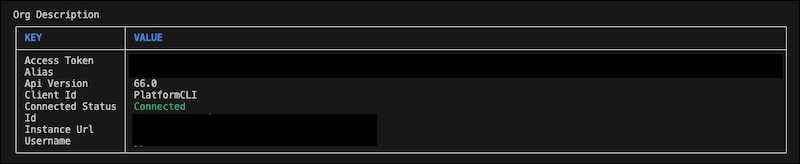
The `version` element must contain the version of Salesforce used to create the newest assets in your manifest file. Because versioning is backwards-compatible, we recommend putting the current version of your Salesforce org in this element. To determine the version of Salesforce for your org, run the [`sf org display -o `](https://developer.salesforce.com/docs/atlas.en-us.sfdx_cli_reference.meta/sfdx_cli_reference/cli_reference_org_commands_unified.htm#cli_reference_org_display_unified) command:
**Syntax**
`sf org display -o `
**Example**
`sf org display -o sandbox`
The command returns org information, including the current API version.
**`types` Block**
The `types` block takes one or more `members` elements and a `name` element. Each `types` block corresponds to one of three Tableau Next asset types: `AnalyticsWorkspace`, `AnalyticsVisualization`, or `AnalyticsDashboard`.
```xml
API-name
asset-type-name
```
Here’s an example of a `types` block that specifies an API name of `Winter_2025` for `members` that is an asset type, `AnalyticsWorkspace`:
```xml
Winter_2025
AnalyticsWorkspace
```
**`members` Element**
Each `members` element specifies the API name, like `workspace1`, for the specific asset that you want to deploy. You can have multiple `members` elements in a `types` block, each specifying a different API name.
```xml
Winter_2025
Spring_2026
Summer_2026
AnalyticsWorkspace
```
**API Name**
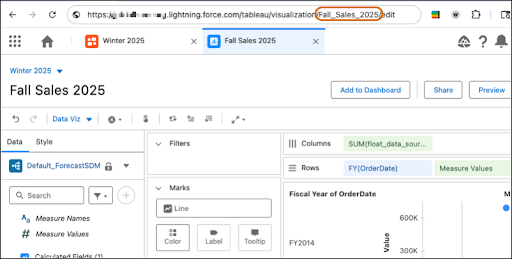
The API name is the asset name generated by Salesforce when the asset is created. To retrieve the API name, open the asset in Tableau Next and copy the name from the end of the URL. For example, this URL opens workspace Winter 2025:
`https://org-name.lightning.force.com/tableau/workspace/Winter_2025`
The API name for the Winter 2025 workspace is `Winter_2025`.
As shown here, this URL opens the visualization, Fall Sales 2025:
`https://org-name.lightning.force.com/tableau/visualization/Fall_Sales_2025`
The API name for Fall Sales 2025 is `Fall_Sales_2025`.
**`name` Element**
The `name` element specifies the type of asset. For example, `AnalyticWorkspace`. Each `types` block contains only one `name` element.
There are three types of Tableau Next assets that you can specify in the XML. This table lists the asset type and the corresponding name that is specified in the `name` element:
| Asset Type | `name` |
| ------------- | ------------------------ |
| Workspace | `AnalyticsWorkspace` |
| Visualization | `AnalyticsVisualization` |
| Dashboard | `AnalyticsDashboard` |
## Deploy Tableau Next Assets
This procedure describes how to deploy Tableau Next assets that don't require data kit customizations.
### Retrieve the Project
After you’ve created your manifest file, you can use it to retrieve the asset metadata from the source org.
Run the [`sf project retrieve start`](https://developer.salesforce.com/docs/atlas.en-us.sfdx_cli_reference.meta/sfdx_cli_reference/cli_reference_project_commands_unified.htm#cli_reference_project_retrieve_start_unified) command in VS Code:
**Syntax**
`sf project retrieve start --manifest -o `
**Example**
`sf project retrieve start --manifest manifests/manifest.xml -o sandbox`
The command creates metadata files for each asset specified in the manifest file.\
VS Code writes these metadata files into your project at the `../force-app/main/default` path.
### Deploy the Project
Now that all metadata files are in your project folder, you can deploy them to the destination org.
:::note
Before you can deploy the project to the destination org, you must [Authorize Your Org](#authorize-your-org).
:::
Run the `sf project deploy start` command in VS Code:
**Syntax**
`sf project deploy start --manifest -o `
**Example**
`sf project deploy start --manifest manifests/manifest.xml -o prod`
The command creates the Tableau Next assets in the target org by using the metadata files for each asset specified in the manifest file.
:::note
You can’t deploy data kits containing Tableau Next assets from on a higher major release version, such as preview sandboxes, to target orgs (production or non-preview sandbox) on a lower major release version. Make sure that your sandbox org is on the same release version as your target org before creating the data kit.
- You can deploy within the same major release from a lower minor version to a higher minor version.
- You can deploy within the same major release from a higher minor version to a lower minor version.
- You can deploy from a lower major release to a higher major release, which supports backward compatibility and automated upgrade processes.
- **You can’t deploy from a higher major release to a lower major release.**
For more information about sandbox previews, see [What are Preview and Non-Preview Sandboxes?](https://help.salesforce.com/s/articleView?id=platform.data_sandbox_preview.htm) and [Salesforce Sandbox Preview Instructions](https://help.salesforce.com/s/articleView?id=000391927\&type=1).
:::
## Deploy Tableau Next Assets with Data Kit Objects
If your Tableau Next assets rely on DMOs, DLOs, or semantic models, you may need to deploy those data assets from the sandbox to the production environment. If these assets exist in the production environment and are the latest production versions of the assets used to create the Tableau Next assets in your sandbox environment, then you don’t need to deploy them.
If you're deploying Tableau Next assets that require a data kit, deploy the data kits first. After you verify that the data kits are deployed and contain the same data used to generate the Tableau Next assets, then deploy the Tableau Next assets.
### Deploy Data Kit
#### Create a Data Kit
Use this process to create a standard data kit for a managed package. For more information about creating data kits, see [Use CLI to Deploy Changes from a Sandbox to Data Cloud](https://developer.salesforce.com/docs/data/data-cloud-dev/guide/dc-deploy_data_kit_using_cli.md).
1. In your Developer Edition org, go to **Data Cloud Setup**.
2. Under Developer Tools, click **Data Kits**.
3. Click **New**.
4. Name the data kit and add an optional description, such as what it contains.
5. For Data Kit Type, select DevOps.
6. Save your changes.
7. Add one or more Data 360 features by clicking **Add** in the appropriate section, then configure the data kit details.
8. Review the **Publishing Sequence**.
You must ensure your assets reflect the following sequence, at a minimum:
- Semantic Models
- Workspaces
- Visualizations
- Dashboards
This is due to the dependency sequencing for data kits. Visualizations have dependencies on semantic models and workspaces, and dashboards have dependencies on
visualizations. The default sequence is based on each asset's creation date, which may not suitable in all cases. For more information, see [Create and Publish a
Standard Data Kit](https://help.salesforce.com/s/articleView?id=data.c360\_a_data_stream_bundle_package_kits.htm).
:::important
If you don't review and update the publishing sequence, data kit deployment will fail.
:::
9. Save your changes.
#### Download the Data Kit Manifest File
1. In your Developer Edition org, go to **Data Cloud Setup**.
2. Under Developer Tools, click **Data Kits**.
3. Select the data kit that you want to deploy.
4. On the top right of the page, click the dropdown arrow, and then click **Download Manifest File**.\
This downloads a manifest file, `package.xml`, to your computer.
#### Retrieve Your Data Kit
:::note
Before you can retrieve the data kit, you must [Authorize Your Org](#authorize-your-org).
:::
1. Rename `package.xml`, the manifest file that you downloaded, to match your file naming scheme for the sandbox deployment project, for example, `manifest\_datakit.xml`.
2. In VS Code, add `manifest\_datakit.xml` to the `manifests` folder in your project.
3. Run the `sf project retrieve start` command in VS Code.\
**Syntax**
`sf project retrieve start --manifest -o `
**Example**
`sf project retrieve start --manifest manifests/manifest_datakit.xml -o sandbox`
The command creates metadata files for each asset specified in the manifest file.\
VS Code writes these metadata files into your project under the `../forc-app/main/default` path.
#### Deploy the Data Kit
Now that all metadata files are in your project folder, you can deploy them to the destination org.
:::note
Before you can deploy the project to the destination organization, you must [Authorize Your Org](#authorize-your-org).
:::
Run the `sf project deploy start` command in VS Code:
**Syntax**
`sf project deploy start --manifest -o `
**Example**
`sf project deploy start --manifest manifests/manifest_datakit.xml -o prod`
The command creates the data kit assets in the target org by using the metadata files for each asset specified in the manifest file.
### Deploy Your Tableau Next Assets
After you’ve verified that the data kits are deployed and contain the same data used to generate the Tableau Next assets, then deploy the Tableau Next assets.
See [Deploy Tableau Next Assets](#deploy-tableau-next-assets).