


Authenticate for Tableau Next Salesforce REST API Endpoints
The Tableau Next REST API is a REST API that connects your application to large language models (LLMs). Start by creating a Salesforce app and generating a JSON Web Token (JWT) that you can use to access this API.
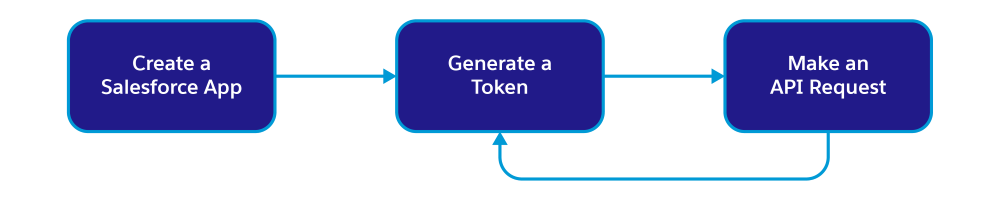
Step 1. Create a Salesforce App
To securely communicate with Salesforce using the Tableau Next REST API, you must create an External Client App or a Connected App. Both app types allow external services to integrate with Salesforce APIs using well-known authorization protocols, such as OAuth. External Client Apps (ECAs) are the new generation of Salesforce apps, and we suggest that you use an ECA for this purpose. However, these basic guidelines apply to both app types.
Create an external client app with OAuth and JWT enabled. Use these instructions to get set up: Create a Local External Client App.
When creating the app, include these settings.
-
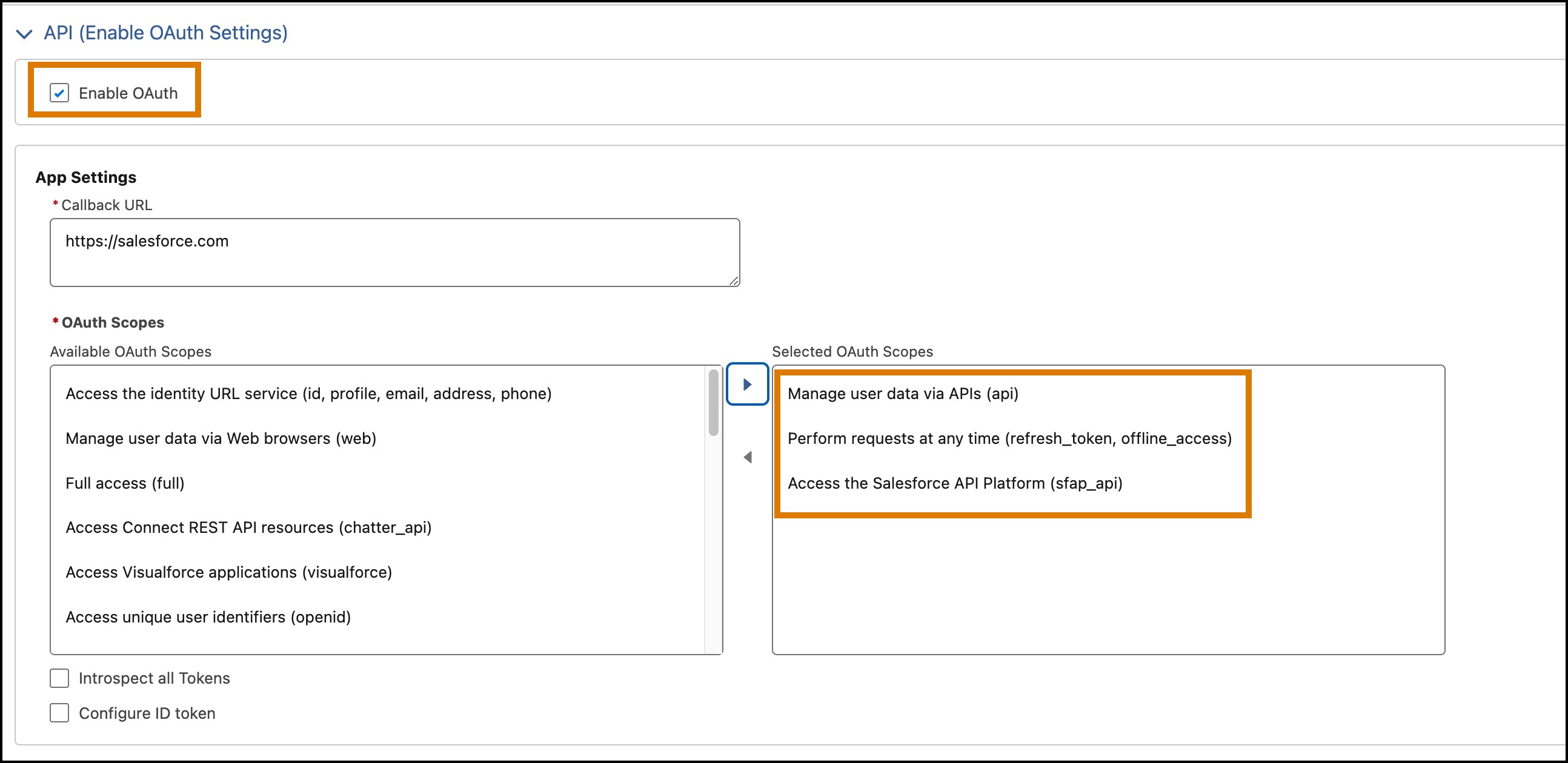
Use these OAuth scopes.
- Manage user data via APIs (api): Gives you access to user data.
- Perform requests at any time (refresh_token, offline_access): Permits you to get an OAuth access token.
- Access the Salesforce API Platform (sfap_api): Enables access to the Salesforce REST API platform.
-
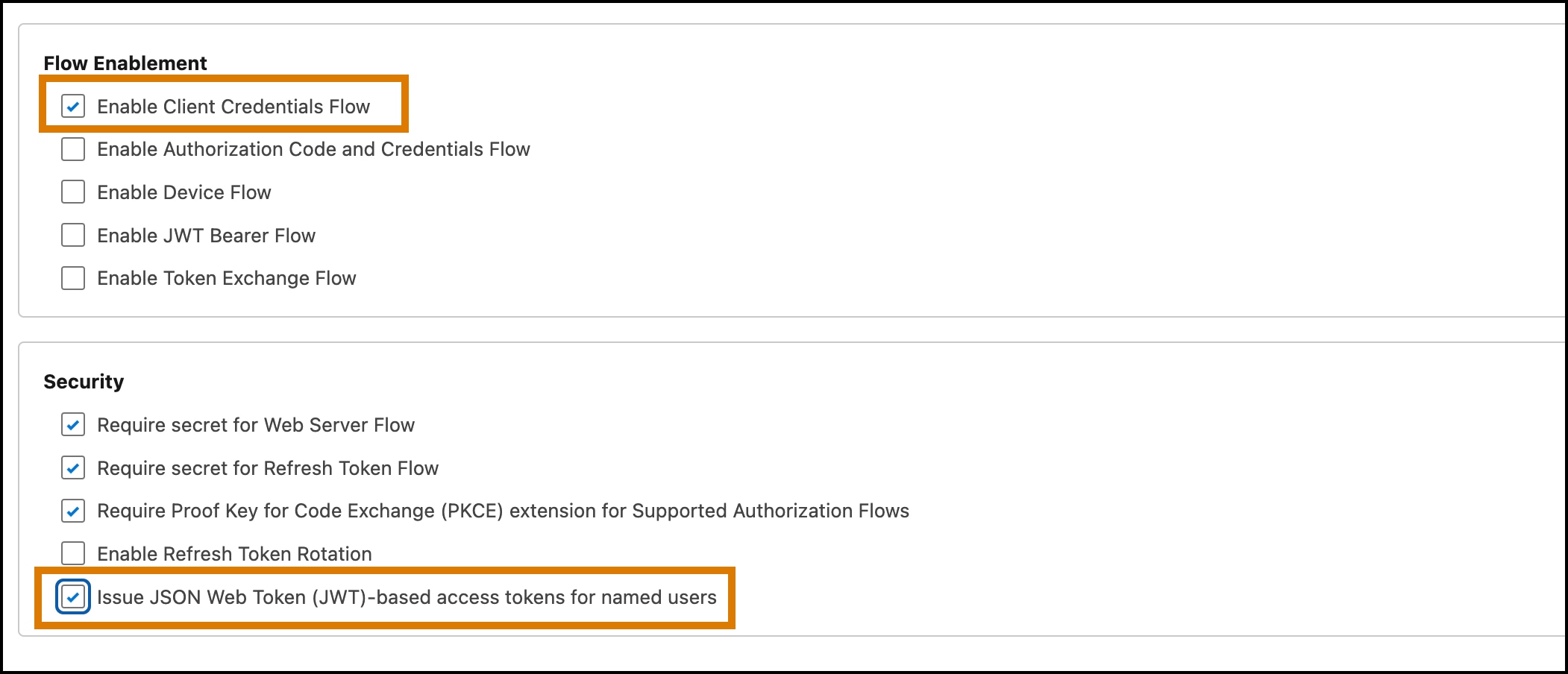
Select these additional OAuth settings.
- Enable Client Credentials Flow: Allows your app to exchange its client credentials for an access token.
- Issue JWT Web Token (JWT)-based access tokens for named users: Allows app to issue tokens for named users.
-
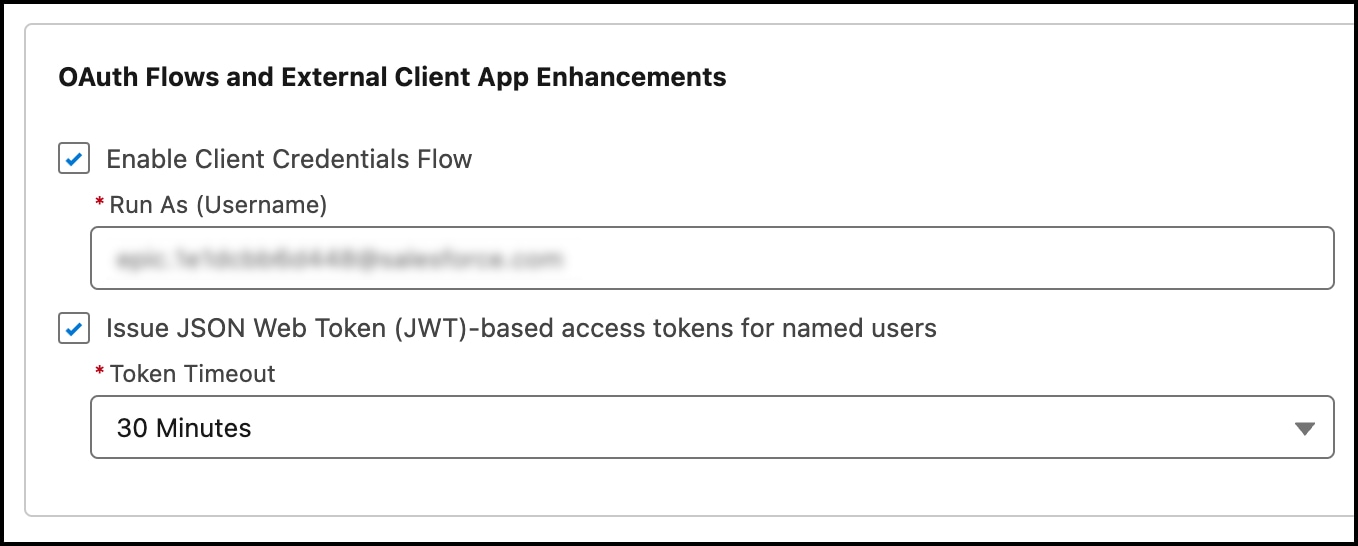
After creating the app, ensure that the API caller has the correct client credentials and that the client can issue JWT-based access tokens.
- Click the Policies tab for the app, and then click Edit.
- Select the Enable Client Credentials Flow checkbox.
- Specify the client user in the Run As field.
- Select the Issue JSON Web Token (JWT)-based access tokens checkbox. By default, this token expires in 30 minutes. You can change this value to less than 30 minutes.
Step 2. Generate a JWT
A JSON Web Token (JWT) is required for authorization.
-
From Setup, in the Quick Find box, enter
External Client Apps, and then select External Client Apps Manager. -
Select your app, and click the Settings tab.
-
Expand the OAuth Settings section.
-
Click the Consumer Key and Secret button, and copy your key and secret. You need these values to mint this token.
Store your consumer secret in a secure location.
Important
-
From Setup, in the Quick Find box, enter
My Domain, and then select My Domain. -
Copy the value shown in the Current My Domain URL field.
-
Request a JWT from Salesforce using a POST request, specifying the values for your domain, consumer key, and consumer secret. For example:
1curl -X POST https://{my_domain}/services/oauth2/token -d "grant_type=client_credentials&client_id={consumer_key}&client_secret={consumer_secret}"1{"access_token":"eyJhbGciOiJIUzI1NiIsInR5cCI6IkpXVCJ9.eyJzdWIiOiIxMjM0NTY3ODkwIiwibmFtZSI6IlNBTVBMRSBKV1QgRk9SIERFTU8gUFVSUE9TRVMiLCJpYXQiOjE1MTYyMzkwMjJ9.XYwlhE_q0-yVwswgaXuOx2nbXRFpEbagcScXnjWt2yo","signature":"uSs/SAlD/i+pL93EdLVUUY4F8uqfHHtteFii2E3zkhc=","token_format":"jwt","scope":"sfap_api analytics_agent_api api","instance_url":"https://sample-company.my.salesforce.com","id":"https://login.pc-rnd.salesforce.com/id/XYZ/ABC","token_type":"Bearer","issued_at":"1713195676742","api_instance_url":"https://api.salesforce.com"}If you receive an
invalid_granterror with the description,request not supported on this domain, verify that the domain is the domain specified when you view My Domain in Setup.Tip
-
Use the
access_tokenvalue in this response for theAuthorizationheader in your API requests. For example:1Authorization: Bearer {access_token}
See Also
- Salesforce Help: External Client Apps
- Salesforce Help: Connected Apps
 j
j