Use the Shopper Login and API Access Service (SLAS) to authenticate shoppers securely without passwords using Fast IDentity Online 2 (FIDO2) credentials, also known as passkeys. This feature supports hardware and software-based authenticators such as TouchID, FaceID, and YubiKeys.
Passkeys replace traditional, static passwords with public key cryptography, offering enhanced security against phishing and credential stuffing while providing a faster, smoother login experience.
Before You Begin
To integrate passwordless login with passkeys, you must have:
An active B2C Commerce license.
A SLAS client configured for passkeys: You can use either a public or private client. The client ID must be set with site configuration for a WebAuthn Replying Party ID and WebAuthn allowed origins:
Relying Party ID: The browser’s origin. For example, example.com.
Allowed Origins: A comma-delimited set of accepted origins. For example, https://example.com, https://example.com:8080.
Client-side implementation: A frontend application serves as the interface for calling the browser’s WebAuthn API during registration and login flows.
Other Considerations
Shopper Verification: Before a user can register a passkey, their identity must be verified. For example, they can use a one-time password (OTP) email.
Browser Support: Passkeys rely on FIDO2 standards, which are supported by major browsers like Chrome, Edge, and Safari.
Migration Strategy: You can support a hybrid approach where users continue using passwords while optionally registering Passkeys, or require OTP verification before Passkey registration.
Overview
To understand how passwordless login with Passkeys works, let’s consider the three primary workflows: shopper verification, registration, and authentication.
1. Shopper Verification (Pre-Registration)
Before a user can register a Passkey, their identity must be verified.
The shopper logs in or creates an account and requests to register a device (passkey).
SLAS sends a one-time-password (OTP) to the shopper (for example, via email) .
The shopper enters the OTP. Upon successful validation, the system proceeds to the WebAuthn registration flow.
2. Registration
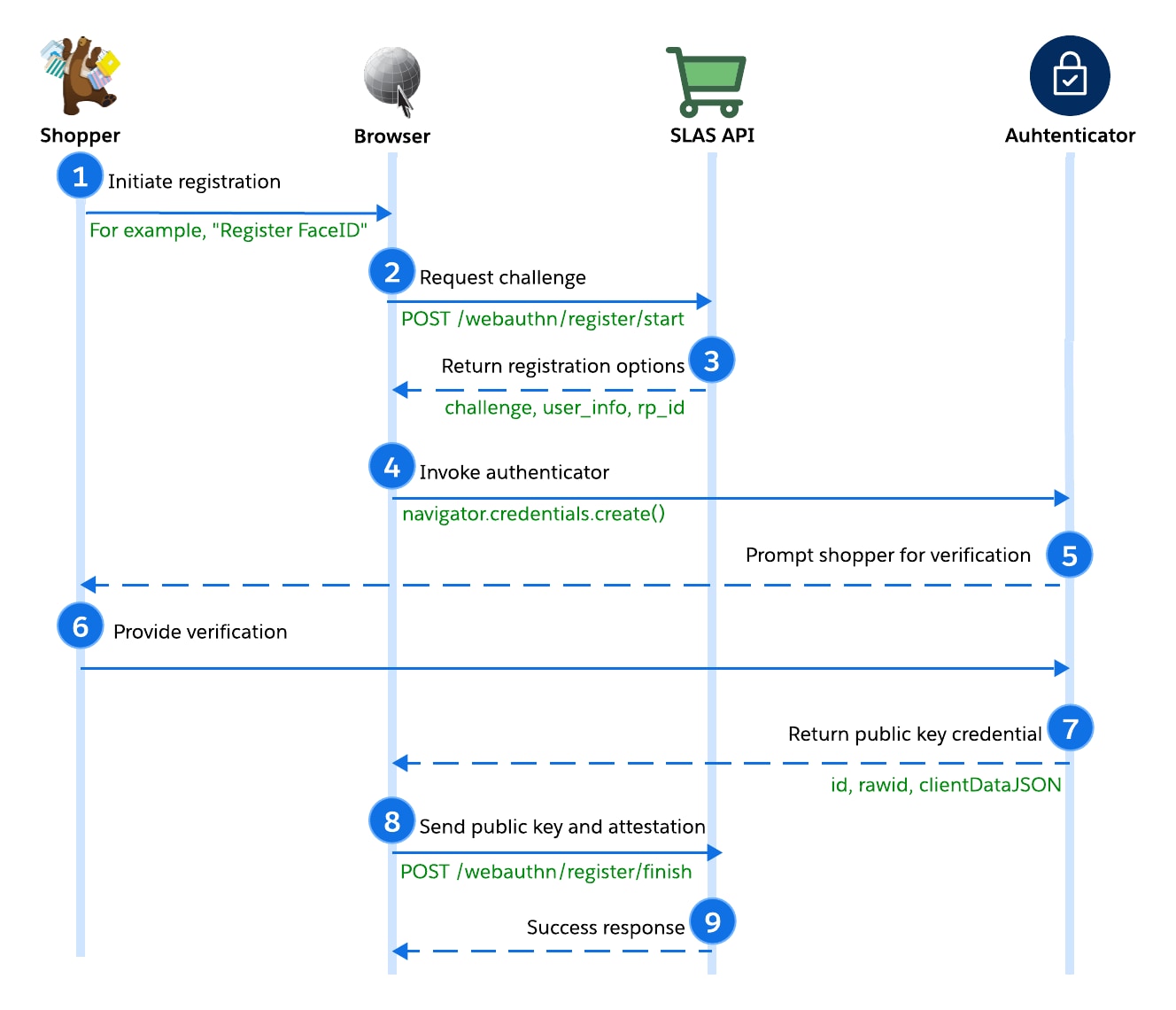
The registration process generates a unique key pair on the shopper’s device. The private key remains securely on the authenticator, while the public key is registered with SLAS.
The shopper initiates registration. For example, they click “Register FaceID.”
The browser (client) requests a registration challenge from SLAS via POST /webauthn/register/start.
SLAS verifies the tenant/client, generates a random challenge, and returns credential options.
The cryptographic challenge is a random string generated by the server to prevent replay attacks. The client must sign this data to prove possession of the private key.
Note
The browser uses the options returned by SLAS to invoke the authenticator, calling navigator.credentials.create().
The authenticator prompts the shopper for verification (biometric/PIN).
The shopper verifies their presence (for example, by providing FaceID).
The authenticator generates and returns a new public key credential.
The browser sends the credential response to SLAS via POST /webauthn/register/finish.
SLAS verifies the challenge, origin, and signature before storing the public key. If successful, returns status 204 to the browser.
3. Authentication
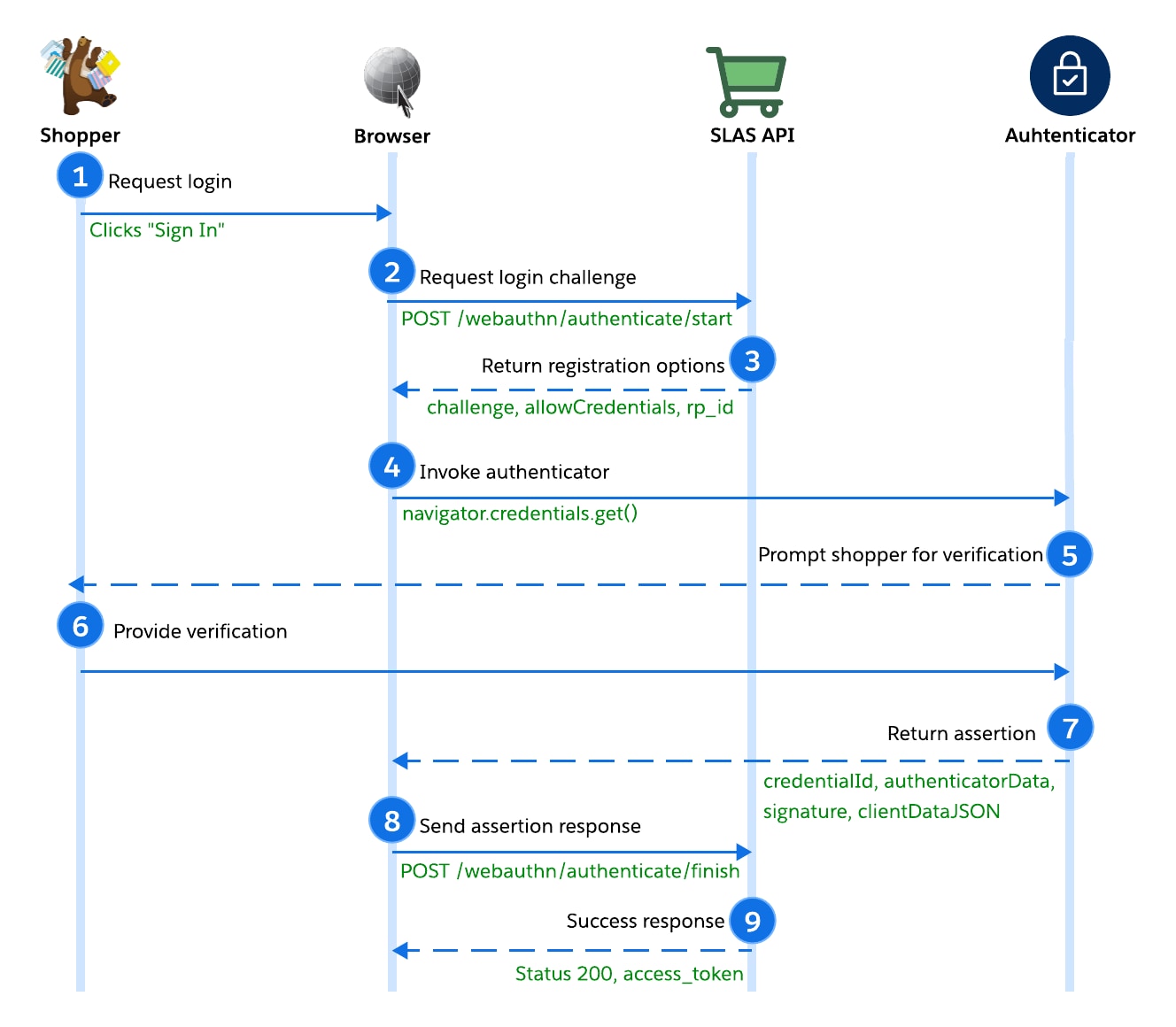
Authentication allows a returning user to log in without a password by signing a challenge with their private key.
The shopper clicks “Sign In.”
The browser (client) requests the login challenge via POST /webauthn/authenticate/start. The request includes the tenant, SLAS public client_id, and username.
After verifying the tenant and client_id, SLAS returns the authentication options, including the challenge, allowCredentials list, and rpId.
The browser uses the options returned by SLAS to invoke the authenticator, calling navigator.credentials.get().
The authenticator prompts the shopper for verification (biometric/PIN).
The shopper verifies their presence (for example, by providing FaceID).
After signing the challenge using the stored private key, the authenticator returns the assertion. The assertion response includes the credentialId, authenticatorData, signature, and clientDataJSON.
The assertion is a digital signature that proves the user is present and controls the private key.
Note
The browser sends the signature and assertion response to SLAS via POST /webauthn/authenticate/finish.
SLAS verifies the signature against the stored public key. Upon success, SLAS issues a Shopper JWT (access token).
WebAuthn Flow Data
Here’s a sample of what to expect when making the SLAS WebAuthn calls for passwordless login with passkeys.
1. Authorize - Get the OTP
Make a POST request to /webauthn/register/authorize.


 j
j