Manage Orders with Point of Sale SPIs
Configure Point of Sale SPIs to manage orders when an external order management system isn’t available. Improve order processing and management capabilities. Gain the benefits of a robust order management system directly within Point of Sale. Efficiently handle order workflows, track order status, and streamline fulfillment processes.
Create and configure two SPIs in CMS: Search Order and Order Details.
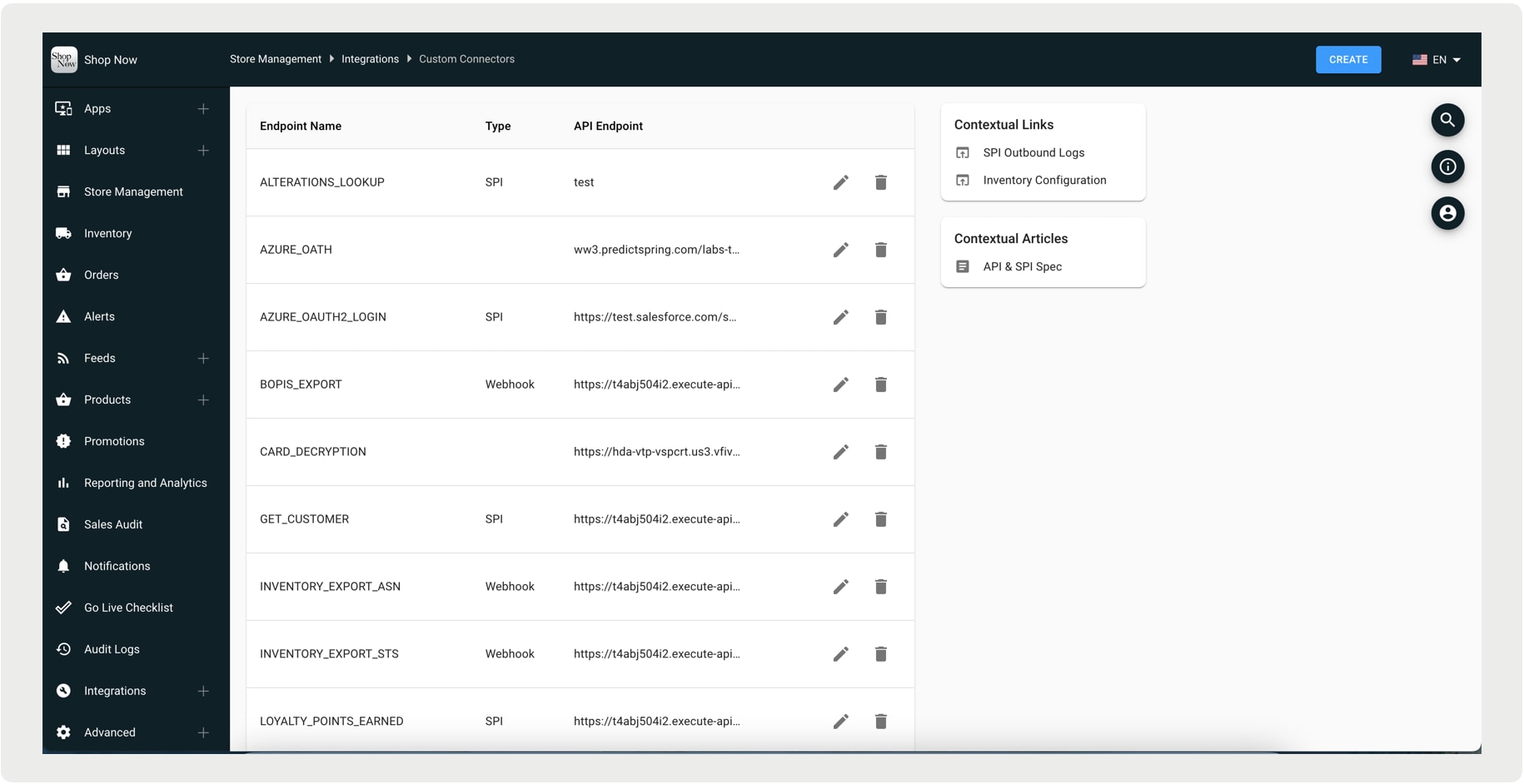
-
In CMS, go to Integrations | Custom Connectors.
-
Click Create.
-
For Connector Type, select SPI.
-
For Endpoint Name, select SEARCH_ORDER.
-
Configure the rest of the fields by referring to Point of Sale API, SPI, and Webhook Overview.
-
Save your changes.
-
In CMS, go to Integrations | Custom Connectors.
-
Click Create.
-
For Connector Type, select SPI.
-
For Endpoint Name, select GET_ORDER_DETAIL.
-
Configure the rest of the fields by referring to Point of Sale API, SPI, and Webhook Overview.
-
Save your changes.
Turn on the updated order search service (orderSearchV2) in CMS to leverage Point of Sale latest order search capabilities. The sequence of these calls begins with populating the order history section in the customer profile using the Order Search API. If the SEARCH_ORDER SPI is configured and orderSearchV2 is enabled, the customer’s orders are retrieved from an external system and displayed in this section.
The SPIs must be configured.
-
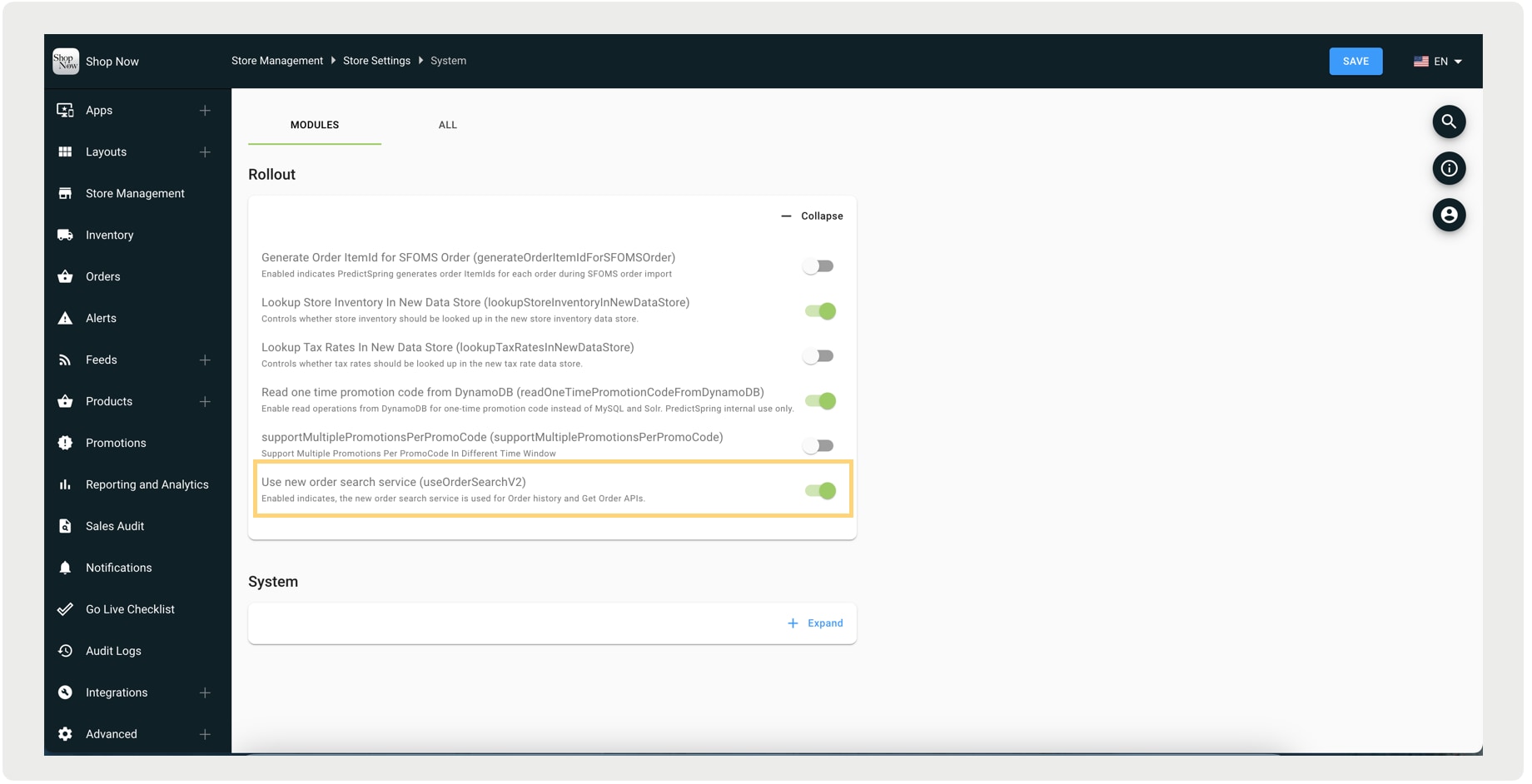
In CMS, go to Store Management | Store Settings | System.
-
Expand Rollout.
-
Turn on the setting “Use new order search service (useOrderSearchV2).”
Status & Returns
Point of Sale enforces a check that prevents orders from being returned unless they have a status of Completed, Exchanged, Partially Exchanged, Fulfilled, or Partially Refunded. Orders with a status of, for example, Shipped can’t be returned.