# Deploy a Custom Script to Data 360 Sandbox by Using UI
The deployment process packages your Python script, its dependencies, and Data 360 configuration, and then uploads them to Data 360.
| Edition Table |
| ------------------------------------------------------------------------------------------------------------------------------------------------------------------------------------------------------------- |
| Available in: **Developer**, **Enterprise**, **Performance**, and **Unlimited** Editions. See [Data 360 edition availability](https://help.salesforce.com/s/articleView?id=sf.c360_a_dc_editions.htm&type=5). |
| User Permissions Needed | |
| ---------------------------------------------- | ------------------------------------------------------ |
| To deploy a custom script to Data 360 Sandbox: | Permission set: |
## Prerequisites
- Enable Code Extension in Data Cloud Setup by using the Feature Manager. See [Enable Data 360 Features in Feature Manager](https://help.salesforce.com/s/articleView?id=data.c360\_a_feature_manager.htm\&language=en_US\&type=5).
- Write custom scripts and validate them locally against a sandbox org. See [Write and Validate Custom Scripts](/docs/data/data-cloud-code-ext/guide/author-custom-script.md).
## Steps to Deploy a Custom Script
1. Go to your code extension script package directory.
```
cd
```
2. Package your code and its dependencies into a `.zip` file.
```bash
sf data-code-extension script zip --package-dir ./payload
```
The CLI automatically packages these files.
- **Source file**: `entrypoint.py`
- **Dependencies**: `requirements.txt` and equivalent dependency files
- **Configuration**: `config.json` and other configuration files
- **Project files**: Essential project structure files (for example, Dockerfile)
:::important
To ensure a successful deployment, confirm that your zipped file size is less than 5 GB.
:::
3. Go to Data Cloud Setup. Under Developer Tools, select **Code Extension**.
4. Click **New**.
5. Enter these details, and then click **Next**.
| Field | Description |
| ----------------------- | ------------------------------------------------------------------------------------------------------------------------------------------------------------------------------------------------------------------------------------------------------------------------------------------------------- |
| **Deployment Name** | A name for your deployment. This name helps you and your team identify the code extension in the Data 360 user interface. |
| **Deployment API Name** | A unique identifier for your custom script deployment. The API name can contain only underscores and alphanumeric characters. It must be unique, begin with a letter, and be no more than 40 characters. The name can’t include spaces, end with an underscore, or contain two consecutive underscores. |
| **Description** | A concise summary of what your code extension does and its intended business use case. |
6. Specify these code details, and then click **Next**.
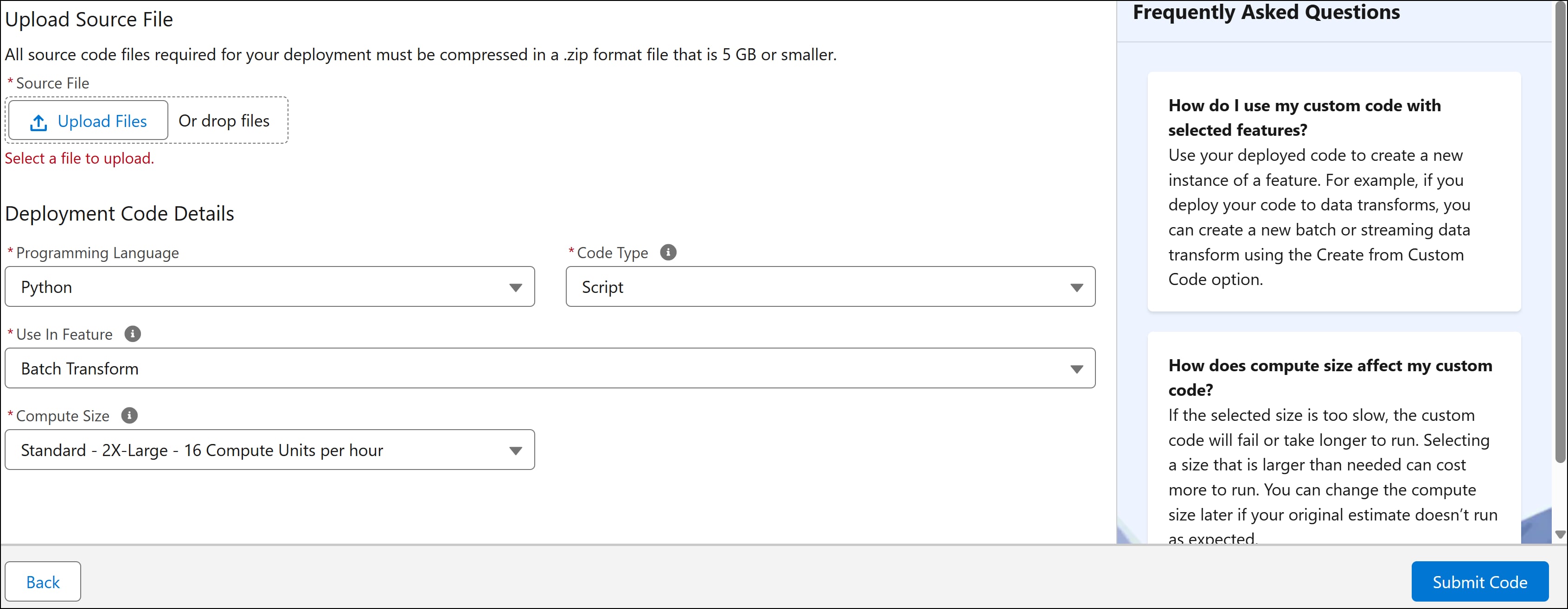
| Field | Description |
| ------------------------ | -------------------------------------------------------------------------------------------------------------------------------------------------------------------------------------------------------------------------------------------------------------------------------------------------------------------------------------------------------------------------------------------------------------------------------------------------------------------------------------------------------- |
| **Programming Language** | Select **Python**, the language used to write your custom script. |
| **Code Type** | Select **Script**. |
| **Use in Feature** | Select **Batch Data Transform** to use the deployed script in your batch data transform. |
| **Compute Size** | Select the compute size based on your expected workload and resource requirements.- Larger sizes provide more vCPUs and memory but consume more credits.
- The available compute sizes are: `Standard - Large - 4 Compute Units per hour`, `Standard - X-Large - 8 Compute Units per hour`, `Standard - 2X-Large - 16 Compute Units per hour`, and `Standard - 4X-Large - 32 Compute Units per hour`.
- With each size increase, the number of CPU cores and memory doubles.
|
7. To upload your code extension, click **File Upload** and select your zipped package. You can also drag your package into the upload window.
Use the dropdown options to remove or replace the uploaded code extension as needed.
8. Click **Submit Code** to deploy your script.
The deployment completes in a few minutes. Monitor the deployment status on the Code Extension page.
## Next Step
[View Deployment Details](/docs/data/data-cloud-code-ext/guide/view-deployment-details.md)
## See Also
- [Invoke Code Extension by Creating a Batch Data Transform](/docs/data/data-cloud-code-ext/guide/create-batch-transform.md)
- [Migrate Custom Script from Sandbox to Production](/docs/data/data-cloud-code-ext/guide/migrate-code-to-prod.md)