Integrate the iOS SDK
You can integrate the MobilePush SDK into your iOS app to enable push notifications and user engagement features.
There are three ways to implement the SDK:
- Implement the SDK with CocoaPods
- Implement the SDK with Swift Package Manager
- Implement the SDK Manually
To add the SDK as a dependency in your app’s Podfile, add the pod to your Xcode project. See Using CocoaPods: Adding Pods to an Xcode project.
Next, open the .xcworkspace created by the install process using Xcode and start using the SDK.
Don’t open .xcodeproj directly. Opening a project file instead of a workspace can lead to errors.
Starting with version 8.0.0 of the MobilePush SDK, you can implement the SDK using Swift Package Manager (SPM).
-
In Xcode, open your project and select Project Settings.
-
Go to the Package Dependencies tab, and click + to add a new package.
-
Enter the repository URL and add these packages required for your implementation:
- For 11.x: MarketingCloudSDK, PushFeatureSDK, and InAppMessagingFeatureSDK
- For 10.x: MarketingCloudSDK and PushFeatureSDK
- For 8.x: MarketingCloudSDK
-
Review the package details and confirm to complete the installation.
For information about migrating from older versions of the SDK, see Migrate and Upgrade the MobilePush SDK
To implement the SDK manually, complete these steps.
-
Download the latest versions of the required frameworks:
- For 11.x: MarketingCloudSDK, PushFeatureSDK, SFMCSDK, AppGroupSDK, and InAppMessagingFeatureSDK
- For 10.x: MarketingCloudSDK, PushFeatureSDK, and SFMCSDK
- For 8.x: MarketingCloudSDK and SFMCSDK
-
Copy the relevant
.xcframeworkdirectories from your downloads folder into your project folder. -
In Xcode, open your project and select the appropriate target. Add the required
.xcframeworkfiles to Frameworks, Libraries, and Embedded Content in the target’s General settings. -
In Build Settings, add
-ObjCto Other Linker Flags.
For reference documentation on SDK configuration methods, refer to these links:
- For MobilePush iOS SDK version 11:
MarketingCloudSDK - For MobilePush iOS SDK version 10:
MarketingCloudSDK - For MobilePush iOS SDK version 9:
PushModule - For MobilePush iOS SDK version 8:
PushModule - For MobilePush iOS SDK version 7:
MarketingCloudSDK
The configuration example in this section uses the MarketingCloudSDK ConfigBuilder configuration method, as it’s the most flexible means to support your application’s usage of the MobilePush SDK.
Configuring the SDK using a JSON file is deprecated. Move existing implementations to the builder method. For more information about configuration methods, see the MarketingCloudSDKConfigBuilder reference for SDK version 7 and later, and the PushConfigBuilder reference for SDK versions 8 and later.
All method names contain the prefix sfmc_. This convention allows the application implementing the SDK to avoid namespace collisions between the external libraries it uses. The MarketingCloudSDK doesn’t cause compile, link, or runtime collisions with other code your application implements. For more information, see Apple Developer Documentation: Customizing Existing Classes.
Configure the SDK in your application using the Access Token, App ID, App Endpoint, and MID values noted when you Retrieve Required SDK Configuration Data.
If your app uses version 8 or 9 of the SDK, use this code.
If your app uses version 7 of the SDK, use this code.
Enable or disable analytics, location, or inbox entries depending on the application’s needs and your usage of Marketing Cloud Engagement.
iOS Data Protection affects the SDK as described in this table.
| iOS Data Protection Level | SDK Behavior |
|---|---|
| No protection | SDK works in the foreground and background |
| Complete until first user authentication | SDK works in the foreground and background after first unlock |
| Complete unless open | SDK works in the foreground and background after first unlock |
| Complete | SDK works only in the foreground after the device is unlocked |
Before you enable push notifications, provision your app for push notifications.
-
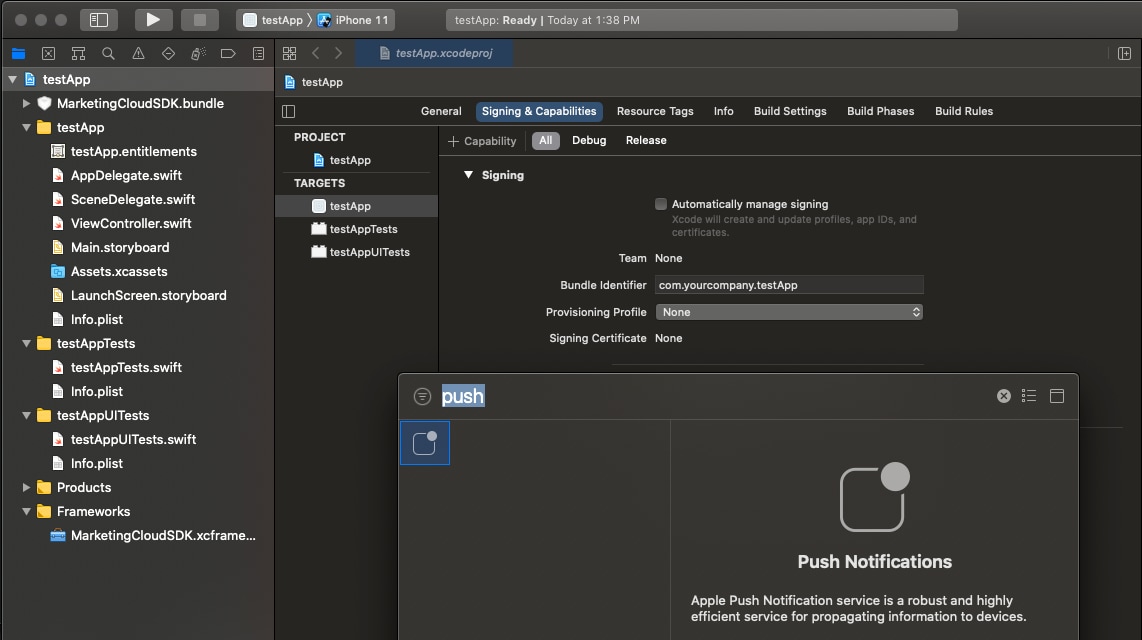
Enable push notifications in your target’s Capabilities settings.
-
Set your
AppDelegateclass to adhere to theUIApplicationDelegateandUNUserNotificationCenterDelegateprotocol. -
Extend the SDK configuration code outlined in Configure the SDK to add support for push registration.
If your app uses version 10 or higher of the SDK, use this code.
If your app uses version 8 or 9 of the SDK, use this code.
This code example shows how to configure the version 7 of the SDK for iOS apps.
-
Add the required
UIApplicationDelegateprotocol methods to support push registration to yourAppDelegateclass. This code example shows how to configure the version 8 and later of the SDK for iOS apps.If your app uses version 10 or higher of the SDK, use this code.
If your app uses version 8 or 9 of the SDK, use this code.
This code example shows how to configure the version 7 and earlier of the SDK for iOS apps.
-
Add the required
UNUserNotificationCenterDelegateprotocol methods to support push notifications to yourAppDelegateclass.If your app uses version 10 or higher of the SDK, use this code.
If your app uses version 9 of the SDK, use this code.
If your app uses version 8 of the SDK, use this code.
If your app uses version 7 of the SDK, use this code.
The methods described in this procedure use
MarketingCloudSDK APIs to facilitate the framework’s functionality to manage push notifications, which include contact registration and push analytics tracking. If you implement the methods without using theMarketingCloudSDK methods, these features don’t work as expected.