Customize Push Notification Functionality for iOS Apps
Use these customization options in your app to extend push notification capabilities beyond the default settings.
This feature uses a sound included in your mobile app as a custom audio signal when a push message arrives on the mobile device.
- Add a file named
custom.cafto your project. The cloud push payload looks for a file namedcustom.caf.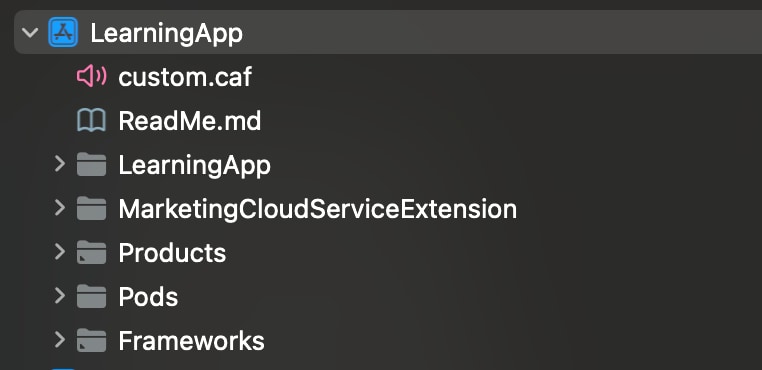
- Add the
custom.cafaudio file to the Copy Bundle Resources folder in Xcode for your app.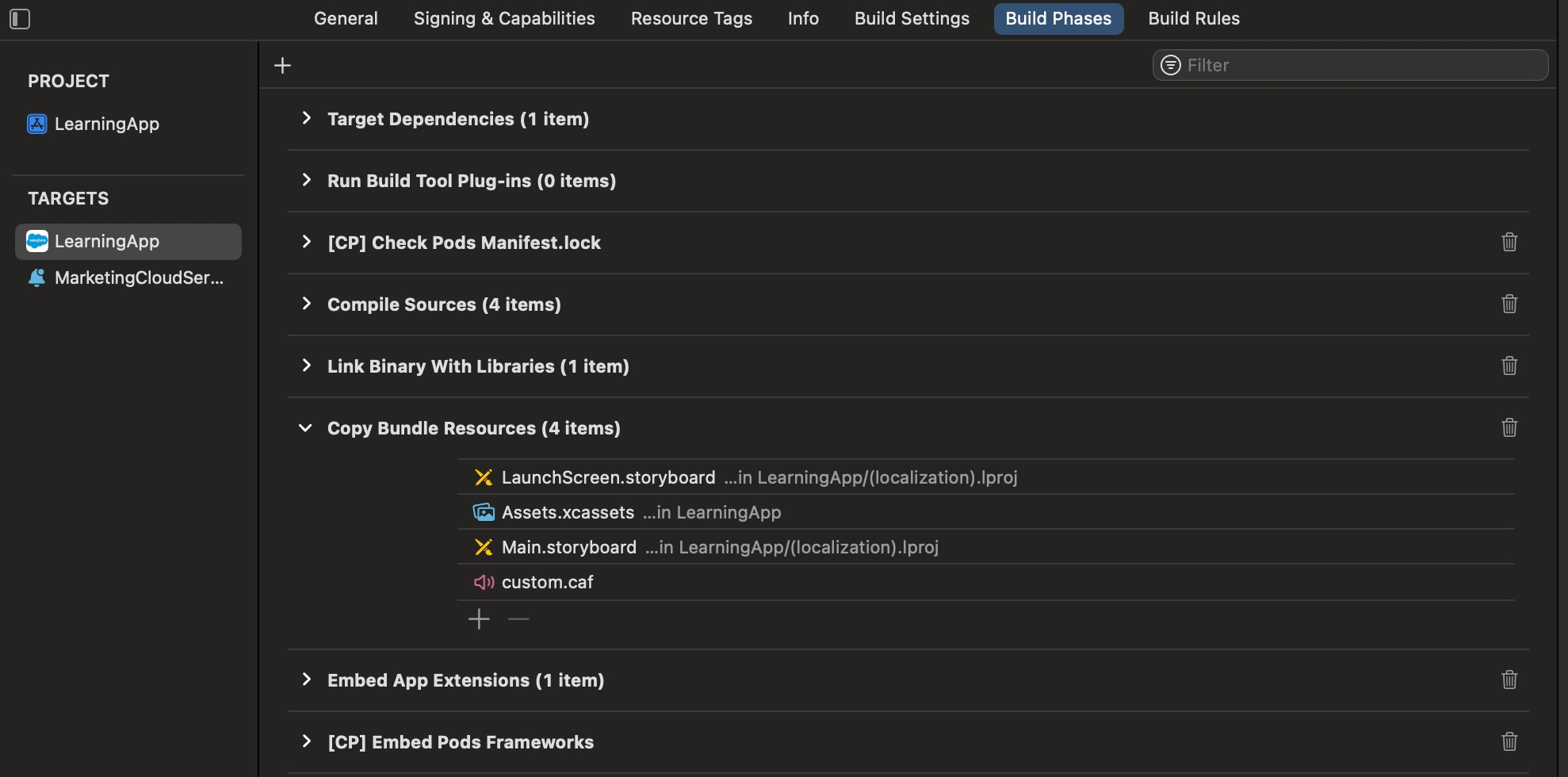
- To prevent Xcode from using cached files, perform a clean build of the folder in Xcode. In the Product menu, hold the Option key and select Clean Build Folder.
Use interactive notifications to add buttons to push notifications from your mobile app.
This code example shows how to configure the SDK to display interactive notifications.
In your push handler, examine the push notification’s payload to see if your action is triggered and if your application performed the action, as shown in this code example.
Rich notifications include images, videos, titles, and subtitles from Marketing Cloud Next and mutable content. Mutable content can include personalization in the title, subtitle, or body of your message.
- Make sure that your app is built for iOS version 10 or later.
- Include a service extension for your app that can handle mutable content. See Apple Developer Documentation: Modifying and Presenting Notifications.
- Make sure that your app is registered to send push notifications in Marketing Cloud Next.
Skip these steps if you’ve already integrated Notification Service Extension when you integrated the Mobile App Messaging SDK with your app.
- Click File > New > Target.
- Select Notification Service Extension.
- Name and save the new extension.
- In your project target’s General settings, confirm that the new extension is listed in the Frameworks, Libraries, and Embedded Content section. If not, add it.
The Notification Target must be signed with the same Xcode Managed Profile as the main project.
This service extension checks for a _mediaUrl element in request.content.userInfo. If found, the extension attempts to download the media from the URL, creates a thumbnail-size version, and then adds the attachment. The service extension also checks for a _mediaAlt element in request.content.userInfo. If found, the service extension uses the element for the body text if there are any problems downloading or creating the media attachment.
A service extension can timeout if it’s unable to download. In this code sample, the service extension delivers the original content with the body text changed to the value in _mediaAlt. This code example assumes your app is using the Mobile App Messaging SDK without the Extension SDK integration.
If your app uses the Mobile App Messaging SDK with the Extension SDK integration, use this code example instead.
OpenDirect customized push messages contain a URL in the payload. The Mobile App Messaging SDK can pass this URL to your application to handle. For information about handling URLs from push notifications that use OpenDirect, see Handle URLs.
The SDK doesn’t automatically present URLs from these sources:
- CloudPages URLs from push notifications
- OpenDirect URLs from push notifications
- CloudPages URLs from inbox messages using the built-in
UITableViewdelegate
To handle URLs from these sources, follow these steps.
- Implement the
URLHandlingDelegateprotocol in your app. - Use
setURLHandlingDelegatemethod to set a delegate for the protocol. - Next, you’re prompted to implement the protocol method
sfmc_handleURL:type:
When an OpenDirect or CloudPages push notification is received, the SDK passes a NSURL value to sfmc_handleURL:type:. This value contains the push notification or inbox message, and includes the URL. A type value also reflects the source of the URL, which is either SFMCURLTypeCloudPages or SFMCURLTypeOpenDirect.
If the development language is Swift, the class that implements the URLHandlingDelegate must be compatible with Objective-C. Prefix the class with @objc and extend NSObject, as shown in this example.