Build an Agent Using Agentforce Vibes
Vibe code an agent by having a natural language conversation that describes what you want your agent to do. Then watch Agentforce Vibes generate the code.
To build an Agentforce agent, either by vibe coding or manually, you must first enable Einstein and Agentforce in your org.
Don't have a development org? Sign up for a Developer Edition org using this form.
-
Log in to your development org.
-
From Setup, in the Quick Find box, enter
Einstein Setup, and then select Einstein Setup. -
Make sure that Einstein is enabled. If it isn't, select Turn on Einstein.
-
In the Setup Quick Find box, enter
Agent, and then select Agentforce Agents. -
Make sure that Agentforce is enabled. If it isn't, click On.
If you just enabled Agentforce for the first time, refresh the page to see the New Agent button.
Agents are goal-oriented, autonomous AI assistants that perform tasks and business interactions. They can initiate and complete a sequence of tasks, handle natural language conversations, and securely provide relevant answers drawn from business data.
Agentforce agents use Agent Script as their blueprint. Agent Script is a language that combines the flexibility of using natural language to vibe code, with the reliability of programmatic expressions for handling business rules. Agent Script gives you all the advantages of access to a large language model (LLM), while also providing ways to add more deterministic behaviors to your agent.
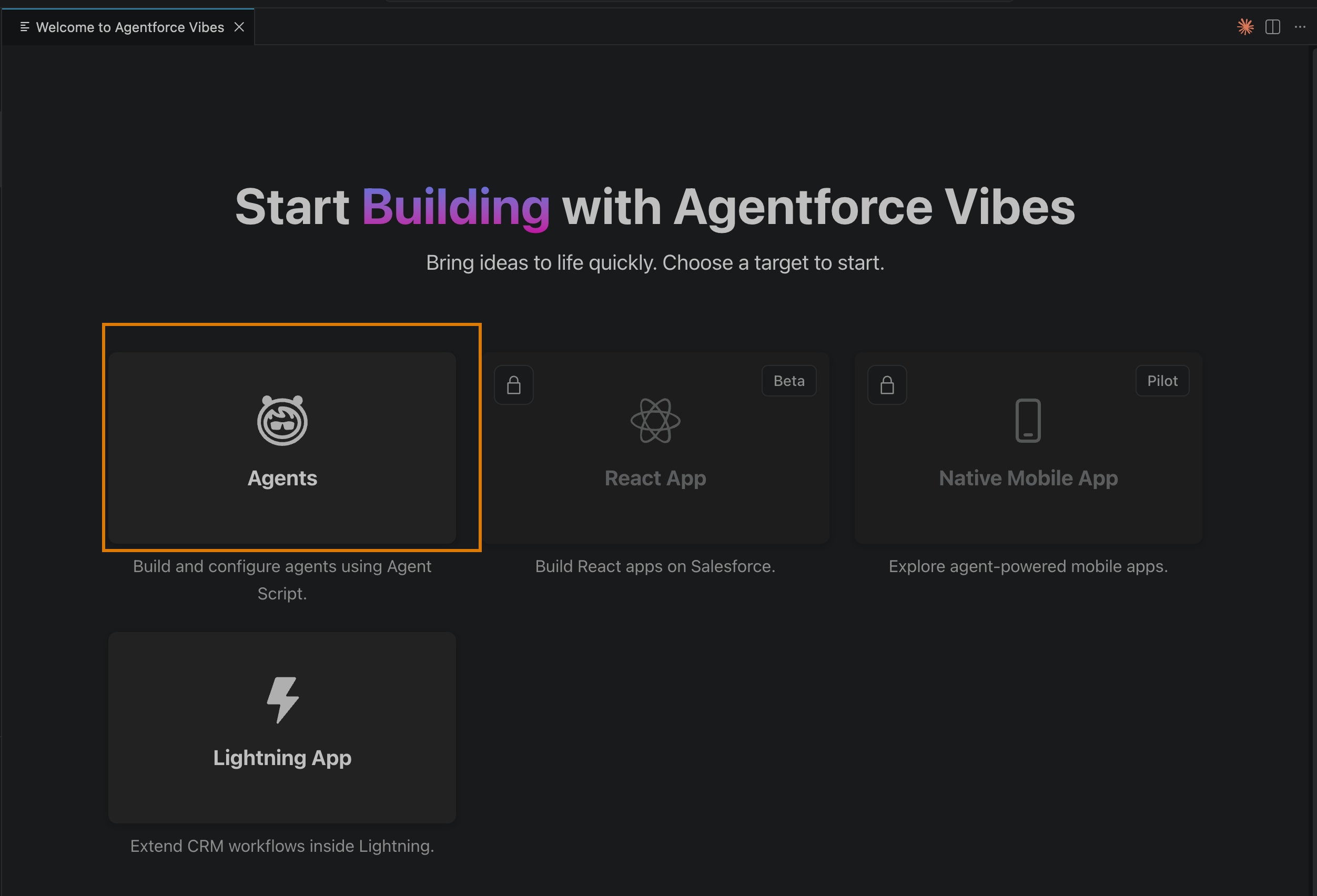
Agentforce Vibes provides a welcome page to help you get started building an agent.
-
From VS Code, open an existing DX project and authorize an org using the SFDX: Authorize an Org command from the Command Palette.
Agentforce Vibes requires that you authorize an org before you can use any of its features.
-
From the Command Palette, run Agentforce: Show Welcome Page. The Agentforce Vibes welcome page opens.
-
Click Agents.
You now have two options to build an agent:
-
Create a Project: Creates a DX project that contains a sample agent called Local Info Agent.
If you click this option, enter the name of the project and the location on your computer where you want to create the DX project. Then click Create Project.
See Create a Project With a Sample Agent for what to do next.
-
Start with a prompt: Start vibe coding right away by using a natural language prompt.
First read the short descriptions of the sample prompts. If one interests you, click it and Agentforce Vibes copies the full prompt to its chat box. Review the full prompt in the chat box, then click the arrow and Agentforce Vibes generates the code.
See Start With a Prompt for what to do next.
-
One way to learn about building Agentforce agents is to create a Salesforce DX project that contains a sample agent and explore its features. You can create a DX project using either of these options:
- From the Agentforce Vibes Welcome page.
- Run the SFDX: Create Project command from the Command Palette and select the
Agentproject template.
When the DX project is created, the VS Code Explorer opens on the left showing the files in the DX project. The project contains a sample agent called Local Info Agent that you can, for example, embed in a resort's website. The agent provides local weather updates, shares information about local events, and helps guests with facility hours.
The agent demonstrates:
- Three types of subagents (Invocable Apex, Prompt Template, and Flow).
- Mutable variables.
- Flow control with
available when. - Deterministic branching with
if/elsein reasoning instructions.
You must authorize your development org in your new DX project so you can explore the sample Local Info Agent. You can vibe code the authorization, but it's often easier to just do it manually.
- Run the SFDX: Authorize an Org VS Code command from the Command Palette.
- Click Production, unless you're using a sandbox or an org on a custom instance URL.
- Enter the alias for your org.
- In the browser that opens, log in to your org.
When you see Authentication Successful, you can close that browser window.
Agentforce agents use an Agent Script file as their blueprint. To vibe code an agent, you vibe code its Agent Script file. Agent Script files are part of the AiAuthoringBundle metadata type.
Let's vibe code the Agent Script file associated with the sample Local Info Agent.
-
In the VS Code editor, open the
force-app/main/default/aiAuthoringBundle/Local_Info_Agent/Local_Info_Agent.agentfile. -
Make sure that Agentforce Vibes is open. Click the Codey icon or run Agentforce Vibes: Focus on View to open it.
-
In the Agentforce Vibes chat window, enter prompts to learn how the Local Info Agent is coded. Here are a few sample prompts to get you started:
- What does the Local Info Agent do?
- What Apex classes does this agent use?
- Does the agent use flows?
-
Enter prompts to change how the sample agent works.
You can start with a simple prompt, such as:
Add a topic to the Local_Info_Agent.agent that helps guests plan their day at the resort.
But Agentforce Vibes works best with detailed prompts. For example:
Add a topic to the Local_Info_Agent.agent that helps guests plan their day at the resort. The topic should check the current weather and look up facility hours, then suggest a schedule of activities based on the results. Make sure to create an agent user for this task. Use existing permission sets if possible. Validate the agent's behavior before completing this task. If you can't find the Local_Info_Agent.agent, let me know and suggest that a new project be created using the 'agent' project template.
See Start From a Prompt for more examples.
Previewing an agent refers to having a conversation with it, which acts as a first-line test. You can preview an agent programmatically with an Agentforce Vibes prompt, or interactively in the Agentforce DX panel.
If you haven't yet deployed the Apex classes, flow, or prompt templates to your org, your preview is simulated and the Local Info Agent mocks the answers to your question. After you deploy, you can preview in live mode, in which the agent uses the actual Apex classes, flows, and prompt templates.
To vibe code a preview, run this prompt in the Agentforce Vibes chat box: Preview the Local Info Agent.
When the preview completes, Agentforce Vibes displays a summary of what it did and where you can find the trace files to inspect details about the conversation.
It's also fun to interactively converse with the Local Info Agent because you can ask it lots of questions.
-
In the VS Code editor, open the
force-app/main/default/aiAuthoringBundle/Local_Info_Agent/Local_Info_Agent.agentfile. -
Right-click the
Local_Info_Agent.agentfile and select AFDX: Preview This Agent. -
In the Agentforce DX panel that opens, click Start Simulation.
-
Enter a question in the Agentforce DX chat box at the bottom, such as:
- What can you help me with?
- What's the weather like?
- What are some local events?
The agent simulates an answer.
The chat box in the Agentforce DX panel for previewing how an agent behaves is different from the Agentforce Vibes chat.
As a developer, it's useful to understand the important metadata files in your DX project, even if Agentforce Vibes is doing much of the coding. This table shows the interesting Local Info Agent metadata files in your new DX project. All the files are in the force-app/main/default directory under their associated metadata directory, such as classes for Apex classes.
| Component | Type | Purpose |
|---|---|---|
Local_Info_Agent.agent | Agent Script | The agent definition, including subagents, reasoning, variables, and flow control. |
CheckWeather | Apex Class | Invocable Apex. Checks current weather conditions for a given location. |
CurrentDate | Apex Class | Invocable Apex. Returns the current date for use by the agent. |
WeatherService | Apex Class | Provides mock weather data for the resort. |
Get_Event_Info | Prompt Template | Retrieves local events. |
Get_Resort_Hours | Flow | Returns facility hours and reservation requirements. |
Resort_Agent | Permission Set | Agent user permissions (Einstein Agent license). |
Resort_Admin | Permission Set | Admin or developer Apex class access. |
AFDX_Agent_Perms | Permission Set Group | Bundles the agent user permissions for assignment. |
AFDX_User_Perms | Permission Set Group | Bundles the admin user permissions for assignment. |
Vibe code right away by asking natural language prompts in the Agentforce Vibes chat box. To get you started, the Agentforce Vibes welcome page includes these sample prompts. In the welcome page, when you select a description, Agentforce Vibes copies the full prompt to its chat box. You then click the arrow to get the vibe coding going. As Agentforce Vibes works, it tells you what it's doing and asks you questions when necessary.
To try this outside of the Agentforce Vibes welcome page, copy and run a prompt (not the description) in this table chat box.
| Description | Prompt |
|---|---|
| Creates a design document (Agent Spec) for an existing agent. | Load any skills related to Agent Script, then find existing .agent files in my project. Let me know what they are and offer to produce an Agent Spec for any agent I'm interested in learning more about. The Agent Spec should document the agent's design — topics, actions, variables, gating logic, and backing logic dependencies. |
| Extends an agent by adding a new 'daily planner' topic. | Load any skills related to Agent Script, then add a new topic to the Local_Info_Agent.agent that helps guests plan their day at the resort. The topic should check the current weather and look up facility hours, then suggest a schedule of activities based on the results. Make sure to create an agent user for this task. Use existing permission sets if possible. Validate the agent's behavior before completing this task. If you can't find the Local_Info_Agent.agent, let me know and suggest that a new project be created using the 'agent' project template. |
| Creates an employee-facing agent for searching Salesforce accounts. | Load any skills related to Agent Script, then create a new .agent file for an employee agent called Account_Lookup_Agent. It should have a single topic that lets employees search for accounts by name or list the first 10 accounts in the org sorted by name. |
To continue on your agent development trek, check out the Build Agents with Agentforce DX section in the Agentforce Developer Guide, which shows you how to:
- Author an agent, which involves generating an authoring bundle, coding the Agent Script file, and publishing the agent to your org.
- Preview and debug an agent.
- Test an agent.