# Handle Lightning Out 2.0 App Events
Configure custom events so that embedded components and the host page can communicate with each other.
## Overview
Lightning Out 2.0 app components load in iframes instead of directly on the host page. To overcome communication restrictions across iframe boundaries, Lightning Out 2.0 wraps custom events in messages using [`window.postMessage()`](https://developer.mozilla.org/en-US/docs/Web/API/Window/postMessage). This internal implementation allows event listeners on one side of the iframe boundary to detect events dispatched from the other side. From your perspective, events are still created and handled with the standard [`EventTarget`](https://developer.mozilla.org/en-US/docs/Web/API/EventTarget) and [`CustomEvent`](https://developer.mozilla.org/en-US/docs/Web/API/CustomEvent) interfaces.
Recall that a Lightning Out 2.0 app includes Lightning Out 2.0 web components that mirror your embedded LWC components but run in the context of the host page. If you need a refresher, review [Understand Lightning Out 2.0 Architecture](/docs/platform/lwc/guide/lightning-out-architecture.md). This mirroring extends to events.
If you add an event listener to a Lightning Out 2.0 web component, Lightning Out 2.0 also adds the event listener to the corresponding LWC component running in the Salesforce context.
```js
const loComponent = document.querySelector("c-lwc-component");
loComponent.addEventListener("my-custom-event", (event) => {
console.log("Received event.detail: ${event.detail}");
});
```
If you dispatch an event from a Lightning Out 2.0 web component, Lightning Out 2.0 also dispatches the event from the corresponding LWC component. When you create a custom event, set the `bubbles` and `composed` properties to `true` so that events can pass through the shadow DOM boundary.
```js
const loComponent = document.querySelector('c-lwc-component');
loComponent.dispatchEvent(
New CustomEvent("my-custom-event", {
detail: "Hello!",
bubbles: true,
composed: true,
})
);
```
Therefore, if an event is fired inside the Salesforce context, the event can bubble up from the LWC component event listener to the Lightning Out 2.0 web component event listener. Then, the event is handled in the host page context. And similarly, if an event is fired in the host page context, the event can propagate down from the Lightning Out 2.0 web component event listener to the LWC component event listener. Then, the event is handled in the Salesforce context.
## Eventing Example
Let’s demonstrate Lightning Out 2.0 event handling with some example code.
### cardComponent.html
Here’s a custom Lightning web component called `c-card-component`, which is a wrapper for the `lightning-card` component. The card has a `lightning-button` component that sends a message to the host page when clicked. The card also has a conditional directive that renders a new message card when a user clicks a button on the host page.
```html
Lightning Web Component
This component can receive messages from the host page and send responses back.
Click this button to test communication from LWC to the host page.
Received Messages ({messages.length})
Message: {message.text}
Time: {message.timestamp}
Source: {message.source}
No messages received yet. Click "Send Message to LWC" on the host page to start
communication.
```
### cardComponent.js
Here’s the JavaScript for `c-card-component`.
The `connectedCallback()` function runs when the component first loads. It initializes an event listener that responds to the `sendMessageToLWC` custom event defined on the host page. When the host page dispatches this event, the event listener calls the `handleMessageFromHost()` event handler. The event handler adds the received message to a list for the `c-card-component` to display.
`c-card-component` also has the `handleSendMessage` event handler, which responds to users clicking the component’s nested `lightning-button`. The event handler defines and dispatches the `lwcMessagetoHost` event to the host page.
```js
//cardComponent.js
import { LightningElement, track } from "lwc";
export default class CardComponent extends LightningElement {
@track messages = [];
@track messageCounter = 0;
connectedCallback() {
// Listen for messages from the host page
this.addEventListener("sendMessageToLWC", this.handleMessageFromHost);
}
disconnectedCallback() {
// Clean up event listeners
this.removeEventListener("sendMessageToLWC", this.handleMessageFromHost);
}
handleMessageFromHost = (event) => {
console.log("Message received from host page:", event.detail);
// Add message to our list
this.messageCounter++;
const newMessage = {
id: this.messageCounter,
text: event.detail.message,
timestamp: event.detail.timestamp,
source: event.detail.source,
};
this.messages = [...this.messages, newMessage];
};
handleSendMessage() {
console.log("Sending message to host page...");
const newMessage = `Message from LWC at ${new Date().toLocaleTimeString()}`;
const hostEvent = new CustomEvent("lwcMessageToHost", {
detail: {
message: newMessage,
timestamp: new Date().toISOString(),
component: "c-card-component",
},
bubbles: true,
composed: true,
});
this.dispatchEvent(hostEvent);
console.log("Message sent to host page");
}
}
```
### Host Page HTML
Now let’s examine the host page. It has three main UI areas relevant to this example: the embedded `c-card-component` (1), a button that users click to send messages to `c-card-component` (2), and an area where messages from `c-card-component` will appear (3).
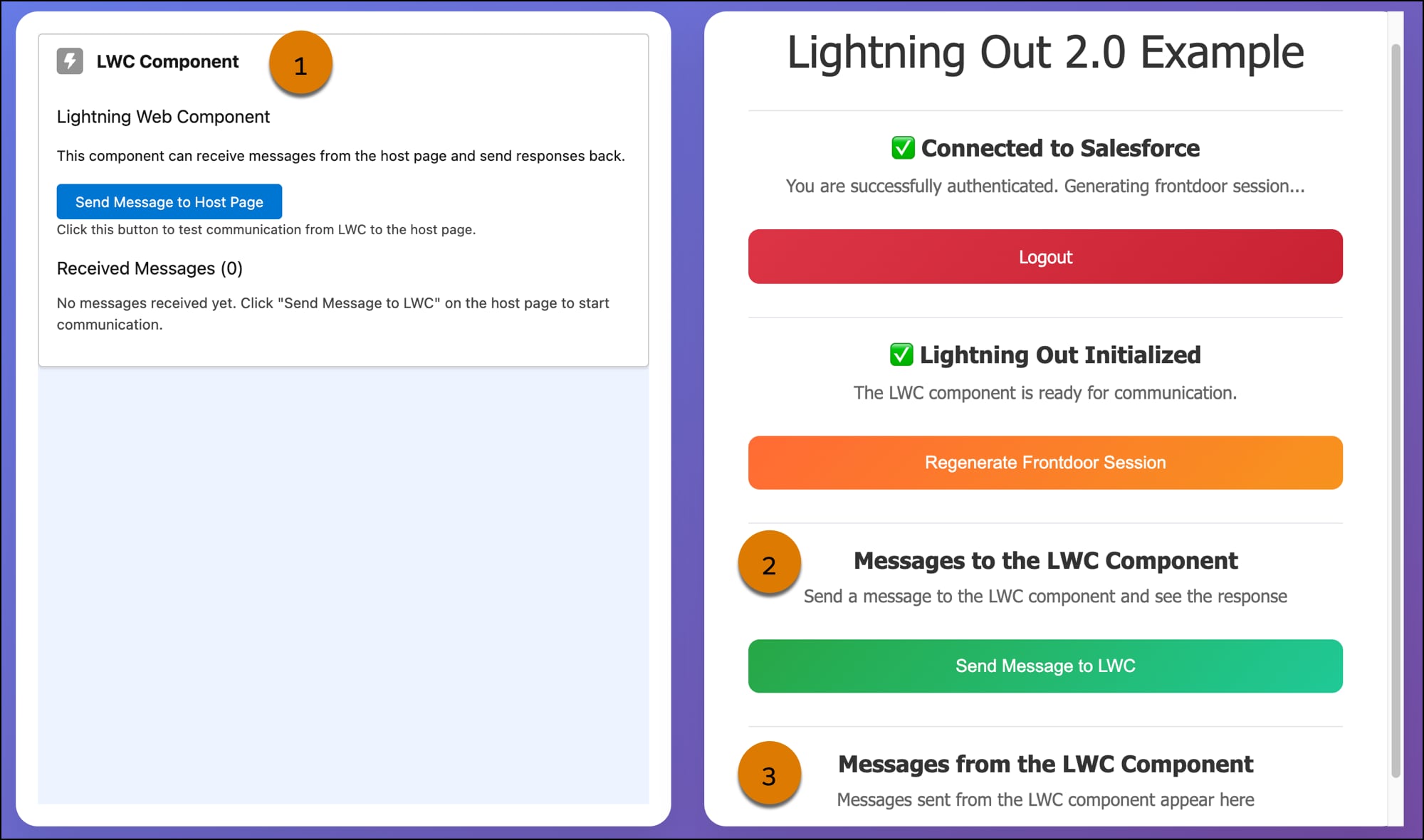
Here’s an HTML snippet of the host page. It includes:
- The Lightning Out 2.0 JavaScript library.
- A Lightning Out 2.0 app with a `c-card-component` web component.
- A `sendMessageButton` button that dispatches a custom event to `c-card-component` when clicked. When the message is dispatched, the host page also shows a confirmation message.
- An `lwcMessageResponse` element that shows the latest message that the host page receives from the embedded `c-card-component`.
```html
Lightning Out Example
Send a message to the LWC component and see the response
Communication Response:
Messages sent from the LWC component appear here
Latest Message:
```
### Host Page JavaScript
Here’s a snippet of the host page’s `script.js` file.
To dispatch an event to the embedded `c-card-component`, an event listener is set on the `sendMessageButton` button. When a user clicks the button, the event listener calls an anonymous event handler. This event handler defines and dispatches the `sendMessageToLWC` event directly on the Lightning Out 2.0 web component `c-card-component`. The event is mirrored to the embedded LWC component `c-card-component`.
To receive the `lwcMessageToHost` event from the embedded `c-card-component`, set an event listener on the Lightning Out 2.0 web component `c-card-component`. Ensure that the Lightning Out 2.0 app and the `c-card-component` have loaded before setting this event listener. For example, set the event listener conditionally based on whether the `frontdoor-url` attribute has been set on the `lightning-out-application`. When the embedded `c-card-component` dispatches the `lwcMessageToHost` event, the event listener calls the `handleLwcMessage` function. This function displays the latest message from the embedded component on the host page.
:::tip
To learn how to set the frontdoor URL at run time, see [Set Up Authentication for Lightning Out 2.0](https://help.salesforce.com/s/articleView?id=platform.lightning_out_auth.htm\&type=5) in *Salesforce Help*.
:::
```js
// script.js
// DOM elements
const sendMessageButton = document.getElementById("sendMessageButton");
const messageResponse = document.getElementById("messageResponse");
const messageContent = document.getElementById("messageContent");
const lwcMessageResponse = document.getElementById("lwcMessageResponse");
const lwcMessageContent = document.getElementById("lwcMessageContent");
const lightningOutApp = document.querySelector("lightning-out-application");
// Obtain frontdoor URL and set its frontdoor-url attribute on the lightning-out-application to this value (OAuth flow and UI Bridge implementation not shown)
// ... existing code ...
if (result.success) {
// Set the frontdoor URL on the lightning-out-application component
if (lightningOutApp && result.frontdoorUrl) {
lightningOutApp.setAttribute("frontdoor-url", result.frontdoorUrl);
// Set up event listener for lwcMessageToHost event
const cardComponent = document.querySelector("c-card-component");
if (cardComponent) {
cardComponent.addEventListener("lwcMessageToHost", handleLwcMessage);
}
}
}
// Send message to LWC component
sendMessageButton.addEventListener("click", function () {
console.log("Sending message to LWC component...");
// Wait for Lightning Out 2.0 to initialize, and then dispatch the event
setTimeout(() => {
const cardComponent = document.querySelector("c-card-component");
if (cardComponent) {
console.log("Found card component, sending message...");
// Create a custom event to communicate with the LWC component
const messageEvent = new CustomEvent("sendMessageToLWC", {
detail: {
message: `Hello from host page at ${new Date().toLocaleTimeString()}`,
timestamp: new Date().toISOString(),
source: "host-page",
},
bubbles: true,
composed: true,
});
// Dispatch the event to the card component
cardComponent.dispatchEvent(messageEvent);
messageContent.innerHTML = `
Status: Message sent Target: c-card-component Timestamp: ${new Date().toISOString()}
`;
messageResponse.style.display = "block";
console.log("Message sent to LWC component");
} else {
messageContent.innerHTML = `
Error: LWC component not found Message: Ensure Lightning Out is properly loaded
`;
messageResponse.style.display = "block";
console.error("LWC component not found");
}
}, 500);
});
// Handle lwcMessageToHost event
function handleLwcMessage(event) {
console.log("Message received from LWC:", event.detail);
lwcMessageContent.innerHTML = `
Message: ${event.detail.message} Component: ${event.detail.component} Timestamp: ${event.detail.timestamp}
`;
lwcMessageResponse.style.display = "block";
// Add a visual indicator that a message was received
lwcMessageResponse.style.borderLeftColor = "#28a745";
lwcMessageResponse.style.background = "#d4edda";
// Reset the styling after 3 seconds
setTimeout(() => {
lwcMessageResponse.style.borderLeftColor = "#667eea";
lwcMessageResponse.style.background = "#f8f9fa";
}, 3000);
console.log("Message displayed in the host page.");
}
```
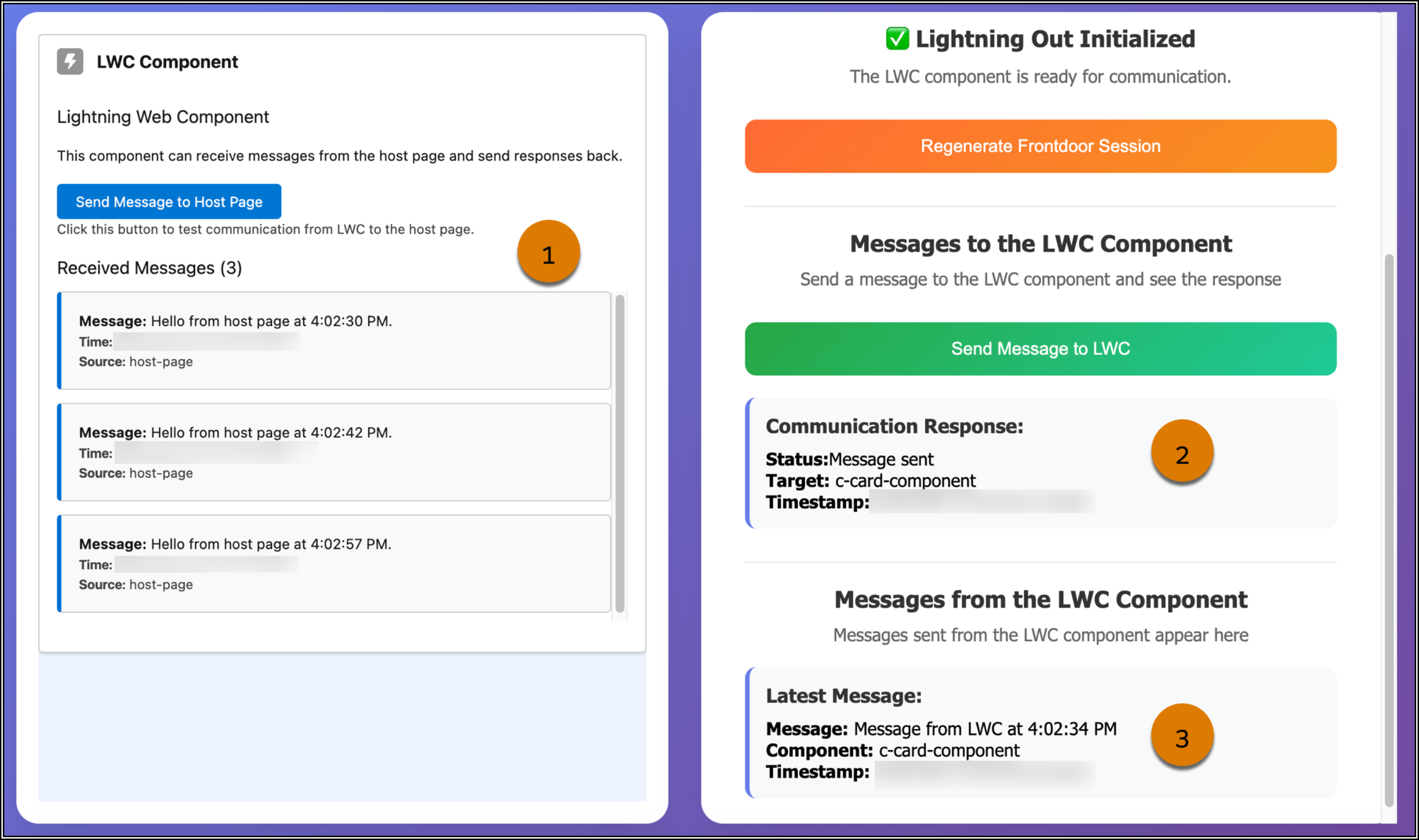
Here’s the host page after a user dispatched three messages from the host page to `c-card-component` (1). Whenever the user dispatches a message to `c-card-component`, a confirmation message appears in the Messages to the LWC Component section (2). The user also dispatched messages from `c-card-component` to the host page. The most recent message appears in the Messages from the LWC Component section (3).
**See Also**
- [Communicate with Events](/docs/platform/lwc/guide/events.md)
- *Salesforce Help*: [Set Up Authentication for Lightning Out 2.0](https://help.salesforce.com/s/articleView?id=platform.lightning_out_auth.htm\&type=5)