# Option 2: Add Mobile SDK Setup Code Manually
If you prefer the freedom of writing all your code from scratch, you can create a project without copying Mobile SDK template files into your workspace. You can—and should—consult the template code to pick up boilerplate implementations for certain features.
:::important
Where possible, we changed noninclusive terms to align with our company value of Equality. We maintained certain terms to avoid any effect on customer implementations.
:::
The procedure here creates a basic Mobile SDK Swift app that implements an `AppDelegate` - `SceneDelegate` flow.
When you insert Mobile SDK into an iOS project without importing template files, you’re responsible for reconfiguring the app lifecycle according to Mobile SDK guidelines. For example, here are some required tasks:
- Configure `SalesforceApp` as the main class
- Initialize Mobile SDK
- Call Mobile SDK to prompt for customer login and handle user switching
For a few optional features, Mobile SDK provides specific customizations that you can drop into your code.
As benefits, you have some additional flexibility to suit your development needs:
- Code in Swift (recommended)
or
Objective-C (to support older apps; not described in this procedure)
- Use `AppDelegate` for app-level initialization, and `SceneDelegate` to handle all UI lifecycle events. This path is recommended; it supports multiple windows in iPadOS, clarifies multi-scene handling, and separates app-level and scene-level code.
or
Use `AppDelegate` alone to handle app initialization and UI lifecycle events. This path is an option only for single-window apps that don’t require multiple window support in iPadOS. If you choose this route, it’s up to you to find places in `AppDelegate` for all Mobile SDK code that’s added here in `SceneDelegate`. See the [iOS Native Template](https://github.com/forcedotcom/SalesforceMobileSDK-Templates/tree/dev/iOSNativeTemplate) for examples.
:::note
These instructions provide minimal steps for enabling Mobile SDK in a runnable Swift app. At the end of this procedure, you can find additional sections on setting up optional features such as push notifications and IDP apps.
:::
## Prerequisites
1. [Create an Xcode Swift Project](/docs/platform/mobile-sdk/guide/ios-new-native-manual-create-xcode-project.md)
2. [Add Mobile SDK Libraries to Your Project](/docs/platform/mobile-sdk/guide/ios-new-native-manual-clone-sdk.md)
3. [Configure Your Project’s Build Settings](/docs/platform/mobile-sdk/guide/ios-new-native-manual-configure-build.md)
## Add or Edit Info.plist
Mobile SDK uses the project’s main `Info.plist` file to set the default Salesforce login host. In Xcode 12.4, the app wizard creates the `Info.plist` file for you. In Xcode 13, the app wizard for the SwiftUI interface doesn’t create the file, but you can copy one from a Mobile SDK template app.
- Xcode 12.4
- :
1. In the Project Navigator, control-click **MyMobileSDKApp** | **MyMobileSDKApp** | **Info.plist** and select **Open As** | **Source Code**.
2. Add the following key-value pair to the top-level dictionary:
```xml
SFDCOAuthLoginHost
login.salesforce.com
```
- Xcode 13
- : Copy the Info.plist file to your project from the [iOS Native Swift template](https://github.com/forcedotcom/SalesforceMobileSDK-Templates/blob/master/iOSNativeSwiftTemplate/iOSNativeSwiftTemplate/Info.plist). When the file is in place, adjust your Project Settings as follows:
1. In your Project settings, select **Build Phases**.
2. Under Copy Bundle Resources, select `Info.plist`, if it’s present, and click **Remove Items** (-).
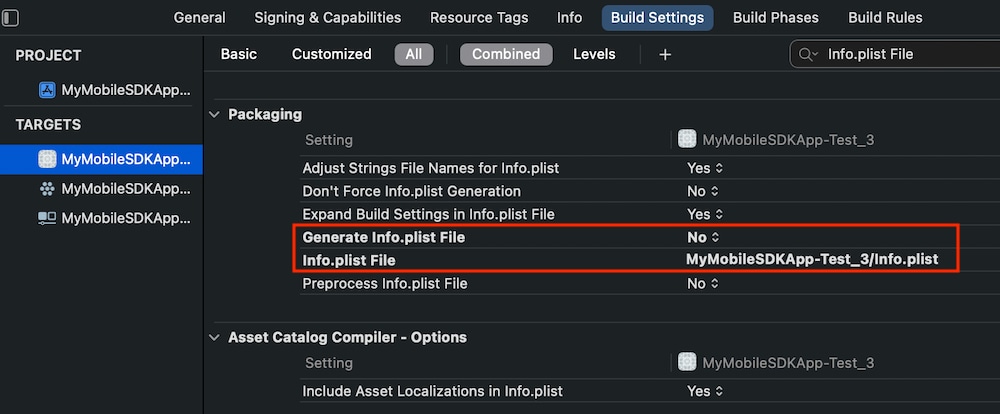
3. In **Build Settings**, search for “Info.plist File”.
4. Set **Generate Info.plist File** to **No**.
5. Set **Info.plist File** to the file’s path in your project (for example, “MyMobileSDKApp/Info.plist”.)
## Add bootconfig.plist
Mobile SDK looks for a `bootconfig.plist` file to help your app start with the correct external client app or connected app values. You can copy this file to your project from a Mobile SDK iOS template project, but be sure to reset the values to your app’s preferences—especially `remoteAccessConsumerKey` and `oauthRedirectURI`.
1. In an external text editor, create an empty text file.
2. Copy the following text into the new file:
```xml
remoteAccessConsumerKey
3MVG9Iu66FKeHhINkB1l7xt7kR8czFcCTUhgoA8Ol2Ltf1eYHOU4SqQRSEitYFDUpqRWcoQ2.dBv_a1Dyu5xa
oauthRedirectURI
testsfdc:///mobilesdk/detect/oauth/done
oauthScopes
web
api
shouldAuthenticate
```
3. Save the file as `bootconfig.plist` in your MyMobileSDKApp project's local disk directory.
4. In Xcode’s Project Explorer, control-click **MyMobileSDKApp** | **MyMobileSDKApp** and select **Add Files to “MyMobileSDKApp”**.
5. Select `bootconfig.plist`.
6. To do now (if your external client app or connected app is available) or before you release your app:
1. Open `bootconfig.plist` in the Xcode editor.
2. Replace the `remoteAccessConsumerKey` value with the Consumer Key from your org’s external client app or connected app.
3. Replace the `oauthRedirectURI` value with the Callback URL from your org’s external client app or connected app.
## Customize or Create the AppDelegate Class
If you tell the Xcode 12.4 app wizard to create a UIKit App Delegate lifecycle, it creates `AppDelegate` and `SceneDelegate` classes. The Xcode 13 app wizard doesn’t offer a lifecycle choice and doesn’t create an `AppDelegate` class. However, you can create the basic minimal version from scratch using the following instructions.
1. **Xcode 12.4:** Start with the `AppDelegate` class in your project, keeping the three standard lifecycle functions.
**Xcode 13:**
1. In your project's **MyMobileSDKApp** | **MyMobileSDKApp** folder, control-click the `MyMobileSDKAppApp.swift` file and click **Delete**.
2. Click **Move to Trash**.
3. Control-click **MyMobileSDKApp** | **MyMobileSDKApp** and select **New File**.
4. Select **Swift File**, name it “AppDelegate”, and then click **Create**. Xcode creates a file with one line:
```nolang
import Foundation
```
2. Paste the following boilerplate implementation of the `AppDelegate` life cycle methods.
```swift
import Foundation
@main
class AppDelegate : UIResponder, UIApplicationDelegate {
var window: UIWindow?
// MARK: UISceneSession Lifecycle
func application(_ application: UIApplication, configurationForConnecting
connectingSceneSession: UISceneSession,
options: UIScene.ConnectionOptions) -> UISceneConfiguration {
// Called when a new scene session is being created.
// Use this method to select a configuration to create the new scene with.
return UISceneConfiguration(name: "Default Configuration",
sessionRole: connectingSceneSession.role)
}
func application(_ application: UIApplication, didDiscardSceneSessions
sceneSessions: Set) {
// Called when the user discards a scene session.
// If any sessions were discarded while the application was not running,
// this will be called shortly after
// application:didFinishLaunchingWithOptions.
// Use this method to release any resources that were specific to the
// discarded scenes, as they will not return.
}
// MARK: - App delegate lifecycle
func application(_ application: UIApplication, didFinishLaunchingWithOptions
launchOptions: [UIApplication.LaunchOptionsKey: Any]?) -> Bool {
// If you wish to register for push notifications, uncomment the line below.
// Note that, if you want to receive push notifications from Salesforce,
// you will also need to implement the
// application(application, didRegisterForRemoteNotificationsWithDeviceToken)
// method (below).
// self.registerForRemotePushNotifications()
return true
}
}
```
3. Remove the `@main` attribute above the `AppDelegate` class declaration. The `main.swift` file has assumed the role of main.
4. Import all Mobile SDK modules.
```nolang
import Foundation
import MobileSync
```
5. At the top of the class, override the `init()` method to initialize Mobile SDK. For example, to initialize all Mobile SDK libraries, call `initializeSDK()` on `MobileSyncSDKManager`:
```nolang
override init() {
super.init()
MobileSyncSDKManager.initializeSDK()
}
```
## Add an InitialViewController Class
To access Salesforce data, your app’s users must authenticate with a Salesforce org. Salesforce sends a login screen to your app to collect the user’s credentials and then returns OAuth tokens to your app.
Your app must include a view controller whose sole purpose is to host the Salesforce login screen. When no customer is logged in, your app sets this view controller as the root view. Traditionally, Mobile SDK apps name this view controller class `InitialViewController`. It requires only a stub implementation.
1. In your project, control-click **MyMobileSDKApp** | **MyMobileSDKApp** and select **New File**.
2. Select **Swift File**, name it “InitialViewController”, and then click **Create**.
3. Add the following body:
```swift
import Foundation
import UIKit
class InitialViewController: UIViewController {
}
```
## Customize or Create the SceneDelegate Class
Use the `SceneDelegate` class to handle Salesforce logins, user switching, and root view instantiation. Login is required when no user is logged in—when the app originally launches, and when the current user logs out. User changes occur between users who have logged in previously and remain authenticated. Mobile SDK `AuthHelper` functions simplify how these cases are handled:
- `AuthHelper.loginIfRequired(_:)` decides for you whether login is needed
- `AuthHelper.registerBlock(forCurrentUserChangeNotifications:)` listens for user change events.
These functions let you determine what happens after the login or change occurs. Typically, you respond by setting your app’s main view as the root view.
In the scene lifecycle, `scene(_:willConnectTo:options:)` is the ideal juncture for both of these `AuthHelper` calls. Register the block that handles user changes, and call `AuthHelper.loginIfRequired`, one time, when the scene first connects. Pass the connected `scene` to both calls so that Mobile SDK can tie the login flow to the correct window. If the current user remains logged in, Mobile SDK merely executes your completion block.
:::important
Start the login flow from `scene(_:willConnectTo:options:)`, and pass the connected scene to `AuthHelper.loginIfRequired`. Use the scene-scoped overload rather than the scene-less `AuthHelper.loginIfRequired { }`, and don’t initiate login before a scene has connected—for example, from `AppDelegate`.
:::
At app startup, you set `InitialViewController` as the first root view controller. This view hosts the Salesforce login screen and, after a successful login, is replaced by your app’s root view controller. At runtime, if the current user logs out, you dismiss the current root view controller and replace it with `InitialViewController`. In both cases, after a new user logs in, you dismiss `InitialViewController` and set your app’s first view as the root view controller.
**Xcode 13 only:** In Xcode 13, the SwiftUI interface no longer uses `SceneDelegate`. However, iOS still supports it, and Mobile SDK currently uses it. Follow these steps to create it.
1. In your project, control-click **MyMobileSDKApp** | **MyMobileSDKApp** and select **New File**.
2. Select **Swift File**, name it “SceneDelegate”, and then click **Create**.
3. Copy the following implementation into your new file.
```swift
import UIKit
import MobileSync
import SwiftUI
class SceneDelegate: UIResponder, UIWindowSceneDelegate {
var window: UIWindow?
func scene(_ scene: UIScene, willConnectTo session: UISceneSession,
options connectionOptions: UIScene.ConnectionOptions) {
// Use this method to optionally configure and attach the
// UIWindow `window` to the provided UIWindowScene `scene`.
// If using a storyboard, the `window` property will automatically
// be initialized and attached to the scene. This delegate does not
// imply the connecting scene or session are new
// (see `application:configurationForConnectingSceneSession` instead).
// Create the SwiftUI view that provides the window contents.
let contentView = ContentView()
// Use a UIHostingController as window root view controller.
if let windowScene = scene as? UIWindowScene {
let window = UIWindow(windowScene: windowScene)
window.rootViewController = UIHostingController(rootView: contentView)
self.window = window
window.makeKeyAndVisible()
}
}
func sceneDidDisconnect(_ scene: UIScene) {
// Called as the scene is being released by the system.
// This occurs shortly after the scene enters the background,
// or when its session is discarded.
// Release any resources associated with this scene that can be re-created
// the next time the scene connects.
// The scene may re-connect later, as its session was not necessarily
// discarded (see `application:didDiscardSceneSessions` instead).
}
func sceneDidBecomeActive(_ scene: UIScene) {
// Called when the scene has moved from an inactive state to an active state.
// Use this method to restart any tasks that were paused (or not yet started)
// when the scene was inactive.
}
func sceneWillResignActive(_ scene: UIScene) {
// Called when the scene will move from an active state to an inactive state.
// This may occur due to temporary interruptions (ex. an incoming phone call).
}
func sceneWillEnterForeground(_ scene: UIScene) {
// Called as the scene transitions from the background to the foreground.
// Use this method to undo the changes made on entering the background.
}
func sceneDidEnterBackground(_ scene: UIScene) {
// Called as the scene transitions from the foreground to the background.
// Use this method to save data, release shared resources, and store enough
// scene-specific state information
// to restore the scene back to its current state.
}
}
```
**Xcode 12.4 and Xcode 13:**
1. At the top of your project’s `SceneDelegate` class, be sure that you’ve declared a `UIWindow` variable:
```swift
class SceneDelegate: UIResponder, UIWindowSceneDelegate {
var window: UIWindow?
```
2. At the bottom of the SceneDelegate class body, implement a private function named `resetViewState(_:)` that takes an escaping closure as its sole parameter. This function dismisses the current root view controller and then executes the given closure:
```swift
func resetViewState(_ postResetBlock: @escaping () -> ()) {
if let rootViewController = self.window?.rootViewController {
if let _ = rootViewController.presentedViewController {
rootViewController.dismiss(animated: false,
completion: postResetBlock)
return
}
self.window?.rootViewController = nil
}
postResetBlock()
}
```
3. Implement a private function named `setupRootViewController()` that launches your app’s custom views. For this simple exercise, you can set the root view to the SwiftUI `ContentView` provided by the Xcode template.
```swift
func setupRootViewController() {
self.window?.rootViewController = UIHostingController(rootView:
ContentView())
}
```
:::note
The Xcode template’s `ContentView` requires no additional setup or cleanup. For a more elaborate example, see `setupRootViewController(_:)` in the [MobileSyncExplorerSwift](https://github.com/forcedotcom/SalesforceMobileSDK-Templates/blob/master/MobileSyncExplorerSwift/MobileSyncExplorerSwift/SceneDelegate.swift) template.
:::
4. In the `scene(_:willConnectTo:options:)` function, provide code that sets up the window scene. Replace all existing code with the following lines:
```swift
func scene(_ scene: UIScene, willConnectTo session: UISceneSession,
options connectionOptions: UIScene.ConnectionOptions) {
guard let windowScene = (scene as? UIWindowScene) else { return }
self.window = UIWindow(frame: windowScene.coordinateSpace.bounds)
self.window?.windowScene = windowScene
}
```
5. Register a callback block for user change events. Using the private functions you added, provide a closure that resets the view state and then presents your app’s root view. Pass the connected `scene` to the scene-scoped `registerBlock(forCurrentUserChangeNotifications:completion:)` overload.
```swift
func scene(_ scene: UIScene, willConnectTo session: UISceneSession,
options connectionOptions: UIScene.ConnectionOptions) {
guard let windowScene = (scene as? UIWindowScene) else { return }
self.window = UIWindow(frame: windowScene.coordinateSpace.bounds)
self.window?.windowScene = windowScene
// Define a response to user change events
AuthHelper.registerBlock(forCurrentUserChangeNotifications: scene) {
self.resetViewState {
self.setupRootViewController()
}
}
}
```
6. Implement a private function named `initializeAppViewState()` that sets `InitialViewController` as the root view. Notice that this function first makes sure that the app is on the main UI thread. If the app is on some other thread, it switches to the main thread and calls itself recursively.
```swift
func initializeAppViewState() {
if (!Thread.isMainThread) {
DispatchQueue.main.async {
self.initializeAppViewState()
}
return
}
self.window?.rootViewController =
InitialViewController(nibName: nil, bundle: nil)
self.window?.makeKeyAndVisible()
}
```
7. Back in the `scene(_:willConnectTo:options:)` function, after registering the user-change block:
1. To set the root view to `InitialViewController`, call `initializeAppViewState()`.
2. Call `AuthHelper.loginIfRequired` with the connected `scene` and a closure that sets the root view controller to your app’s main view.
```swift
func scene(_ scene: UIScene, willConnectTo session: UISceneSession,
options connectionOptions: UIScene.ConnectionOptions) {
guard let windowScene = (scene as? UIWindowScene) else { return }
self.window = UIWindow(frame: windowScene.coordinateSpace.bounds)
self.window?.windowScene = windowScene
// Define a response to user change events
AuthHelper.registerBlock(forCurrentUserChangeNotifications: scene) {
self.resetViewState {
self.setupRootViewController()
}
}
// Set the initial view, then log in if needed
self.initializeAppViewState()
AuthHelper.loginIfRequired(scene) {
self.setupRootViewController()
}
}
```
:::important
Make these calls from `scene(_:willConnectTo:options:)`, and pass the connected scene. Use the scene-scoped `AuthHelper.loginIfRequired` overload rather than the scene-less `AuthHelper.loginIfRequired { }`, and don’t start login before a scene has connected—for example, from `sceneWillEnterForeground(_:)` or `AppDelegate`.
:::
## Build Your New Mobile SDK App
1. In Xcode, select **Product** | **Run** (⌘R).
2. If the Salesforce login screen appears, you’re done!
Your new project is ready for customization. You can now add your own assets and set up your scene flow. You can also add optional push notification and IDP features, as follows.
:::important
Another reminder! Before posting your app to the App Store, be sure to update the `remoteAccessConsumerKey` and `oauthRedirectURI` in the `bootconfig.plist` file with settings from your external client app or connected app. See [Get Started with Native iOS Development](https://trailhead.salesforce.com/content/learn/modules/mobile_sdk_native_ios/mobilesdk_ios_getting_started?trail_id=mobile_sdk_intro).
:::
## Add Push Notification Support
1. To support Salesforce push notifications, add code to register and handle them. You can copy boilerplate implementations of the following methods from the `AppDelegate` class of [the Mobile SDK iOSNativeSwiftTemplate app](https://github.com/forcedotcom/SalesforceMobileSDK-Templates/blob/dev/iOSNativeSwiftTemplate/iOSNativeSwiftTemplate/AppDelegate.swift):
- `registerForRemotePushNotifications()`
- `application(_:didRegisterForRemoteNotificationsWithDeviceToken:)`—**Be sure to uncomment the one line of implementation code!**
- `didRegisterForRemoteNotifications(_:)`
- `application(_:didFailToRegisterForRemoteNotificationsWithError:)`
2. Salesforce uses encryption on notifications, which requires you to implement a decryption extension and then to request authorization through the `UNUserNotificationCenter` object. See [Code Modifications (iOS)](/docs/platform/mobile-sdk/guide/push-ios-code.md).
## Add Identity Provider Support
Mobile SDK supports configuration of identity provider (IDP) apps. See [Identity Provider Apps](/docs/platform/mobile-sdk/guide/auth-identity-providers.md). If you’ve implemented IDP functionality, you enable it by customizing `AppDelegate` and `SceneDelegate`.
1. In your `AppDelegate` class, add the following boilerplate functions from the `AppDelegate` class of [the Mobile SDK iOSNativeSwiftTemplate app](https://github.com/forcedotcom/SalesforceMobileSDK-Templates/blob/dev/iOSNativeSwiftTemplate/iOSNativeSwiftTemplate/AppDelegate.swift):
- `application(_:open:_:)`
- `enableIDPLoginFlowForURL(_:_:)`
2. In your `SceneDelegate` class, add the following functions.
```swift
func scene(_ scene: UIScene, openURLContexts URLContexts: Set) {
if let urlContext = URLContexts.first {
self.enableIDPLoginFlowForURLContext(urlContext, scene: scene)
}
}
func enableIDPLoginFlowForURLContext(_ urlContext: UIOpenURLContext,
scene: UIScene) -> Bool {
return UserAccountManager.shared.handleIdentityProviderResponse(
from: urlContext.url, with: [UserAccountManager.IDPSceneKey:
scene.session.persistentIdentifier])
}
```
## Customize the Pre-Login Screen
You can use the `InitialViewController` class to cosmetically customize the login view before the login screen appears. Here’s an [example](https://github.com/forcedotcom/SalesforceMobileSDK-Templates/blob/master/MobileSyncExplorerSwift/MobileSyncExplorerSwift/ViewControllers/InitialViewController.swift) that brands the pre-login screen with your app’s name, using the default Salesforce background color. If you use this class to create resources that can be recreated, be sure to implement the `didReceiveMemoryWarning()` override to dispose of them. See the Xcode [UIViewController](https://developer.apple.com/documentation/uikit/uiviewcontroller/1621409-didreceivememorywarning) documentation.
```swift
import Foundation
import UIKit
import SalesforceSDKCore.UIColor_SFColors
class InitialViewController: UIViewController {
override func viewDidLoad() {
super.viewDidLoad()
self.view.backgroundColor = UIColor.salesforceSystemBackground
let label = UILabel()
label.translatesAutoresizingMaskIntoConstraints = false
guard let info = Bundle.main.infoDictionary,
let name = info[kCFBundleNameKey as String] else { return }
label.font = UIFont.systemFont(ofSize: 29)
label.textColor = UIColor.black
label.text = name as? String
self.view.addSubview(label)
label.centerXAnchor.constraint(equalTo: self.view.centerXAnchor).
isActive = true
label.centerYAnchor.constraint(equalTo: self.view.centerYAnchor).
isActive = true
// Do any additional setup after loading the view,
// typically from a nib.
}
override func didReceiveMemoryWarning() {
super.didReceiveMemoryWarning()
// Dispose of any resources that can be recreated.
}
}
```
## Include SmartStore and Mobile Sync Configuration Files
Offline configuration files let you define your SmartStore and Mobile Sync setups in static XML files instead of code. These files must be named userstore.json and usersyncs.json and be referenced in your Xcode project. You can then load them by calling the following methods:
```swift
// Setup store based on config userstore.json
MobileSyncSDKManager.shared.setupUserStoreFromDefaultConfig()
// Setup syncs based on config usersyncs.json
MobileSyncSDKManager.shared.setupUserSyncsFromDefaultConfig()
```
- Salesforce login is required, or
- When a change of users occurs
The Mobile SDK native Swift template keeps things simple by calling the two setup functions whenever it sets the root view controller. This task falls to a private function, `setupRootViewController()`, that in turn is called as follows:
- In `sceneWillEnterForeground(_:)`, where it’s called in a block that runs after a Salesforce login occurs.
- In `scene(_:willConnectTo:options:)`, where it’s called in a block that handles current user change notifications.
Mobile SDK defines a utility class, `AuthHelper`, that coordinates the internal moving parts for login and user change events. For a complete example, see [the SceneDelegate class in the Mobile Sync Explorer Swift template](https://github.com/forcedotcom/SalesforceMobileSDK-Templates/blob/dev/MobileSyncExplorerSwift/MobileSyncExplorerSwift/SceneDelegate.swift).
:::note
If your app defers login, where and when you call `AuthHelper.loginIfRequired(_:)` is up to you. In all cases, be sure to precede the call by setting the root view controller to `IntialViewController`, as shown here.
:::