# Order of Execution Example
Follow the lifecycle of a Visualforce page. Learn how the order of execution differs when the user retrieves the page with a get request instead of a postback request.
## Set Up the Example
The page in our example shows the name of an account, Northern Trail Outfitters, the number of its employees, and its industry. The user can edit these account details if the URL query parameter `key` is set to `true`. The page also displays the original value of `key` and its updated values that are set during the initialization of a custom component.
1. Create a controller for a custom component named `PageValuesController`.
```apex
public with sharing class PageValuesController {
public Boolean controllerKey {get; set;}
public Boolean getNewKey() {
// return the opposite of controllerKey
return !controllerKey;
}
}
```
2. Create a custom component named `PageValues`.
```apex
Original Key = {!originalKey}
Controller Key = {!controllerKey}
New Key = {!newKey}
```
3. Create a custom controller named `AccountInfoController`.
```apex
public with sharing class AccountInfoController {
private final Account account;
public AccountInfoController() {
account = [select id, name, site, NumberOfEmployees, Industry from Account
where id = :ApexPages.currentPage().getParameters().get('id')];
}
public Account getAccount() {
return account;
}
public PageReference save() {
update account;
return null;
}
}
```
4. Create a controller extension named `AccountInfoControllerExtension`.
```apex
public with sharing class AccountInfoControllerExtension {
private final Account acct;
Integer empAdd;
public AccountInfoControllerExtension(AccountInfoController controller) {
this.acct = (Account)controller.getAccount();
}
public String getGreeting() {
return acct.name + ' Current Information';
}
public void resetNumberOfEmployees() {
acct.NumberOfEmployees = 1;
update acct;
}
}
```
5. Create a page named `AccountInfo`.
```apex
```
## Follow the Order of Execution for a Get Request
Visit the `AccountInfo` page using the URL https\://*MyDomain_login_URL*/apex/AccountInfo?id=*recordId*\&key=false, where *MyDomain_login_URL* is the name of your instance and *recordID* is the ID of an account record in your organization. Notice that the URL query parameter `key` is set to `false`. You requested the page directly by entering a URL, so this page is the result of a get request, not a postback request.
A page appears:
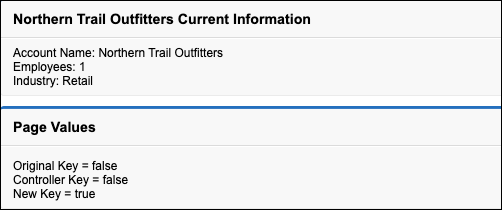
These steps are executed during the get request.
1. The constructor methods of the custom controller `AccountInfoController` and the controller extension `AccountInfoControllerExtension` execute. The controller has a variable called `account` set to the result of a SOQL query for an account. The query uses the account `id` passed in as the URL query parameter. The extension has a variable called `acct` that’s created by calling the `getAccount` method on the controller.
2. The custom component `PageValues` initializes.
This custom component has its own associated controller. Because the controller has no explicit constructor, the controller object is created using an implicit, no-argument, public constructor.
As part of creating the custom component, the `originalKey` attribute on the custom component is set. You set the `key` parameter in the URL to `false`, so the `originalKey` attribute evaluates to `false`.
3. After the custom component initializes, the `assignTo` attribute on that custom component executes. An `assignTo` attribute is a setter method that assigns the value of this attribute to a class variable in the associated custom component controller.
`PageValues` has an `assignTo` method set to `{!controllerKey}`. In `PageValuesController`, the value of `controllerKey` is set to the value of `originalKey`. The `getNewKey` method sets `newKey` to the opposite of the `controllerKey` value. The `controllerKey` attribute is set to `false`, so `newKey` is set to `true`.
4. The `` component has an `action` attribute that calls the `resetEmp` method on the controller extension. That method sets the `NumberofEmployees` field on the account object to `1`.
There are also several expressions that evaluate on the page. The order of these evaluations is indeterminate, which means that the specific order can differ each time that the page loads. Let's focus on two expressions:
- ``
The `title` attribute on `` calls the `getGreeting` method in the controller extension. The page displays “Northern Trail Outfitters Current Information.”
- ``
The `rendered` attribute on `` is set based on the value of the `key` parameter. You set `key` to `false` when calling the page, so the form doesn’t render.
5. Because the `` component doesn’t render, a view state isn’t maintained.
6. The HTML is sent to the browser, which renders the HTML.
## Follow the Order of Execution for a Postback Request
To understand how a postback request executes, visit the `AccountInfo` page using the URL https\://*MyDomain_login_URL*/apex/AccountInfo?id=*recordId*\&key=true. *MyDomain_login_URL* is the name of your instance, and *recordID* is the ID of an account record. Notice that the URL query parameter `key` is set to `true`.
A page with a form appears:
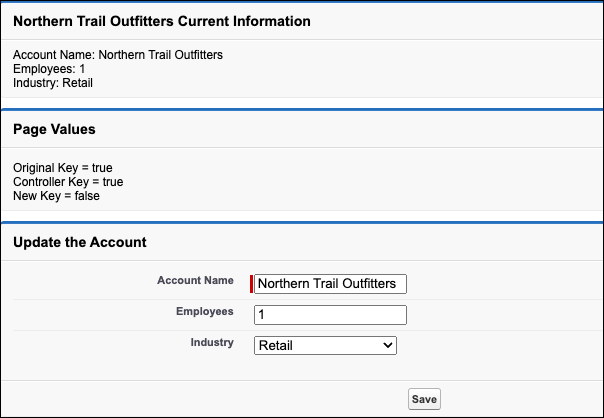
In the page’s Update the Account section, change the **Account Name** to `NTO`, the **Employees** to `42`, and the **Industry** to `Other`. Then click **Save** to initiate a postback request.
These steps are executed during the postback request.
1. The view state is decoded. The view state contains all of the information required to update the values on the page.
2. All expressions are evaluated, and methods on controllers and controller extensions execute. The order of these expressions is indeterminate. Here’s how two of these expressions evaluate:
- ``
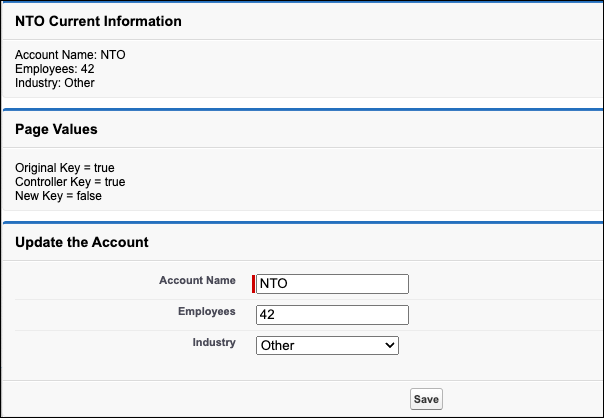
The `title` attribute on `` calls the `getGreeting` method in the controller extension. Because you changed the account name, the value of `greeting` changes to “NTO Current Information.”
- ``
The `rendered` attribute on `` is set based on the value of the `key` parameter. You didn’t change the `key` parameter, so the value in the view state is used. Because the value was `true` when the view state was created, the form renders.
3. The `save` action that triggered the postback request evaluates. The `save` action is this method on the controller:
```apex
public PageReference save() {
update account;
return null;
}
```
If there aren’t any errors, the method updates the record with the new data. Because the action that triggered the postback didn’t include a page redirect, the view state updates. The resulting HTML is sent to the browser, and the updated account information appears.
The `save` method can fail if the user doesn’t have permission to update the record or if there are validation rules that the change triggers. In this case, the page displays with error messages that describe the errors. The values that the user entered remain in the input fields so that the user can edit them and then resubmit the form.
4. After the postback request executes successfully, the updated page appears:
**See Also**
- [Using the Development Mode Footer](/docs/platform/salesforce-pages-developers-guide/guide/pages-tools-edit-toolbar.md)