


In the past, migrating Omnistudio components from the managed package runtime to the standard runtime involved a number of manual steps that could be time-consuming and error-prone. Now, the new Omnistudio Migration Assistant (OMA) automates this process, making it fast, efficient, controlled, and seamless. In addition, this tool helps you align with the standard data model, enabling easier maintenance and smoother future upgrades.
In this post, we’ll detail the key benefits of migrating to the Omnistudio standard runtime, outline the high-level steps involved, share crucial considerations for the migration, and discuss real-world challenges that developers might face along the way.
Before we deep-dive into how you can migrate, let’s start with understanding why it makes sense to migrate to the standard runtime.
Why should you migrate?
If you use Omnistudio and rely on Vlocity Industries managed packages, such as vlocity_ins, vlocity_cme, and vlocity_ps, migrating to the Omnistudio standard runtime is essential to staying aligned with the latest platform features and best practices. Some of the core benefits of making the switch include:
- Improved performance: Experience faster performance for both the OmniStudio designer and runtime components
- Latest innovations: Access new product features, such as the Integration Procedure Action with Agentforce
- Standardized deployments: Standard runtime supports SF CLI-based deployment instead of the existing Vlocity build tool-based deployment
- Interoperability: Components no longer rely on the managed package, ensuring seamless integration with other Salesforce services
- Design assist: Get real-time guidance and best practices for design within the standard designer
- LWR support: There’s robust support for Lightning Web Runtime (LWR) for implementations running in Experience Cloud
Let’s next take a look at the capabilities of the new OMA tool, and which tasks it can automate.
Automation capabilities of the Omnistudio Migration Assistant, at a glance
The table below outlines the capabilities of the OMA tool and notes whether each is automated or manual. As you can see, most of the capabilities are automated, and only one requires some manual configuration in the planning phase before running the OMA.
| Tasks | Automated or Manual? |
|---|---|
| Enable Omnistudio metadata API support | Manual |
| Convert or rebuild angular components | Manual |
| Migrate calculation procedures and calculation matrices to the Business Rules Engine | Manual |
| Convert to the standard data model | Automated |
| Switch to the standard runtime | Automated |
| Deploy custom Lightning web components | Manual |
| Set the Omnistudio designers to use the standard data model | Automated |
| Update Omnistudio custom functions | Automated |
| Update references to Omnistudio components after migration | Automated |
| Update remote actions | Automated |
| Migrate Omni global auto numbers | Automated |
| Migrate custom labels | Automated |
| Migrate Custom LWCs | Automated |
| Update Lightning pages | Automated |
| Update community pages | Automated |
Installation of the Omnistudio Migration Assistant
The OMA tool is an SF CLI plug-in that can be installed locally using the following command.
sf plugins install
@salesforce/plugin-omnistudio-migration-tool@<tool_version>
For system requirements and an in-depth look at the installation process, see the Install Omnistudio Migration Assistant documentation.
The complexity of the overall migration process varies from project to project, but having a solid understanding of the approach will set you up for success.
Three phases of Omnistudio runtime migration
Migrating from the Omnistudio managed package runtime to the standard runtime is a three-phase process. It starts in your development sandbox, where you set up and install the OMA tool, then moves on to your testing sandbox, where the OMA validates the components, and finally ends with your production environment, following your release cadence.
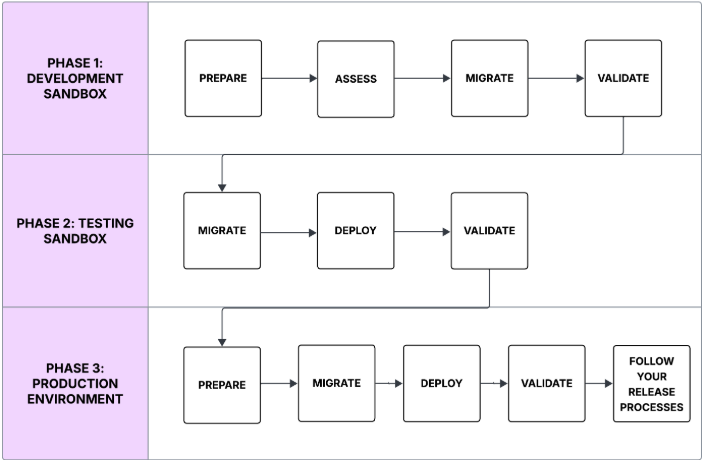
Let’s take a closer look at each phase.
Phase 1: Development sandbox
In Phase 1, you’ll install the Omnistudio Migration Assistant tool, prepare your sandbox, and run the OMA’s Assess mode. The resulting Assessment Report indicates the readiness of every Omnistudio component included in the migration.
The Assessment Report may identify items that need to be fixed prior to migration. Once you’ve addressed them all, you’ll need to rerun the tool until you get a clean report.,
With everything fixed and your sandbox ready, you can now run the OMA’s Migrate mode, and then perform any post-deployment manual steps after Migrate mode is complete.
Here are the OMA commands in Phase 1:
Assess mode command
sf omnistudio:migration:assess [-u <string>] [-a] [-v <string>] [--only=(dm|ip|os|fc|autonumber|cl)] [--relatedobjects=(apex|lwc|expsites|flexipage) [--loglevel=(trace|debug|info|warn|error|fatal|trace)]
Migrate mode command
sf omnistudio:migration:migrate [-u <string>] [-a] [-v <string>] [--only=(dm|ip|os|fc|autonumber|cl)] [--relatedobjects=(apex|lwc|expsites|flexipage) [--loglevel=(trace|debug|info|warn|error|fatal|trace)]
Phase 2: Validation sandbox
In Phase 2, you’ll deploy your migrated Omnistudio components to a validation sandbox. Once the components are available there, you’ll perform thorough regression testing of all the components and functionalities involving Omnistudio components. This is a very critical step as this will be the final check before advancing to production deployment.
Phase 3: Production environment
In Phase 3, you’ll perform production environment readiness steps, such as assigning the correct permission set license and permission set to your users. Once the users are set up correctly, you’ll deploy the components from the validation sandbox to the production environment, and then perform post-deployment validation to make sure things are working as expected.
By the end of Phase 3, you will have successfully migrated to the Omnistudio standard runtime.
Common manual interventions during migration
When running Assess mode during the migration process, your Assessment Report may specify a few common manual interventions needed prior to migrating your Omnistudio components. Preparing for these action items ahead of time can save a significant amount of time.
Common interventions include:
- Duplicate Data Mapper name: This happens when you remove the special characters from the names of two or more Data Mappers and they end up having the same name. In standard runtime, special characters like underscore(_) are not allowed in the component name. You will have to update the name of one of the components and its reference to avoid this error.
- Usage of reserved keywords in an Integration Procedure: When some reserved keywords like “response,” “request,” or “action” are used in an Integration Procedure, this error is reported in the Assessment Report. The reserved keyword must be changed to some other variable name as the reserved keywords are not allowed in the standard runtime.
- Angular Omniscript: The OMA tool cannot convert Angular Omniscript to work with the standard runtime. This must be done manually. You’ll need to first convert the Angular Omniscript to LWC Omniscript, and then run Migrate mode.
Like any migration project, Omnistudio migration also comes with its own challenges.
Common challenges during migration
Although the Omnistudio Migration Assistant tool does most of the heavy lifting, there are quite a few considerations when implementing an enterprise-level Omnistudio managed package migration. These include:
- Industry use-case objects: Industry-specific objects coming from Vlocity managed packages need to be planned for migration well ahead of the time as the OMA tool will not automatically migrate those objects to standard objects. This is a huge effort which is often underestimated.
- Accounting for newly developed components: For a large-scale implementation, migration may take a few weeks considering manual steps and regression testing. During this time, any active development happening in parallel will generate some more managed package components, which should be migrated to the standard runtime before going live to production.
- OmniAnalytics migration: If you are using OmniAnalytics for your managed package implementation, you will need to consider the differences in analytics setup between the two runtimes. In the managed package runtime, for example, the analytics data is stored in
vlocity_<ins|cmt|pst>_vlocitytrackingentry__c object. But in the standard runtime, the data is stored in the Decision Explainer service. See the detailed steps noted in the OmniAnalytics for standard runtime documentation for more information.
Impact on automation testing: You should also consider the impact of the migration on automation testing as the HTML element tags will differ between the Omnistudio managed package and standard runtimes.
Conclusion
The Omnistudio Migration Assistant tool will help you migrate your Omnistudio components from the managed package runtime to the standard runtime with minimal time and effort. The key to successful enterprise-scale migration is planning ahead for complexities, such as industry-specific functionalities coming from the Vlocity managed package, as well as thorough regression testing post migration.
Resources
- Documentation: Migrate Your Omnistudio Components from Vlocity Industries Managed Packages to Omnistudio Standard
- Documentation: Using OmniAnalytics to Track User Engagement in Omniscripts and Flexcards
- Trailhead: Omnistudio Development Essentials
About the author
Ashish Arora is a Senior Technical Architect at Salesforce who specializes in enterprise architecture and design. He is passionate about Omnistudio, Agenforce, and all the latest Salesforce AI innovations. Connect with him on LinkedIn.