A slow page can break your momentum — and your customer’s. When a form loads late or a step feels heavy, the journey loses its pace. Many teams built their first Experience Cloud sites with Aura, Salesforce’s legacy component-based framework used to create dynamic UIs. These Aura-based sites still support your flows and hold your work, but as your traffic grows, you may want something faster.
That’s where Lightning Web Runtime (LWR) steps in. LWR supports both Omniscripts and Flexcards, enabling your key Salesforce Omnistudio components to work on a faster, lighter base. This support will be available in the Spring ’26 release and is already GA in preview sandboxes.
With LWR, you keep the same logic, the same steps, and the same cards your teams depend on. Now, they run on a site built with a slim core where static content sits in a cached layer.
In this blog post, we’ll discuss why this new support matters, how Omniscripts and Flexcards behave on LWR, and what to check when cached layers hold older versions. Our goal is to help you bring your Aura-based Omnistudio experience forward without changing the heart of your design.
Why LWR plus Omniscripts and Flexcards feels faster
LWR sites load fast because they work in two layers.
The static layer holds the framework and the user interface (UI), and it is stored on a content delivery network (CDN) after you publish the site. When a customer opens the page, the browser pulls this static layer right away, so the page appears with almost no delay.
The dynamic layer, on the other hand, handles live data and runs only when the flow needs it.
This split keeps the site light, and your interactions feel steady from one step to the next.
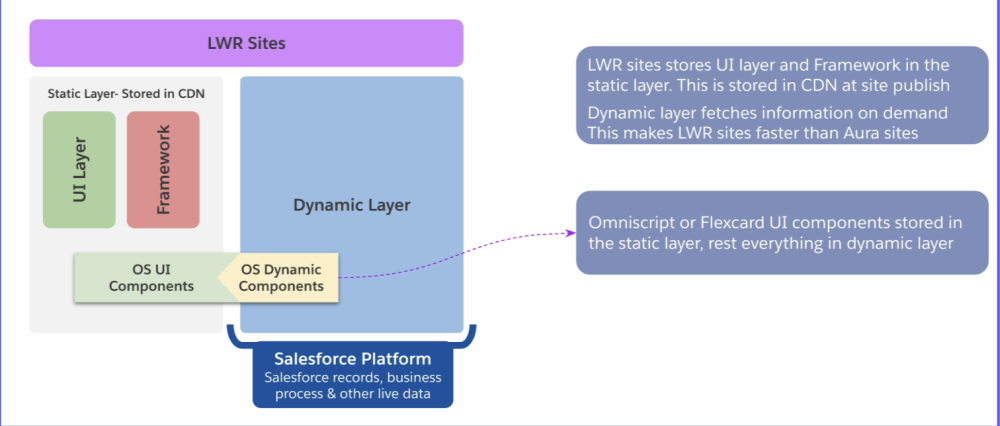
Your Omnistudio Lightning Web Components — Omniscripts and Flexcards together — benefit from this setup in a natural way. The static parts of your components reach the user from the cached layer, while the dynamic parts connect to your data only when needed. This gives you speed and accuracy at the same time. Internal testing has shown a strong lift in load time for complex Omniscripts and Flexcards, especially when your flow spans multiple steps or carries heavy data calls. You, your agents, and your customers feel the difference because every screen shows up faster and keeps the experience moving smoothly.
Teams who built their early sites with Aura Components can move into LWR without worry. Aura supported many journeys well, and those journeys still matter, but LWR simply gives them room to run faster. You bring your Omniscripts and your Flexcards as they are and place them into a site that treats each page with care. The result is a lighter experience that feels modern without asking you to rebuild anything.
The “one-click” workflow and how the LWR cache works
LWR uses a static layer that lives in a CDN. This layer holds the framework and the UI pieces that don’t change often. When you publish your site, Salesforce sends this static layer to the CDN. From that point on, every visitor loads this cached version first, and it stays in place until the next publish.
Omniscripts and Flexcards follow this model naturally. Their definitions are treated as part of the static layer, while the dynamic parts still connect to live Salesforce data when needed. This lets LWR cache what’s stable, without affecting how your flows run or how card actions behave.
Because of this, changes to an Omniscript or Flexcard don’t show up on an LWR site right away. LWR doesn’t fetch updated definitions at runtime. Until you republish, the site keeps serving the earlier cached version. This is expected behavior, and it’s part of how LWR keeps things predictable. One publish updates the static layer across the site, and your changes go live without touching the logic inside your components.
Since Omniscripts and Flexcards run inside the LWR framework, the same caching rules and publish timing apply to them as well. Once you plan for that publish step, the workflow stays simple and consistent.
To help with this, the latest LWC Omniscript Designer shows which LWR sites still need a ‘publish’ after a change. When you’re working across multiple pages, you can easily see what’s already live and what still needs a refresh, so nothing goes out of sync.
What you gain with LWR and Omnistudio components
Your work stays the same, yet your pages feel lighter and faster. This table shows how LWR supports your flow and lifts your experience.
| Benefit | What it means for you | What it means for your users |
| Faster load from cached static bits | You get quick delivery of your UI layer | Pages open with steady pace |
| Simple shift from Aura to LWR | You bring your Omnistudio components without rework | The journey stays familiar and smooth |
| Strong base for high traffic | You handle growth with less strain | Heavy pages stay stable |
Creating an LWR site with Omniscripts and Flexcards
Setting up an Omniscript or Flexcard on an LWR site feels familiar because you follow the flow you already know. You keep the same Omniscript Designer, the same Flexcard Designer, and the same setup screens. You bring the same “Type” and “SubType” that power your steps today. This shift doesn’t change your work; it simply places it on a faster site with a stronger foundation.
Step 1: Create a new LWR site in digital experiences
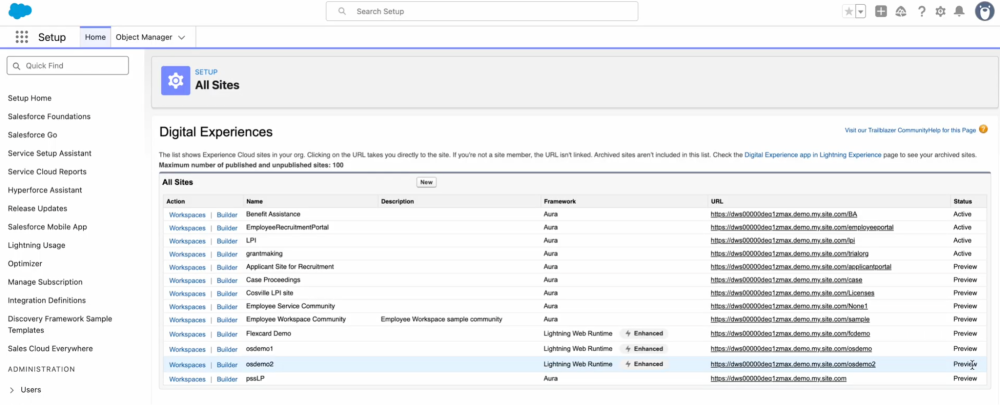
From Salesforce Setup, open the “All Sites” page and choose to create a new site. You can keep your Aura site active while you build this one, which makes the move safe. This gives you space to test your Omniscripts, your Flexcards, your branding, and your layout before you publish.
Step 2: Select an LWR template
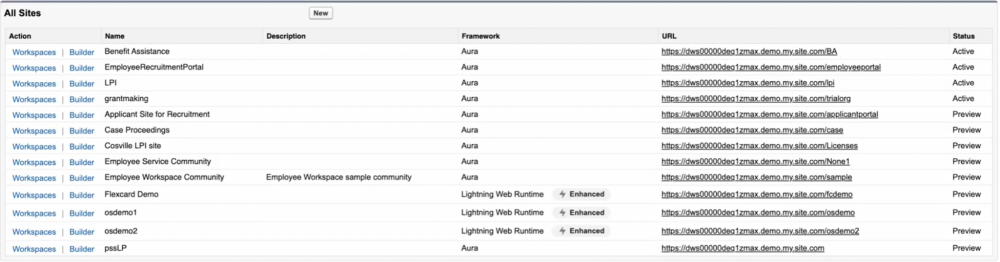
LWR gives you a lightweight base no matter which template you choose. Each template loads fast, holds your pages in a light frame, and keeps your interactions steady. You get room to place your banners, your flows, your cards, and your forms without adding weight to the page.
Step 3: Open Experience Builder
Experience Builder feels the same whether you work on Aura or LWR. You see the same panel on the left and the same canvas in the center. You can edit your page, set your theme, and add your components. This keeps your workflow simple because you already know this space.
Step 4: Drag your Omnistudio component onto the page
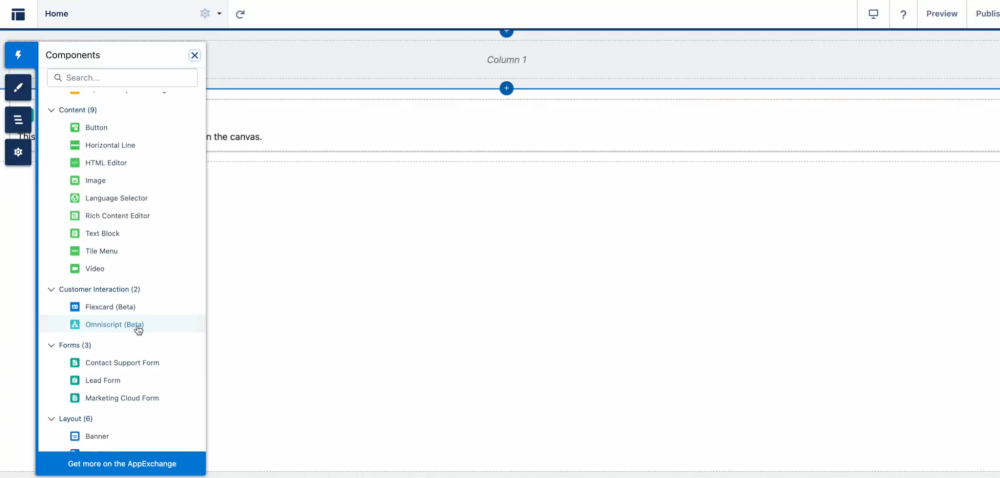
You search for Omniscript or Flexcard in the components list and pull it into your layout in the same way as you’d place any other item. The component sits where you drop it, and the page updates right away. You can resize and align the component, or pair it with a header or footer to guide your users.
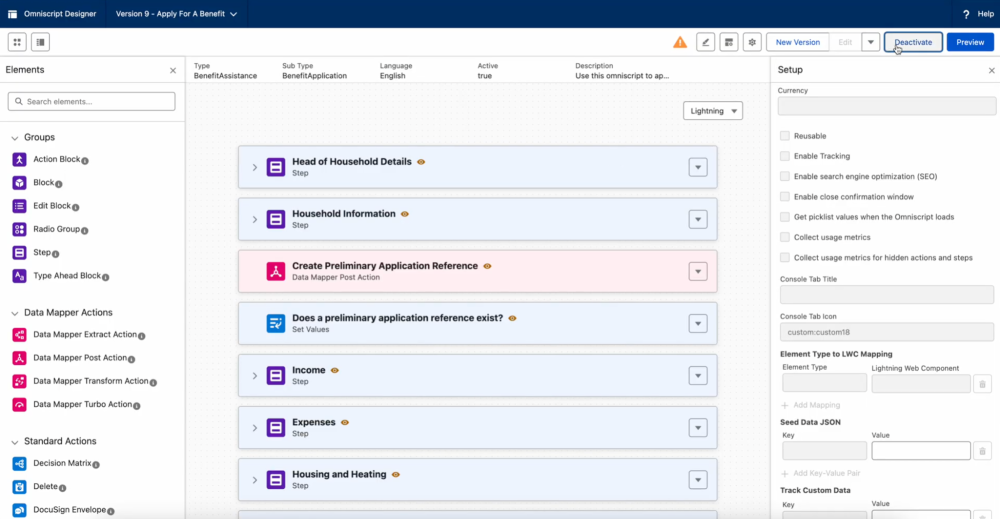
Step 5: Select the Omniscript Type and SubType, then click Publish
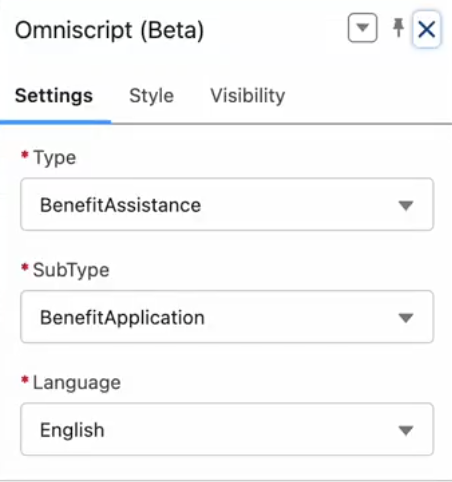
For Omniscripts, you open the component settings and select the Type and SubType. These define the flow, the steps, and the data calls that your script uses. For Flexcards, you choose the card name you want to render, which links the page to the card’s layout and actions. Once you click “Publish,” LWR stores the static layer in a CDN-backed cache, and the dynamic layer runs only when your user reaches a live step. This is the moment where the speed benefit begins.
Conclusion
When you place your Omnistudio components on an LWR site, your customers move through each step with less delay and more ease. You keep your logic and design, but you shift them into an environment that treats load time with care. The result is a flow that feels lighter, faster, and more consistent end to end.
You can enable Omnistudio components for LWR with Salesforce and move forward at your pace. You can test two sites side by side and shift your steps without strain, giving you room to support your teams and your customers with confidence.
Resources
- Trailhead: Omnistudio Omniscript fundamentals
- Trailhead: Omnistudio Development Essentials
- Video: Flexcards and Omniscripts | Salesforce Industries
About the author
Dhairya Kedia is a Product Manager at Salesforce with over five years of industry experience across product management, product development, business analysis, and program management. Follow him on LinkedIn.
M R Rakesh Thampi is a Senior Content Analyst with extensive experience in product marketing and content strategy. He specializes in building scalable content strategies, using AI-powered tools and digital marketing best practices to create high-impact content that supports product launches, strengthens positioning, and drives demand across channels. Follow him on LinkedIn.