Creating data streams in Salesforce Data 360 is a critical step for data ingestion. However, manually configuring these streams in the UI can be slow and often lead to inconsistent naming as requests scale across different orgs.
In this post, we’ll show you how to build an automated onboarding pattern using the Data 360 API. With a Python-based backend and a Slack-based self-service UI, this approach helps you reduce manual work and ensure consistent configuration across your environments. We’ll also cover secure authentication, metadata validation, and best practices for scaling your data operations.
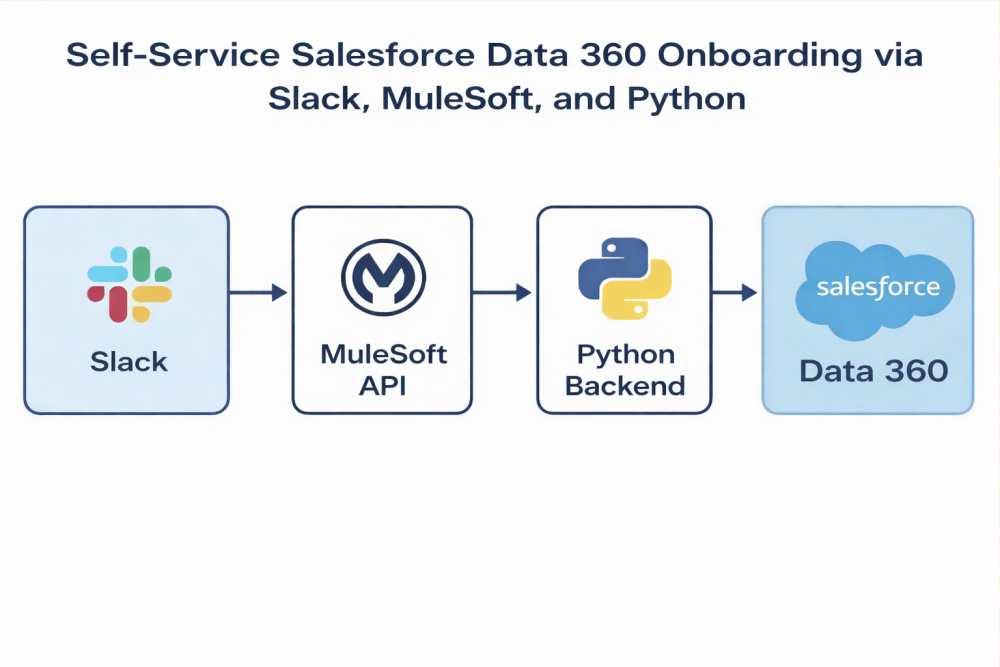
The architecture: From Slack to Data 360
You can turn complex technical onboarding into something that feels as simple as filling out a form. In this architecture, users provide an org name, object name, and (optionally) a list of fields to include or exclude, and the system handles the rest.
The workflow relies on a three-tier design to bridge the gap between the chat interface and the Data 360 API:
- Interaction layer (Slack): The user submits a form in Slack, which acts as the frontend.
- Orchestration layer (MuleSoft): MuleSoft acts as the API gateway. It receives the webhook from Slack, parses the payload, and triggers the backend automation.
Execution layer (Python): A Python script executes the business logic, interacting with the Data 360 API to check for existing data streams and create new ones when needed.
Secure connection resolution
After the user submits an org and object, the automation needs to determine the correct CRM connection to use. Business users typically don’t know internal connection API names, so we keep the input simple and do the connection lookup behind the scenes.
First, we define the endpoint to fetch all available Salesforce connectors within the Data 360 instance.
Next, the script retrieves the list of connections and filters them. It looks for a connection label that matches the requested org_name. This ensures that the API calls are made against the correct connection without requiring the user to look up IDs.
Metadata validation and permissions handling
One of the most critical features we built was field-level control. Users can specify:
- Included fields (only onboard these)
or
- Excluded fields (onboard everything except these)
Before creating the data stream, the script fetches object metadata from Salesforce to validate the user’s input, so you catch issues early and return a clear, actionable error rather than failing during stream creation.
Best practice: Use a single API user for both metadata retrieval and stream creation. This avoids permission mismatches that can happen when metadata is fetched using one user, but the stream is created using another.
Automating data stream creation
Once the inputs are validated, the automation constructs the JSON payload required to create the data stream. This process is divided into three key steps.
Step 1: Validate fields against metadata
If the user provided specific fields to include or exclude, we first validate them against the source metadata. This ensures that we don’t attempt to map fields that the API user cannot see.
Step 2: Build the data stream payload
Next, we dynamically assemble the JSON payload, which includes defining the connectorInfo, the dataLakeObjectInfo, and the refreshConfig. Note that we map the filtered sourceFields directly into the payload.
Step 3: Execute the API request
Finally, we send the POST request to the Data 360 API to create the stream.
Enhancing the user experience with Slack
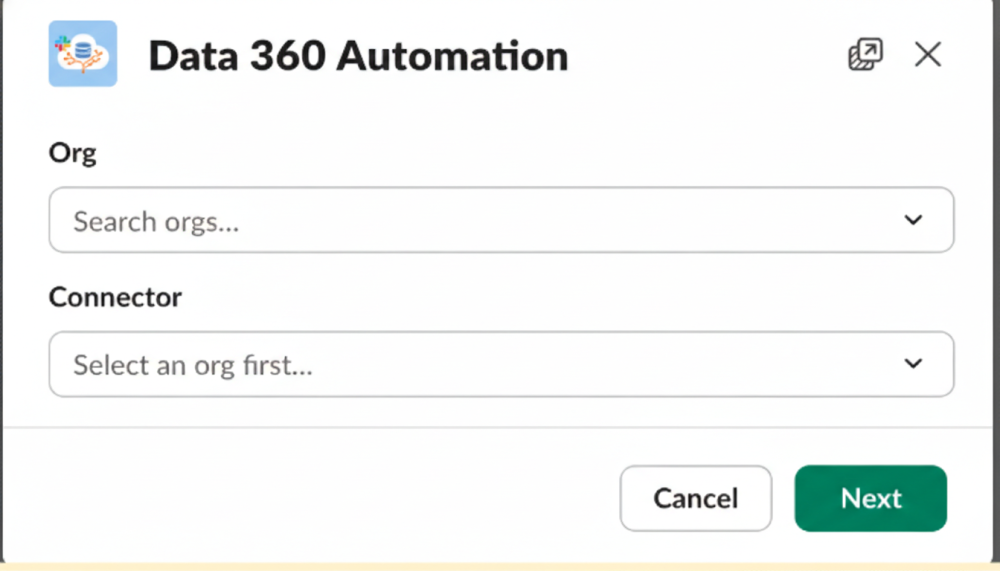
To make the process accessible to non-technical users, the entire backend can be surfaced through a Slack app. We built this using Block Kit, Salesforce’s UI framework for building interactive apps in Slack. Block Kit allows you to stack different UI components — like input fields, section headers, and submit buttons — to create a native app-like experience.
From the user’s perspective, the experience is straightforward:
- Open the app and click Onboard Data Stream.
- Enter the Org Name and Object Name.
- Optionally list included or excluded fields.
- Submit the form.
Here is an example of the Block Kit JSON used to render the “Org Name” input field:
Behind the scenes, Slack uses interactivity features. When the user submits the form, Slack sends a JSON payload to a specific Request URL hosted by MuleSoft. MuleSoft listens for this POST request, parses the input parameters, and triggers the Python automation.
Conclusion and next steps
The automation that we covered in this post makes data stream creation faster, more consistent, and less dependent on manual UI steps.
This approach combines secure token generation with dynamic connection resolution. It allows teams to onboard Salesforce objects into Data 360 with minimal friction, keeping naming and behavior standardized.
As a next step, you can integrate this foundation with Agentforce agents and initiate onboarding through agent-powered workflows while using the same governed backend.
Resources
About the author
Karthik Reddy Barla is a data and integration engineer focused on automation-led onboarding and scalable data platform patterns. His work spans MuleSoft-based orchestration, Python automation, and operationalizing pipelines that connect Salesforce systems with downstream platforms such as Snowflake. Follow him on LinkedIn.