Are you tired of jumping back and forth between your HTML and JavaScript files just to handle a simple conditional or format a string? We have some exciting news! In the Spring ’26 release (API version 66.0), we are introducing complex template expressions for Lightning Web Components (LWC). This new experimental feature allows you to write JavaScript logic directly inside your HTML curly braces. In this post, we’ll talk about how this feature works, show you some common use cases, and walk through the rules for keeping your templates clean and performant.
Why use complex expressions?
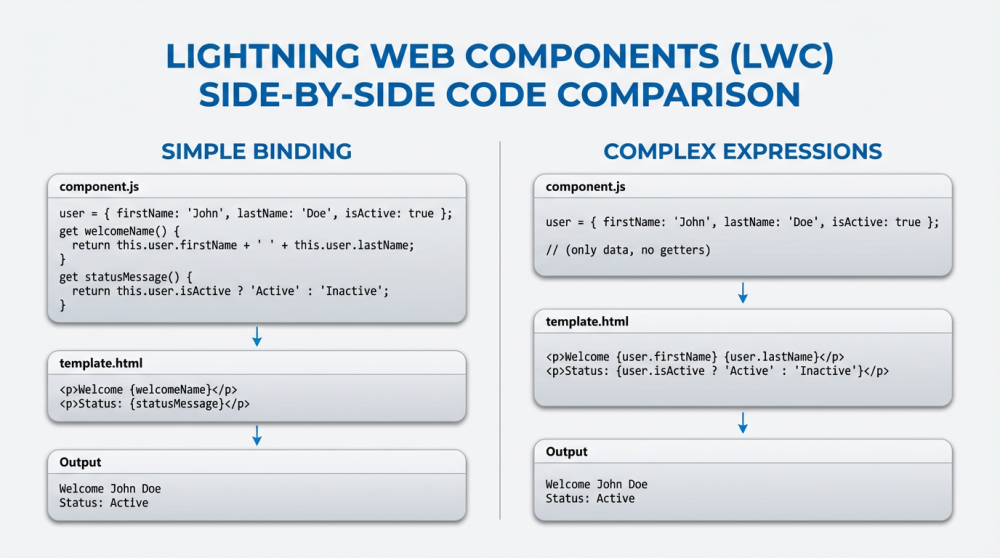
Until now, LWC templates only supported simple property binding. If you wanted to combine a first and last name, you had to create a getter in your JavaScript class. While this keeps logic separate, it often leads to “boilerplate” code — extra lines of code that don’t do much but pass data around.
With complex template expressions, you have the power to handle simple UI logic where it belongs: in the template. This makes your components easier to read and faster to build.
Getting started with the syntax
To use this feature, your component must use API version 66.0 or higher in its js-meta.xml file. Once enabled, you can start using a subset of JavaScript directly in your HTML. See this guide on component API versioning for more information.
Logical and arithmetic operators
You can now perform math or logical checks right in the tag. For example, if you want to show a special badge only when an item count is high, you can do it like this:
1<template>
2<template><div key="{item.id}">
3<span class="”{index" 0="" first-item="" :="" item="">{index + 1}. {item.label}</span>
4</div><p>
5</p></template>
6</template>
Using expressions in attributes
One of the most powerful ways to use this feature is inside HTML attributes. You can dynamically change classes or titles without needing extra variables in your JavaScript file.
However, there is one very important rule to consider: complex template expressions in attributes must be surrounded by double quotes. If you forget the quotes, the LWC compiler will throw an error. By using quotes, you ensure that the template stays compliant with standard HTML rules.
1<template><div class="{isActive ? 'brand-border' : 'neutral-border'}"> User Profile </div><p>
2<button title="{item.name + ' - ' + item.status}"> View Details </button>
3</p></template>
Staying HTML compliant
Because LWC templates are still HTML files, some JavaScript characters can confuse the browser. For example, the less than symbol ( < ) looks like the start of a new HTML tag if used in plain text. To stay safe, follow these tips:
- Use Greater Than: Instead of
{age < 18}, use{18 > age}. - Stick to Double Quotes: Always wrap attribute expressions in
"{...}".
LWC complex template expression limitations and restrictions
To keep your components fast, we’ve limited what you can do in a template. You cannot use the new keyword, you cannot create full function declarations, and you cannot use assignment operators like = or ++. Think of template expressions as read-only logic meant for displaying data.
For a full set of valid and invalid expressions, see these examples.
Conclusion
Complex template expressions are a huge win for developer productivity. By reducing the need for additional getters and functions in your JavaScript files, we’re making LWC feel more modern and intuitive. Remember, this is currently an experimental feature. We encourage you to try it out in your Spring ’26 sandbox environments and share your feedback with us!
Resources
- Learn more about how to work with complex template expressions in the LWC Developer Guide.
- Review the Spring ’26 Release Notes for full details on API version 66.0.
- Practice your skills by completing the Build Lightning Web Components project on Trailhead.
- Brush-up on component API versioning
About the Author
John Hefferman is a Software Engineer at Salesforce. John enjoys helping developers build faster and more efficiently on the Salesforce Platform.