With your flows in place, it’s time to bring your agent to life: activate, configure the necessary permission sets to secure access, and verify your agent’s performance.
1. Activate and test
After you add Actions , click on the top right on Activate and Save .
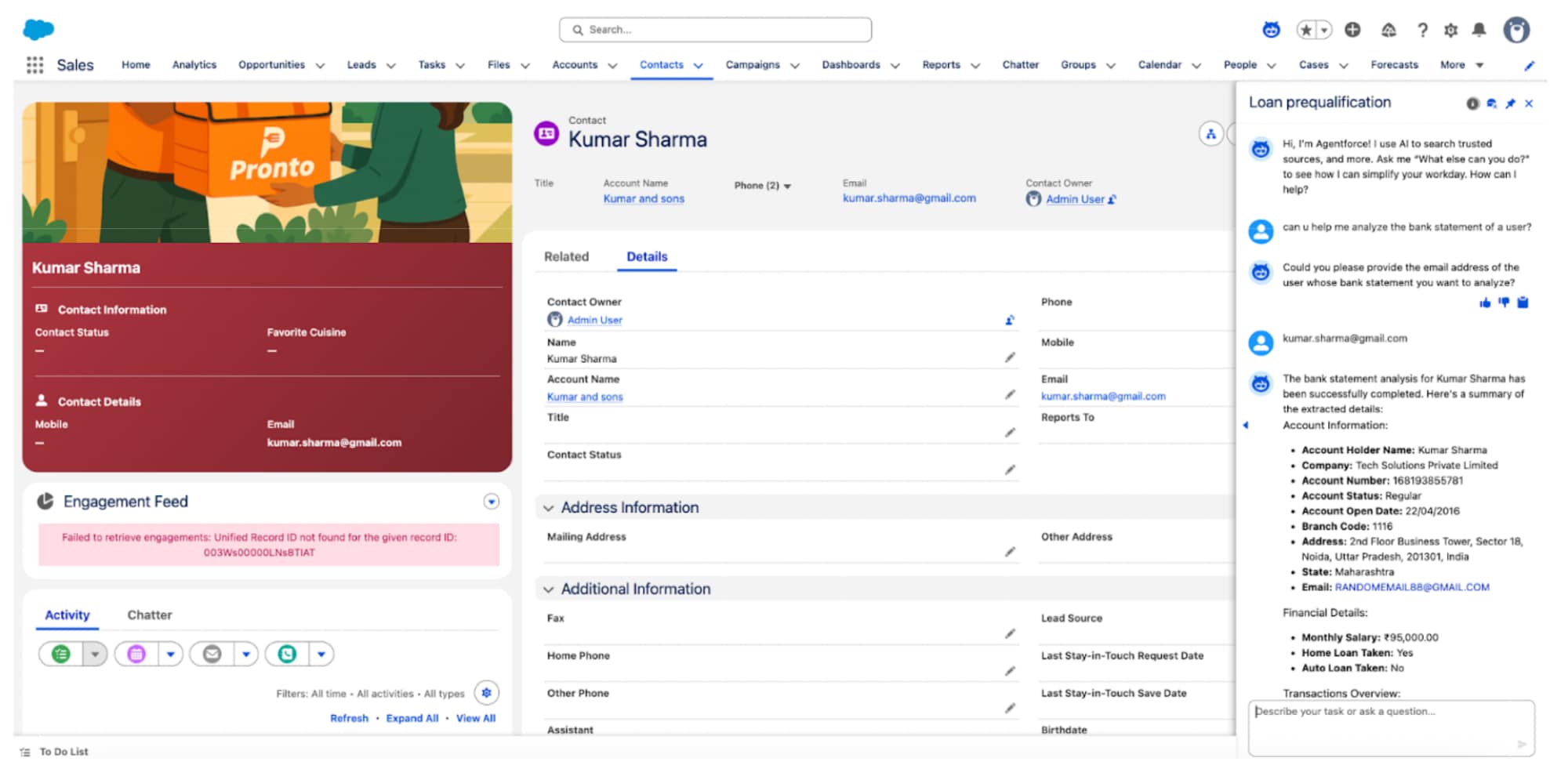
Use the agent on the right side with this prompt: “Can you help me analyze the bank statement of a user?”
If prompted, enter the email ID of the test contact you created earlier. Refer to Finalize Flow Retrieving File ID from Email Address .
2. Configure the Agent
Add Permissions
Go to Setup .
In the Quick Find search bar, find and select Permission Sets .
Click the New button.
Enter the permission set Label : Loan Qualification Agent.
Click Save (no other changes are needed).
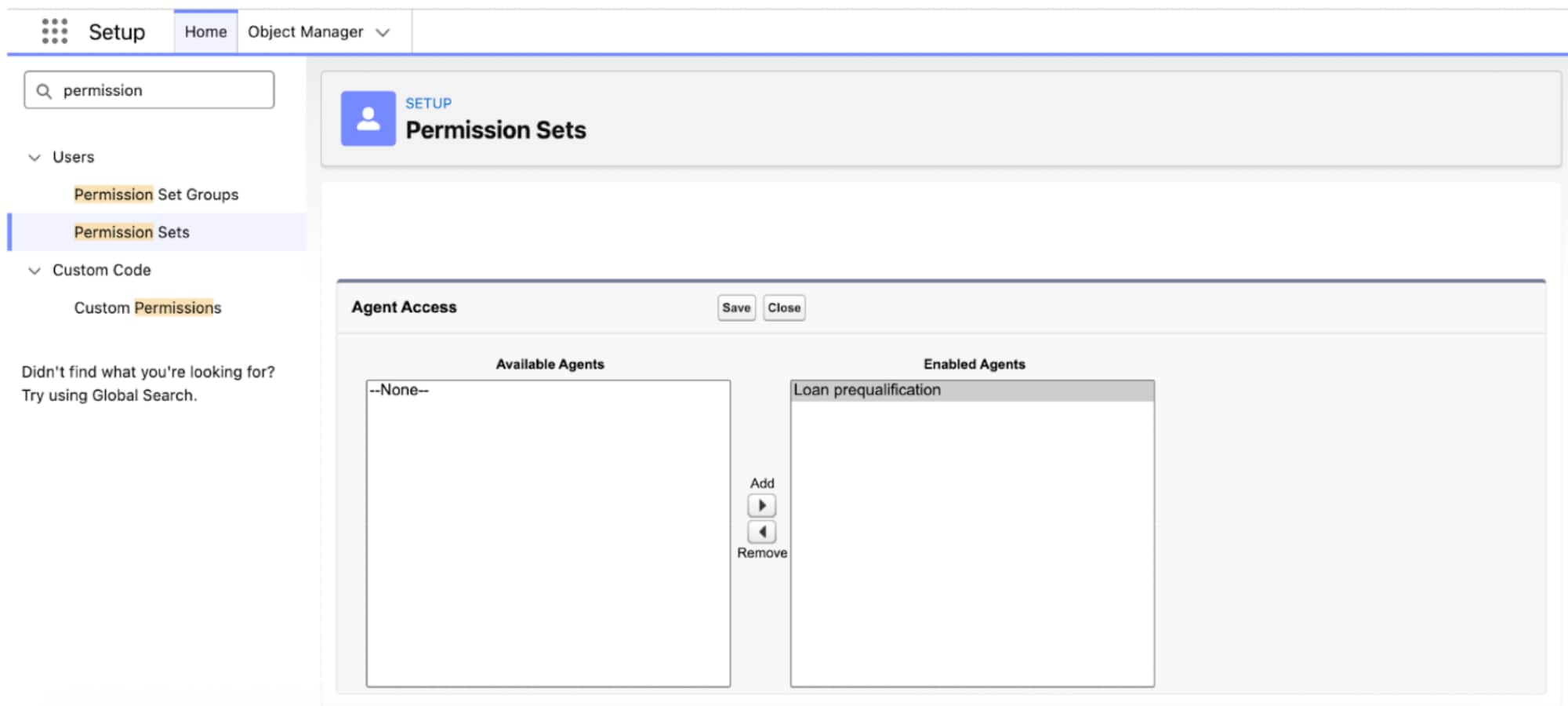
Configure Agent Access
Scroll down to the Apps section.
Find the Agent Access section.
Click Edit .
Move Agent :
Find Loan Qualification Agent in available agents list.
Move it to the right side (Enabled Agents ). Alternatively, select the agent from the list and save your selection.
Click Save .
Assign Users
Click Manage Assignments .
Click Add Assignment .
Select User : Filter the list to only see Admin Users, then select a user who has a visible Last Login date. Example: demo-for@pronto-d25-demo.com.Click Next .
Click Assign .
3. Test the Agent on Sales Cloud
Employee agents are scaled securely across your organization. Test it on your Sales Cloud.
From the App Launcher , go to Sales .
Refresh the page.Click the Agentforce button (on the top of the page).
Your loan agent should now appear as available.
Enter a test query with the same test contact you created earlier. Refer to Finalize Flow Retrieving File ID from Email Address .


 j
j