


Lightning Platform Fundamentals
 j
jNewer Version Available
Try It Out: Add a Custom List Button to a Page Layout
Let's finish up our Mass
Update Status feature by adding the Update Status list button to our Position page layouts.
- From Setup, enter Objects in the Quick Find box, then select Objects.
- Click Position.
- In the Page Layouts related list, click Edit next to the page layout you want to edit first.
- Click the wrench icon (
 ) in the Job Application related list to edit its properties.
 - In the Related List Properties window, click the Buttons bar at the bottom to expand the Buttons section.
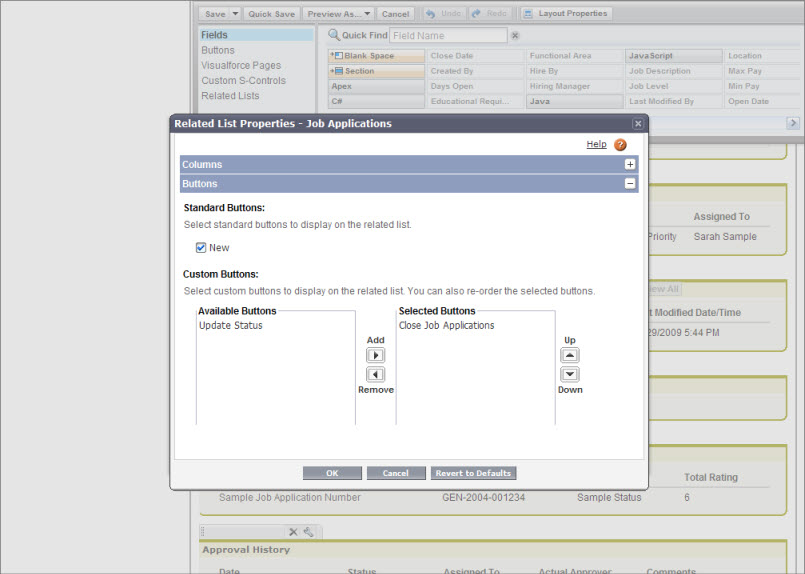
- Select the Update Status button and click Add to move it to the Selected Buttons list.
- Click OK to exit the Related List properties window.
- Click Save.
Repeat the above procedure for the other Position page layout.
Once that's done, the Mass Update Status feature is ready to test!