


Force.com IDE Developer Guide
 j
jForce.com IDE Release Notes
Winter ’17 (Force.com IDE v38.0)
Winter ’17 (Force.com IDE v38.0) contains the following updates.
- Create and Edit Apex Test Suites
-
You can now create and edit suites of Apex tests in the Force.com IDE.
-
To create a test suite, select , or right-click your project in the Package Explorer and then select .
-
To edit a test suite, edit its XML file: /src/testSuites/YourTestSuite.testSuite. Apex test suites are represented in Metadata API as ApexTestSuite components.
- Refresh Standard Objects Metadata from the Server
- We’ve resolved the bug that you pointed out in GitHub Issue #203. You can once again refresh your standard objects from the Salesforce server.
Summer ’16 (Force.com IDE v37.0)
Summer ’16 (Force.com IDE v37.0) contains the following updates.
- Increase Security with Java 8 and Eclipse 4.5 (Mars)
- We’ve updated the Force.com IDE to require Java 8 and Eclipse 4.5 (Mars) or later. Most of you have switched to these technologies. Focusing on them enables us to optimize your experience with our tools. As we announced in November 2015, Salesforce is disabling the TLS 1.0 encryption protocol to increase security. TLS 1.0 is disabled by default in Java 8, which also includes other security fixes.
- Install the Summer ’16 (Force.com IDE v37.0) Plug-In from a New Update Site
-
To install the latest version of the plug-in:
- Launch Eclipse and select .
- Click Add.
- In the Add Repository dialog, set the name to Force.com IDE and the location to https://developer.salesforce.com/media/force-ide/eclipse45.
For full installation instructions, see Install the Force.com IDE Plug-In.
- Develop Lightning Components in the Force.com IDE
-
We’ve added support for Lightning components to the Force.com IDE. This release includes the following features. For more information about these features, see Notable Lightning Components Features in the Force.com IDE.
- Multi-Page Editor
- Easily access and edit all the resources in your Lightning component bundle. The multi-page editor opens by default when you open a component bundle.
- Documentation Browser
- Access documentation for built-in tags and functions without leaving the IDE. To open the Lightning Doc view, select .
- Navigation
-
- Outline View
- Quickly locate and navigate between the elements in your Lightning component bundle. To open Outline View, press Ctrl+O (Cmd+O on macOS).
- Open Dialog
- Quickly locate and navigate between your Lightning component bundles. To display the Open Dialog, press Ctrl+Shift+A (Cmd+Shift+A on macOS).
- Auto-Completion
- Save time and avoid typos with the auto-completion feature for markup, JavaScript, and CSS files. Some auto-completion is provided by default as you type. To invoke more auto-completion options, press Ctrl+Space when you’re editing a file.
- Easily Open Apex Classes and Triggers with Open Type
- We’ve enabled Eclipse’s Open Type functionality for Apex types. You can now open a dialog to search your Apex classes and triggers by pressing Ctrl+Shift+T (Cmd+Shift+T on macOS) or selecting .
- This functionality is available only in the Force.com perspective. For more information, see Open Type in the Eclipse documentation.
- Set Breakpoints on Exceptions with the Apex Debugger
- You can now set breakpoints on System and custom exceptions. When an exception on which you’ve set a breakpoint is thrown during a debugging session, execution halts. The Apex Debugger pauses on the line of code that caused the thrown exception.
- To set an exception breakpoint, from the Breakpoints pane in the Debug perspective, click Add Apex Breakpoint. A list of all exceptions in your workspace displays. Select an exception, confirm that the exception’s listed project is the project you’re working in, and then click Set Breakpoint.
- Automatically Switch to the Debug Perspective When You Hit a Breakpoint
- When you hit a breakpoint in the Force.com perspective during a debugging session, the Force.com IDE now switches to the Debug perspective.
- Update Test Method Names Without Updating Full-Class Test Run Configurations
- You can now change the names of test methods that are included in full-class test run configurations and then execute test runs without errors. Previously, if you changed a test method’s name after setting up a test run configuration that included the method’s class, the Force.com IDE could execute the run configuration only after you updated the configuration. You still need to update run configurations that contain individual test methods when you change the methods’ names. This fix is only for run configurations that contain full classes, including run configurations that execute all tests in your org.
Spring ’16 (Force.com IDE v36.0)
Spring ’16 (Force.com IDE v36.0) contains the following updates.
- Execute Apex Test Suites
- You can now execute Apex test suites in the Force.com IDE. A test suite is a collection of Apex test classes that you run together. For example, create a suite of tests that you run every time you prepare for a deployment or Salesforce releases a new version.
-
To execute test suites, select (
 ). Select the Test
tab. To create a run of test suites, select Use suites, and
then select one or more test suites. To execute the selected test run configuration,
click Run.
). Select the Test
tab. To create a run of test suites, select Use suites, and
then select one or more test suites. To execute the selected test run configuration,
click Run.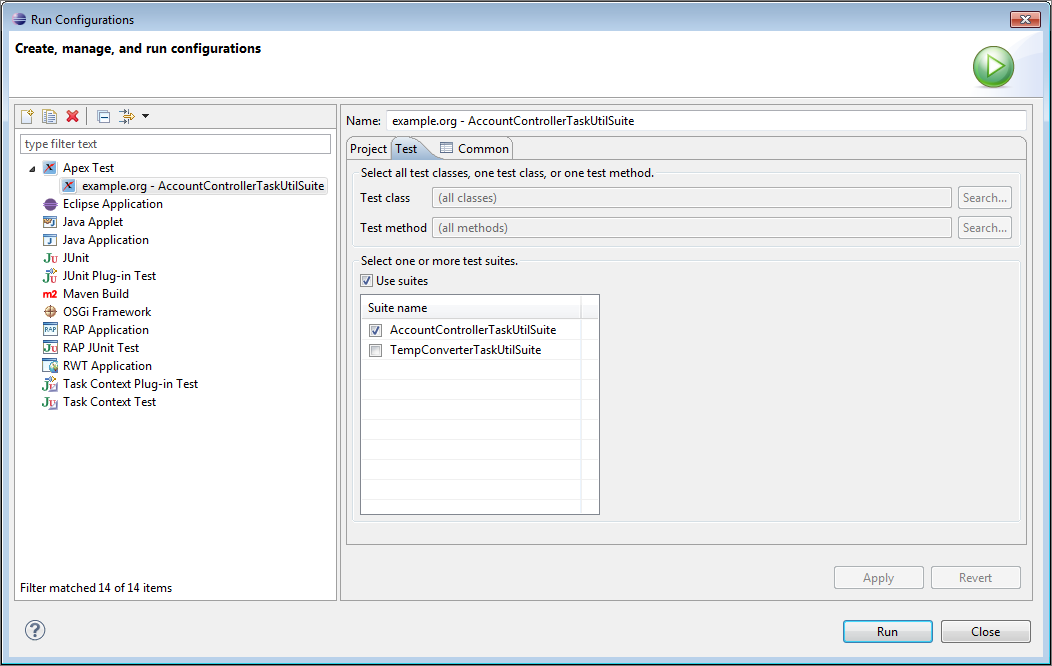
- To create or customize a test suite, use the Developer Console or the API. See Salesforce Help: Manage Sets of Apex Test Classes with Test Suites or Object Reference for Salesforce and Lightning Platform: TestSuiteMembership.
- Enjoy Optimized Test Execution
- Synchronous Apex test runs can include only one class. Because synchronous test runs are faster than asynchronous runs, all Force.com IDE test runs that include methods from only one Apex class are now executed synchronously. Test runs that include multiple classes are executed asynchronously as they always have been. Your test run configurations no longer include an option to configure synchronous or asynchronous execution.
- See Apex Test Results More Quickly
-
Test results now load in the Apex Test Results view as your test methods finish executing. Previously, test results displayed only after all tests in the run had executed. If your test run’s results aren’t looking promising, you can stop your test run using the Progress view’s terminate icon.

- Enabled code-coverage highlighting in Apex classes
- To update your code coverage, execute Apex tests by selecting . You can then view code coverage for your classes in the Apex Test Results pane.
-
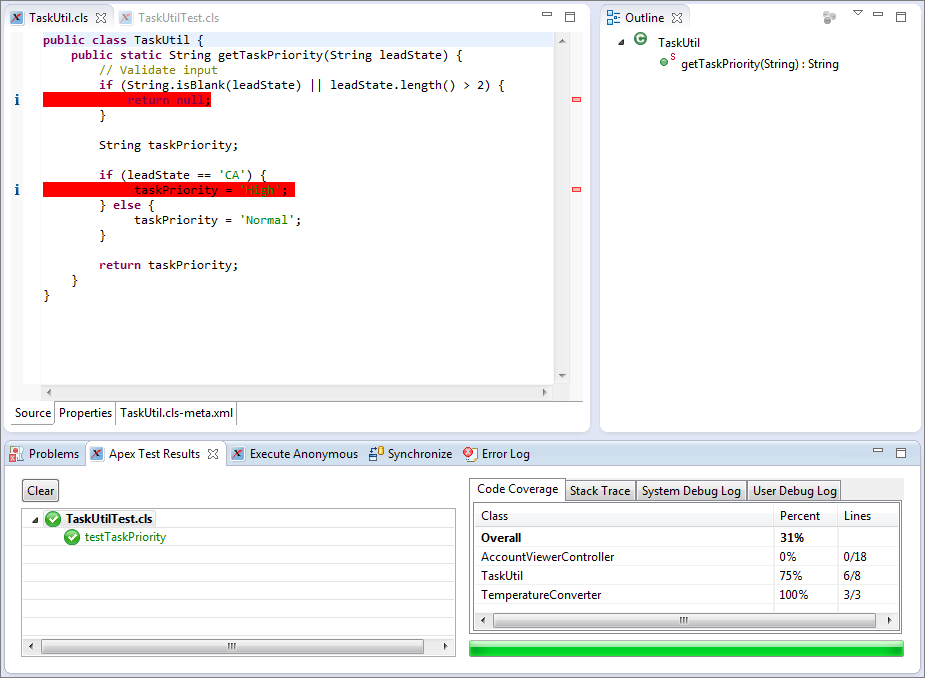
To view code coverage highlighting, double-click a class name in the Apex Test Results pane’s Code Coverage list. Lines that aren’t covered by your unit tests are highlighted. Unlike the Developer Console, which color-codes both covered and uncovered lines, the Force.com IDE highlights only the lines of code that still need coverage.
-
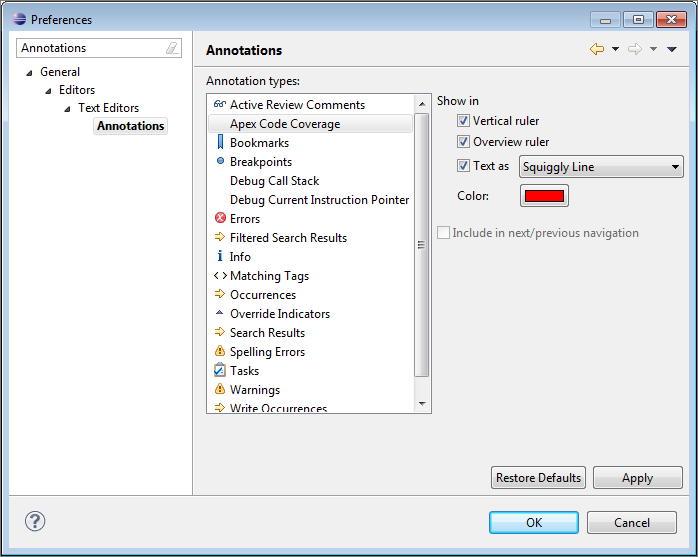
To change the color for your uncovered code or to replace the highlighting with squiggly underlining, select . Enter Annotations in the filter text box, then select . Make your desired changes, and then click Apply.
- Provided whitelist filtering for user and request-type debugging in the Apex Debugger
- You can now filter which requests are debugged by setting up whitelisting. Previously, all events in your org triggered debugging during a debugging session. Now you can focus only on the events that are relevant to the problem you’re debugging.
-
To access your debug configurations, select the arrow next to the debug icon (
 ), and then select
Debug Configurations.
), and then select
Debug Configurations.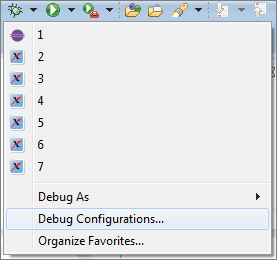
-
To set up whitelisting, select Whitelisting Enabled in your Remote Apex Debugger configuration, and then filter by user ID or request type. To filter by user ID, enter a SOQL condition expression in the SELECT id FROM User WHERE field. Or enter a comma-separated list of user IDs in the text field in the User IDs section. To filter by request type, select one or more entry points, or enter a regular expression in the Entry Point Filter field. For example, to whitelist requests made by the Visualforce page myPage, enter .*/apex/myPage.apexp.
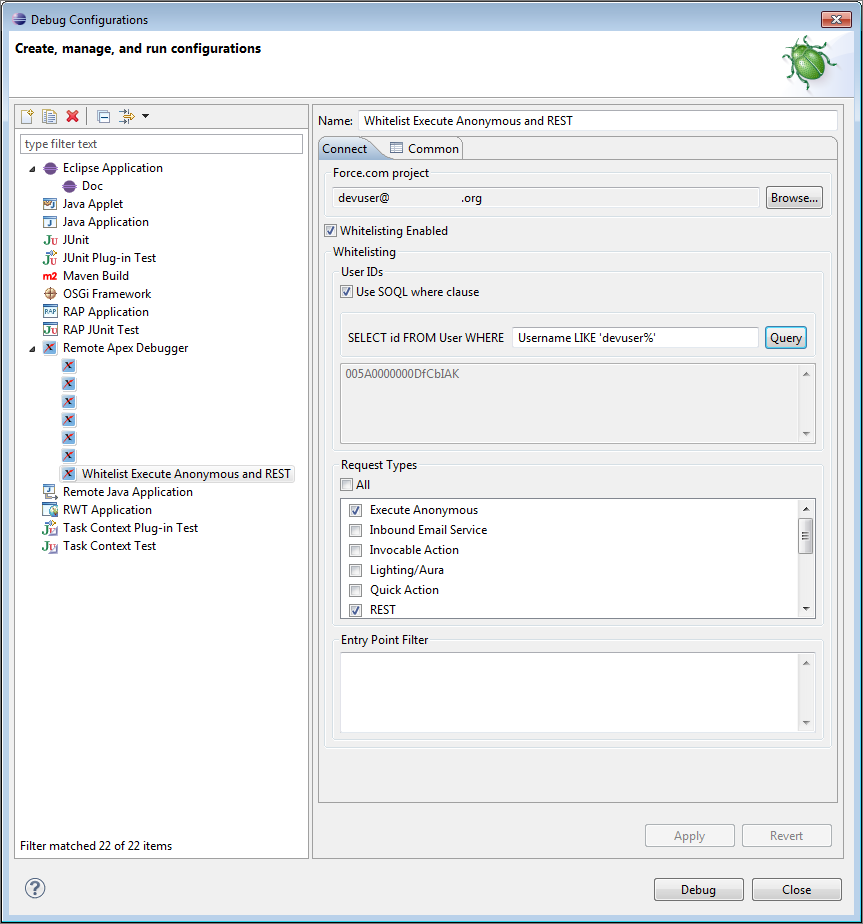
- Typically, modifying an Eclipse debug configuration during a debugging session doesn’t affect active debug targets. However, whitelist modifications affect both current and future sessions.
- Share Apex Debugger licenses among your sandbox orgs
-
You can now purchase Apex Debugger licenses for your parent org and share them among the users in your org’s sandboxes. In your parent org, view active sessions and revoke licenses on the Apex Debugger page in Setup. Revoking a license doesn’t prevent your user from initiating future debugging sessions.
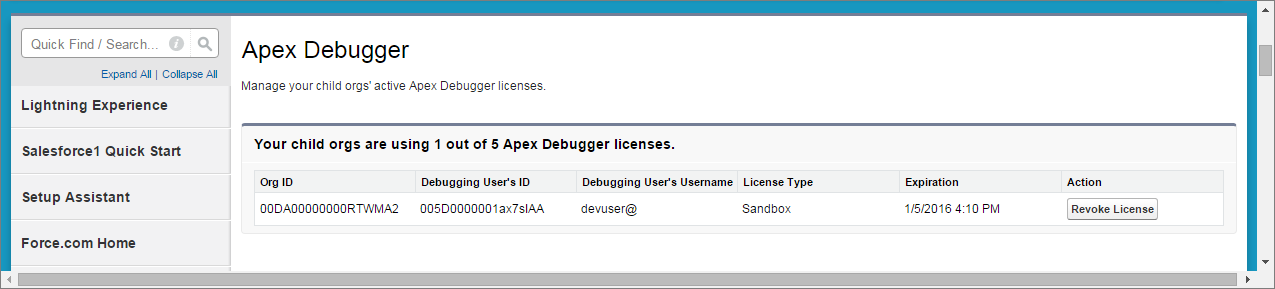
- Enabled Eclipse’s Java development tools (JDT) icons for Apex variables in the Apex Debugger
-
JDT icons now display in the Apex Debugger’s Variables pane to denote access and definition modifiers for Apex variables. You can determine at a glance whether a variable is static, local, global, and so on. Previously, JDT icons displayed in the Outline pane, but all variables in the Variables pane had the same icon.
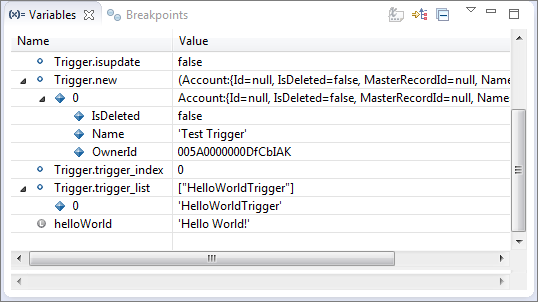
- For a list of JDT icons, see JDT Icons in Eclipse’s Java development user guide.
Winter ’16 (Force.com IDE v35.0)
- Enabled auto-completion for System types
- In Spring ’15 (Force.com IDE v33.0), we removed inline auto-complete tips for Apex built-in objects to allow packaging of a new compiler that features outline view. We’ve been working on bringing auto-completion back. In Winter ’16 (Force.com IDE v35.0), we’re reintroducing auto-completion for the System namespace.
- Provided run configurations for Apex tests, with configurable logging levels
- To execute Apex unit tests, select . To create a test run configuration, then select New launch
configuration (). To execute the selected test run
configuration, click Run.
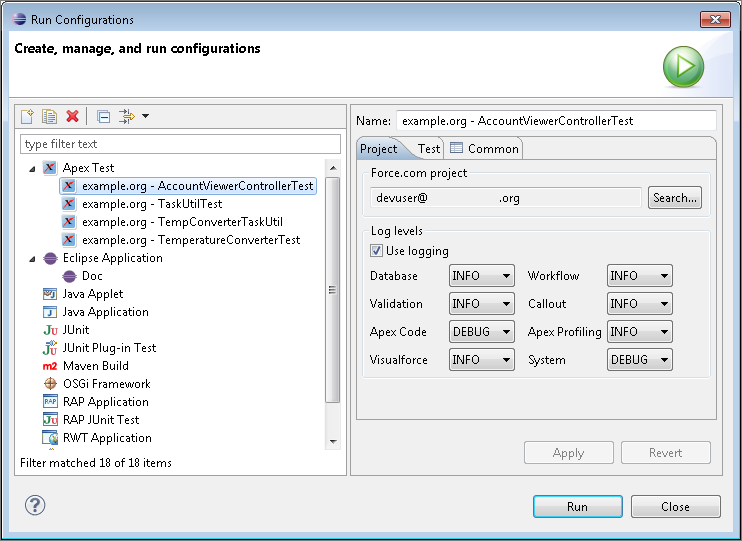
- Made the interactive Apex Debugger generally available
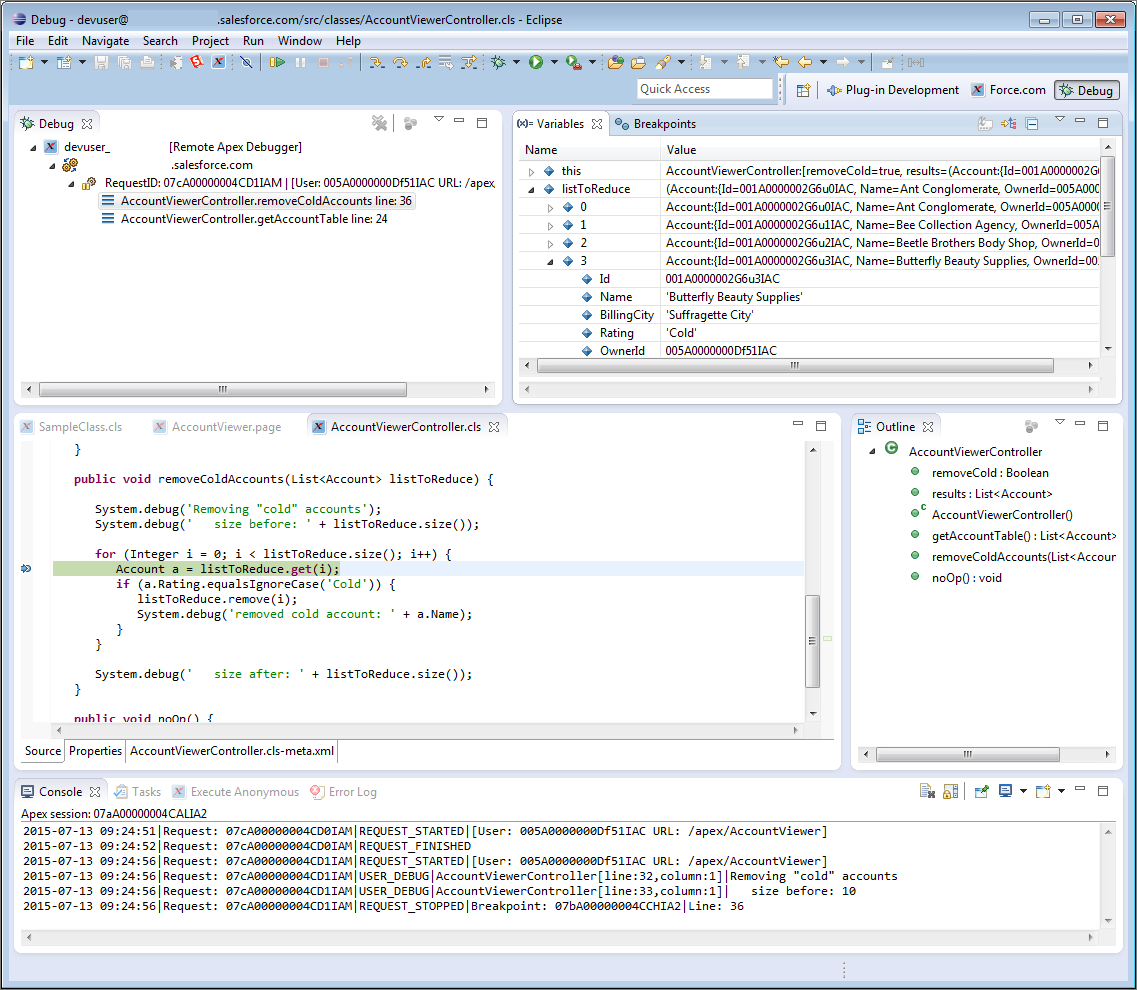
- The Apex Debugger extends the Force.com IDE plug-in for Eclipse and behaves similarly to debuggers available for other languages. Use it in sandbox orgs to root out the bugs in your Apex code. After you’ve set a breakpoint and started a debugging session, you can debug actions in your org that cause the line of code to execute.
-
Use the Apex Debugger to complete the following actions.
- Set breakpoints in Apex classes and triggers.
- View variables, including sObject types, collections, and Apex System types.
- View the call stack, including triggers activated by Apex Data Manipulation Language (DML), method-to-method calls, and variables.
- Interact with global classes, exceptions, and triggers from your installed managed packages. When you inspect objects that have managed types that aren’t visible to you, only global variables are displayed in the variable inspection pane.
- Complete standard debugging actions, including step into, over, and out, and run to breakpoint.
- Output your results to the Console window.
Spring ’15 (Force.com IDE v33.0)
- Introduced a wizard for generating Apex classes from a WSDL
- Previously, you could only generate classes from a WSDL in the Salesforce user interface. The WSDL-based classes enable you to make callouts to external services.
- Open-source code for the WSDL to Apex wizard is available in the WSDL2Apex GitHub repository. Developers in the GitHub community can add enhancements or customizations to WSDL2Apex. The Force.com IDE plug-in is a snapshot of the WSDL2Apex and idecore GitHub repositories at the time of the latest official plug-in release.
-
The Spring ’15 (Force.com IDE v33.0) version of the WSDL to Apex tool includes this user-visible contribution from the open-source community.
- Update ApexTypeMapper.java—#6
- Added integer and boolean as reserved keywords. These words now pick up the _x suffix when used as variable names.
- Incorporated pull requests from the open-source community
- For complete lists of pull requests, see https://github.com/forcedotcom/idecore/pulls and https://github.com/forcedotcom/WSDL2Apex/pulls. User-visible impacts of community-submitted changes that were incorporated in Spring ’15 (Force.com IDE v33.0) include:
-
- Respect spacesForTabs preference for auto-indent—#39
- Previously, a hard-coded tab character in ApexAutoIndentStrategy.java led to Apex files that contained a mixture of spaces and tabs when the spacesForTabs preference was enabled. This change makes the Force.com IDE respect Eclipse’s preference.
- Speed up unit test postprocessing—#52
- This change made a significant improvement in debug-log processing speeds when running unit tests.
- Changes to monitor only SF files in `/src/` folder—#57
- Popup menus now work only in the src folder and on projects.
- The Force.com submenu is now easier to see, thanks to the addition of an icon.
- Changes for Apex Test Runner: Code coverage results should be alphabetized—#61
- Code coverage results are now alphabetized in the Apex Test Runner pane.
- Fix display of child and parent records in schema browser—#64
- A red “icon missing” image has been removed in the Schema Explorer. This icon was displayed erroneously.
- Need to have a different text for debug only—#65
- The Execute Anonymous view now displays System.debug statements in a more noticeable text style.
Summer ’14 (Force.com IDE v31.0)
- Made the Force.com IDE source code available on GitHub.
- Added new metadata support. See the Salesforce.com Summer '14 Release Notes for a complete list of metadata enhancements.
- Facilitated editing of metadata using the new Properties tab—a form-based GUI.
- Discontinued support for Java 6. We now require Java 7.
- Set offline mode as the default for new projects to shorten save times.
- Enabled syntax checking and outline view using a new parser, which can be toggled through .
- Set the Tooling API as the default mechanism used for Apex classes and triggers and for Visualforce pages and components.
- Removed inline auto-complete tips for Apex built-in objects to allow packaging of a new compiler that features outline view. Auto-complete tips are still available in Spring ’14 (Force.com IDE v30.0) and earlier versions.