


Salesforce Security Guide
 j
jDeploy Third-Party SMS-Based Two-Factor Authentication
Two-factor authentication (2FA) enhances security when validating a user’s identity and
protects access to your Salesforce org. In addition to a password, SMS-based 2FA requires the
user to provide a one-time password (OTP) code received on a mobile device.
To implement 2FA, you can take advantage of a third-party SMS or voice delivery service, like Twilio or TeleSign, together with a Salesforce login flow.
Let’s break down an SMS-based 2FA process.
- As the user logs in, the login flow generates a random OTP and sends it via voice or text message to the user’s phone.
- The user provides the OTP to the Salesforce application.
- Salesforce verifies the code.
- If the code is valid, Salesforce permits user access.
The login flow has four steps.
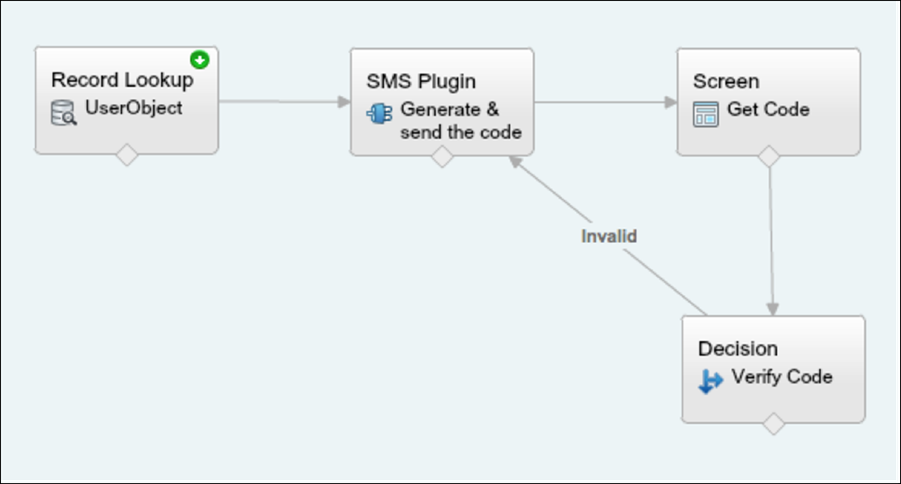
- Record lookup—Queries the user record to get the mobile phone number.
- SMS plug-in—An Apex class that generates the OTP and uses a third-party SMS delivery service to send it to the user’s mobile device.
- Screen—Prompts the user to provide the received OTP.
- Decision—Compares the OTP generated by the flow with the one that the user provides. If equal, the flow is completed, and the user is redirected to the application. Otherwise, the flow generates another code and asks the user to reverify.
Configure the Flow
This example uses the Twilio Apex SDK to perform SMS delivery operations. However, you can use any cloud-based SMS or voice vendor that has a public API to access its services.
- Go to the Cloud Flow Designer in Salesforce and create a flow.
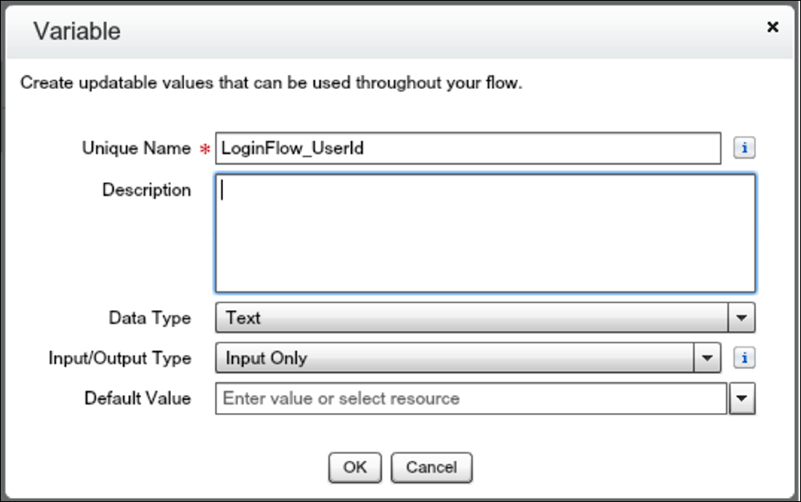
- Create a LoginFlow_UserId input text variable. This variable is
populated with the user ID during the login event.
- Create text variables.
- Mobile—The user’s mobile number
- VerificationCode—The OTP generated by the Apex plug-in
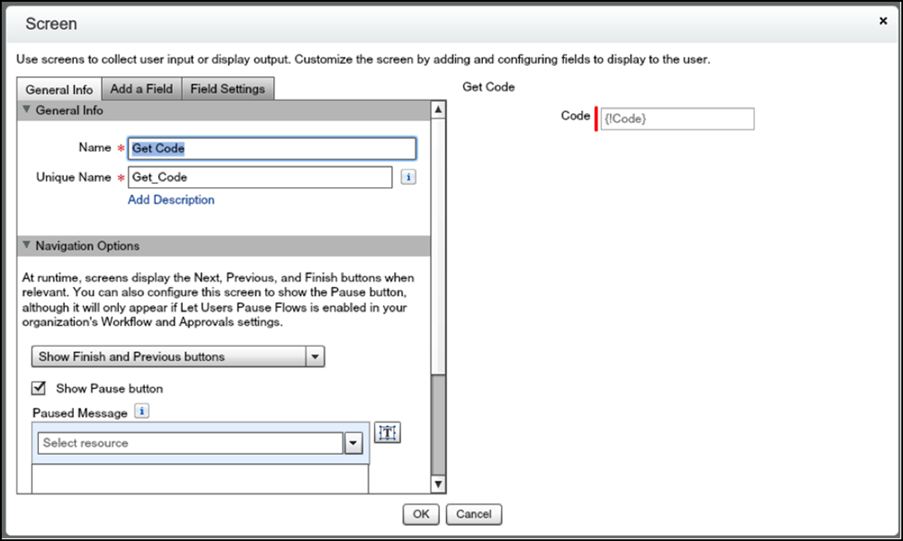
- Code—The OTP collected from the user
- Status—The status returned when the plug-in executes
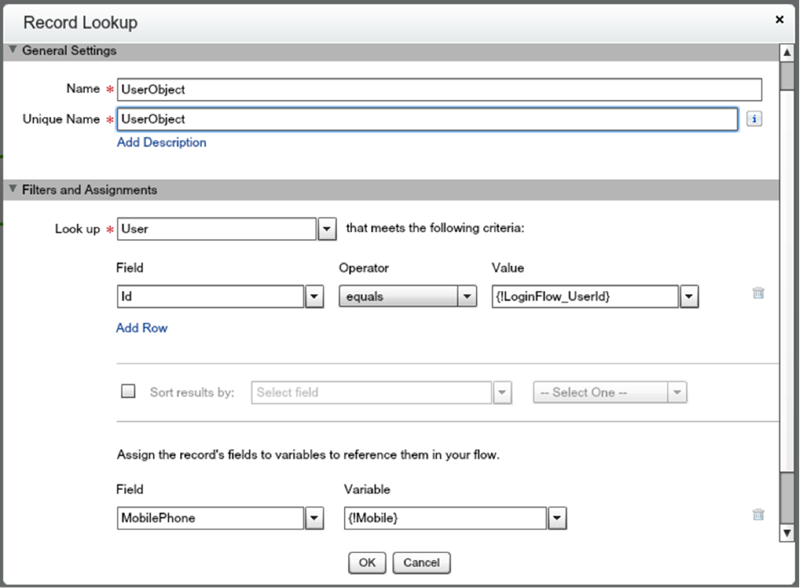
- Create a record lookup that queries the UserObject based on the user ID and stores the
mobile number in the Mobile input variable.
- Install the Twilio Apex SDK from https://github.com/twilio/twilio-salesforce.
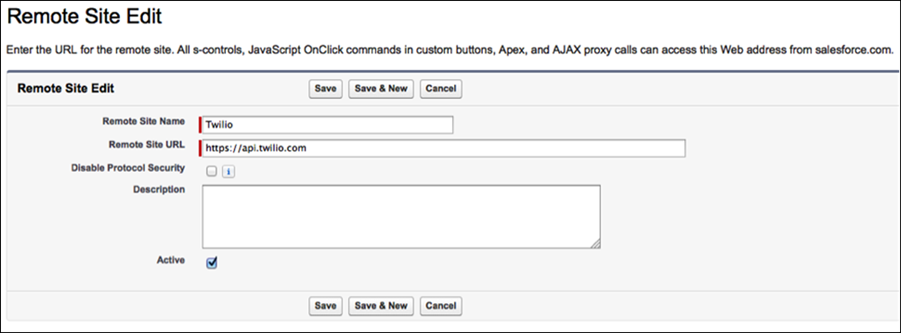
- To allow the SMS plug-in to perform outbound API calls to Twilio web services, set up
https://api.twilio.com as a remote site in Salesforce. In
Setup, enter Remote Site Settings in the Quick Find box, select
Remote Site Settings, and add the Twilio web services URL.
- Create an Apex
class.
101 global class SMSPlugin implements Process.Plugin { 202 303 global Process.PluginDescribeResult describe() { 404 505 Process.PluginDescribeResult result = new Process.PluginDescribeResult(); 606 result.tag='Identity'; 707 result.name='SMS Plugin'; 808 result.description='Two factor authentication with SMS'; 909 1010 result.inputParameters = new List<Process.PluginDescribeResult.InputParameter> { 1111 new Process.PluginDescribeResult.InputParameter('AccountSid', Process.PluginDescribeResult.ParameterType.STRING, true), 12 1312 new Process.PluginDescribeResult.InputParameter('Token', Process.PluginDescribeResult.ParameterType.STRING, true), 1413 new Process.PluginDescribeResult.InputParameter('To', Process.PluginDescribeResult.ParameterType.STRING, true), 1514 new Process.PluginDescribeResult.InputParameter('From', Process.PluginDescribeResult.ParameterType.STRING, true), 1615 new Process.PluginDescribeResult.InputParameter('Message', Process.PluginDescribeResult.ParameterType.STRING, true) 1716 }; 1817 1918 result.outputParameters = new List<Process.PluginDescribeResult.OutputParameter> { 2019 new Process.PluginDescribeResult.OutputParameter('Status', Process.PluginDescribeResult.ParameterType.STRING), 2120 new Process.PluginDescribeResult.OutputParameter('VerificationCode', Process.PluginDescribeResult.ParameterType.STRING) 2221 }; 2322 2423 return result; 2524 2625 } 2726 2827 2928 global Process.PluginResult invoke(Process.PluginRequest request) { 3029 3130 Map<String, Object> result = new Map<String, Object>(); 3231 String AccountSid = (String)request.inputParameters.get('AccountSid'); 3332 String token = (String)request.inputParameters.get('Token'); 3433 String To = (String)request.inputParameters.get('To'); 3534 String From_a = (String)request.inputParameters.get('From'); 3635 String Message = (String)request.inputParameters.get('Message'); 3736 if (Message == null) Message = 'Your verification code is: '; 3837 3938 TwilioRestClient client = new TwilioRestClient(AccountSid, Token); 4039 TwilioSMS sms; 4140 4241 Integer rand = Math.round(Math.random()*100000); 4342 String VerificationCode = string.valueOf(rand); 4443 String Body = Message + VerificationCode; 4544 4645 Map<String,String> params = new Map<String,String> { 4746 'To' => To, 4847 'From' => From_a, 4948 'Body' => Body 5049 }; 5150 5251 try { 5352 sms = client.getAccount().getSMSMessages().create(params); 5453 result.put('Status', sms.getStatus()); 5554 } catch(Exception ex) { 5655 result.put('Status', 'Failure'); 5756 } 5857 result.put('VerificationCode', VerificationCode); 5958 return new Process.PluginResult(result); 6059 } 6160 } - Create an SMS plug-in that generates an OTP code and sends it via SMS to the user’s
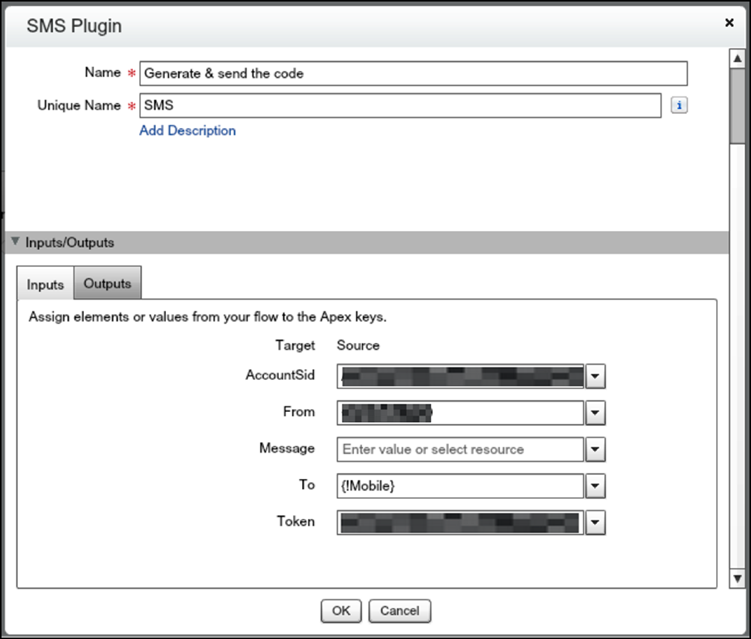
mobile number. The plug-in takes these inputs.
- AccountSid—Twilio Account SID (username from your Twilio account)
- Token—Twilio Auth Token (password from your Twilio account)
- From—The SMS From number
- Message—The message sent to the user with the verification code
- To—The user’s mobile phone number
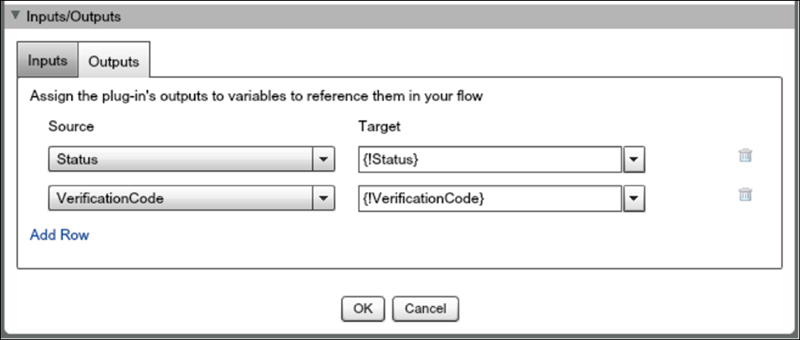
 The plug-in returns two values.
- Status—The status of the SMS delivery operation
- VerificationCode—The verification code generated and sent to the user
- Create a screen element that prompts for the verification code received.
- Create a decision element with two outcomes.
- Valid—The verification code is the same as the code the user provided.
- Invalid—The valid condition is not met, so the outcome is invalid.

- Save and activate the flow.
-
Connect the login flow to a user
profile.

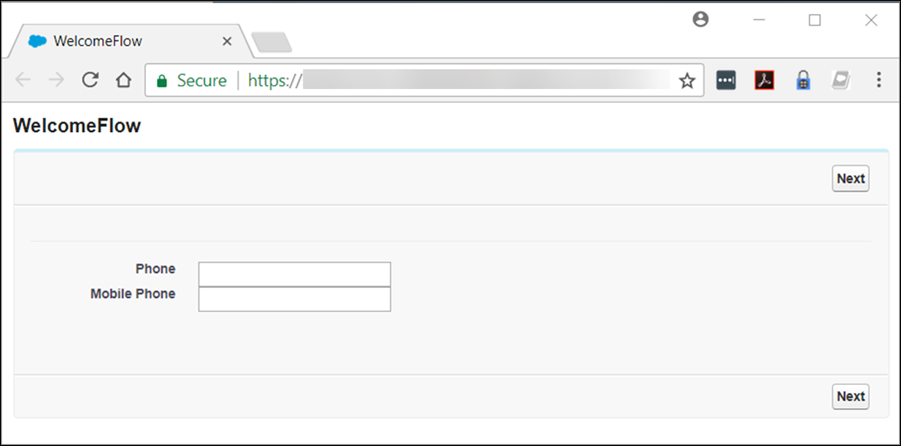
- Log out, and then log in as a test user that’s connected with a test
profile.
Extending the Flow
In a production deployment, it’s common to extend this basic flow. For example, you can add
customization, validation, or policies, such as:
- Branding—Add a corporate logo and message to the verification screen.
- Validation—Verify whether the user record included a phone number. If not, prompt the user to enter one.
- Retries—If the OTP code that the user provides is wrong, the login flow generates a new OTP code and sends it to the user. It’s typical to limit the number of retries or to temporarily block a user login after several unsuccessful verification attempts.
- Policies—If the user has registered a landline phone but not a mobile phone number, send the OTP over voice rather than SMS. Alternatively, if Salesforce doesn’t have a registered phone number for the user, send the OTP code by email. Another approach is to challenge the user with a second authentication factor, such as a Salesforce time-based OTP or a hardware-based OTP, like a YubiKey.