Salesforce Flow for Service
Give your users a list of logical next steps with Salesforce Flow for Service and the Actions & Recommendations component. To create the list, associate actions with a record page using an Actions & Recommendations deployment, Salesforce automation tools, or API. You can configure default actions for specific channels, like phone or chat, and select the actions that you want users to complete first and last.
| Required Editions |
|---|
| Available in: Lightning Experience |
Available in: Essentials, Professional, Enterprise, Performance, Unlimited, and Developer Editions
Lightning console apps are available for an extra cost to users with Salesforce Platform user licenses for certain products. Some restrictions apply. For pricing details, contact your Salesforce account executive. |
Specify which actions to show in the component on your Lightning pages. When you set up a deployment or use an API, you can also display the top recommendations that result from your Einstein Next Best Action strategies.
The component shows a list of RecordAction junction objects. A RecordAction associates an action, such as a screen flow, a field service mobile flow, an autolaunched flow, or a quick action, with the parent record. A RecordAction is also created when a user accepts a Next Best Action recommendation; then the RecordAction associates the flow in the recommendation with the record.
When the user clicks a step in the list, the associated action in the RecordAction object launches. You can also set up the first action to auto-launch when the record page opens. If the action is a screen flow, for example, it starts in a subtab of a console app or in a window for a standard navigation app. When the user confirms the start of an autolaunched flow, it runs in the background. Quick actions open in a window.
The Actions & Recommendations component helps your users:
- Identify which steps to complete for a specific record and in which order
- Consider customized actions and offers that result from an Einstein Next Best Action strategy, such as a discount, a repair, or an add-on service
- Restart flows that users have paused, and view stages in an active flow if stages are defined
- Identify and complete flows that are mandatory
- Find and start another action from a subset that you configure
- Understand the history of actions taken on a record, including when each action was started, paused, resumed, and completed and by whom
Here’s an example of Salesforce Flow for Service set up in the Service Console app. The flow in the subtab helps agents verify the identity of an incoming caller.
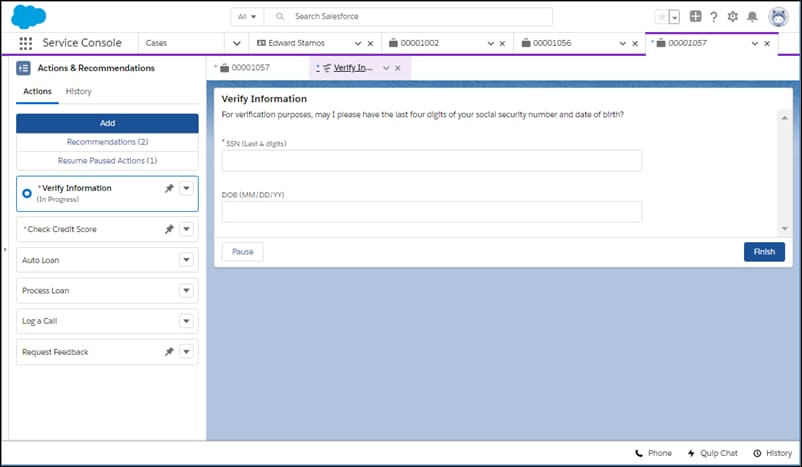
Before you add the component to your Lightning pages, first set up the flows and quick actions that you want to show. If you want to include recommendations from Next Best Action strategies, configure them first as well.
Then create an Actions & Recommendations deployment. A deployment captures settings that you can reuse on multiple pages. Place the component on your Lightning pages, and select the deployment in component properties.
Learn how to put the Actions & Recommendations component to work for your agents. The Salesforce Flow for Service module on Trailhead can help you get started.
Never heard of flows and process automation? Many of the tasks you assign, the emails you send, and other record updates are vital parts of your standard business processes. Instead of doing this repetitive work manually, you can configure flows and processes to do it automatically. To learn more, check out Automate Your Business Processes in Salesforce Help.
-
Supported Apps, Channels, Actions, and Objects in Lightning Flow for Service
Lightning Flow for Service is supported in Lightning console and standard navigation apps. You can set it up to work with Open CTI for phone integration, including support for unknown callers, and Chat in Lightning Experience for chat integration.
-
Lightning Flow for Service Example Use Case
Lightning Flow for Service can help your agents follow consistent procedures when a customer calls or a support issue comes in. You can associate actions with a new record, such as a case or contact record, and show agents a to-do list for the record page.
-
Implementing the Example Use Case
You can configure the Actions & Recommendations component in several ways. Creating a deployment in Setup is an easy way to create RecordActions that appear in the list.
-
Enhance the User Experience
The Actions & Recommendations component gives your agents a clear set of steps to follow. Help your agents be more productive by fine-tuning how they use the list.
-
Lightning Flow for Service Considerations
Learn about how packaging, change sets, and the sharing model can impact your Lightning Flow for Service implementation.
See Also


 j
j