


Building Custom Objects, Tabs, and Related Lists
 j
jBuilding Custom Objects, Tabs, and Related Lists
Basic Concepts
You can create custom objects, custom tabs, and custom related lists in Salesforce. Before you begin, review these concepts and terms:
- Standard Objects
- Tables that contain the data in any standard tab such as accounts, contacts, or opportunities.
- Custom Objects
- Tables you create to store your data. You can create a custom object to store data specific to your organization. You can also create reports and dashboards based on the data in your custom object.
- Relationships
- Standard and custom objects have relationships that define how records in one object relate to records in another object. For example, accounts can have a one-to-many relationship with contacts. These relationships commonly appear in the application as related lists. You can create new relationships that enable you to add custom related lists to your page layouts.
- Custom Tabs
- You can create three different kinds of custom tabs: custom object tabs, Web tabs, and Visualforce page tabs. Custom object tabs allow you to find, add, change, and delete the data in your custom objects. Web tabs display any Web application in a tab within a Salesforce application. Visualforce page tabs display data from a Visualforce page.
Designing Your Approach
As a first step, we recommend designing your overall approach.
By gathering requirements and making key design decisions up front,
you will be able to implement the solution more efficiently. Answer
the following questions:
- Data
-
- What fields and data types do you need?
- How would you logically group these fields into one or more custom objects?
- Relationships
-
- Is the custom object data related to standard data, or is it independent? If the data is related, it should appear as a related list on a standard tab. If the data is independent, it should appear on a custom tab. Using a combination of tabs and related lists is also an option.
- If it is related data, how tightly linked is the data? If a record in one object is deleted, should the related records in the other objects be deleted also? In a Master-Detail relationship, related data records are included in the deletion, but in a Lookup relationship they are not.
- User Interface
-
- Do you want to create new custom tabs for users to maintain the data? Is it sufficient for users to access the data from related lists on existing tabs?
- Do you want users to access a Web application from a tab?
- What fields should appear in the related lists?
- What fields should appear in the page layouts?
- Do you want users to track tasks and events for the custom object?
- Do you want to mimic the Salesforce UI?
Implementation Steps
Below is an overview of the steps to follow when building custom objects, tabs, and related lists.
To create a custom tab so users can track data that is specific
to your business: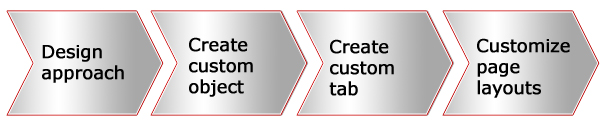
To create a custom related list so that you can associate your
data with standard tabs:
Getting Started
For custom objects:
- If you’re using Salesforce Classic, from Setup, enter Objects in the Quick Find box, then select Objects.
- If you’re using Lightning Experience, from Setup, enter Object Manager in the Quick Find box, then select Object Manager.
For custom tabs for a custom object, enter Tabs in the Quick Find box, then select Tabs.
Tips and Hints
Creating custom objects:
- Establish object relationships first before adding all custom fields, page layouts, and related lists.
- Click Edit List Layout to choose columns for key views and lookups.
- The standard Name field is required on custom object related lists and page layouts.
- Provide meaningful names for your custom objects. The plural label of the custom object will also be used as the label of the custom tab based on that object.
- Build custom reports and dashboards using the data in your custom objects.
Defining relationships:
- Review the entity relationship diagram available in the SOAP API Developer Guide.
- Each custom object can have up to two master-detail relationships and up to 25 total relationships.
- The Related To entry can’t be changed after you save the relationship.
- Create a master-detail relationship before a custom object contains data.
Creating custom tabs:
- The title of the custom tab is the same as the plural label of the custom object.
- We recommend selecting the Append tab to users’ existing personal customizations checkbox.
- Set permissions on tabs and page layouts so that users cannot see your changes until they are finalized.
- By using Visualforce, your tab can look and feel like other Salesforce pages.
Troubleshooting
- How do I customize the tab settings of my users?
- From Setup, enter Profiles in the Quick Find box, then select Profiles, select a profile, then edit the tab settings.
- How do I customize the tabs that appear in my apps?
- From your personal settings, enter Customize My in the Quick Find box, then select Customize My Tabs. No results? Enter Display in the Quick Find box, select Change My Display, then click Customize My Tabs.
- How do I make my custom related list appear on a standard tab?
- From Setup, click Customize and select the appropriate tab and page layout link. Check to see that the related list has been added for the appropriate people.
- How can I change the columns in my custom related list?
- From the management settings for your custom object, find Page Layouts.
- If you’re using Salesforce Classic, from Setup, enter Objects in the Quick Find box, select the object, then scroll to the Page Layouts section.
- If you’re using Lightning Experience, from Setup, enter Object Manager in the Quick Find box, then select Object Manager. Next, click the custom object, and then scroll down to the Page Layouts section.
- From the management settings for your custom object, find Page Layouts.
- Why can’t I create a master-detail relationship?
- Determine whether the custom object already contains data. If you delete the data in your custom object, you can define the relationship. If you cannot delete the data in your custom object, create a lookup relationship first and then populate the lookup reference field in each record with a valid value. Next, click Edit by the relationship and convert it to a master-detail relationship.