Configure the PWA Kit MCP Server
Configure the PWA Kit MCP server in Cursor settings, in the mcp.json file. You can also follow the steps in this video: Configure the PWA Kit MCP Server.
- From the Cursor menu, click Settings > Cursor Settings > Tools & MCP.
- If no MCP servers are setup, click New MCP Server.
- For an empty
mcp.jsonfile, add this entire definition, or if themcp.jsonfile contains other MCP servers, add the"pwa-kit"section.
For details about the flags you can set to the PWA Kit MCP server configuration, see Usage Data Collection with Telemetry.
- If you created your PWA Kit app, replace
{{path-to-app-directory}}with the absolute path to your generated project’s app subfolder. For example:/Users/username/mcp-server-folder/mystorefront/app.
After the MCP server settings are saved, Cursor does these steps.
- Launches the PWA Kit MCP server.
- Connects to the MCP server as a client.
- Displays the available tools in the UI and how you can invoke them.
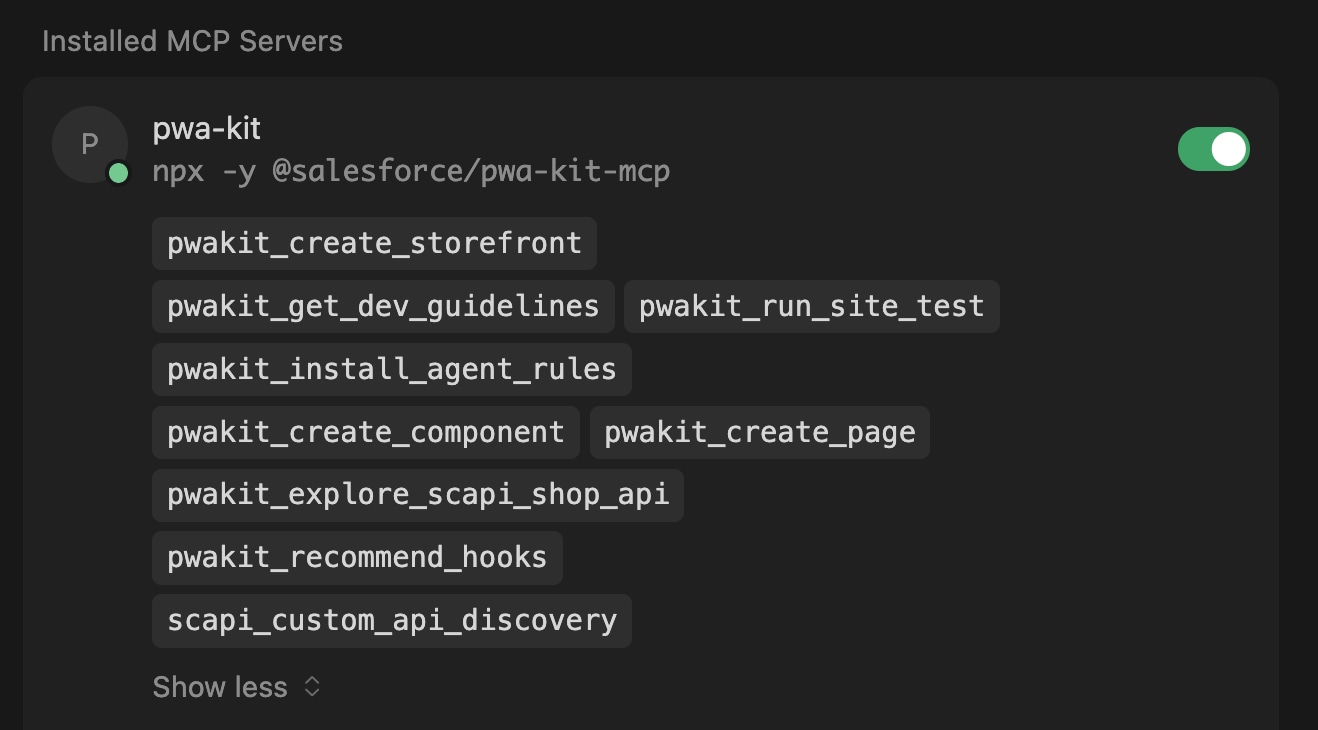
You can return to MCP tools anytime in Cursor to enable or disable specific tools or servers.
These are the available flags that you can pass to the args option.
| Flag Name | Description | Required? | Notes |
|---|---|---|---|
"-y", "@salesforce/pwa-kit-mcp" | Tells npx to automatically install the @salesforce/pwa-kit-mcp package instead of asking permission. | Yes | Don’t change this. |
"--dw-json", "/path/to/dw.json" | Path to a dw.json configuration file containing B2C Commerce credentials. Use this flag if dw.json isn’t under your project root directory. | No | Alternative to environment variables. |
--no-telemetry | Boolean flag to disable telemetry, the automatic collection of data for monitoring and analysis. | No | Telemetry is enabled by default, so specify this flag to disable it. |