


 j
jAnnouncements
Preview Your Storefront
End-to-End Testing with CodeceptJS
CLI Reference
B2C Commerce Release Notes
Ask the Community
Preview your storefront to verify how it looks based on shopper context including customer groups, date and time, source code triggers, and qualifiers. Use it to test changes to products, pricing, and marketing strategies in a staging environment before deploying to production so that your site displays correctly for specific scenarios like upcoming sales or seasonal campaigns.
effectiveDateTime, customerGroupIds, clientIp, and geoLocation qualifiers. See Qualifier Support in the Shopper Context documentation.frame-ancestors Content Security Policy directive must allow both 'self' and your Business Manager hostname (for example, https://your-instance.commercecloud.salesforce.com). The default value of 'self' isn’t sufficient. Extend the directive in config.server.ts. See Security Response Headers.To use Storefront Preview:
In Business Manager, click App Launcher  and then select Merchant Tools, select the site associated with your storefront, and then click Preview.
The storefront page opens in a new tab.
To view the storefront based on various settings, click the preview button on the banner of the preview site.
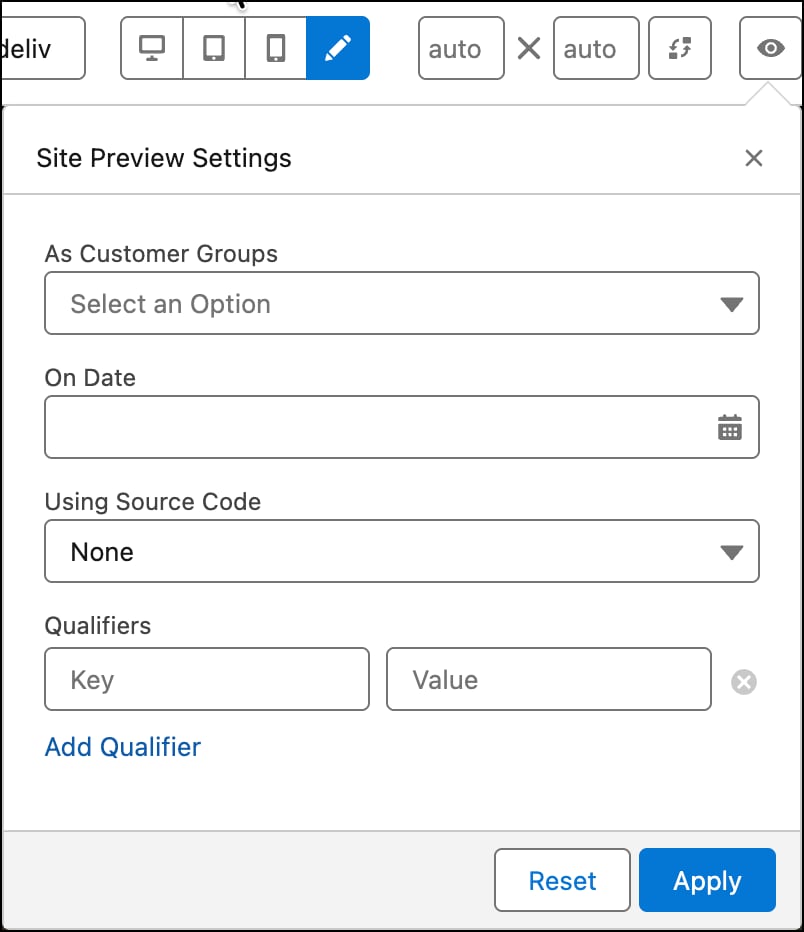
Enter preview settings for the site. All the preview settings are optional.
a. To view the site for a specific customer group, select a customer group from the picklist.
b. To see how the site looks on a specific date and time, select the effective date and time using the date picker in On Date. The date and time displayed is based on your computer’s time zone and then converted to UTC time before sending the request that sets the context. If you don’t specify a date and time, the preview reflects the current date and time.
c. To trigger the promotion or campaign assignment and price books, which are assigned to a source code group, select the triggering source code from the picklist.
d. To view the personalized prices, products, or promotions set up in Business Manager, enter the custom qualifiers as key and value pairs. The custom qualifier keys must be unique. You can define up to 20 custom qualifiers.
Click Apply.
You can now view the storefront using the context you want to preview. Interact with the storefront to verify the applied context. For example, select a particular size for a product to see any available discounted price.
j