


Export Data When Suspending and Voiding Carts
By integrating with Point of Sale webhook APIs, merchants can export real-time data when a cart is voided or suspended in the POS app. This data includes details like product information, pricing, fulfillment methods, and more. You can store this information for loss prevention (LP) audits.
For details of the data structure and example values in the request and response payloads, refer to Point of Sale API, SPI, and Webhook Overview.
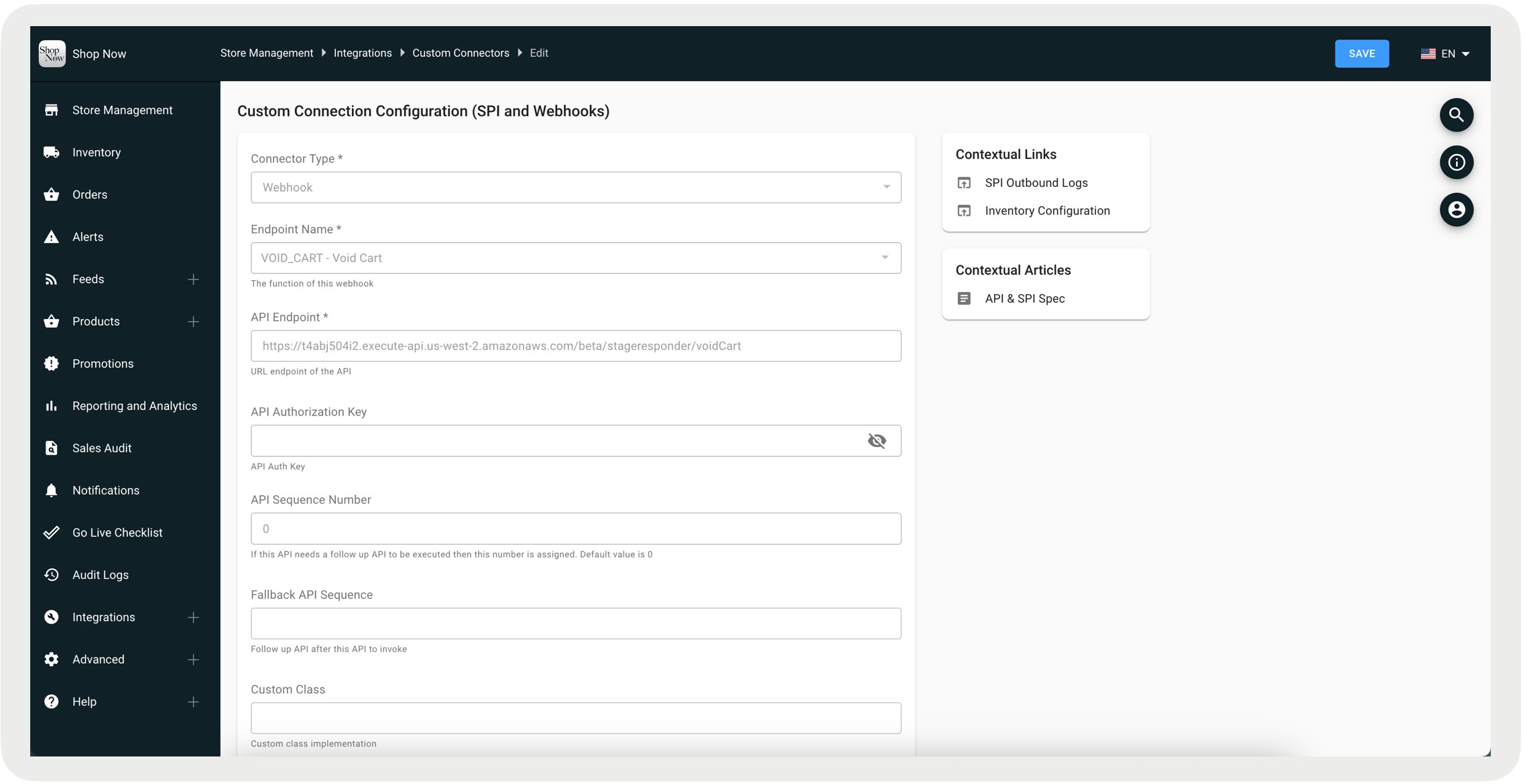
Configure Void Cart Webhook
When configured, this webhook triggers in various scenarios, both manually and automatically. For manual scenarios, an example is when a store associate voids the cart via a deep link. Automatically, the webhook triggers when a cart experiences an idle timeout, displaying the error message, Idle time limit exceeded and the cart has been voided. The payload for the voided cart is empty, indicating the cart’s expired status. For a complete list of scenarios that trigger the void cart webhook and their associated reason codes, refer to Void Cart Webhook Scenarios and Reason Codes.
For more information on voiding a cart on the POS app, refer to Configuring and Customizing Cart Options on the Point of Sale App in Salesforce Help.
-
In CMS, go to Integrations | Custom Connectors.
-
Click Create.
-
For Connector Type, select Webhook.
-
For Endpoint Name, select VOID_CART.
-
Configure the rest of the fields and save your changes.
Void Cart Webhook Scenarios and Reason Codes
For automatically voided carts, a system-generated reason code is included. Depending on the scenario, the payload can also contain product details. System-generated reason codes include the prefix SYS.
| Scenario | Reason Code |
|---|---|
| Customer logs out with items in the cart | SYS_CUSTOMER_LOGOUT |
Cart session time expires (as set by
cartSessionExpiryDurationInSeconds
)
|
SYS_CART_EXPIRED |
|
Last item in a sales, returns, or bundle product is removed from the cart |
SYS_LAST_ITEM_REMOVED |
| Switching from online to offline mode | SYS_SWITCHED_TO_OFFLINE |
| Phase two fails and the order is not placed | SYS_ORDER_FAILED |
| Associate logs out manually or via a timer in offline mode | SYS_ASSOCIATE_LOGOUT |
| Switching from offline to online mode with return items | SYS_SWITCHED_TO_ONLINE |
| Starting a return when there are already canceled or edited items in the cart | SYS_VOID_TO_START_RETURN |
| Clicking Void Cart manually without reason codes configured | No reason code is sent |
| Clicking Cash Pickup, No Sale, or Cash Audit deep links with items in cart | SYS_CASH_EVENT |
| Editing an order with items already in the cart | SYS_VOID_TO_START_EDIT_ORDER |
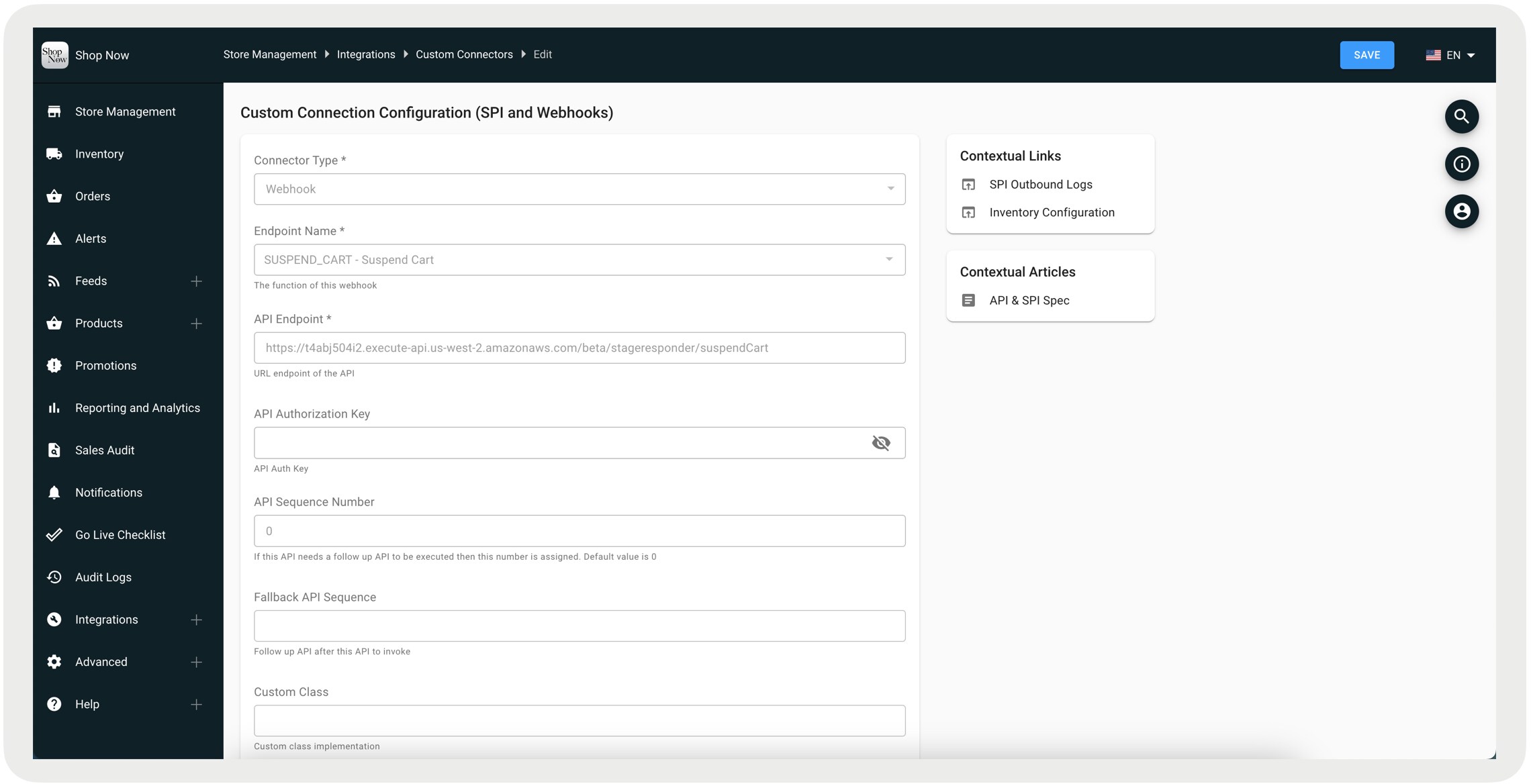
Configure Suspend Cart Webhook
When configured, this webhook triggers in two scenarios: when the store associate manually suspends the cart via a deep link or when the associate logs outs.
For more information about suspending a cart on the POS app, refer to Suspend and Resume Carts in Salesforce Help.
-
In CMS, go to Integrations | Custom Connectors.
-
Click Create.
-
For Connector Type, select Webhook.
-
For Endpoint Name, select SUSPEND_CART.
-
Configure the rest of the fields and save your changes.
Repost Webhooks
Point of Sale offers the ability to manually repost failed webhook events.
-
In CMS, go to Store Management | Reporting and Analytics | Repost Failed Webhook Events.
-
Search for the failed webhook event by configuring the search query parameters.
-
Click View Details to view the details of the payload inside the selected webhook event.
-
Click Repost to manually trigger a webhook event repost.
Frequently Asked Questions (FAQs)
What’s the difference between suspendCartId and cartID for a suspended cart?
The suspendCartId is a Globally Unique Identifier (GUID) specifically used to resume a suspended cart. In contrast, the CartID follows the format of an orderID, which it’s converted to if the transaction is completed rather than suspended.
 j
j