Use the icon-name attribute to specify a Lightning Design System
utility icon
to display on the button.
Use icon-alternative-text to describe the button’s function for users of
assistive technologies.
The selected attribute reflects the state of the button. Specify selected
in the lightning-rich-text-toolbar-button component to indicate when the
button is selected, and the button background color is dark. By default,
selected is false and the button background color is light.
Specify the disabled attribute to display the button icon as light gray and
prevent the button from being selected.
Design
Use lightning-rich-text-toolbar-button within lightning-input-rich-text, which implements the rich text editor blueprint in the Salesforce Lightning Design System (SLDS). The rich text editor adapts to SLDS 1 or SLDS 2 styling based on the org’s theme or the container app that you use.
You can create buttons by using the lightning-rich-text-toolbar-button component
attributes and the onclick handler to perform an action. For example, you can
create a handler to format text, insert text, attach a file to a feed post,
or open a popup.
For information about formatting or inserting text programmatically, see the
lightning-input-rich-text
documentation.
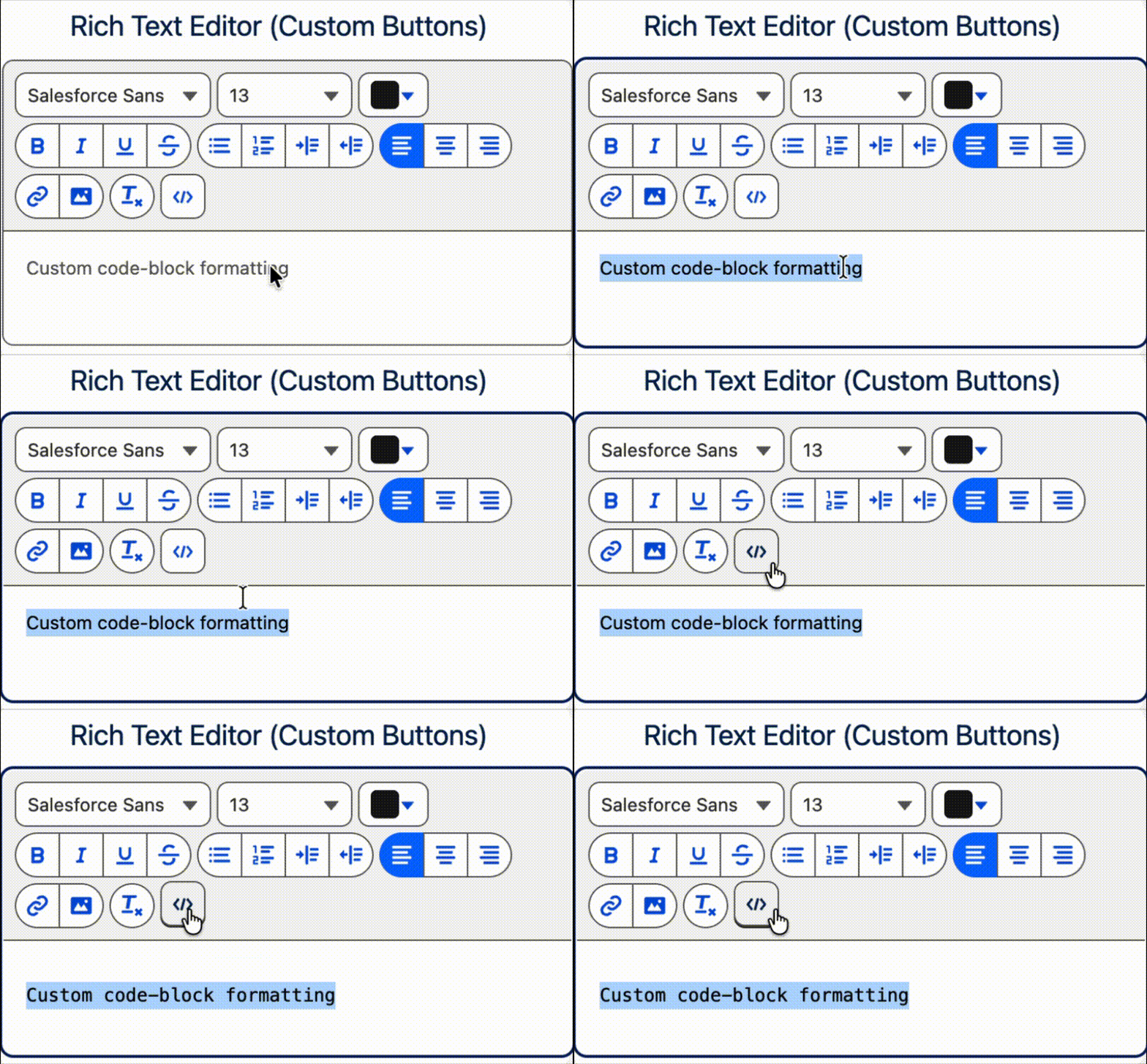
This example includes one button group that contains one button for applying
code-block format. The code-block format isn’t a default format in
lightning-input-rich-text, so the formats attribute specifies all the
formats required in the toolbar.
The handler gets the format currently set in the editor, and applies or
removes the code-block format, depending on the current format.
1import{LightningElement}from "lwc";23export default class CustomButtonDemo extends LightningElement{4 handleCodeBlockButtonClick(){5 const inputRichText = this.template.querySelector("lightning-input-rich-text");6 let format = inputRichText.getFormat();78 // Set or unset code-block format based on format on current selection9 if(format["code-block"]){10 inputRichText.setFormat({"code-block": false});11}else{12 inputRichText.setFormat({"code-block": true});13}14}15}
Open Popups with Custom Buttons (Beta)
The lightning-rich-text-toolbar-button component provides methods that
enable you to open and close popups from custom buttons.
Use the showPopup() method to open a popup from a custom button, and use closePopup() to close it.
Provide the content of the popup by nesting components inside lightning-rich-text-toolbar-button.
Popups close by default if you click outside the popup. The popupclickout event fires when you click outside,
so you can use a handler on this event to prevent closing if needed.
This example creates a Save button that opens a popup to prompt the user to save the content.
The popup content consists of a text input field and two buttons. The Save custom button
prevents the default clickout behavior.
To indicate to assistive technologies that the button can open an interactive dialog,
specify aria-haspopup="dialog".
The JavaScript simply calls showPopup() to create the popup.
The component handles the positioning and styling of the popup for you.
The example’s handlePopupClickout function calls event.preventDefault() to prevent
the popup from closing. The user can only close it by clicking the popup’s Save or Cancel
buttons, or by pressing the Escape key.
1import{LightningElement}from "lwc";23export default class CustomButtonPopupDemo extends LightningElement{4 preventCloseOnClickOut = true;56 openPopup(event){7 event.target.showPopup();8}910 closePopup(){11 this.template.querySelectorAll("lightning-rich-text-toolbar-button")[0].closePopup();12}1314 handleSave(){15 const name = this.template.querySelector("lightning-input");16 this.enteredText = name.value;17 // save the content18 this.closePopup();19}2021 handlePopupClickout(event){22 if(this.preventCloseOnClickOut){23 event.preventDefault();24}25}26}
Accessibility
Use icon-alternative-text to describe the button’s function. The text is assigned to the title
attribute for the button tooltip. The text is also used as assistive text for users of assistive technologies.
Use aria-haspopup to indicate the availability and type of interactive popup element on a toggle button.
See MDN web docs: aria-haspopup.
When a toolbar button is clicked once, the aria-pressed attribute is appended with a value of true,
which tells assistive technologies that a button is in a pressed state. The button remains in the pressed state
until it’s clicked another time, which changes the value back to false. For example, the bold formatting button
is a toggle button that either applies or removes bold formatting on selected text. The button turns blue when clicked once
and aria-pressed is true. When the button is clicked another time, the blue background on the button is removed and
aria-pressed is false.
Toolbar buttons that open a dialog use aria-haspoup and not aria-pressed as they aren’t toggle buttons.
Custom Events
popupclickout
The event fired when a popup is open and you click outside it.
The popupclickout event returns no parameters.
The event properties are as follows.
Property
Value
Description
bubbles
false
This event does not bubble.
cancelable
true
This event can be canceled. You can call preventDefault() on this event.
composed
false
This event does not propagate outside the template in which it was dispatched.
Attributes
Name
Description
Type
Default
Required
aria-has-popup
Specifies the value of the aria-haspopup attribute for the rendered toolbar button. Use this attribute to indicate the type of popup that your custom button opens.
string
disabled
Specifies whether to display this button in a disabled state. Disabled buttons can't be clicked. This value defaults to false.
Boolean
false
group-order
Reserved for internal use only.
icon-alternative-text
The alternative text used to describe the icon. This text should describe what happens when you click the button, for example 'Upload File', not what the icon looks like, 'Paperclip'.
String
icon-name
The Lightning Design System name of the icon for the custom button. Names are written in the format 'utility:down' where 'utility' is the category, and 'down' is the specific icon to be displayed.
String
selected
Indicates whether the button is selected. This alters the button's selected or pressed state. A selected button is displayed with a dark color. If the button has popup there is no aria-pressed attribute and hence selected is null.
Boolean
false
Methods
Name
Description
Argument Name
Argument Type
Argument Description
click
Simulates a click on the button.
closePopup
Closes the popup that was displayed below the button.
focus
Sets focus on the button.
showPopup
Displays a popup below the button. Items passed in to the default slot of this component are rendered as the content of the popup.