


 j
jData Guidelines
Lightning Data Service
Understand the Wire Service
Get Record Data
Handle Errors
Use the Wire Service with Base Components
Call APIs from Apex
Work with Errors
Develop Secure Code
To simplify record data display and manipulation and speed up development, use base components.
The easiest way to let users view, edit, and create Salesforce records is to use the lightning-record*form components. See Compare Base Components.
Note
To create a custom user interface or if lightning-record*form doesn’t meet your requirements, consider using the wire service with other base components. For example, use the lightning-input and lightning-formatted-* components to build custom forms or display record data.
Refer to the Component Reference for more information about these components.
lightning-checkbox-groupDisplays two checkboxes or more for selecting single or multiple options.
lightning-comboboxDisplays a dropdown list (picklist) of selectable options.
lightning-inputDisplays a field depending on the specified type for user input.
lightning-input-addressDisplays compound fields for address input.
For an example of using lightning-input with the wire service, see the ldsCreateRecord component in the github.com/trailheadapps/lwc-recipes repo.
lightning-input-locationDisplays compound fields for geolocation input.
lightning-input-nameDisplays compound fields for name input.
lightning-input-rich-textDisplays a rich text editor with a toolbar for content formatting.
lightning-radio-groupDisplays two checkboxes or more for selecting single or multiple options.
lightning-textareaDisplays a multiline text input field.
Although lightning-input supports many field types, consider other base components when you are working with different field types.
Let’s say you want to include the salutation picklist with the first and last name fields in your user interface. You can add lightning-combobox for the salutation picklist or use lightning-input-name. The next example uses lightning-input-name to display the salutation, first name, and last name fields with their current values. To determine which base component works best for your use case, refer to the Component Reference.
This example creates a custom form to display and edit the values on a contact’s salutation, first name, and last name. The fields display the current values from the contact record.
You can achieve similar results with fewer lines of code using the lightning-record*form components.
Note
1<template lwc:if={contact.data}>
2    <div class="slds-m-around_medium">
3        <lightning-input-name
4                label="Contact Name"
5                first-name={firstname}
6                last-name={lastname}
7                salutation={salutation}
8                options={salutations}
9                class="slds-m-bottom_x-small"
10                required>
11        </lightning-input-name>
12    </div>
13</template>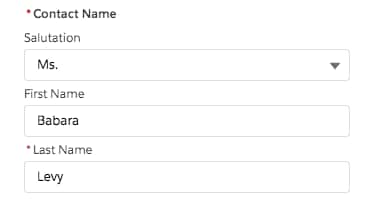
To display the initial value in the fields, use the getRecord wire adapter.
To populate the picklist options for lightning-input-name, use the getPicklistValues wire adapter. This example uses the default record type Id. To display the currently selected salutation value, import the Contact.Salutation field reference.
1import { LightningElement, api, wire } from "lwc";
2import { getRecord } from "lightning/uiRecordApi";
3import { getPicklistValues } from "lightning/uiObjectInfoApi";
4
5import FIRSTNAME_FIELD from "@salesforce/schema/Contact.FirstName";
6import LASTNAME_FIELD from "@salesforce/schema/Contact.LastName";
7import SALUTATION_FIELD from "@salesforce/schema/Contact.Salutation";
8
9const namefields = [FIRSTNAME_FIELD, LASTNAME_FIELD, SALUTATION_FIELD];
10
11export default class GetContactName extends LightningElement {
12  @api recordId; // provided by the contact record page
13
14  @wire(getPicklistValues, { recordTypeId: "012000000000000AAA", fieldApiName: SALUTATION_FIELD })
15  salutationValues;
16
17  @wire(getRecord, { recordId: "$recordId", fields: namefields })
18  contact;
19
20  get firstname() {
21    return this.contact.data.fields.FirstName.value;
22  }
23
24  get lastname() {
25    return this.contact.data.fields.LastName.value;
26  }
27
28  get salutation() {
29    return this.contact.data.fields.Salutation.value;
30  }
31
32  // creates the options array for lightning-input-name
33  get salutations() {
34    let salutationOptions = [];
35    Object.entries(this.salutationValues.data.values).forEach((val) => {
36      let values = val[1];
37      salutationOptions.push({ label: values.label, value: values.value });
38    });
39    return salutationOptions;
40  }
41}The easiest way to display record data is to use lightning-record-form or lightning-record-view-form. To display record data in a custom user interface, consider using the following base components. Refer to the Component Reference for more information on these components.
lightning-formatted-addressFor address compound fields. lightning-formatted-address displays an address with a link to the given location on Google Maps. The link is opened in a new tab. A static map can be displayed with the address for better context.
lightning-formatted-date-timeFor date or date/time fields. lightning-formatted-date-time displays date and time.
lightning-formatted-emailFor email fields. lightning-formatted-email displays an email as a hyperlink with the mailto: URL scheme.
lightning-formatted-locationFor geolocation fields. lightning-formatted-location displays a geolocation in decimal degrees using the format latitude, longitude.
lightning-formatted-nameFor name fields. lightning-formatted-name displays a name that can include a salutation and suffix.
lightning-formatted-numberFor currency, number, and percent fields. lightning-formatted-number displays numbers in a specified format.
lightning-formatted-phoneFor phone fields. lightning-formatted-phone displays a phone number as a hyperlink with the tel: URL scheme.
lightning-formatted-rich-textFor rich text fields. lightning-formatted-rich-text displays rich text that's formatted with allowlisted tags and attributes.
lightning-formatted-textFor text fields. lightning-formatted-text displays text, replaces newlines with line breaks, and adds links.
lightning-formatted-timeFor time fields. lightning-formatted-time displays time in user's locale format.
lightning-formatted-urlFor url fields. lightning-formatted-url displays a URL as a hyperlink.
This example displays an address on a contact record page with a static map. Clicking the address or map opens the location on Google Maps. Since the lightning-record-form and lightning-record-view-form components don’t provide a static map, the example uses the lightning-formatted-address component.
1<template>
2  <lightning-card title="Display Contact Address" icon-name="standard:contact">
3    <template lwc:if={contact.data}>
4      <div class="slds-m-around_medium">
5        <lightning-formatted-address
6          street={street}
7          city={city}
8          country={country}
9          province={state}
10          postal-code={postal}
11          show-static-map
12        ></lightning-formatted-address>
13      </div>
14    </template>
15  </lightning-card>
16</template>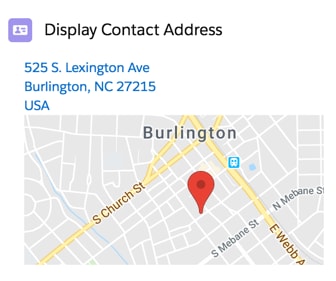
To display address compound fields, use the getRecord wire adapter.
1import { LightningElement, api, wire } from "lwc";
2import { getRecord } from "lightning/uiRecordApi";
3
4import STREET_FIELD from "@salesforce/schema/Contact.MailingStreet";
5import CITY_FIELD from "@salesforce/schema/Contact.MailingCity";
6import STATE_FIELD from "@salesforce/schema/Contact.MailingState";
7import COUNTRY_FIELD from "@salesforce/schema/Contact.MailingCountry";
8import POSTAL_FIELD from "@salesforce/schema/Contact.MailingPostalCode";
9
10const FIELDS = [STREET_FIELD, CITY_FIELD, STATE_FIELD, COUNTRY_FIELD, POSTAL_FIELD];
11
12export default class GetContactAddress extends LightningElement {
13  @api recordId; // provided by the contact record page
14
15  @wire(getRecord, { recordId: "$recordId", fields: FIELDS })
16  contact;
17
18  get street() {
19    return this.contact.data.fields.MailingStreet.value;
20  }
21
22  get city() {
23    return this.contact.data.fields.MailingCity.value;
24  }
25
26  get state() {
27    return this.contact.data.fields.MailingState.value;
28  }
29
30  get country() {
31    return this.contact.data.fields.MailingCountry.value;
32  }
33
34  get postal() {
35    return this.contact.data.fields.MailingPostalCode.value;
36  }
37}