


Guide for Java Developers
This document explains how to configure the UTAM compiler, generate UTAM Java page objects, and use them in a UI test. Examples of tests and setup are available in the Java recipes repo.
If you write mobile UI tests using Appium, see these additional steps to set up your environment.
Compiler setup
We use Maven for page object generation as part of the build process. You can use an alternative tool rather than Maven if you prefer. We don’t mandate a particular version of the Maven plugins. Use the plugin versions that work best for your setup.
Note
There are two main phases in the generation of UTAM page objects:
- Delete the previously generated page objects if they exist (cleanup phase)
- Create new files with generated page objects (generation phase)
An example of a pom.xml file that’s configured to first delete previously generated page objects and then generate new page objects can be found in the Java recipes repo.
Prerequisites
We require Java version 11 or higher.
If you’re using a Java version higher than version 11, follow these steps as a prerequisite for generating UTAM page objects:
- In the directory containing your Maven
pom.xmlfile, create a directory called.mvn. - In that directory, create a file called
jvm.configwith the following contents:
1--add-exports=jdk.compiler/com.sun.tools.javac.api=ALL-UNNAMED --add-exports=jdk.compiler/com.sun.tools.javac.code=ALL-UNNAMED --add-exports=jdk.compiler/com.sun.tools.javac.file=ALL-UNNAMED --add-exports=jdk.compiler/com.sun.tools.javac.parser=ALL-UNNAMED --add-exports=jdk.compiler/com.sun.tools.javac.tree=ALL-UNNAMED --add-exports=jdk.compiler/com.sun.tools.javac.util=ALL-UNNAMEDThis file is required for Java versions greater than 11 to generate UTAM page objects, but optional for version 11. Note carefully that to use previously compiled UTAM page objects, this step is not required. An example of this directory and file can be found in the Java recipes repo.
Cleanup phase
To remove the previously generated page objects, the example uses maven-clean-plugin. The plugin configuration defines which files need to be deleted relative to the project root.
1<filesets>
2            <fileset>
3              <directory>src/main/java/utam</directory>
4              <includes>
5                <include>**</include>
6              </includes>
7              <excludes>
8                <exclude>**/utils/**/*.java</exclude>
9              </excludes>
10              <followSymlinks>false</followSymlinks>
11            </fileset>
12          </filesets>
Remember to remove both generated page objects and imperative utilities if you use them.
Note
Generation phase
To run the compiler and generate new page objects, the example uses exec-maven-plugin with two mandatory arguments:
--configpoints to the JSON file with the compiler configuration. The format of the configuration file is described in the next section.--compilerRootpoints to the root folder for all paths in the configuration file.
The page object generation runner is implemented in the utam.compiler.EntryPoint class that’s part of the utam-compiler package.
To configure the Java compiler, create a JSON configuration file and fill the required properties with appropriate settings for your project. Those properties don’t have a default fallback value in Java. Enter values for those properties in the configuration file before running the compiler.
We recommend utam.config.json as the name of the compiler configuration file.
Tip
Format of the compiler configuration JSON file
Here’s an example of a valid configuration for the Java compiler.
1{
2  "pageObjectsRootDir": "/src/main/resources/spec",
3  "pageObjectsFileMask": "(.*)\\.utam\\.json$",
4  "pageObjectsOutputDir": "/src/main/java",
5  "resourcesOutputDir": "/src/main/resources",
6  "unitTestsOutputDir": "/src/test/java",
7  "unitTestsRunner": "junit",
8  "namespaces": [],
9  "version": null,
10  "copyright": null,
11  "module": null,
12  "profiles": null,
13  "lintingOutputFile": "utam-lint.sarif",
14  "lint": null
15}
This section lists all the options supported by the Java compiler. For each option, we describe its JSON type, its default value, if it’s required or not, and what it does.
By default, generated Java page objects are in the utam.pageobjects Java package. You can override the default package name by setting the namespaces option.
In Java, you must pass a --compilerRoot runtime argument to the compiler to set the root directory for the compiler, against which all paths are resolved.
pageObjectsRootDir
- Type:
String - Default: none
- Required
The path to the root directory containing JSON page objects. The compiler looks recursively in the root directory for declarative JSON page objects and extensions.
pageObjectsFilesMask
- Type:
String - Default:
"(.*)\\.utam\\.json$"
The file mask pattern used by the compiler to find input JSON page objects. It tells the compiler where to find the source JSON page objects relative to the root directory. Declare the file mask as a regular expression.
pageObjectsOutputDir
- Type:
String - Default: none
- Required
The relative path from the root directory to the target directory for generated page objects. The compiler generates compiled Java classes from the JSON page objects and puts them in the output directory.
resourcesOutputDir
- Type:
String - Default: none
- Required
The target folder for generated resources, such as profile configurations.
unitTestsOutputDir
- Type:
String - Default: none
The root folder where unit tests are generated.
unitTestsRunner
- Type:
"none" | "junit" | "testng" - Default:
"none"
The type of unit test runner. Used to generate unit tests that target that specific runner.
namespaces
- Type:
List<Namespace> - Default: none
namespaces is a list of mappings between a folder in pageObjectsRootDir and the package name prefix for generated page objects. This option allows you to generate different Java packages for JSON page objects in different folders. By default, generated Java page objects are in the utam.pageobjects Java package.
A mapping consists of a pathMatch and a typeMatch.
-
pathMatchis a matching pattern for a folder inpageObjectsDirectoryto search for JSON page objects. -
typeMatchis a descriptor for the generated page object Java classes from the JSON page objects inpathMatch
Let’s look at an example configuration file.
1{
2  "pageObjectsRootDir": "/src/main/resources/spec",
3  "pageObjectsFileMask": "(.*)\\.utam\\.json$",
4  "pageObjectsOutputDir": "/src/main/java",
5  "namespaces": [
6    {
7      "typeMatch": "utam-lightning",
8      "pathMatch": ".*/lightning"
9    },
10    {
11      "typeMatch": "utam-custom",
12      "pathMatch": ".*/custom"
13    }
14  ]
15}
A JSON page object in /src/main/resources/spec/lightning/input.utam.json generates a utam.lightning.pageobjects.Input Java page object.
A JSON page object in /src/main/resources/spec/custom/input.utam.json generates a utam.custom.pageobjects.Input Java page object.
version
- Type:
String - Default: the current date and time
Version is an optional string that is propagated as @version in the generated page object Javadoc.
For example, if the version is set:
1{
2  "version": "Spring '22"
3}
The generated Javadoc in the code is:
1/**
2 * ...
3 * @version Spring '22
4 */
If the version isn’t set, the current date and time is used:
1/**
2 * ...
3 * @version 2022-12-01 09:12:01
4 */
copyright
- Type:
String[] - Default: none
An optional array of strings that is added at the top of the generated page object. If the copyright is set:
1{
2  "copyright": ["Copyright (c) 2022, salesforce.com, inc.", "All rights reserved."]
3}
The generated Javadoc in the code is:
1/**
2 * Copyright (c) 2022, salesforce.com, inc. All rights reserved.
3 */
4package pageobjects;
5
6public interface MyPageObject extends PageObject {
7  //....
8}
module
- Type:
String - Default: none
The name of the module used to generate injections config. It’s a mandatory configuration parameter if the UTAM compiler generates page objects for interfaces.
profiles
- Type: array of objects
- Default: none
Used in injections config. See interfaces.
lintingOutputFile
- Type:
String - Default:
utam-lint.sarif
If linting is enabled, the SARIF report is generated after compilation and written to this file.
lint
The object for the linting configuration. See linting.
interruptCompilerOnError
- Type:
boolean - Default: true
By default, the compiler interrupts execution if a compilation error occurs. If this parameter is set to false, the compiler continues to generate other page objects, combines all compilation errors into one report, and throws an error at the end. All the errors are added to the utam.errors.txt file and printed to the console.
Test setup
After you generate UTAM page objects, you can create a UI test that uses the page objects. Before your test can interact with the UI, UTAM needs to have access to a driver and to certain configuration parameters.
For Java, configure WebDriver in code by first creating an instance of UtamLoaderConfig. Set all configuration parameters, such as implicit and explicit timeouts on UtamLoaderConfig. Then, create an instance of UtamLoader, which is the object that can create UTAM page objects.
Add this code in a test class or in a super class or utility class that you can call from a test.
1import java.time.Duration;
2import utam.core.framework.consumer.UtamLoader;
3import utam.core.framework.consumer.UtamLoaderConfig;
4import utam.core.framework.consumer.UtamLoaderConfigImpl;
5import utam.core.framework.consumer.UtamLoaderImpl;
6import utam.core.selenium.factory.WebDriverFactory;
7
8// ...
9
10  UtamLoaderConfig config = new UtamLoaderConfigImpl();
11  // configure timeouts
12  config.setImplicitTimeout(Duration.ofSeconds(0));
13  config.setExplicitTimeout(Duration.ofSeconds(60));
14
15  // webDriver is an instance of org.openqa.selenium.WebDriver
16  UtamLoader loader = new UtamLoaderImpl(config, webDriver);
For an example using this configuration code, see the utam-java-recipes repo.
Now, a test can create UTAM page objects by calling the UtamLoader.load() method.
An instance of the WebDriver can be created in the same class as the configuration code or elsewhere. UTAM provides a utility that can create an instance of the driver. Here’s an example for Chrome:
1import org.openqa.selenium.WebDriver;
2import utam.core.driver.DriverType;
3import utam.core.selenium.factory.WebDriverFactory;
4
5// ...
6
7  System.setProperty("webdriver.chrome.driver",  "my path to chromedriver here");
8  WebDriver driver = WebDriverFactory.getWebDriver(DriverType.chrome);
Set up injection config for interfaces
If your UI tests use UTAM interfaces, you need to set up injection configs.
Find injection configs in consumed modules
Injection config is generated with page objects. It can be located:
- in the resources folder of your local generated page objects
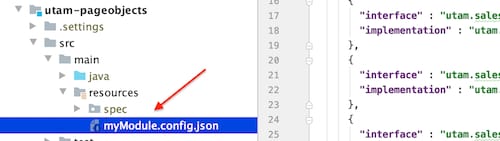
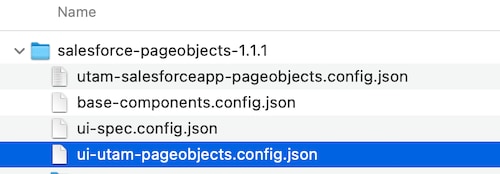
- at the root of the artifact that you consume. Example for Salesforce Page Objects:
Add injection configs to UtamLoader
-
Create a
utam.loader.jsonJSON loader config file at the root of your test resources (usuallysrc/test/resources). -
Add an
injectionConfigsproperty with a list of all injection configuration files from the modules that your tests consume.To cover all consumed modules, our config should be:
1{ 2 "injectionConfigs": [ 3 "vanilla-js-components/profile.config.json", 4 "utam-salesforceapp-pageobjects.config.json", 5 "ui-utam-pageobjects.config.json", 6 "ui-spec.config.json", 7 "base-components.config.json" 8 ] 9} -
Pass the name of the file to the constructor of UtamLoaderConfig
1config = new UtamLoaderConfigImpl("utam.loader.json");
Set active profile
Setting the active profile affects which implementing class is picked. A common example is mobile tests, which need to set the current platform.
1config.setProfile(MobilePlatformType.fromDriver(driver));After the profile is set, UtamLoader knows how to pick up the right implementation based on the dependency injections config utam-salesforceapp-pageobjects.config.json, which looks like this:
1{
2  "platform": {
3    "ios_tablet": [
4      {
5        "interface": "utam.pageObjects.auth.AddConn",
6        "implementation": "utam.pageObjects.auth.AddConnIOSTabletImpl"
7      }
8    ]
9  }
10}
This particular config means that if the active profile is “ios_tablet”, and UtamLoader.load(AddConn.class) is invoked, the loader should instantiate the AddConnIOSTabletImpl class.
Mobile setup
To execute a test using a UTAM page object against a local simulator or emulator, the UTAM framework needs to know your local environment through system properties for Java or a wdio configuration file for JavaScript.
These properties are common for both iOS and Android platforms:
-
the installation location for Appium package (appium)
-
the installation location for NodeJS (nodejs)
-
bundleID (app.bundleid)
-
test device name (ios.device/android.device)
-
test application package location (ios.app/android.app)
1System.setProperty("nodejs", "/usr/local/bin/node"); 2System.setProperty("appium", "/usr/local/lib/node_modules/appium/"); 3System.setProperty("app.bundleid", "com.salesforce.chatter");-
For iOS:
1System.setProperty("ios.device", "iPhone 8 Plus"); 2System.setProperty("ios.app", "<path to iOS test app>"); -
For Android:
1System.setProperty("android.app", "<path to Android test app>");
2// initial activity (app.activity), Android only
3System.setProperty("app.activity", "com.salesforce.chatter.Chatter");
-
Appium setup
For Java, a test must use AppiumServerFactory to start an Appium server and WebDriverFactory to start an Appium session using the Appium server.
1appiumService = AppiumServerFactory.getAppiumServer()
2
3// For iOS:
4driver = WebDriverFactory.getWebDriver(DriverType.ios, appiumService, desiredCapabilities);
5
6// For Android:
7driver = WebDriverFactory.getWebDriver(DriverType.android, appiumService, desiredCapabilities);
Write UI tests
See examples in the Java recipes repo.
Code completion (IntelliSense) for UTAM JSON files
The JSON schema for UTAM page objects is available at Schema Store.
Most source code editors or IDEs support code completion (IntelliSense) for .utam.json file extensions either automatically or through configuration.
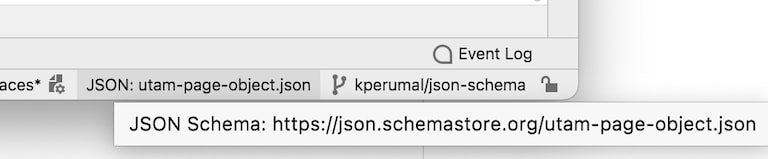
Example automatic schema mapping by IntelliJ IDEA
In IntelliJ IDEA, no configuration is needed and the IDE automatically identifies schema from Schema Store for .utam.json files as shown below.
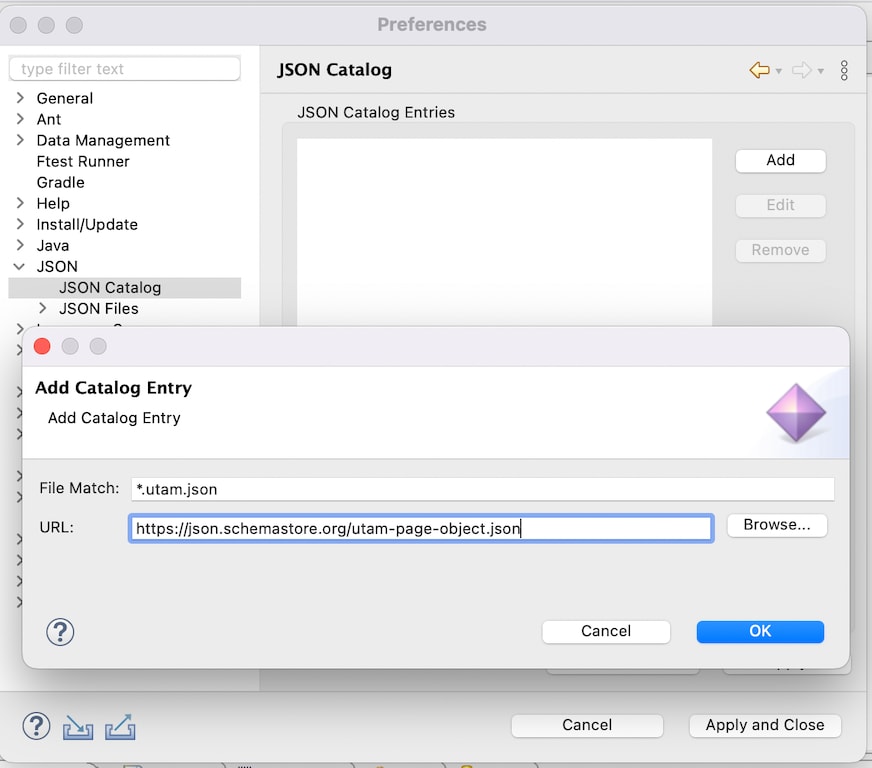
Example configuration for Eclipse
In Eclipse, add a catalog entry for the JSON schema.
 j
j