Testing user interfaces (UIs) can feel like trying to hit a moving target, especially when you are working with Salesforce Omnistudio components. You know the drill: you pour hours into crafting an Omniscript for customer onboarding or a Flexcard dashboard for sales teams, and it looks perfect in preview. But then you run user tests and — bam! — stuff breaks in ways you never saw coming.
Picture your customer rolling out a Flexcard for quick account overviews. It’s looking great on desktop, but on mobile? Actions don’t fire, data doesn’t render, and users bounce in frustration. These aren’t rare moments; they’re everyday headaches that slow deployments, breaking trust. End-to-end (E2E) testing fixes this mess by mimicking real journeys, so you can catch issues early and deploy with confidence.
Why E2E testing matters for Omnistudio
So, why do we need to test the entire journey rather than just checking if a button works? Testing the full user journey is critical because Omniscripts, Flexcards, and Data Mappers interact across boundaries where unit tests cannot validate the complete process. E2E testing plays out the full story of what a real user does, from start to finish across your components, like a demo of an actual customer journey.
E2E testing also helps you:
- Simulate full user journeys across Omnistudio components: E2E testing plays out that whole flow, just like a real person clicking through components, spotting weird hiccups along the way.
- Catch integration issues early for partners building solutions: E2E grabs those sneaky spots where Data Mappers don’t feed data right into an Omniscript, saving you from frantic fixes right before demo day.
- Reduce post-go-live bugs: E2E irons out production surprises, reducing post-deployment defect tickets for your teams, giving you greater confidence in deployments.
- Validate real-world flows to record creation: Unit tests poke single buttons (like does this button click? Does that data pull?). E2E runs the full race, like submitting a lead form, watching it zip through conditions, and landing as a shiny new record in Salesforce.
- Find the real problem: When tests flake, E2E pinpoints the issue past the pretty interface and discovers whether or not the backend logic is actually the part causing the crash.
- Confirm that the handoff works: Picture Omniscript passing data to a Flexcard. E2E checks that the pass doesn’t drop, enabling easy jumps between your UI pieces.
- Manage your own path: Users don’t always go straight. E2E tests the sunny “submit and succeed” path plus detours like errors or save-for-later resumes, covering all those branching stories.
High risk components to test first
When figuring out where to focus your testing energy, it helps to know which parts of the system are most likely to break. Based on what teams see in the real world, here are the high-risk areas you need to watch.
Omniscripts account for approximately 50% of reported Omnistudio UI bugs, making them the highest-priority target for E2E testing. Because this is the layer the user interacts with directly and is also most visible, it typically receives the highest number of reported bugs. They juggle steps, conditions, inputs, and data swaps with Data Mappers all in one go. Mess up here, and your whole customer journey, like a service request form, grinds to a halt.
Next is Flexcards because these cards are used to display critical data and handle user actions, and any glitch here is immediately obvious to the user.
Finally, we have Data Mappers. If mappings fail (say, wrong field names or null values), Omniscripts starve for information, also breaking Flexcards downstream.
Note: All data presented above is derived from internal testing.
Tools for Omnistudio test automation: UTAM, Playwright, and Selenium
Automation sounds cool, but here’s the headache: Omnistudio pieces shift a lot. You might spend days building a perfect test script, and it runs beautifully, until the next release drops. Suddenly, everything breaks. Why? The main culprit here is dynamic element IDs. Because Omniscripts and Flexcards are built on Lightning Web Components (LWC), they sit inside a Shadow DOM. So your usual CSS or XPath selectors become fragile and start failing whenever Salesforce moves with seasonal updates. It breaks everything at the backend. One day your test clicks Submit just fine, and the next, it hunts for a button that moves and your whole pipeline stalls.
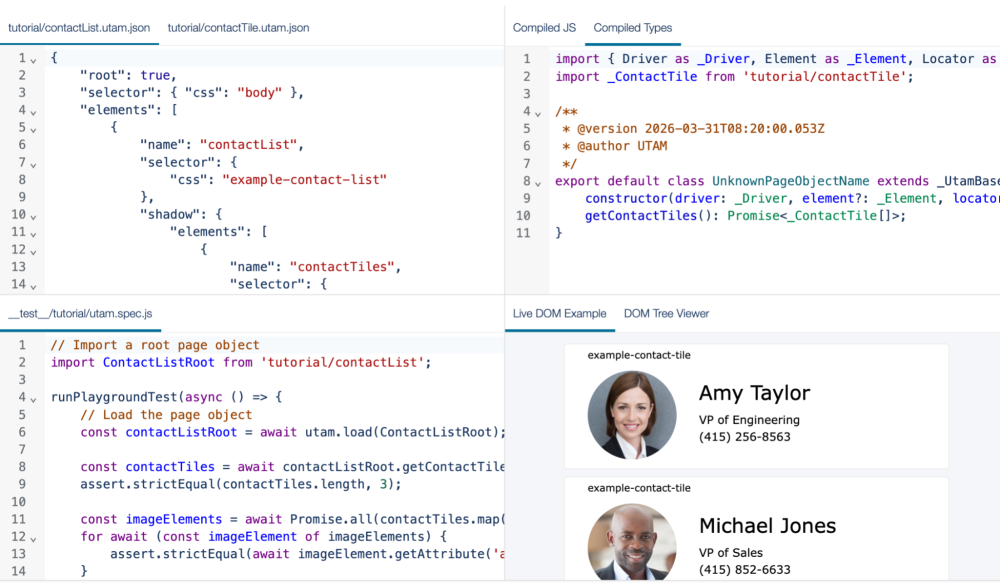
To solve this problem, Salesforce created the UI test automation model (UTAM), a proprietary tool designed specifically for LWC in Omnistudio. Omnistudio components are wrapped in Shadow Roots (that’s the Shadow DOM), which blocks standard Selenium selectors like CSS or XPath from reaching elements reliably, especially after Salesforce updates.
1<!-- Source: https://mvnrepository.com/artifact/com.salesforce.utam/salesforce-pageobjects -->
2<dependency>
3    <groupId>com.salesforce.utam</groupId>
4    <artifactId>salesforce-pageobjects</artifactId>
5    <version>12.0.0</version>
6    <scope>compile</scope>
7</dependency>
Instead of relying on brittle selectors in scripts, UTAM uses JSON-based page objects. When a button’s location or structure changes in an Omnistudio update, you just update the JSON metadata once, and all your tests are instantly back on track. It creates a stable layer and lets scripts identify UI components consistently, no matter what changes underneath.
Choosing between UTAM, Playwright, and Selenium
Instead of relying on fragile identifiers, a smart move would be to grab the right tools that don’t flake. Use a combination of industry-standard tools and Salesforce-specific frameworks. Here’s when to use what:
- UTAM: Best for long-term maintenance and Salesforce-native components, giving you those stable JSON selectors that survive Omnistudio updates.
- Playwright: Playwright is best for speed and headless CI/CD pipelines. Fire it up without a visible browser to debug fast across browsers.
- Cucumber with Selenium: Cucumber with Selenium is best for business stakeholder sign-off (BDD). You write tests in plain English and your team reads and approves it.
Launch with tweaks like test parameters (sandbox mode? Slow it down?). Then poke issues using element properties. Is it visible? Enabled? That’s how you spot and squash the real culprits without endless rewrites.
| Feature | UTAM (UI Test Automation Model) | Playwright | Cucumber + Selenium |
| Primary Use Case | Salesforce-specific UI testing and complex Shadow DOMs | Modern web apps (React, Vue, etc.) and high-speed CI/CD | Legacy apps and BDD (Business Driven Development) |
| Philosophy | Model-based: Decouples UI via JSON-based page objects | Modern/native: Direct browser control via WebSockets | Driver-based: Uses WebDriver to remote-control the browser |
| Wait Handling | Explicit waits designed into JSON page objects | Auto-waiting: Automatically waits for elements to be actionable | Manual: Requires explicit/implicit wait statements (often flaky) |
| Learning Curve | High: Requires learning UTAM JSON grammar and compiler | Low: Very beginner-friendly with excellent documentation | Moderate: Large community, but setup is complex |
| Language Support | Java, JavaScript, TypeScript | JS, TS, Python, Java, .NET | Almost any (Java, Python, C#, Ruby, PHP, Perl) |
| Parallelization | Managed by the runner (e.g., WebdriverIO/JUnit) | Native: Extremely fast via isolated Browser Contexts | Requires Selenium Grid (resource-heavy) |
| Standout Feature | Shadow DOM support: Pierces Salesforce’s complex DOM layers | Trace Viewer: Time-travel debugging with video and logs | Gherkin Syntax: Tests written in plain English (Given/When/Then) |
Testing scenarios by Omnistudio component
Now that we’ve covered the hurdles, let’s get practical: what exact scenarios should you click, check, and validate in your Omnistudio flows? Since Omnistudio is made up of different building blocks, we need to look at them individually. Here are the recommended testing scenarios to keep your application running smoothly.
These are the must-hit spots to make sure everything hangs together for real users.
Omniscript testing
These are your flow bosses, so test the moves that users make every day.
- Check step transitions & logic: Don’t just check if the Next button works. You need to validate the conditional visibility. This is the if/else logic, if a user selects Option A, does the form show them the correct follow-up question? If they select Option B, does it take them down the alternative path?

- Validation rules: Try to break it. Enter the wrong date format or leave a required field blank. Does the system stop you with a helpful error message (validation failure), or does it let you proceed and crash later?

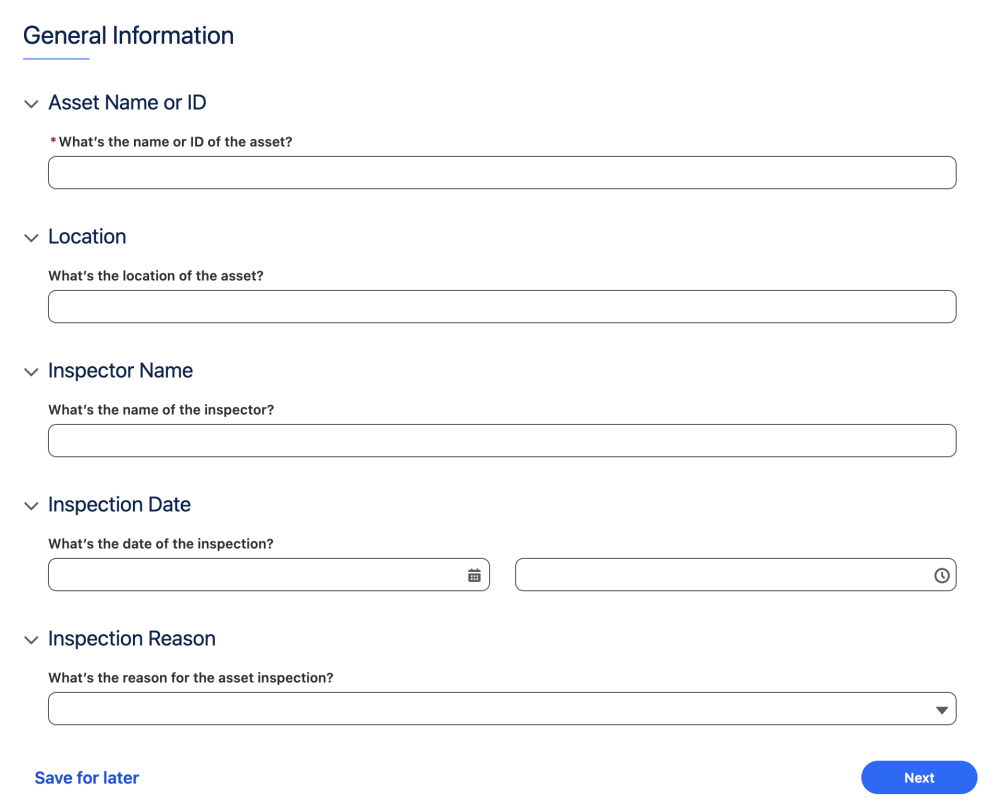
- Save and resume: This is a big one. For long applications, users might not finish in one sitting. You must test the “Save for Later” functionality to ensure that their data is actually saved and can be resumed exactly where they left off without data loss.
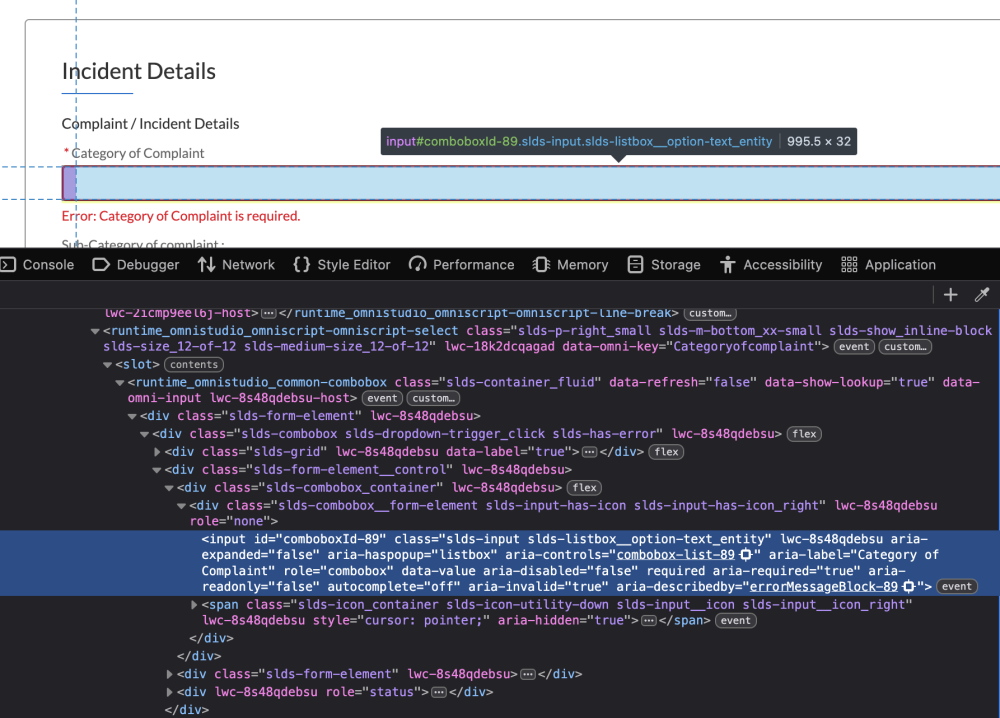
- The ID trap: When automating these tests, avoid using dynamic IDs generated by the browser as these change frequently. Instead, use data-testid or stable CSS selectors. This keeps your test from breaking every time Salesforce updates the platform.
Flexcard testing
If Omniscript is the form, the Flexcard is the dashboard that needs to look sharp and act right. It displays data and offers quick actions.
- Validate data rendering: First, perform simple visual checks. Is the data showing up? Whether it is static info or contextual data pulled from the system, it needs to render correctly on the screen.

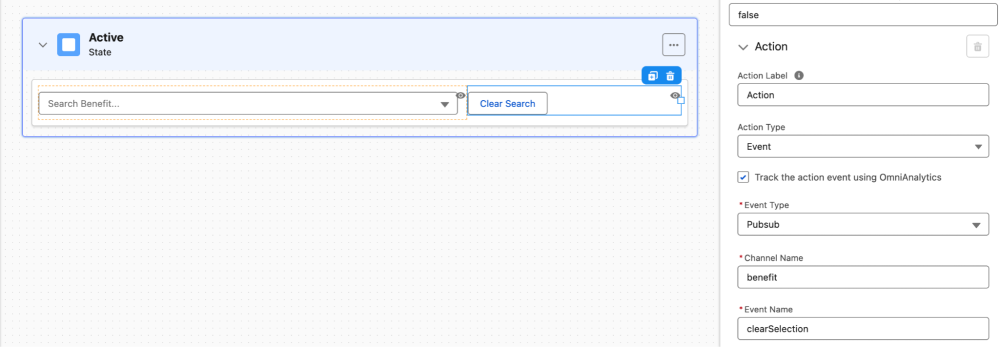
- Action buttons: Flexcards aren’t just for looking, they have buttons. Test these actions specifically. Does clicking the button successfully launch the correct Omniscript or navigate the user to the right page?
- Conditional states: Just like Omniscripts, Flexcards can change based on data. Test these conditional states, such as hover effects or expanded details, to ensure that the card looks different when it is supposed to.
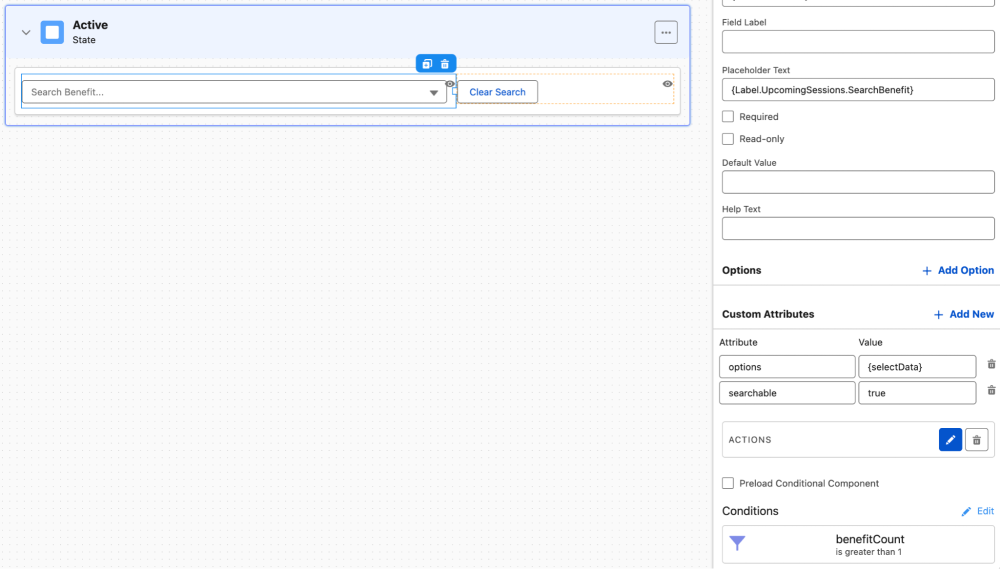
- Selectors: Stick to application programming interface (API) name–based selectors for your automation to keep things stable. They stay reliable when Salesforce tweaks the UI.
Data Mapper testing
Now we are moving backstage. Data Mappers are responsible for moving data in and out of Salesforce. Even if the UI looks fine, a broken Data Mapper means the process fails.
- Test separately: You don’t always need the UI to test these. Isolate them to see if they work on their own since they’re data pipes.

- Input and mappings: Check the input payload correctness. If you send data in, does it map to the correct fields in the database?
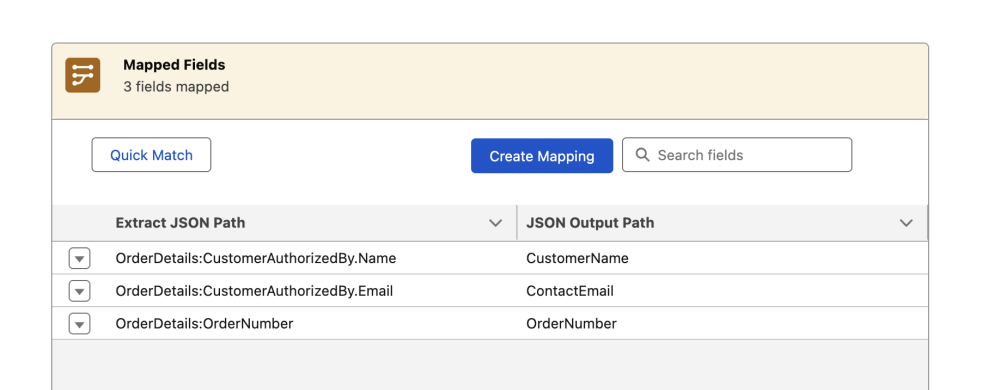
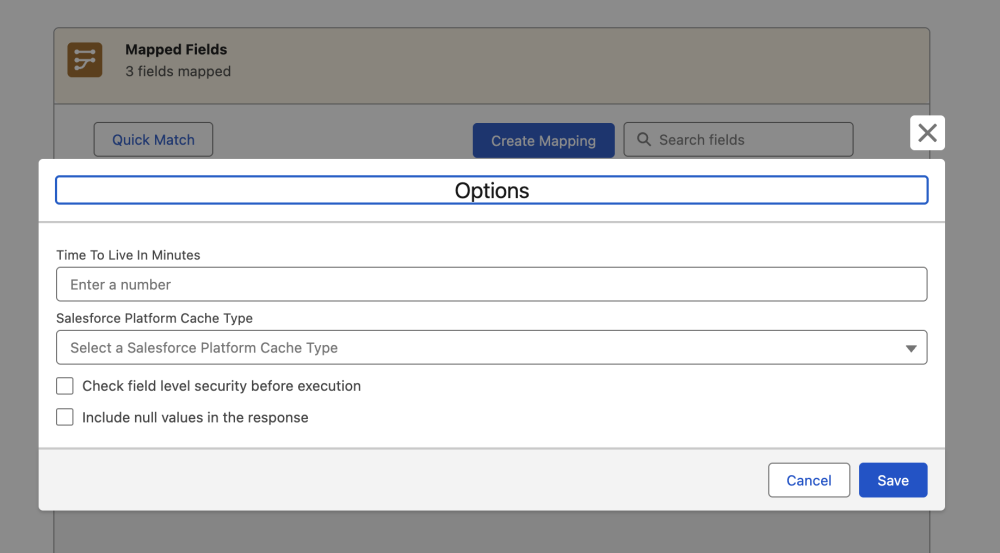
- Edge cases: What happens if a field is missing or comes through as null? You need to test these edge cases to make sure that the Data Mapper doesn’t just crash when the data isn’t perfect.
Integration Procedures (IPs) testing
Omnistudio’s Integration Procedures is like an engine room that handles multiple steps and actions at once.
- Orchestration sequence: Verify that the sequence fires in the right order without skips. Does the Integration Procedure call the Data Mapper, then the external API, and then send the email?
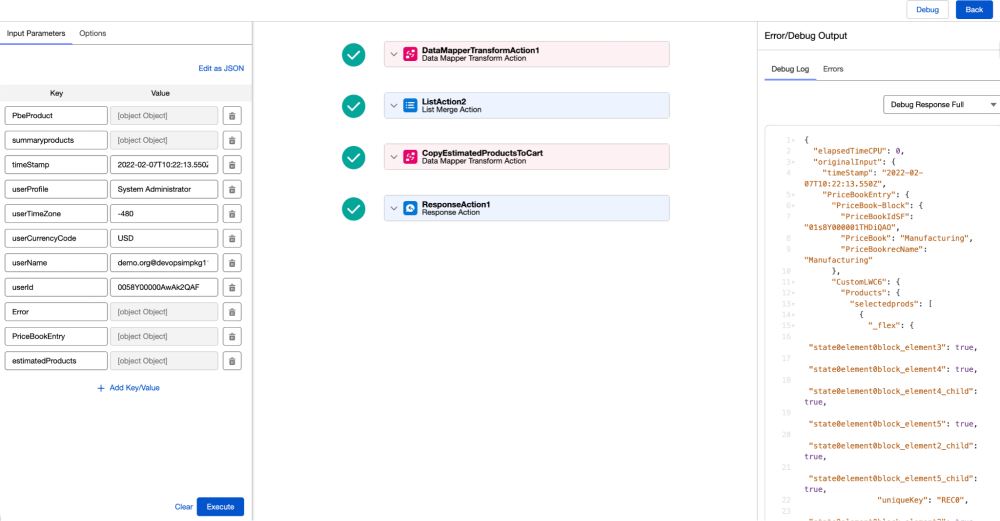
- Error branching and timeouts: It’s critical to test system failures.” What happens if an external service takes too long to respond (timeout handling)? Does the IP handle the error gracefully, or does the whole screen freeze?
- Mock services: In your lower testing environments (like sandbox), use mock services to simulate external responses. This lets you test the logic without relying on (or waiting for) real-world third-party systems.
Pretesting checklist for Omnistudio
Before you even write your first test script or click Run, there are some best practices that you should keep in mind. Testing isn’t just about finding bugs; it’s about making sure that the design actually works for the human using it.
Here is a checklist of what to consider before you start testing.
Verify backend object updates
Don’t get too distracted by the flashy buttons just yet. Start with the win you want. Your primary goal is to verify that the business actually got what it needed. We call this testing the “happy path,” the core journey where everything goes right.
Ask yourself: When the user hits Submit, did the data actually land where it was supposed to? You need to confirm that the backend S-objects or business objects were updated correctly. If the form looks great but the database is empty, the test has failed.
Test dynamic UI state changes
Omnistudio interfaces are dynamic. They change based on who is looking at them. For example, a Flexcard might display different contextual data depending on the customer.
Before testing, verify that the UI visibility logic is sound. Does the screen state change correctly when new info is added? Are buttons going gray when they’re not ready? You need to ensure that the interface is displaying the right information at the right time.
Validate responsive UX
Step back and think about the user: does the flow feel natural on a phone or desktop? Test responsive tweaks and little touches like smooth transitions — no janky jumps that make users ditch the app mid-task. The Omniscript is the “face” of your application, and because it is the part that users touch, it usually receives the highest number of bug reports.
However, remember that a bad UX isn’t always a code error, sometimes it’s just a confusing design. When planning your tests, think about the flow. Is it intuitive? Since the root cause of a UI bug is often actually a backend configuration issue, ensuring a smooth UX means making sure that the backend supports the frontend easily.
Test error messaging paths
What happens when things go wrong? Your testing plan needs to cover more than just success stories. You must account for “unhappy paths,” such as validation failures where a user enters the wrong data.
You also need to verify how the system handles big failures, like an Integration Procedure timeout or an Apex exception. Does the user get a helpful error message, or does the screen just freeze? Check that success pop-ups say things like “Claim submitted, thanks!” and errors spell out next steps, like “Missing phone number, add it here,” instead of vague tech jargon.
Accessibility verification
Don’t leave anyone behind — this is non-negotiable. When designing and testing Omniscripts, you must consider accessibility because the UI needs to work for everyone.
Your tests should ensure that the application caters to all customers, including those who may be visually impaired. Test for screen readers announcing fields correctly, keyboard-only navigation through your Flexcards, and color contrasts that pop for all eyes.
Conditional navigation outcomes
Finally, where does the user go next? Omnistudio relies heavily on conditional logic, basically if/else statements that send users down different paths based on their choices.
You need to verify these alternative paths. If a user clicks Save for Later, does the system actually let them resume later without losing data? If they answer Yes to a specific question, does the navigation direct them to the correct follow-up screen? Make sure that every road leads to the right destination.
Next steps
There you have it. Tackling Omnistudio testing in the simplest way possible without it being a nightmare of flaky scripts and hidden bugs. Start with your highest-traffic Omniscript. Write one UTAM page object for its first step, validate a single field input and step transition, and run it against your sandbox. Once that passes reliably across two Salesforce releases, expand coverage to the scenarios listed above. Build rock-solid flows with clear messaging and confident deployments that your customers love.
Resources
Video: FlexCards and OmniScripts | Salesforce Industries
Trailhead: Omnistudio Development Essentials
Trailhead: Omnistudio Omniscript Fundamentals
Video: Build Low-Code Digital Experiences with All-New OmniStudio | TDX Bengaluru
About the authors
Anjali Gupta is a Senior Product Manager at Salesforce who is specialised in horizontal cloud and platform. She is focused on Omnistudio roadmap and strategies ensuring customer growth and success. Follow her on LinkedIn.
Payal Verma is a Content Marketing Analyst at Salesforce with over four years of professional experience in product, brand, and content marketing. She has worked across both B2B and B2C markets, developing and executing content strategies for a wide range of formats, including blogs, social media, scripts, eBooks, and guides. Follow her on LinkedIn.