


Salesforce Hosted MCP (Model Context Protocol) Servers are one of the key components of Headless 360, letting you extend agents with standard and custom capabilities. As you expose tools, prompts, and resources to users, securing access to these servers is critical to protect your data and operations.
Whether you’re a developer building MCP servers or an admin managing them, understanding the security model helps you control who can access what, when, and how. In this post, we’ll cover authentication, authorization, permission controls, and logging best practices for Salesforce Hosted MCP Servers.
Understanding the Salesforce Hosted MCP Server security model
The Salesforce MCP security model has three layers:
- Authentication: Verifies who’s making the request
- Authorization: Determines what they’re allowed to do
- Permission controls: Enforce granular access at the object and field level when working with the primitives (tools, prompts and resources) exposed by the server
And, in addition to these security layers, logging tracks all activity for audit and compliance.
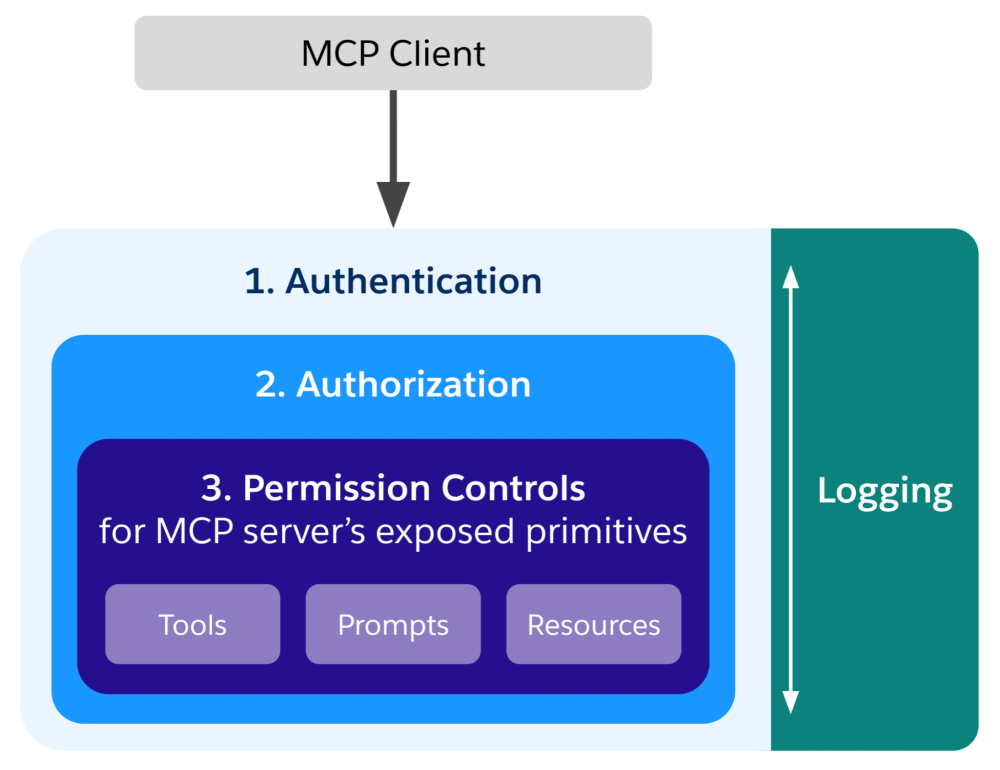
The first two layers are directly linked to the MCP standard and the third (permission controls) is specific to the Salesforce Platform. Each security layer builds on the previous one. You can’t authorize someone until you know who they are. You can’t enforce permissions without authorization rules.
Understanding how these layers and logging work together helps you build a defense-in-depth strategy. Let’s look at each layer in detail.
Authentication: Verifying identity
Authentication is the first line of defense. It answers the question: “Who are you?”
Authentication and authorization are technically defined as optional for MCP implementations as per the MCP specification, but we will assume for the rest of this post that it’s mandatory in an enterprise context given that without proper security, unauthorized users could access sensitive data or trigger unwanted operations.
MCP specifies OAuth 2.0 as its authentication and authorization mechanism. It supports only a subset of OAuth 2.0 — not every authorization flow or grant type is available. Popular clients like Claude and ChatGPT support fewer flows than Salesforce does.
While MCP is fairly recent, OAuth 2.0 has been around for more than a decade and the Salesforce Platform has a number of mechanisms to integrate with OAuth, whether it acts as a client or a server. This means that, as a Salesforce Developer, you do not have to implement OAuth security. Instead, you control it declaratively through an external client app (ECA).
We strongly recommend creating a dedicated ECA per MCP client (one for Claude, one for ChatGPT, one for Cursor, etc.) rather than sharing a single ECA across multiple clients. This helps with controlling access and auditing the client’s activity.
When it comes to Salesforce Hosted MCP Servers, we only support the authorization code flow through the ECA. This means that users have to authenticate with Salesforce when connecting to the MCP server. Their individual Salesforce user account is tied to the MCP session.
Notes:
- There’s no option to specify a service account with a principal user, such as an integration user, to be used across all sessions. This is an anti-pattern that customers should avoid.
- At this time, there’s no plan to allow machine-to-machine flows. The human remains in the loop to connect to the org and grant access to the MCP tools.
By default, any user from your org can connect to your ECA and access the MCP servers. However, you can specify authorization rules to control the access.
Authorization: Controlling access
Authorization tells you what the user can do. Once a user is authenticated, Salesforce evaluates their permissions to determine which resource they can access.
There are a number of mechanisms that you can put in place to control authorization.
Authorize access with OAuth scopes
The first level of authorization to access specific resources is handled by OAuth scopes when configuring an ECA.
The new “Access Salesforce hosted MCP servers (mcp_api)” scope grants access to Salesforce Hosted MCP Servers. We’ve released this scope to avoid exposing the “Manage user data via APIs (api)” scope that grants full access to the Platform APIs (REST, Tooling, Metadata, etc.).
As a general rule, it’s preferable to only expose a limited set of “safe” operations to agents via MCP rather than to allow full API access.
Restrict access to pre-authorized users
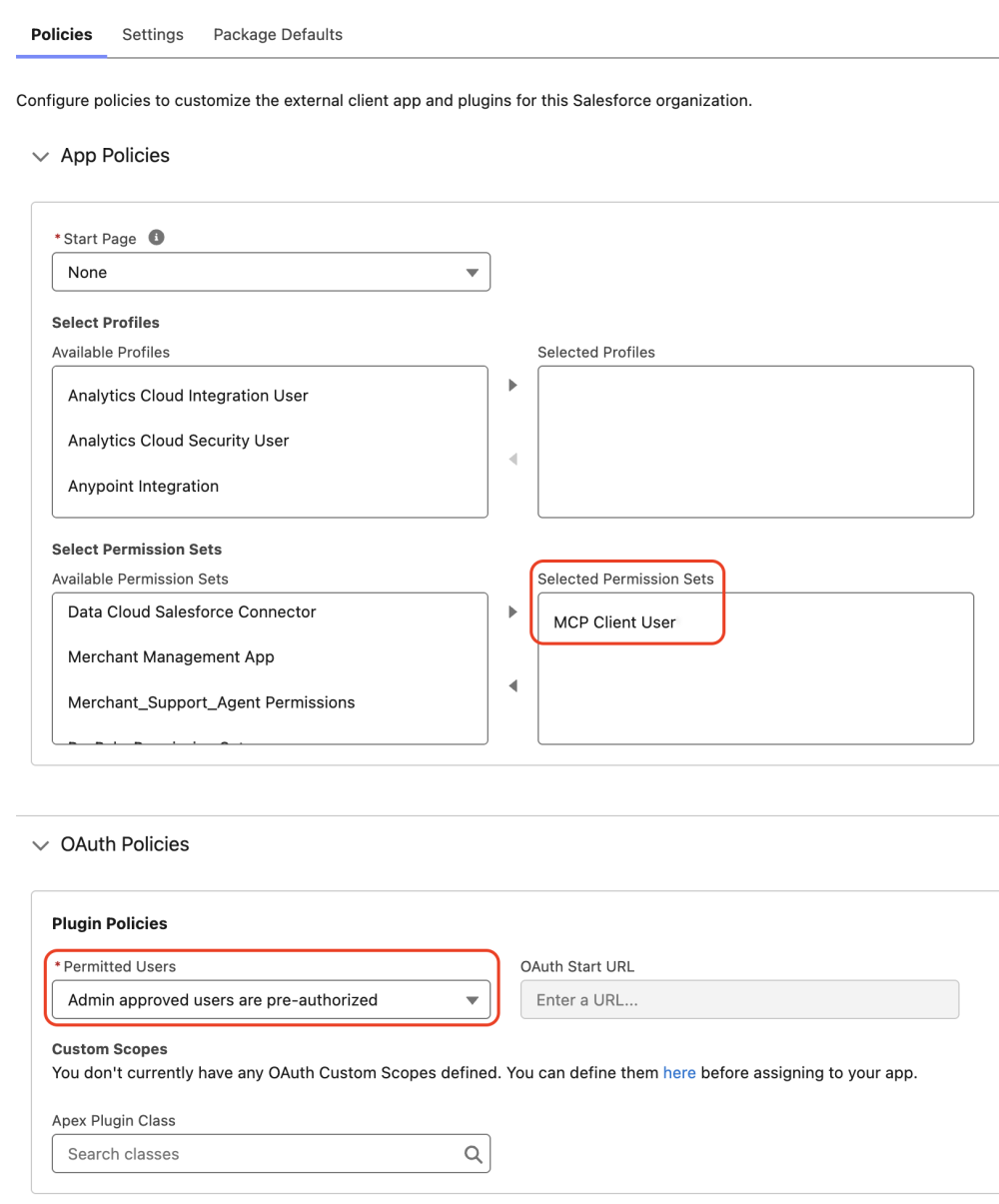
With the default ECA configuration, all users from your org can authenticate and access the MCP servers. You can restrict access to specific pre-authorized users by configuring an app policy. This lets you select users with specific profiles or permission sets.
For example, this configuration only allow users with the “MCP Client User” permission set to connect to the ECA:
Enforce IP restrictions
In addition to restricting the use of the ECA to specific users, you can apply IP restrictions by only specifying IP ranges to connect. These restrictions are enabled in the default ECA configuration under App Authorization.
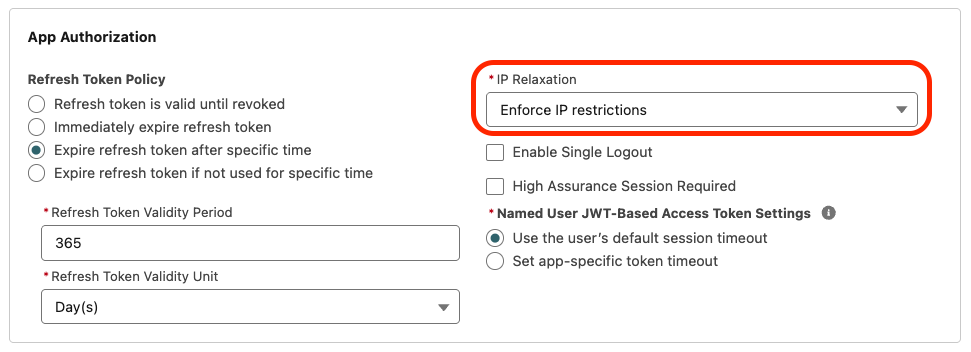
You can specify trusted IP ranges for all users in the Network Access setup menu or for specific user profiles.
Shorten refresh token lifetime
Once a user logs in with the ECA, they acquire an access token that is passed to all subsequent MCP operations. The token must be refreshed after its lifetime expires.
The default token lasts for a year, but you can control the duration of the token lifetime and reduce it in production. You can do this to limit the risk of token theft and reuse for malicious intents. To control the token lifetime, go in the ECA configuration and look for Refresh Token Policy under App Authorization. Our documentation includes recommendations on how to improve security in this area.
Revoke access
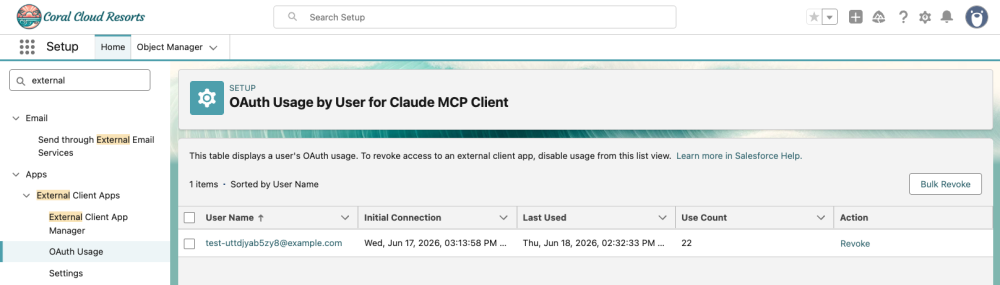
Should you need to revoke tokens for your ECA before they expire, go to Setup, search for OAuth Usage, select your ECA, and revoke individual tokens or run a bulk revoke operation.
Activate MCP servers
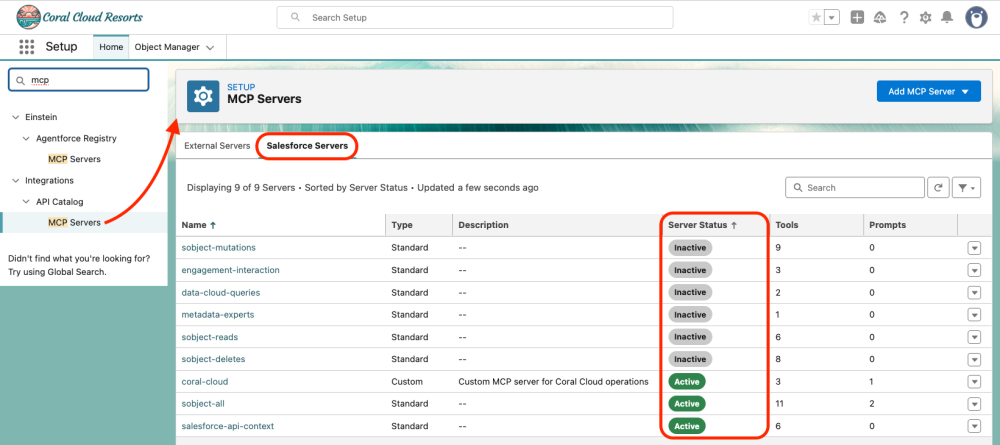
By default, all MCP servers are inactive. Only activate the ones that you intend to expose to agents.
For example, here we’ve only activated a custom server and two standard servers:
Annotate MCP tools
While not strictly a security measure, it’s a best practice to annotate MCP tools that you expose to provide hints about their behavior. Doing so lets agents know how they should use the tools. For example, should the agent ask the user for confirmation when running potentially destructive operations, such as deleting a record, or whether a tool can safely be run multiple times.
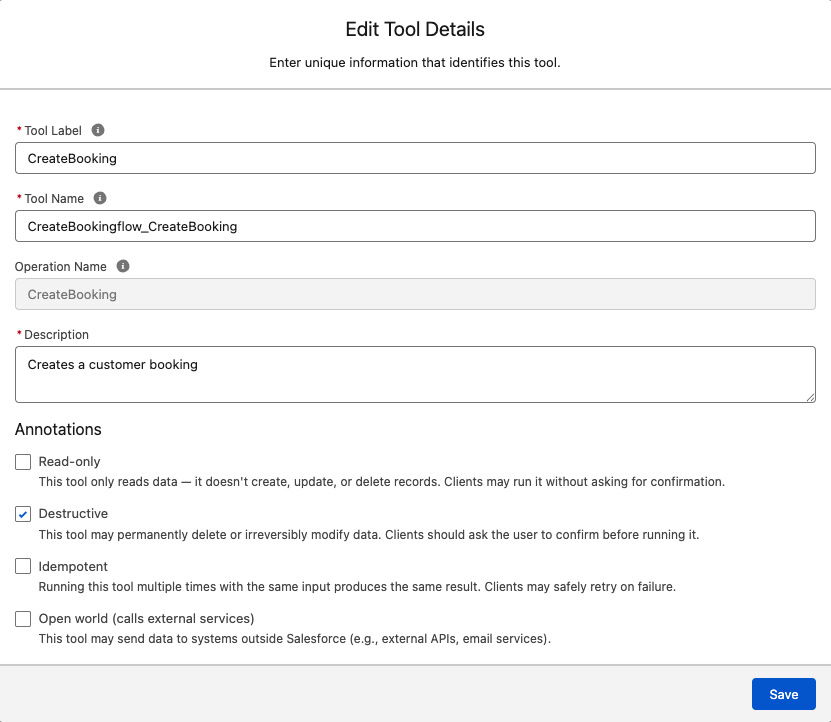
Note: Support for MCP tool annotations is optional on the client side and these may not be enforced by all agents.
Permission controls: Granular access management
You cannot restrict access to a specific MCP server through the ECA configuration, but you control access to the tools that compose those servers.
MCP tools run with the same permissions as the user who authenticated with the ECA. This means that our core security model applies at all levels:
- Object-level access (CRUD permissions)
- Field-level security (FLS) restrictions
- Record sharing rules
It’s also possible to implement custom tools with Agentforce, Apex, or Flow to address unique security requirements. If you choose this path, always follow security best practices.
Be sure to work with permission sets to protect sensitive operations and follow the principle of least privilege. Grant only the permissions that users need to do their jobs. Review permissions regularly and remove access that’s no longer required.
Also, test permissions before deploying to production. For example, run Apex tests and Flow tests on your MCP tools with the runAs method to simulate the behavior of users with different access levels.
Logging: Tracking access
Logging creates an audit trail of who accessed what and when. This is essential for security monitoring, compliance, and troubleshooting.
All actions that are performed by the MCP tools are attributed to the user that connected to the ECA in audit trails. Salesforce automatically logs MCP server activity using Event Monitoring.
To access the logs, navigate to Setup and search for Event Log File Browser. Filter Event Type on “API Total Usage”. You can identify MCP traffic by filtering the event log CSV files for rows where the API_CLIENT_CATEGORY column matches SALESFORCE_HOSTED_MCP. You’ll see the users that called the MCP tools and the affected objects (entities) among other details.
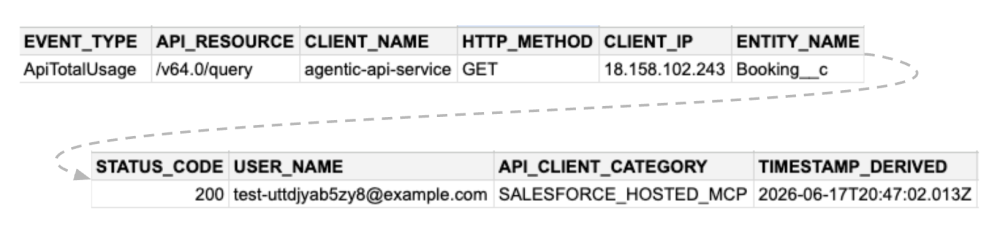
Review logs regularly. Look for errors thanks to STATUS_CODE or unexpected access patterns with USER_NAME or CLIENT_IP. These can indicate security issues or misconfigured permissions.
Conclusion
In this post, we’ve reviewed how to secure Salesforce Hosted MCP Servers, and we’ve covered all of the components that form this layered security architecture, including:
- Authentication verifies identity
- Authorization controls what tools users can access
- Permission controls enforce granular data access
- Logging creates an audit trail for compliance and security monitoring
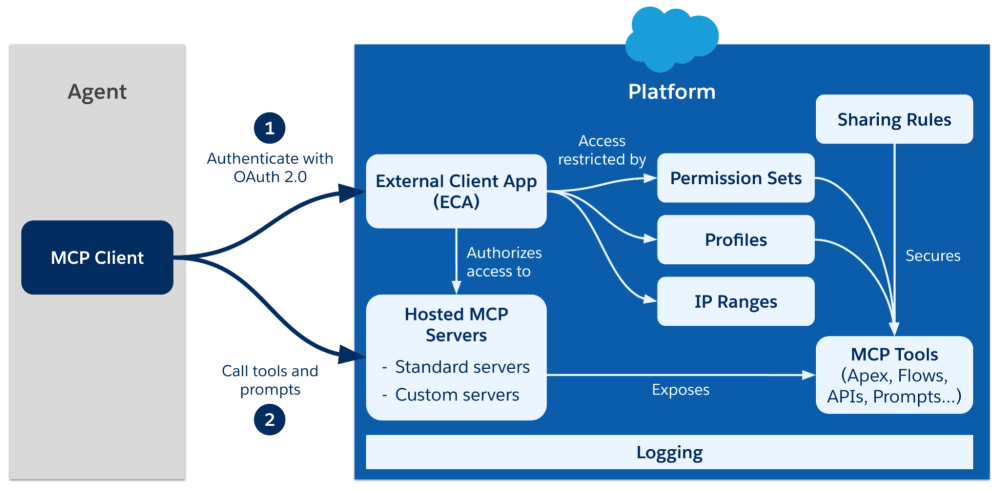
It’s now up to you to implement these security best practices and protect your data while shipping powerful MCP tools that agents can use.
Resources
- Documentation: Salesforce Hosted MCP Servers
- Documentation: Manage MCP Servers in API Catalog
- Documentation: External Client Apps
- Documentation: Permission Sets
- GitHub: Community Wiki
About the author
Philippe Ozil is a Principal Developer Advocate at Salesforce, where he focuses on the Salesforce Platform. He writes technical content and speaks frequently at conferences. He is a full-stack developer and enjoys working with APIs, DevOps, robotics, and VR projects. Follow him on X, LinkedIn, and Bluesky, and check out his GitHub projects.