


Force.com Platform Fundamentals
 j
j
No Results
Search Tips:
- Please consider misspellings
- Try different search keywords
Look At What We’ve Done
As we did when we tested user access in Securing and Sharing Data, we’ll have to log in as multiple users to test notifications.
First, let’s create some Chatter activity.
- If you aren’t already, log in to Salesforce as Ben Stuart.
- Open Mario Ruiz’s profile. You can do this by entering his name in the global search box and clicking the recent record that appears below the box.
- In the text box, enter Can you share the candidates and applications for the SW Engineer position with me and @Melissa Lee? Thanks!, and click Share.
- Log in as Melissa Lee, and comment on that post: Thanks in advance, @Mario Ruiz!.
Now let’s verify that our user received the right notifications in Salesforce1.
- Log in to Salesforce1 as Mario Ruiz. Tap
 , and verify that you have two new in-app notifications:
one from when Ben posted to your profile, and one from when Melissa
mentioned you.Notifications for Mario Ruiz
, and verify that you have two new in-app notifications:
one from when Ben posted to your profile, and one from when Melissa
mentioned you.Notifications for Mario Ruiz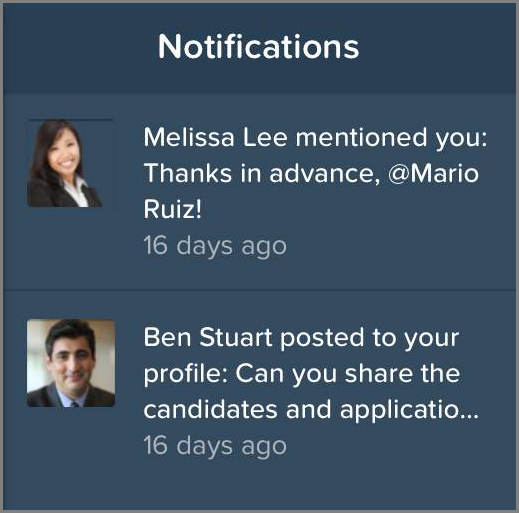
- Log in to Salesforce1 as Ben Stuart. Verify that you have one new in-app notification from when Melissa commented on your post.