Force.com Platform Fundamentals
 j
j
No Results
Search Tips:
- Please consider misspellings
- Try different search keywords
Try It Out: Modify the Candidate Page Layout Properties
Now let's organize all of our fields on the page layout and mark some fields as required. To do so, let's go to the Candidate page layout page.
- From Setup, click .
- Click Candidate.
- In the Page Layouts related list, click Edit next to the Candidate Layout.
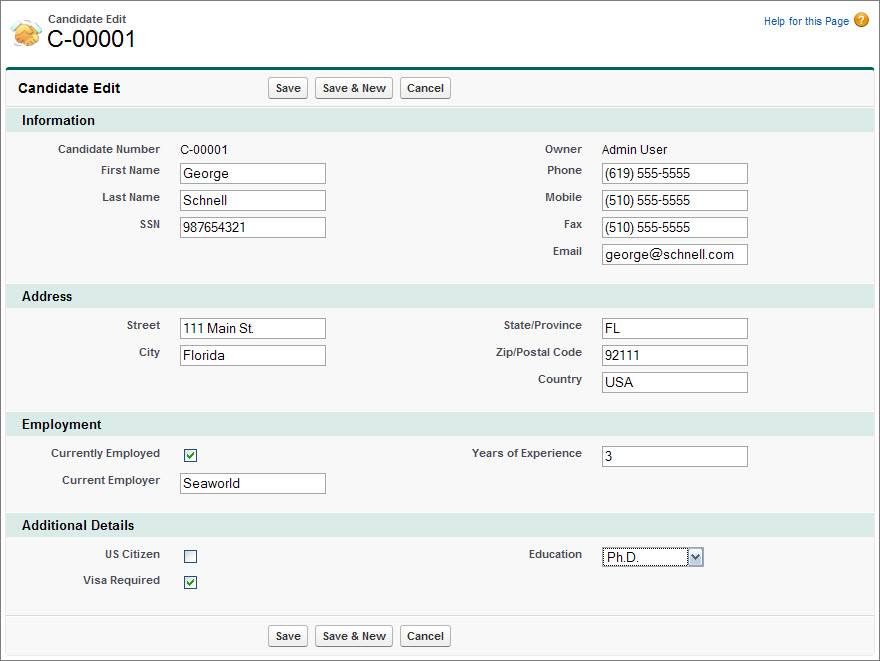
- Create three new double-column sections below the Information section: Address, Employment, and Additional Details. Drag the appropriate fields into them, as shown in the Candidate Object Page Layout image, and don't forget to click Quick Save so you can save your work as you go.
- Set the First Name, Last Name, and Email fields to required as follows:
- Use CTRL+click to select all three required fields.
- Double-click your selection.
- Select the Required checkbox in the Select All row, and click OK.
- Click Save.
Your Candidate page layout should now look similar to the following screenshot.