Force.com Platform Fundamentals
 j
j
No Results
Search Tips:
- Please consider misspellings
- Try different search keywords
Try It Out: Add a Table Component
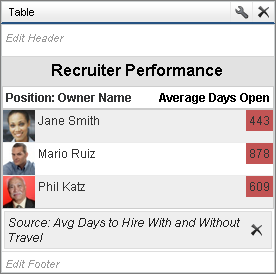
Now let's create a table component that shows us the average number of days it takes a recruiter to fill a position with or without travel.
- Click the Components tab.
- Drag a table component onto the right column of your dashboard.
- Click Edit Title, and enter Recruiter Performance.
- Click the Data Sources tab, and find and select the Avg Days to Hire With and Without Travel report.
- Drag the report and drop it onto the gauge component.
- Click
 on the table to open the component
editor.
on the table to open the component
editor. - Click the Formatting tab.
Make sure Show Chatter Photos is selected. This displays each recruiter’s Chatter profile picture in the table.
Just like its underlying source report, we can add conditional highlighting to our table component to highlight recruiter performance levels. We want a green color if the recruiter needs fewer than 45 days, yellow if he or she needs between 45 and 75 days, and red if the value is over 75.
- Set the following fields for conditional highlighting.
- For Low Range Color, pick a shade of green.
- For Breakpoint 1, enter 45.
- For Middle Range Color, leave the shade of yellow selected.
- For Breakpoint 2, enter 75.
- For High Range Color, pick a shade of red.
- Click OK.Table Component