


Force.com Platform Fundamentals
 j
j
No Results
Search Tips:
- Please consider misspellings
- Try different search keywords
Try It Out: Add Summary Fields
In the next step, we want to specify which numerical or checkbox field values to include in our report, and how each of them should be summarized in subtotals and grand totals. Though record count is always summarized as a sum total, we can summarize other numerical and checkbox fields in different ways.
For example, it doesn't make sense to sum the values of the Days Open column—the resulting total wouldn't provide much value. However, if we calculate the average for Days Open, we'd know roughly how long positions stay open.
For our report, we need to include three different types of summaries: record count, average days open, and a formula that calculates the percentage of records requiring travel. While the first two are standard summary fields, the third will require a visit to the Custom Summary Formula editor. Let's start with the first two. By default, the report already adds Record Count, so let's add the average for the number of days a position stays open.
- Find the Days Open field and drop it into the matrix.
- In the Summarize dialog, select Average.
Now, let's create that formula to calculate the percentage of records requiring travel.
- Double-click Add Formula. You'll see the Custom Summary Formula editor.
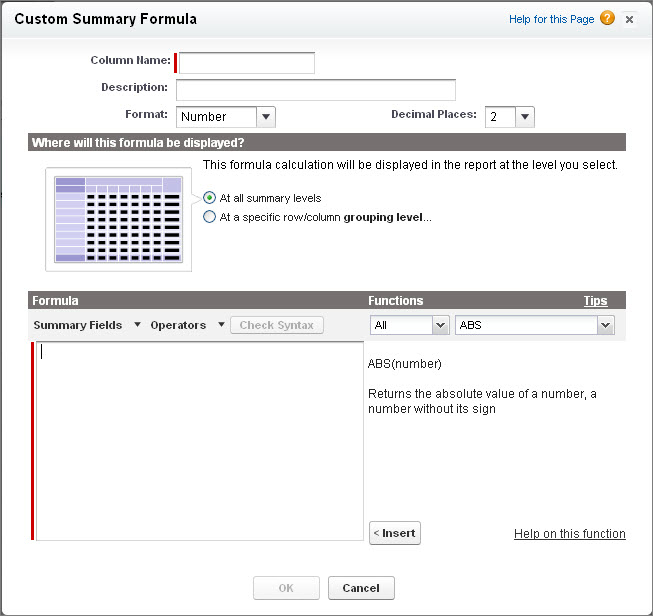
The formula editor lets us define a new formula based on the summarizable fields in the report. In our case, we want to include a summary that shows the percentage of position records that require travel in any given segment. To make this calculation we need to divide the sum of records that require travel by the sum of all records:
- In the Column Name field, enter Travel Required Percentage.
- In the Description field, enter The percentage of total position records that require travel.
- In the Format drop-down list, choose Percent.
- In the Decimal Places drop-down list, choose 0.
- For Where will this formula be displayed?, choose At all summary levels.
Now, let's write our formula. Similar to other formula editors in the platform, this provides tools to make make it easier.
- In the Formula section, click Summary Fields and select Travel Required, then select Sum.
The formula editor displays the following API representation of those values:
1Position__c.Travel_Required__c:SUM- Click the Operators drop-down and select Divide.
- Click Summary Field and select Record Count.
The final formula looks like this:
1Position__c.Travel_Required__c:SUM / RowCountWe can quickly verify that the formula is correct by checking its syntax before saving.
- Click Check Syntax.
- Click OK.