


Force.com Platform Fundamentals
 j
j
No Results
Search Tips:
- Please consider misspellings
- Try different search keywords
Try It Out: Create a User
Before we set up the role hierarchy, we’re going to need some users to assign the roles to. First let’s create the CEO of Universal Containers: Cynthia Capobianco.
- From Setup, click .
- Click New User.
- In First Name, enter Cynthia.
- In Last Name, enter Capobianco.
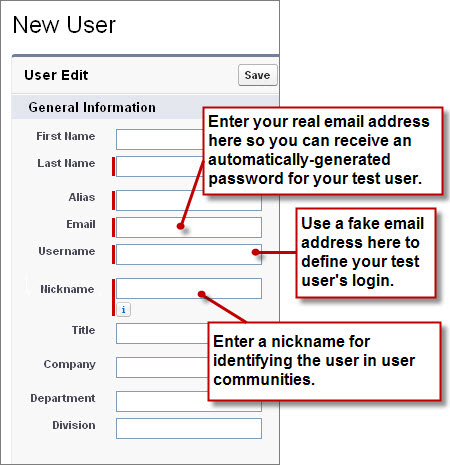
- Enter your email address in the Email field, and a fake email in Username.
Each user must have a unique username across all Salesforce organizations. The value in Email must be a valid email address, though. We can use the “fake” value in the Username field to log in to the app as Cynthia, but we'll get her automatically generated password at the real email account specified in Email. Without that password, we'd never be able to log in!
- Leave Role unspecified. We’ll assign this when we create our role hierarchy.
- In User License, leave the default selection of Salesforce.
- In Profile, select Standard Employee.
- Fill in any remaining fields that you want to.
- Click Save.