Salesforce Knowledge Developer's Guide
 j
j
No Results
Search Tips:
- Please consider misspellings
- Try different search keywords
Newer Version Available
Create an Article List with Visualforce
Let's build the first component of the Visualforce search page, the article list.
- In the address bar of your browser, replace everything to the
right of salesforce.com/ with apex/ArticleList. Don't change anything to the left of salesforce.com/.
The resulting URL should look something like this: https://instance.salesforce.com/apex/ArticleList.
- Press Enter.
A Visualforce error page appears indicating that the page doesn't exist yet.
- Click the Create Page ArticleList link.
- In the footer at the bottom of your new Visualforce page, click ArticleList to display the Visualforce development mode page editor.
- Delete all the default markup in the Visualforce development mode page editor and replace it with the markup shown in the Visualforce Article List Code Sample.
- Click Save (
 ).
).
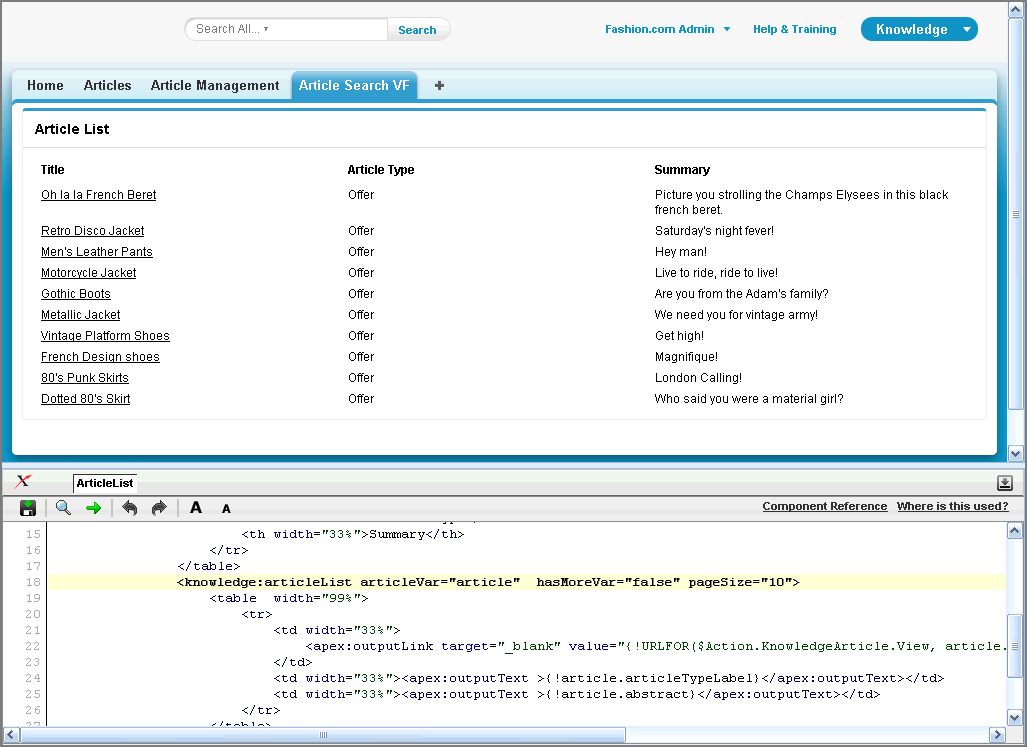
When you save your markup, the Force.com platform checks to make sure it's valid and lets you know if there are errors. If the markup is valid, the new version of your Visualforce page is saved and rendered in your browser. You can now see the Article List page displaying a list of articles.
Visualforce Article List Code Sample
Lines in bold are described below the code sample.
1swfobject.registerObject("clippy.codeblock-0", "9");<apex:page sidebar="false" title="Article List">
2 <style>
3  td{
4  vertical-align : top;
5  text-align: left;
6  }
7 </style>
8 <apex:form >
9  <apex:pageBlock title="Article List" >
10   <apex:panelGrid width="100%">
11    <table width="99%">
12     <tr>
13      <th width="33%">Title</th>
14      <th width="33%">Article Type</th>
15      <th width="33%">Summary</th>
16     </tr>
17    </table>
18   <knowledge:articleList articleVar="article"  hasMoreVar="false" pageSize="10">
19    <table  width="99%">
20     <tr>
21      <td width="33%">
22       <apex:outputLink target="_blank" value="{!URLFOR($Action.KnowledgeArticle.View, article.id,['popup' = 'true'])}">{!article.title}</apex:outputLink>
23      </td>
24      <td width="33%"><apex:outputText >{!article.articleTypeLabel}</apex:outputText></td>
25      <td width="33%"><apex:outputText >{!article.abstract}</apex:outputText></td>
26     </tr>
27    </table>
28    </knowledge:articleList>
29   </apex:panelGrid>
30  </apex:pageBlock>
31 </apex:form>
32</apex:page>
In the code fragment below, the knowledge:articleList Visualforce component lets you create your first article list. The pageSize attribute prevents it from showing more than 10 articles in the list.
1<knowledge:articleList articleVar="article" hasMoreVar="false" pageSize="10">Creating the Visualforce Article Search tab
Now, we're going to create a new custom tab for the Visualforce page that displays the article list. We'll call this page the Visualforce Article Search page.
- From Setup, click .
- In the Visualforce tabs area, click New.
- In the Visualforce Page drop-down list, select ArticleList.
- In the Tab Label field, enter Visualforce Article Search.
- Leave the default value in the Tab Name field.
- Click the Tab Style lookup icon to select a style for your new tab.
- Leave the Salesforce Classic Ready checkbox deselected and the Splash Page Custom Link drop-down list set to --None--.
- In the Description field, enter A tab for the Visualforce Article Search page.
- Click Next.
- Click Next again to accept the default user profile visibility.
- In the Add to Custom Apps page, deselect all of the Include Tab checkboxes except the one for our Knowledge app.
- Select the Append tab to users' existing personal customizations checkbox.
- Click Save.
You'll notice when the page refreshes that the Visualforce Article Search tab has automatically been added to your application tabs at the top of the page.
Look at What We've Done
Select the Visualforce Article Search tab to display the article list.
Every item in the list shows the article's title, the article type and the article's summary. So far, your list only shows 10 articles per page as set in the knowledge:articleList tag from the Visualforce List code sample.