


ISVforce Guide
 j
j
No Results
Search Tips:
- Please consider misspellings
- Try different search keywords
Newer Version Available
Submit an Order
Submit new orders from the Orders tab in the Channel Order
App.
To start a new order, click Submit New Order. To edit an unfinished order or continue with an unsubmitted order,
click the Edit link for the order in the Action
column. The Order detail page allows you define the specifics of the
order.
- Enter Customer Information: Enter the customer information
in the fields provided. To auto-populate the details, search on the Company Name or Org ID. (If you use
the License Management App to provision and control licenses, the Org ID is the same as the Subscriber ID on the license
record.)
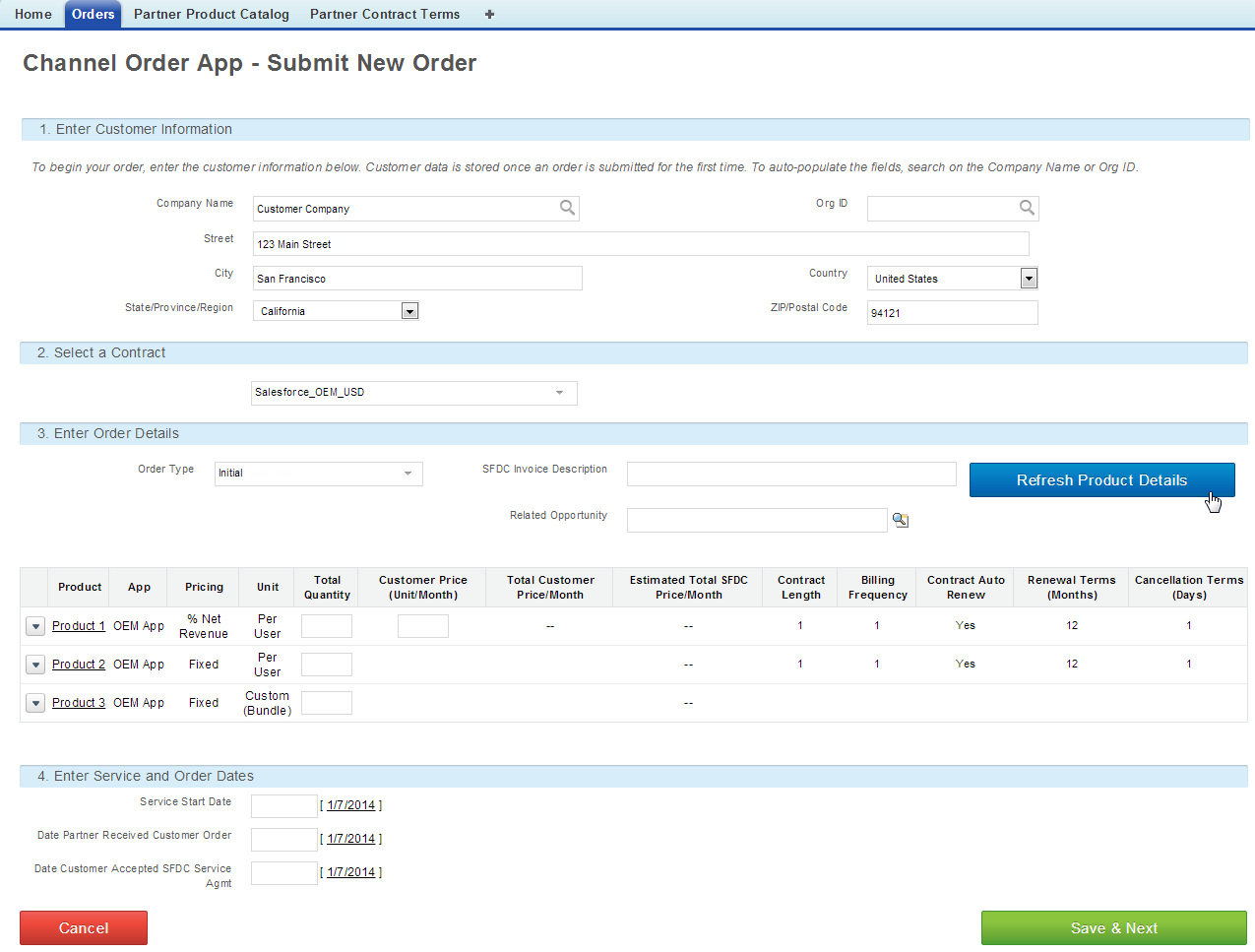
- Select a Contract: Choose the appropriate contract from the list.
- Enter Order Details: Define the specifics of the order,
including the type of order and the products to include.
- Choose the Order Type.
Order Type Use to: Initial Create an order for a new customer who has never purchased under the contract before Add-On Add licenses or products for an existing customer Reduction Reduce licenses or products for an existing customer Cancellation Terminate the contractual relationship with an existing customer Upgrade — Partner App Upgrade an existing customer to an expanded version of your app Upgrade — Org Edition Upgrade an existing customer to an expanded version of Salesforce - Enter an optional SFDC Invoice Description. This field should contain anything extra you want included on the invoice, including your identification information.
- Select an optional Related Opportunity to associate an opportunity from your org with the order. This data will not be sent to salesforce.com.
- Modify the order details as necessary using the fields provided.
Quantity is always required, and customer price is required for %
Net Revenue products. Many fields on this page are defined by your
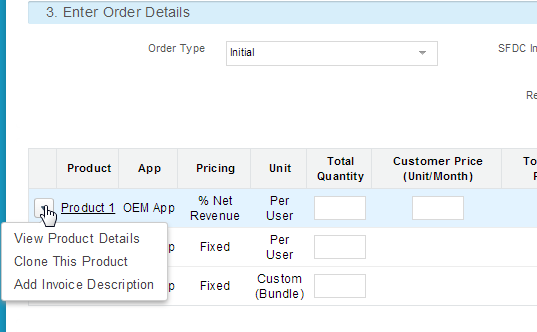
product catalog and contract. Use the action menu next to each product
listing to view product details, add line item descriptions that will
appear on your invoice from salesforce.com, or to clone a product
line item if you sell it at two price points to the same customer.
Column Describes: Product The name of the product. Click a link to view details about that product. App The name of the app. Pricing The type of pricing associated with the product, according to your contract: - Fixed
- % Net Revenue
Unit The unit associated with the pricing for the product - per user
- per org
- custom units
Total Quantity Enter the quantity of the product to include in the order. Customer Price (Unit/Month) Enter the customer price per unit per month. Only required for % Net Revenue products. Total Customer Price/Month The amount the customer will owe you based on the quantity and price entered for the order. Only calculated for % Net Revenue products. Estimated Total SFDC Price/Month The amount you will owe salesforce.com based on the quantity entered and your product catalog and contract. Contract Length The length of the contract in months. Billing Frequency The length of the Salesforce billing period in months. Contract Auto Renew Whether or not the contract will be renewed automatically. Renewal Terms (Months) The term for renewal in months. Cancellation Terms (Days) The term for cancellation in days.
- Choose the Order Type.
- Enter Service and Order Dates: For each field, click the text box to pick a date or click the link to choose today’s date.
- Click Save & Next to continue or save the order with an Order Status of Draft. If there are any errors in your order, a detailed message will be displayed. After you save an order, you can exit the application and return to the order later.
- The Channel Order App – Order Confirmation page displays details about your order. If the details are correct and you agree to the stated terms, click Confirm & Submit. To make changes, click Modify.
After your order is successfully submitted, it will appear
in the list on the Orders tab with an Order Status of Received. Orders that have not been submitted
have an Order Status of Draft.