


Visualforce Developer’s Guide
 j
j
No Results
Search Tips:
- Please consider misspellings
- Try different search keywords
Newer Version Available
Rendering a Page as a PDF
You can render any page as a PDF by adding the renderAs attribute to the <apex:page> component, and specifying
“pdf” as the rendering service. For example:
1<apex:page renderAs="pdf">In the previous tutorial, you used a Visualforce page to change the name of a company. Suppose you wanted to generate an announcement of the new name as a PDF. The following example produces such a page, along with the current date and time.
1<apex:page standardController="Account" renderAs="pdf" applyBodyTag="false">
2    <head>
3        <style>
4            body { font-family: 'Arial Unicode MS'; }
5            .companyName { font: bold 30px; color: red; }
6        </style>
7    </head>
8    <body>
9        <center>
10        <h1>New Account Name!</h1>
11
12        <apex:panelGrid columns="1" width="100%">
13            <apex:outputText value="{!account.Name}" styleClass="companyName"/>
14            <apex:outputText value="{!NOW()}"></apex:outputText>
15        </apex:panelGrid>
16        </center>
17    </body>
18</apex:page>
Things to note about the page:
- <style> is CSS markup, not Visualforce markup. It defines the font family used for the entire page, as well as a particular style for the company name.
- Some of the output text is contained in an <apex:panelGrid> component. A panel grid renders as an HTML table. Each component found in the body of the <apex:panelGrid> component is placed into a corresponding cell in the first row until the number of columns is reached. As there is only a single cell, each output text is displayed in a separate row.
A Visualforce Page Rendered as PDF
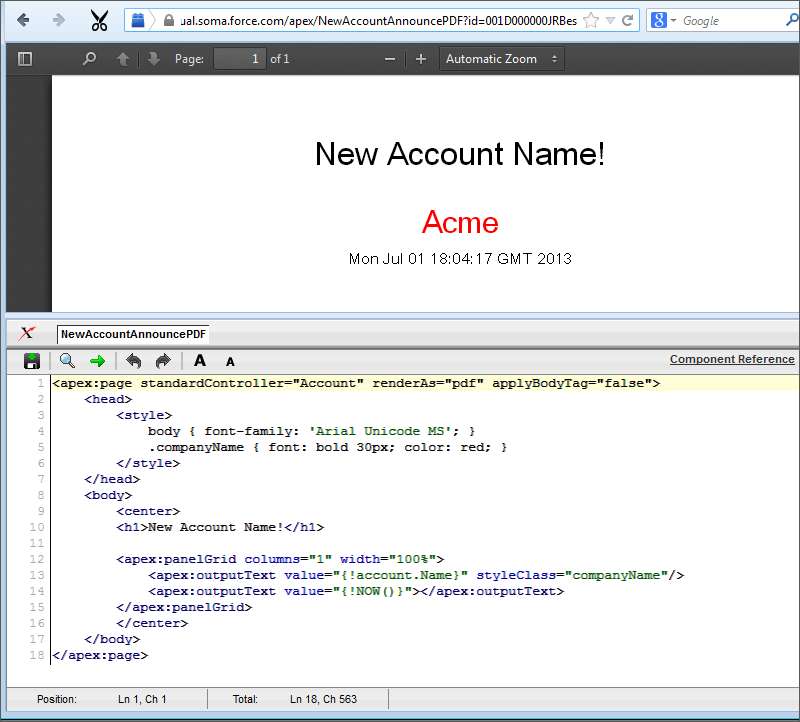
Verify the format of your rendered page before
deploying it. Some other things to note about using renderAs:
- PDF is the only supported rendering service.
- Rendering a Visualforce page as a PDF is intended for pages designed and optimized for print.
- Standard components that aren’t easily formatted for print, or form elements like inputs, buttons, or any component that requires JavaScript to be formatted, shouldn’t be used. This includes, but isn’t limited to, any component that requires a form element.
- PDF rendering doesn’t support JavaScript-rendered content.
- If the PDF fails to display all of the page’s text, particularly
multi-byte characters such as Japanese or accented international characters,
adjust the fonts in your CSS to use a font that supports them. For
example:The font selected must be available on the Visualforce PDF rendering service. “Arial Unicode MS” is currently the only font supported for extended character sets that include multi-byte characters.
1<apex:page showHeader="false" applyBodyTag="false" renderAs="pdf"> 2 <head> 3 <style> 4 body { font-family: 'Arial Unicode MS'; } 5 </style> 6 </head> 7 <body> 8 9 これはサンプルページです。<br/> 10 This is a sample page: API version 28.0 11 12 </body> 13</apex:page> - The maximum response size when creating a PDF must be below 15 MB before being rendered as a PDF. This is the standard limit for all Visualforce requests.
- The maximum file size for a generated PDF is 60 MB.
- The maximum total size of all images included in a generated PDF is 30 MB.
- PDF rendering doesn’t support images encoded in the data: URI scheme format.
- Note that the following components do not support double-byte
fonts when rendered as a PDF:
- <apex:pageBlock>
- <apex:sectionHeader>