


Salesforce1 App Developer Guide
 j
j
No Results
Search Tips:
- Please consider misspellings
- Try different search keywords
Create the Shipify Canvas App
In this step, we’ll expose the Shipify Web application
as a canvas app.
You’ll need user permissions “Customize Application”
and “Modify All Data” to create a canvas app.
- In the Salesforce application, from Setup, click .
- In the Connected Apps related list, click New.
- In the Connected App Name field, enter Shipify.
- In the Contact Email field, enter your email address.
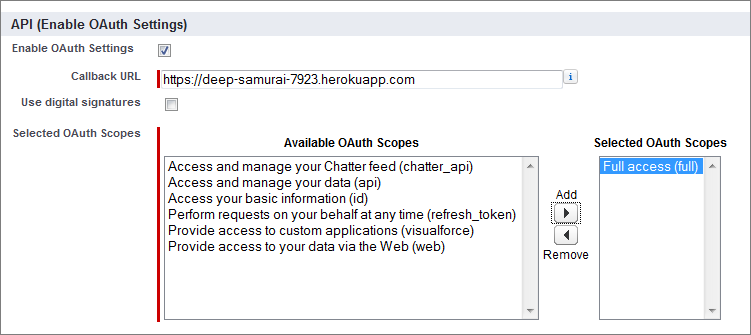
- In the API (Enable OAuth Settings) section, select Enable OAuth Settings.
- In the Callback URL field, paste the URL of the Heroku app you just created and change the protocol to https. For example, your final URL should look something like https://deep-samurai-7923.herokuapp.com.
- In the Selected OAuth Scopes field,
select Full access and click Add. As a best practice, you’ll want to keep the OAuth scopes as
limited as needed for your canvas app functionality.
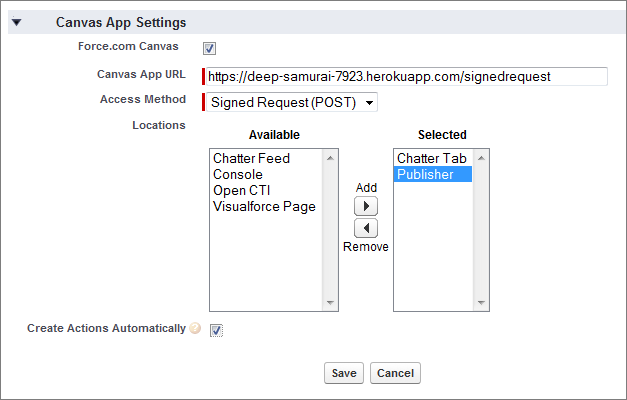
- In the Canvas App Settings section, select Force.com Canvas.
- In the Canvas App URL field, enter the same URL you entered in the Callback URL field with /signedrequest appended to it. For example, the URL might look like https://deep-samurai-7923.herokuapp.com/signedrequest.
- In the Access Method drop-down list, select Signed Request (POST).
- In the Locations field, select Chatter Tab and Publisher and click Add. For a canvas app to appear in the publisher, you only need to specify a location of Publisher. In this scenario, we also chose Chatter Tab to be able to easily test the canvas app by looking at the Chatter tab.
- Select Create Actions Automatically. Selecting this field creates a global custom action
for the canvas app.
- Click Save. After the canvas app is saved, the detail page appears.
We added the canvas app, and now we’ll specify who can access it.