


Salesforce1 App Developer Guide
 j
j
No Results
Search Tips:
- Please consider misspellings
- Try different search keywords
How Page Layouts Work in Salesforce1
You can use the enhanced page layout editor in the full Salesforce site to customize the layout of an object’s record detail pages and adjust which fields and related lists appear.
In Salesforce1, page layouts drive these areas of the mobile experience:
- Record Related Information and Detail Pages
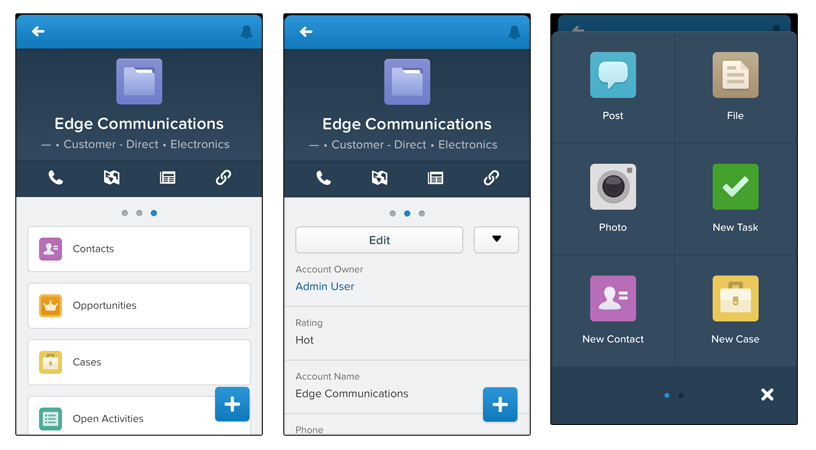
- When you view a record in Salesforce1, you see the fields, Visualforce pages, and related lists that are based on the record type and the user’s profile. Related lists show up as single-line cards containing the name of the page or related list. Tapping the related list card displays its details.
- Mobile Cards
- You can add expanded lookups, components, and Visualforce pages to the Mobile Cards section of your page layout to have them show up as mobile cards in Salesforce1. The elements you place in this section don’t show up on a record’s detail page in the full Salesforce site. They only appear on the record’s related information page in Salesforce1.
- Publisher Actions
- In Salesforce1, actions you configure on the page layout show up in the publisher,
which users access by tapping
 .
.
Here are the record related information page, record detail page, and publisher for a sample account, Edge Communications:
We’ll go over publisher actions in a later chapter. For now, let’s focus on record pages and mobile cards.