


ISVforce Workbook
 j
j
No Results
Search Tips:
- Please consider misspellings
- Try different search keywords
Step 2: Create an App
In this step you create a Merchandise object and a tab to display it. You then create an app that contains the tab.
- Your browser should already be open, log into your dev org (this is the first DE org you created).
- From Setup, click .
- Click New Custom Object to display the New Custom Object wizard.
- For the Label and Plural Label enter Merchandise, leave all other values
as they are.
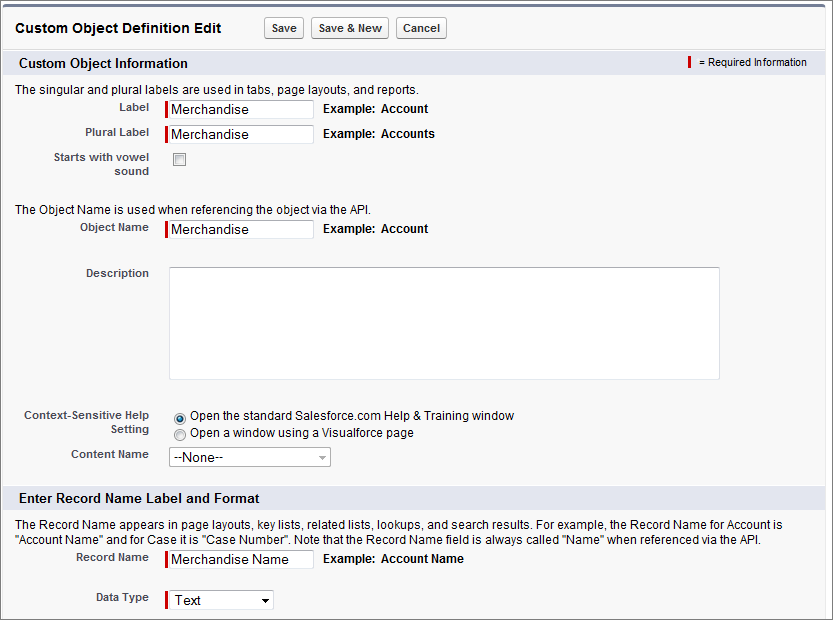
- Click Save to finish creating your new object.
To display information about the Merchandise object, you associate the object with a tab.
- From Setup, click .
- Select Custom app and click Next.
- In the Custom Objects Tabs related list, click New to launch the New Custom Tab wizard.
- From the Object drop-down list, select Merchandise.
- For the Tab Style, click the lookup icon and choose an icon.
- Accept the remaining defaults, and click Next, Next, and then Save.
As soon as you create the tab, you can see it at the top of the screen.
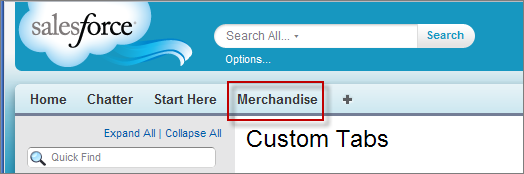
Next create an app that contains the tab.
- From Setup, click .
- Click New to launch the New Custom App wizard.
- For the App Label and App Name enter Warehouse.
- Click Next and Next again.
- In the Available Tabs list, locate the Merchandise tab and click Add to add it to the list of selected tabs.
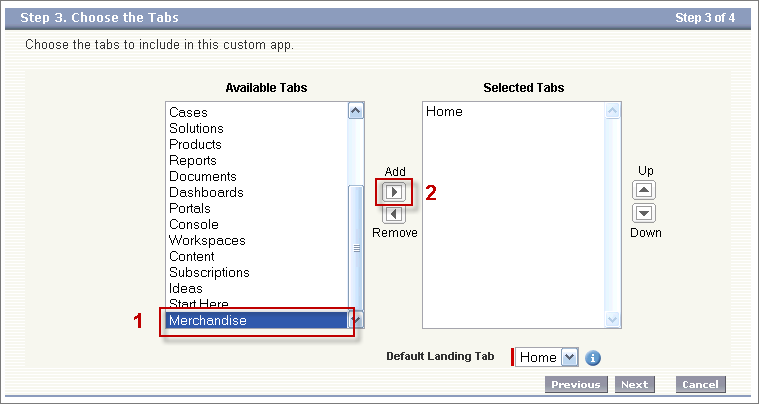
- Leave the Default Landing Tab set to the Home tab, and click Next.
- Select the Visible checkbox to make the application available to all user profiles.
- Click Save to create the Warehouse application.
- The app now appears in the Force.com app menu in the upper right corner of the page. Click it.
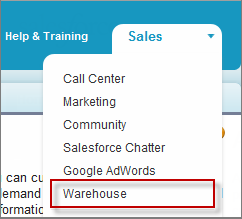
Tell Me More....
If it seems like you just
created an object within a container, within another container, you
did. And you're about to put all of that into another container! What's
with all these containers and what do they do?
- A tab is a container for things you want to display on the same page, such as a chart, a table, or the Merchandise object you created.
- An app is a container for tabs that appear next to each other. Currently your app has only two tabs, Home and Merchandise, but it could have many more.
- A package is a container for components. Usually a package contains an app that can be installed in an org. You haven't created a package yet, you'll do that in the next tutorial.