


Salesforce1 App Developer Guide
 j
j
No Results
Search Tips:
- Please consider misspellings
- Try different search keywords
Test Out the DeliveryTrakr Canvas App
Now you’ll play the part of an Acme Wireless warehouse worker processing deliveries, and we’ll test
out the canvas app in the Salesforce1 app.
The DeliveryTrakr app demonstrates how a canvas app can create
one of three types of posts in the feed:
- Text post—Feed item that contains information about a delivery.
- Link post—Feed item that contains a link to the DeliveryTrakr app.
- Canvas post—Feed item that contains a link to another canvas app. This app is used by warehouse workers to approve or deny a delivery.
- On your mobile device, tap Feed from the navigation menu.
- Tap
 to access the publisher.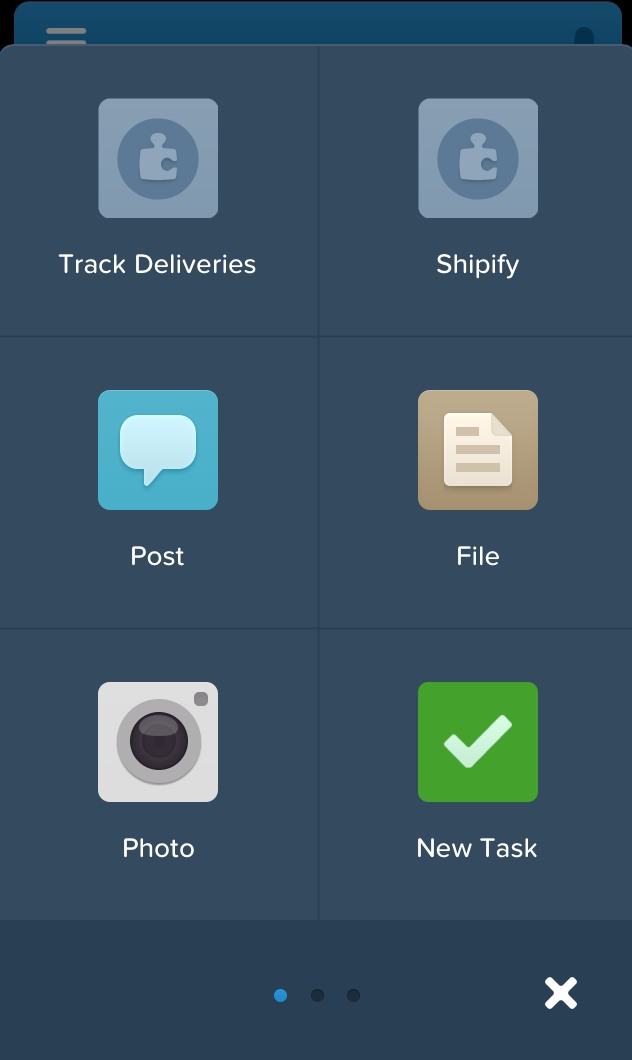
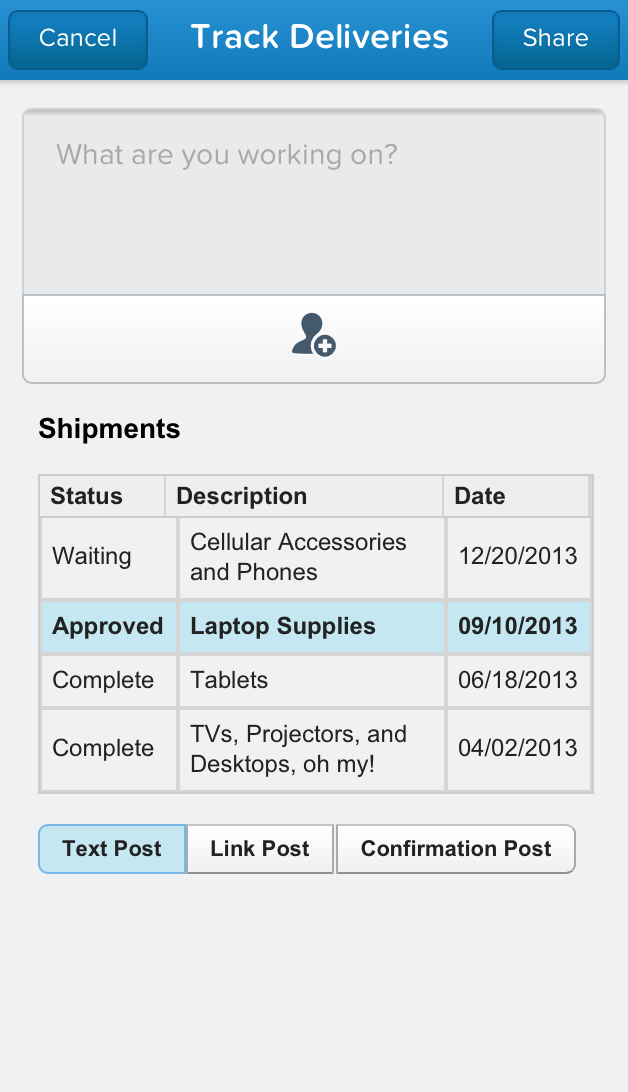
- Tap Track Deliveries.The DeliveryTrakr app displaying a list of shipments appears.
- Tap one of the deliveries in the grid.
- Tap Text Post.You can also add some of your own text to the post by entering it in the What are you working on? pane.
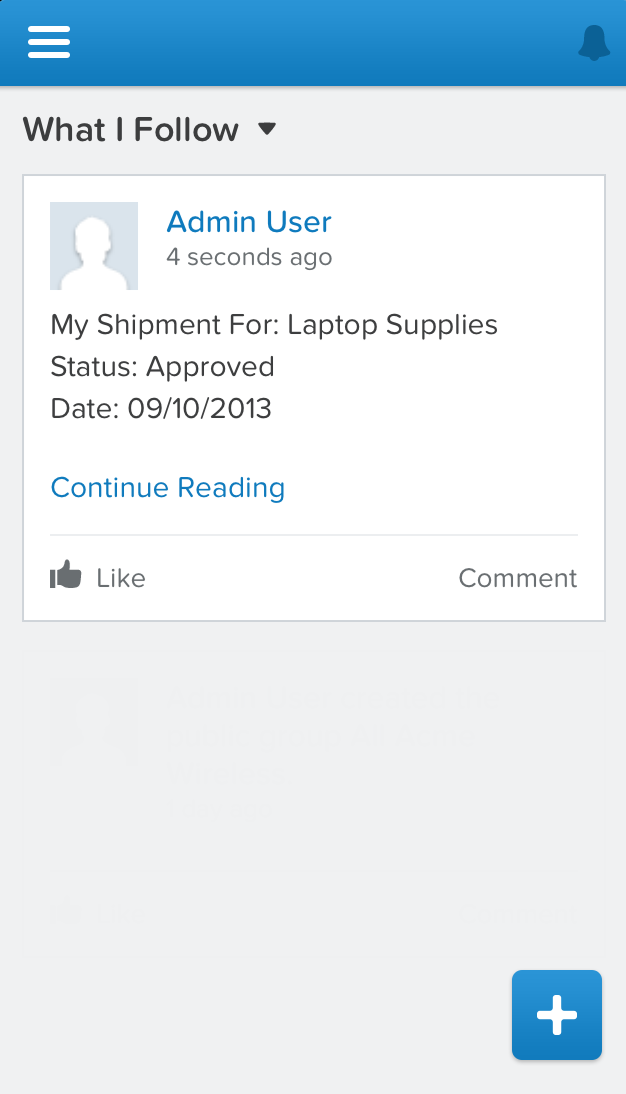
- Tap Share.This creates a text feed post about the shipment, and that post appears in the current user’s feed.
- To test out creating a link post, tap and then Track Deliveries.
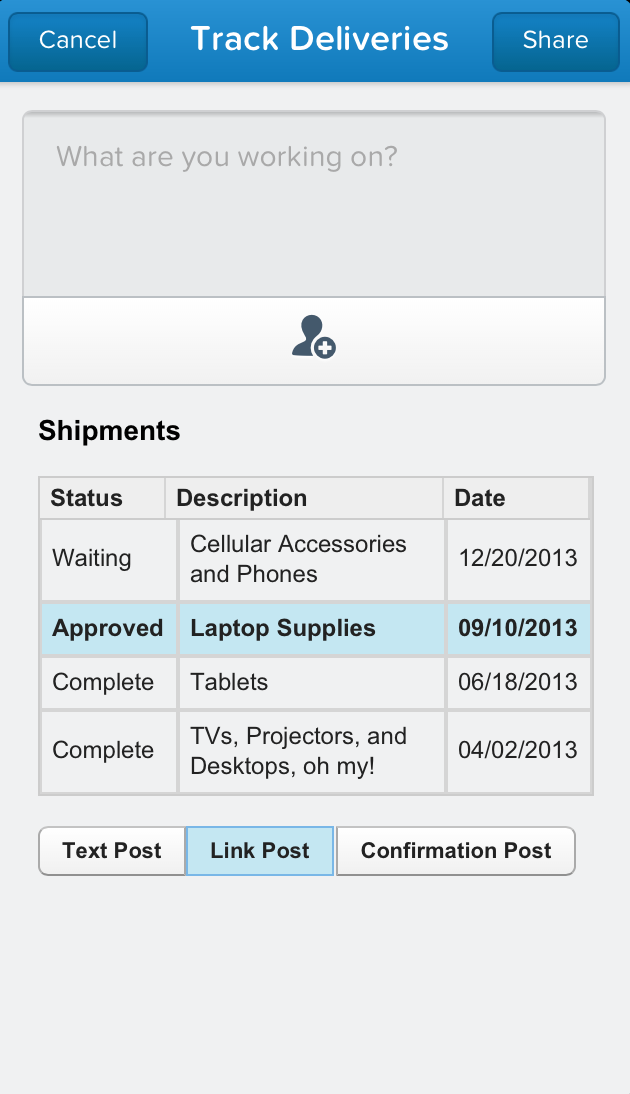
- Tap one of the deliveries in the grid.
- Tap Link Post.You can also add some of your own text to the post by entering it in the What are you working on? pane.
- Tap Share.This creates a link feed post about the shipment, and that post appears in the current user’s feed. When you click the link, it brings you to the DeliveryTrakr app running on Heroku.
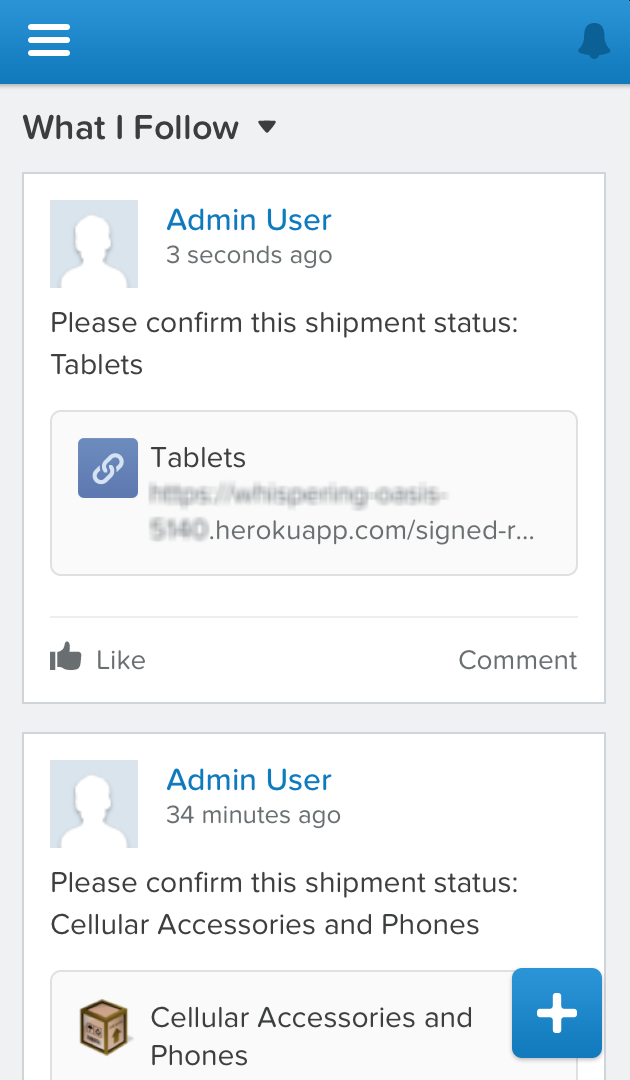
- To test out creating a canvas post, tap and then Track Deliveries.
- Tap one of the deliveries in the grid.
- Tap Confirmation Post.You can also add some of your own text to the post by entering it in the What are you working on? pane.
- Tap Share.This creates a canvas feed post about the shipment with a link. When you click the link, it actually takes you to a canvas app where you can complete or cancel a shipment.
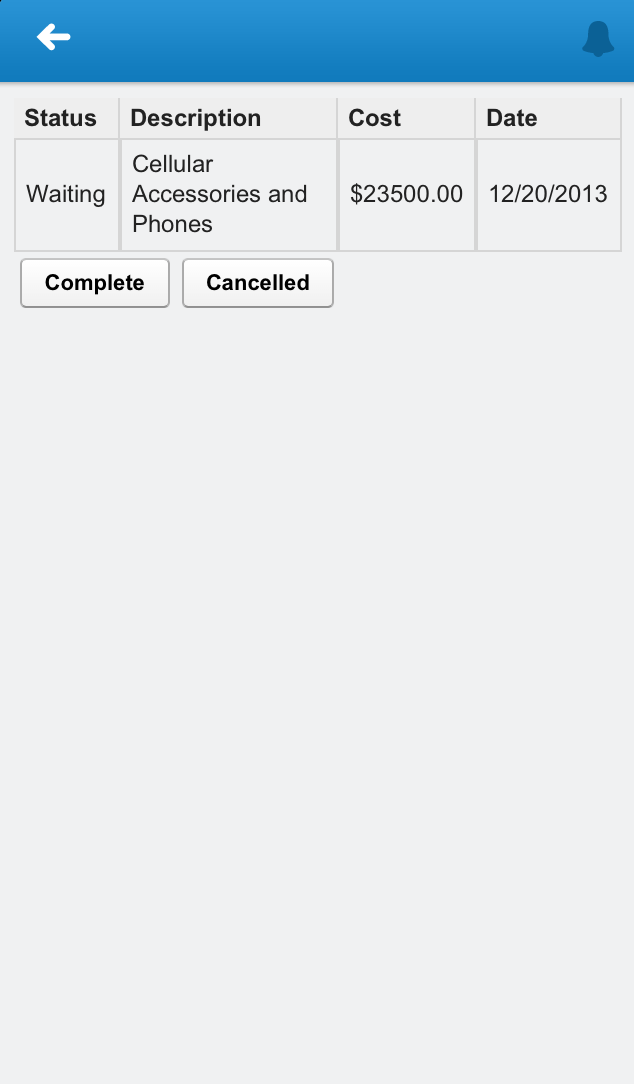
You did it! You’ve gone through the entire process of creating a canvas app that posts a text feed item, a link feed item, and—most importantly—a canvas app in the feed.
For more information about development guidelines for canvas apps in the feed, see Canvas Apps in the Feed.