


Force.com SOQL and SOSL Reference
 j
j
No Results
Search Tips:
- Please consider misspellings
- Try different search keywords
Newer Version Available
Relationship Queries
Client applications need to be able to query for more than a single type of object at a time. SOQL provides syntax to support these types of queries, called relationship queries, against both standard objects and custom objects.
Relationship queries traverse parent-to-child and child-to-parent relationships between objects to filter and return results. They are similar to SQL joins. However, you cannot perform arbitrary SQL joins. The relationship queries in SOQL must traverse a valid relationship path as defined in the rest of this section.
You can use relationship queries to return objects of one type based on criteria that applies to objects of another type, for example, “return all accounts created by Bob Jones and the contacts associated with those accounts.” There must be a parent-to-child or child-to-parent relationship connecting the objects. You can’t write arbitrary queries such as “return all accounts and users created by Bob Jones.”
- Understanding Relationship Names
- Using Relationship Queries
- Understanding Relationship Names, Custom Objects, and Custom Fields
- Understanding Query Results
- Lookup Relationships and Outer Joins
- Identifying Parent and Child Relationships
- Understanding Polymorphic Keys and Relationships
- Understanding Relationship Query Limitations
- Using Relationship Queries with History Objects
- Using Relationship Queries with Data Category Selection Objects
- Using Relationship Queries with the Partner WSDL
Understanding Relationship Names
Parent-to-child and child-to-parent relationships exist between many types of objects, for example, Account is a parent of Contact.
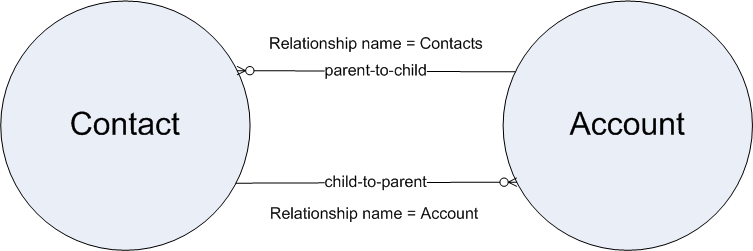
To be able to traverse these relationships for standard objects, a relationship name is given to each relationship. The form of the name is different, depending on the direction of the relationship:
- For child-to-parent relationships, the relationship
name to the parent is the name of the foreign key, and there is a relationshipName property that holds
the reference to the parent object. For example, the Contact child
object has a child-to-parent relationship to the Account object, so
the value of relationshipName in Contact is Account. These
relationships are traversed by specifying the parent using dot notation
in the query, for example:
1SELECT Contact.FirstName, Contact.Account.Name from ContactThis query returns the first names of all the contacts in the organization, and for each contact, the account name associated with (parent of) that contact.
- For parent-to-child relationships, the parent object
has a name for the child relationship that is unique to the parent,
the plural of the child object name. For example, Account has child
relationships to Assets, Cases, and Contacts among other objects,
and has a relationshipName for
each, Assets, Cases, and Contacts.These relationships can be traversed only in the SELECT clause, using a nested SOQL query.
For example:
1SELECT Account.Name, (SELECT Contact.FirstName, Contact.LastName FROM Account.Contacts) FROM AccountThis query returns all accounts, and for each account, the first and last name of each contact associated with (the child of) that account.
Relationship names are somewhat different for custom objects, though the SELECT syntax is the same. See Understanding Relationship Names, Custom Objects, and Custom Fields for more information.
Using Relationship Queries
You can query the following relationships using SOQL:
- Query child-to-parent relationships, which are often many-to-one.
Specify these relationships directly in the SELECT, FROM, or WHERE clauses using the dot (.) operator.
For example:
1SELECT Id, Name, Account.Name
2FROM Contact
3WHERE Account.Industry = 'media'
This query returns the ID and name for only the contacts whose related account industry is media, and for each contact returned, the account name.
- Query parent-to-child, which are almost always one-to-many. Specify
these relationships using a subquery (enclosed in parentheses), where
the initial member of the FROM clause
in the subquery is related to the initial member of the outer query FROM clause. Note that for subqueries,
you should specify the plural name of the object as that is the name
of the relationship for each object.
For example:
1SELECT Name,
2  (
3    SELECT LastName
4    FROM Contacts
5  )
6FROM Account
The query returns the name for all the accounts, and for each account, the last name of each contact.
- Traverse the parent-to-child relationship as a foreign key in
an aggregate query:
For example:
1SELECT Name,
2  (
3    SELECT CreatedBy.Name
4    FROM Notes
5  )
6FROM Account
This query returns the accounts in an organization, and for each account, the name of the account, the notes for those accounts (which can be an empty result set if there were no notes on any accounts) with the name of the user who created each note (if the result set is not empty).
- In a similar example, traverse the parent-to-child
relationship in an aggregate query:
1SELECT Amount, Id, Name,
2  (
3    SELECT Quantity, ListPrice,
4 PricebookEntry.UnitPrice, PricebookEntry.Name
5    FROM OpportunityLineItems
6  )
7FROM Opportunity
Using the same query, you can get the values on Product2 by specifying the product family (which points to the field's data):
1SELECT Amount, Id, Name, (SELECT Quantity, ListPrice, 2 PriceBookEntry.UnitPrice, PricebookEntry.Name, 3 PricebookEntry.product2.Family FROM OpportunityLineItems) 4 FROM Opportunity - Any query (including subqueries) can include a WHERE clause, which applies to the object
in the FROM clause of the current
query. These clauses can filter on any object in the current scope
(reachable from the root element of the query), via the parent relationships.
For example:
1SELECT Name,
2  (
3    SELECT LastName
4    FROM Contacts
5    WHERE CreatedBy.Alias = 'x')
6 FROM Account WHERE Industry = 'media'
This query returns the name for all accounts whose industry is media, and for each account returned, returns the last name of every contact whose created-by alias is 'x.'
Understanding Relationship Names, Custom Objects, and Custom Fields
Custom objects can participate in relationship queries. Salesforce ensures that your custom object names, custom field names, and the relationship names associated with them remain unique, even if a standard object with the same name is available now or in the future. This is important in relationship queries, where the query traverses relationships using the object, field, and relationship names.
This section explains how relationship names for custom objects and custom fields are created and used.
When you create a new custom relationship in the Salesforce user interface, you are asked to specify the plural version of the object name, which you use for relationship queries:
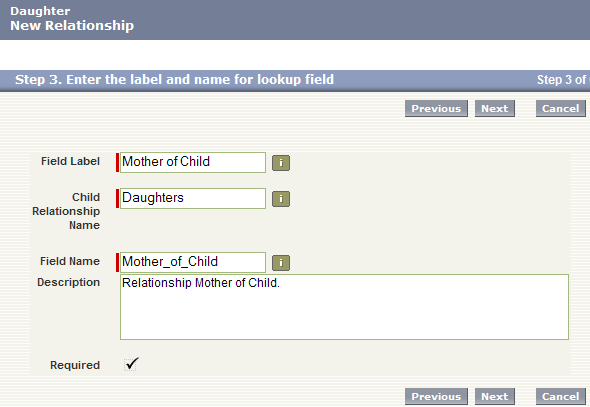
Notice that the Child Relationship Name (parent to child) is the plural form of the child object name, in this case Daughters.
Once the relationship is created, notice that it has an API Name, which is the name of the custom field you created, appended by __c (underscore-underscore-c):
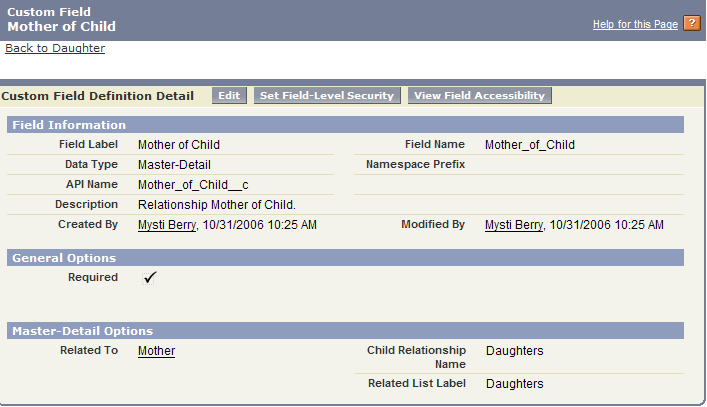
When you refer to this field via the API, you must use this special form of the name. This prevents ambiguity in the case where Salesforce can create a standard object with the same name as your custom field. The same process applies to custom objects—when they are created, they have an API Name, the object named appended by __c, which must be used.
When you use a relationship name in a query, you must use the relationship names without the __c. Instead, append an __r (underscore underscore r).
For example:
- When you use a child-to-parent relationship, you can use dot notation:
1SELECT Id, FirstName__c, Mother_of_Child__r.FirstName__c
2FROM Daughter__c
3WHERE Mother_of_Child__r.LastName__c LIKE 'C%'
This query returns the ID and first name of daughter objects, and the first name of the daughter's mother if the mother's last name begins with 'C.'
- Parent-to-child relationship queries do not use dot notation:
1SELECT LastName__c,
2  (
3    SELECT LastName__c
4    FROM Daughters__r
5  )
6FROM Mother__c
The example above returns the last name of all mothers, and for each mother returned, the last name of the mother's daughters.
Understanding Query Results
Query results are returned as nested objects. The primary or “driving” object of the main SELECT query contains query results of subqueries.
For example, you can construct a query using either parent-to-child or child-to-parent syntax:
- Child-to-parent:
1SELECT Id, FirstName, LastName, AccountId, Account.Name
2FROM Contact
3WHERE Account.Name LIKE 'Acme%'
This query returns one query result (assuming there were not too many returned records), with a row for every contact that met the WHERE clause criteria.
- Parent-to-child:
1SELECT Id, Name,
2  (
3    SELECT Id, FirstName, LastName
4    FROM Contacts
5  )
6FROM Account
7  WHERE Name like 'Acme%'
This query returns a set of accounts, and within each account, a query result set of Contact fields containing the contact information from the subquery.
- Perform the query on Account.
- Iterate over the account QueryResult with queryMore().
- For each account object, retrieve the contacts QueryResult.
- Iterate over the child contacts, using queryMore() on each contact's QueryResult.
The following sample illustrates how to process subquery results:
1swfobject.registerObject("clippy.codeblock-12", "9");private void querySample() {
2  QueryResult qr = null;
3  try {
4    qr = connection.query("SELECT a.Id, a.Name, " +
5      "(SELECT c.Id, c.FirstName, " +
6      "c.LastName FROM a.Contacts c) FROM Account a");
7    boolean done = false;
8    if (qr.getSize() > 0) {
9      while (!done) {
10        for (int i = 0; i < qr.getRecords().length; i++) {
11        Account acct = (Account) qr.getRecords()[i];
12        String name = acct.getName();
13        System.out.println("Account " + (i + 1) + ": " + name);
14        printContacts(acct.getContacts());
15        }
16        if (qr.isDone()) {
17          done = true;
18        } else {
19          qr = connection.queryMore(qr.getQueryLocator());
20        }
21      }
22    } else {
23      System.out.println("No records found.");
24    }
25    System.out.println("\nQuery succesfully executed.");
26  } catch (ConnectionException ce) {
27    System.out.println("\nFailed to execute query successfully, error message " +
28    "was: \n" + ce.getMessage());
29  }
30}
31
32private void printContacts(QueryResult qr) throws ConnectionException {
33  boolean done = false;
34  if (qr.getSize() > 0) {
35    while (!done) {
36    for (int i = 0; i < qr.getRecords().length; i++) {
37      Contact contact = (Contact) qr.getRecords()[i];
38      String fName = contact.getFirstName();
39      String lName = contact.getLastName();
40      System.out.println("Child contact " + (i + 1) + ": " + lName
41      + ", " + fName);
42    }
43    if (qr.isDone()) {
44      done = true;
45    } else {
46      qr = connection.queryMore(qr.getQueryLocator());
47    }
48    }
49  } else {
50    System.out.println("No child contacts found.");
51  }
52}
53
Lookup Relationships and Outer Joins
Beginning with version 13.0 of the API, relationship queries return records even if the relevant foreign key field has a null value, as you would expect with an outer join. The change in behavior applies to the following types of relationship queries:
- In an ORDER BY clause, if the foreign key value in a record is
null, the record is returned in version 13.0 and later, but not returned
in versions before 13.0. For example:
1SELECT Id, CaseNumber, Account.Id, Account.Name
2FROM Case
3ORDER BY Account.Name
Any case record for which AccountId is empty is returned in version 13.0 and later.
The following example uses custom objects:
1SELECT ID, Name, Parent__r.id, Parent__r.name
2FROM Child__c
3ORDER BY Parent__r.name
This query returns the Id and Name values of the Child object and the Id and name of the Parent object referenced in each Child, and orders the results by the parent name. In version 13.0 and later, records are returned even if Parent__r.id or Parent__r.name are null. In earlier versions, such records are not returned by the query.
- In a WHERE clause using OR, if the foreign key value in a record
is null, the record is returned in version 13.0 and later, but not
returned in versions before 13.0. For example,
if your organization has one contact with the value of its LastName field equal to foo and the value of its AccountId field equal
to null, and another contact with
a different last name and a parent account named bar, the following query returns only
the contact with the last name equal to bar:
1SELECT Id FROM Contact WHERE LastName = 'foo' or Account.Name = 'bar'The contact with no parent account has a last name that meets the criteria, so it is returned in version 13.0 and later.No content provided - In a WHERE clause that checks for a value
in a parent field, if the parent does not exist, the record is returned
in version 13.0 and later, but not returned in versions before 13.0.. For example:
1SELECT Id
2FROM Case
3WHERE Contact.LastName = null
Case record Id values are returned in version 13.0 and later, but are not returned in versions before 13.0.
Identifying Parent and Child Relationships
You can identify parent-child relationships by viewing the ERD diagrams in the Data Model section of the Salesforce Object Reference at www.salesforce.com/us/developer/docs/object_reference/index.htm. However, not all parent-child relationships are exposed in SOQL, so to be sure you can query on a parent-child relationship by issuing the appropriate describe call. The results contain parent-child relationship information.
You can also examine the enterprise WSDL for your organization:
- To find the names of child relationships, look for entries that
contain the plural form of a child object and end with type="tns:QueryResult". For
example, from Account:
1<complexType name="Account">
2                <complexContent>
3                  <extension base="ens:sObject">
4                    <sequence>
5                      ...
6                      <element name="Contacts" nillable="true" minOccurs="0"
7                                     type="tns:QueryResult"/>
8                      ...
9                    </sequence>
10                  </extension>
11                </complexContent>
12              </complexType>
In the example above, the child relationship name Contacts is in the entry for its parent Account.
- For the parent of an object, look for a pair of
entries, such as AccountId and Account, where the ID field represents
the parent object referenced by the ID, and the other represents the
contents of the record. The parent entry has a non-primitive type, type="ens:Account".
1<complexType name="Opportunity"> 2 <complexContent> 3 <extension base="ens:sObject"> 4 <sequence> 5 ... 6 <element name="Account" nillable="true" minOccurs="0" 7 type="ens:Account"/> 8 <element name="AccountId" nillable="true" minOccurs="0" 9 type="tns:ID"/> 10 ... 11 </sequence> 12 </extension> 13 </complexContent> 14 </complexType> - For custom objects, look for a pair of entries with
the relationship suffix __r:
1<complextType name="Mother__c"> 2 <complextcontent> 3 <extension base="ens:sObject"> 4 <sequence> 5 ... 6 <element name="Daughters__r" nillable="true" minOccurs="0" 7 type="tns:QueryResult"/> 8 <element name="FirstName__c" nillable="true" minOccurs="0" 9 type="xsd:string"/> 10 <element name="LastName__c" nillable="true" minOccurs="0" 11 type="xsd:string"/> 12 ... 13 </sequence> 14 </extension> 15 </complexContent> 16 </complextType>1<complextType name="Daughter__c"> 2 <complextcontent> 3 <extension base="ens:sObject"> 4 <sequence> 5 ... 6 <element name="Mother_of_Child__c" nillable="true" minOccurs="0" 7 type="tns:ID"/> 8 <element name="Mother_of_Child__r" nillable="true" minOccurs="0" 9 type="xsd:string"/> 10 <element name="LastName__c" nillable="true" minOccurs="0" 11 type="ens:Mother__c"/> 12 ... 13 </sequence> 14 </extension> 15 </complexContent> 16 </complextType>
Understanding Polymorphic Keys and Relationships
- You can use the polymorphic key for the relationship.
- You can use a TYPEOF clause in a query.
- You can use the Type qualifier on a polymorphic field.
Using Polymorphic Keys
A polymorphic key is an ID that can refer to more than one type of object as a parent. For example, either a Contact or a Lead can be the parent of a task. In other words, the WhoId field of a task can contain the ID of either a Contact or a Lead. If an object can have more than one type of object as a parent, the polymorphic key points to a Name object instead of a single object type.
In order to traverse relationships where the object type of the parent is not known, you can use these fields to construct a query:
- owner: This field represents the object of
a parent who owns the child object, regardless of the parent's object
type. For example:
1SELECT Id, Owner.Name
2FROM Task
3WHERE Owner.FirstName like 'B%'
This example query works for task records whose owners are either calendars or users.
- who: This field represents the
object type of the parent associated with the child:
1SELECT Id, Who.FirstName, Who.LastName
2FROM Task
3WHERE Owner.FirstName LIKE 'B%'
This example query works for task records whose owners can be either calendars or users, and whose “who” parent can be either contacts or leads.
If you'd like to know the type of object returned in a query, use who.Type. For example:
1SELECT Id, Who.Id, Who.Type
2FROM Task
Using this example, you could also query all the tasks associated with Contacts:
1SELECT Id, Who.Id, Who.Type 2FROM Task 3WHERE Who.Type='Contact' - what: This field represents the
object type of a parent that is associated with the child where the
object represents something other than a person (that is, not a contact,
lead, or user):
1SELECT Id, What.Name
2FROM Event
This example query works for events whose parent can be an account or a solution, or any of another number of object types.
You can also use describeSObjects() to obtain information about the parents and children of objects. For more information, see describeSObjects() and especially namePointing, which, if set to true, indicates the field points to a name.
Using TYPEOF
SOQL supports polymorphic relationships using the TYPEOF expression in a SELECT statement. TYPEOF is available in API version 26.0 and later.
1SELECT
2  TYPEOF What
3    WHEN Account THEN Phone, NumberOfEmployees
4    WHEN Opportunity THEN Amount, CloseDate
5    ELSE Name, Email
6  END
7FROM EventNote the following considerations for TYPEOF.
- TYPEOF is only allowed in the SELECT clause of a query. You can filter on the object type of a polymorphic relationship using the Type qualifier in a WHERE clause, see Filtering on Polymorphic Relationship Fields for more details.
- TYPEOF isn’t allowed in queries that don’t return objects, such as COUNT() and aggregate queries.
- TYPEOF can’t be used in SOQL queries that are the basis of Streaming API PushTopics.
- TYPEOF can’t be used in SOQL used in Bulk API.
- TYPEOF expressions can’t be nested. For example, you can’t use TYPEOF inside the WHEN clause of another TYPEOF expression.
- TYPEOF isn’t allowed
in the SELECT clause of a semi-join query. You can use TYPEOF in the SELECT clause of an outer query that contains
semi-join queries. The following example is not valid:The following semi-join clause is valid because TYPEOF is only used in the outer SELECT clause:
1SELECT Name FROM Account 2WHERE CreatedById IN 3 ( 4 SELECT 5 TYPEOF Owner 6 WHEN User THEN Id 7 WHEN Group THEN CreatedById 8 END 9 FROM CASE 10 )1SELECT 2 TYPEOF What 3 WHEN Account THEN Phone 4 ELSE Name 5 END 6FROM Event 7WHERE CreatedById IN 8 ( 9 SELECT CreatedById 10 FROM Case 11 ) - GROUP BY, GROUP BY ROLLUP, GROUP BY CUBE, and HAVING aren’t allowed in queries that use TYPEOF.
Using the Type qualifier
1SELECT Id
2FROM Event
3WHERE What.Type IN ('Account', 'Opportunity')Combining TYPEOF and Type
1SELECT Id,
2  TYPEOF What
3    WHEN Account THEN Phone
4    WHEN Opportunity THEN Amount
5  END
6FROM Event
7WHERE What.Type IN ('Account', 'Opportunity')Understanding Relationship Query Limitations
When designing relationship queries, consider these limitations:
- Relationship queries are not the same as SQL joins. You must have a relationship between objects to create a join in SOQL.
- No more than 35 child-to-parent relationships can be specified in a query. A custom object allows up to 25 relationships, so you can reference all the child-to-parent relationships for a custom object in one query.
- No more than 20 parent-to-child relationships can be specified in a query.
- In each specified relationship, no more than five levels can be specified in a child-to-parent relationship. For example, Contact.Account.Owner.FirstName (three levels).
- In each specified relationship, only one level of parent-to-child relationship can be specified in a query. For example, if the FROM clause specifies Account, the SELECT clause can only specify the Contact or other objects at that level. It could not specify a child object of Contact.
- You can query notes and attachments to get information
about them, but you cannot filter on the body of the note or attachment.
You cannot filter against the content of textarea fields, blobs, or Scontrol components in any object. For example, the following query
is valid, and returns all account names and the owner ID for any notes
associated with the account: However, the following query is not valid, because it attempts to evaluate information stored in the body of the note:
1SELECT Account.Name, (SELECT Note.OwnerId FROM Account.Notes) FROM Account1SELECT Account.Name, (SELECT Note.Body FROM Account.Notes WHERE Note.Body LIKE 'D%') FROM AccountIf you remove the WHERE clause, the query is valid and returns the contents of the body of the note:
1SELECT Account.Name, (SELECT Note.Body FROM Account.Notes) FROM Account
Using Relationship Queries with History Objects
Custom objects and some standard objects have an associated history object that tracks changes to an object record. You can use relationship queries to traverse a history object to its parent object. For example, the following query returns every history row for Foo__c and displays the name and custom fields of Foo:
1SELECT OldValue, NewValue, Parent.Id, Parent.name, Parent.customfield__c
2FROM foo__history
This example query returns every Foo object row together with the corresponding history rows in nested subqueries:
1SELECT Name, customfield__c, (SELECT OldValue, NewValue FROM foo__history)
2FROM foo__c
Using Relationship Queries with Data Category Selection Objects
Data categories are used to classify records. In SOQL, you can use the Article__DataCategorySelection or QuestionDataCategorySelection objects. You can also build a relationship query with the DataCategorySelections relationship name in a FROM clause.
Imagine an Offer article type. The following query returns the ID of any categorization associated with an offer and the ID of the categorized article.
1SELECT Id,ParentId
2FROM Offer__DataCategorySelection
The following example uses the DataCategorySelections relationship name to build a relationship query that returns the ID of published offers and the ID of all the categorizations associated to these offers.
1SELECT Id, Title
2  (
3    SELECT Id
4    FROM DataCategorySelections
5  )
6FROM Offer__kav WHERE publishStatus='online';
Using Relationship Queries with the Partner WSDL
- The relationshipName value for one-to-many relationships, for example, in an Account object, the relationship name for the asset child is Assets.
- The reference fields available for the relevant object, for example, whoId, whatId, or ownerId on a Lead, Case, or custom object.
For an example of using the partner WSDL with relationship queries, see the examples on developer.salesforce.com (requires login).