


Force.com Apex Code Developer's Guide
 j
j
No Results
Search Tips:
- Please consider misspellings
- Try different search keywords
Newer Version Available
Working with Feeds and Feed Elements
Capabilities
As part of the effort to diversify the feed, pieces of functionality found in feed elements have been broken out into capabilities. Capabilities provide a consistent way to interact with objects in the feed. Instead of inspecting feed element type and using other indirect means to determine which functionality is available for a specific feed element, the capability object tells you explicitly what’s available. Check for the presence of a capability to determine what a client can do to a feed element.
The ConnectApi.FeedElement.capabilities property holds a ConnectApi.FeedElementCapabilities object, which holds a set of capability objects.
A capability object includes both an indication that a feature is possible and data associated with that feature. If a capability property exists on a feed element, that capability is available, even if there isn’t any data associated with the capability yet. For example, if the chatterLikes capability property exists on a feed element (with or without any likes included in the list of likes found in the chatterLikes.page.items property), the context user can like that feed element. If the capability property doesn’t exist on a feed element, it isn’t possible to like that feed element.
When posting a feed element, specify its characteristics in the ConnectApi.FeedElementInput.capabilities property.
How the Salesforce UI Displays Feed Items
As we learned in Capabilities, a client should use the ConnectApi.FeedElement.capabilities property to determine what it can do with a feed element and how it should render a feed element. For all feed element subclasses other than ConnectApi.FeedItem, the client doesn’t need to know the subclass type, it can simply look at the capabilities. Feed items do have capabilities, but they also have a few properties, such as actor, that aren’t exposed as capabilities.For this reason, clients must handle feed items a bit differently than other feed elements.
To give customers a consistent view of feed items and to give developers an easy way to create UI, the Salesforce UI uses one layout to display every feed item. The layout always contains the same pieces and the pieces are always in the same position; only the content of the layout pieces changes.
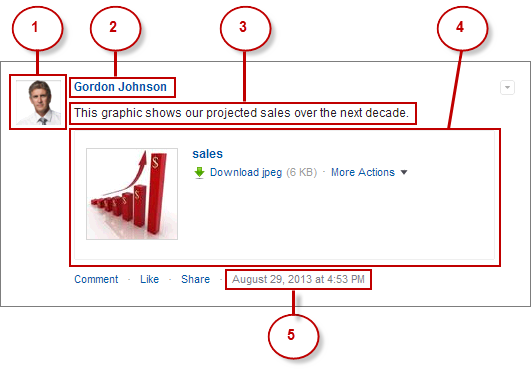 These are the feed item (ConnectApi.FeedItem) layout elements:
- Actor (ConnectApi.FeedItem.actor)—A photo or icon of the creator of the feed item. (You can override the creator at the feed item type level. For example, the dashboard snapshot feed item type shows the dashboard as the creator.)
- Header (ConnectApi.FeedElement.header)—Provides context. The same feed item can have a different header depending on who posted it and where. For example, Gordon posted this feed item to his profile. If he then shared it to a group, the header of the feed item in the group feed would be “Gordon Johnson (originally posted by Gordon Johnson)” and the “originally posted” text would link to the feed item on Gordon’s profile.
- Body (ConnectApi.FeedElement.body)—All feed items have a body, but the body can be null, which is the case when the user doesn’t provide text for the feed item. Because the body can be null you can’t use it as the default case for rendering text. Instead, use the ConnectApi.FeedElement.header.text property, which always contains a value.
- Auxiliary Body (ConnectApi.FeedElement.capabilities)—The visualization of the capabilities. See Capabilities.
- Created By Timestamp (ConnectApi.FeedElement.relativeCreatedDate)—The date and time when the feed item was posted. If the feed item is less then two days old, the date and time are formatted as a relative, localized string, for example, “17m ago” or “Yesterday”. Otherwise, the date and time are formatted as an absolute, localized string.
Here’s another example of a feed item in the Salesforce UI. This feed
item’s auxiliary body contains a poll capability: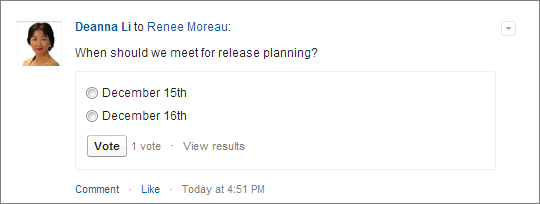
How the Salesforce Displays Feed Elements other than Feed Items
As we learned in the Capabilities section, a client should use the ConnectApi.FeedElement.capabilities property to determine what it can do with a feed element and how it should render a feed element. This section uses bundles as an example of how to render a feed element, but these properties are available for every feed element. Capabilities allow you to handle all content in the feed consistently.
To give customers a clean, organized feed, Salesforce aggregates feed-tracked changes into a bundle. To see individual feed elements, click on the bundle.
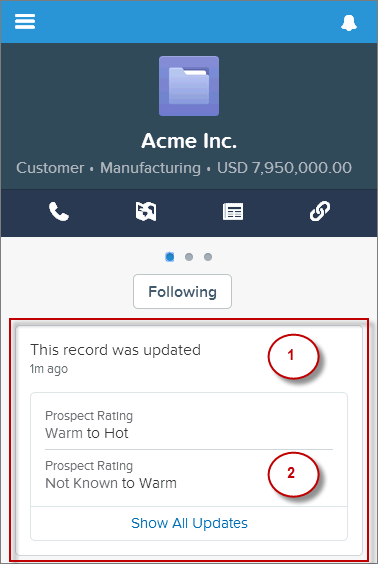
- Header (ConnectApi.FeedElement.header)—For feed-tracked change bundles,
this text is “This record was updated.”
The time below the header is the ConnectApi.FeedElement.relativeCreatedDate property.
- Auxiliary Body (ConnectApi.FeedElement.capabilities.bundle.changes)—The bundle displays the fieldName and the oldValue and newValue properties for the first two feed-tracked changes in the bundle. If there are more than two feed-tracked changes, the bundle displays a “Show All Updates” link.
Feed Element Visibility
- Feed elements that @mention the user if the user can access the feed element’s parent
- Feed elements that @mention groups the user is a member of
- Record field changes on records whose parent is a record the user can see, including User, Group, and File records
- Feed elements posted to the user
- Feed elements posted to groups the user owns or is a member of
- Feed elements for standard and custom records, for example, tasks, events, leads, accounts, files, and so on
Feed Types
1ConnectApi.FeedElementPage newsFeedElementPage =
2   ConnectApi.ChatterFeeds.getFeedElementsFromFeed(null,
3      ConnectApi.FeedType.News, 'me');
4
5ConnectApi.FeedElementPage topicsFeedElementPage =
6   ConnectApi.ChatterFeeds.getFeedElementsFromFeed(null,
7      ConnectApi.FeedType.Topics, '0TOD00000000cld');
To get a filter feed, call one of the ConnectApi.ChatterFeeds.getFeedElementsFromFilterFeed methods. To get a favorites feed, call one of the ConnectApi.ChatterFavorites.getFeedElements methods.
- Bookmarks—Contains all feed items saved as bookmarks by the context user.
- Company—Contains all feed items except feed items of type TrackedChange. To see the feed item, the user must have sharing access to its parent.
- Files—Contains all feed items that contain files posted by people or groups that the context user follows.
- Filter—Contains the news feed filtered to contain feed items whose parent is a specified object type.
- Groups—Contains all feed items from all groups the context user either owns or is a member of.
- Home—Contains all feed items associated with any managed topic in a community.
- Moderation—Contains all feed items that have been flagged for moderation. The Communities Moderation feed is available only to users with “Moderate Community Feeds” permissions.
- News—Contains all updates for people the context user follows, groups the user is a member of, files and records the user is following, all updates for records whose parent is the context user, and every feed item and comment that mentions the context user or that mentions a group the context user is a member of.
- People—Contains all feed items posted by all people the context user follows.
- Record—Contains all feed items whose parent is a specified record, which could be a group, user, object, file, or any other standard or custom object. When the record is a group, the feed also contains feed items that mention the group. When the record is a user, the feed contains only feed items on that user.
- To—Contains all feed items with mentions of the context user, feed items the context user commented on, and feed items created by the context user that are commented on.
- Topics—Contains all feed items that include the specified topic.
- UserProfile—Contains feed items created when a user changes records that can be tracked in a feed, feed items whose parent is the user, and feed items that @mention the user. This feed is different than the news feed, which returns more feed items, including group updates.
- Favorites—Contains favorites saved by the context user. Favorites are feed searches, list views, and topics.
Posting a Feed Item using postFeedElement
- postFeedElement(String communityId, String subjectId, ConnectApi.FeedElementType feedElementType, String text)
- Posts a feed element with plain text from the context user.
- postFeedElement(String communityId, ConnectApi.FeedElementInput feedElement, ConnectApi.BinaryInput feedElementFileUpload)
- Posts a feed element from the context user. Use this method to post rich text, including mentions and hashtag topics, and to attach a file to a feed element. You can also use this method to share a feed element and add a comment.
When you post a feed item, you create a child of a standard or custom object. Specify the parent object in the in the subjectId parameter or in the subjectId property of the ConnectApi.FeedElementInput object you pass in the feedElement parameter. The value of the subjectId parameter determines the feeds in which the feed item is displayed. The parent property in the returned ConnectApi.FeedItem object contains information about the parent object.
- Post to yourself
- This code posts a feed item to the context user. The subjectId specifies
me, which is an alias for the
context user’s ID. It could also specify the context user’s
ID.
1ConnectApi.FeedElement feedElement = ConnectApi.ChatterFeeds.postFeedElement(null, 'me', ConnectApi.FeedElementType.FeedItem, 'Working from home today.'); - The parent property of the newly posted feed item contains the ConnectApi.UserSummary of the context user.
- Post to another user
- This code posts a feed item to a user other than the context user. The subjectId specifies the
user ID of the target
user.
1ConnectApi.FeedElement feedElement = ConnectApi.ChatterFeeds.postFeedElement(null, '005D00000016Qxp', ConnectApi.FeedElementType.FeedItem, 'Kevin, do you have information about the new categories?'); - The parent property of the newly posted feed item contains the ConnectApi.UserSummary of the target user.
- Post to a group
- This code posts a feed item with a content attachment to a group. The subjectId specifies the
group
ID.
1swfobject.registerObject("clippy.codeblock-3", "9");ConnectApi.FeedItemInput feedItemInput = new ConnectApi.FeedItemInput(); 2ConnectApi.ContentAttachmentInput contentAttachmentInput = new ConnectApi.ContentAttachmentInput(); 3ConnectApi.MessageBodyInput messageBodyInput = new ConnectApi.MessageBodyInput(); 4ConnectApi.TextSegmentInput textSegmentInput = new ConnectApi.TextSegmentInput(); 5 6contentAttachmentInput.contentDocumentId = '069D00000001pyS'; 7 8messageBodyInput.messageSegments = new List<ConnectApi.MessageSegmentInput>(); 9 10textSegmentInput.text = 'Would you please review this doc?'; 11messageBodyInput.messageSegments.add(textSegmentInput); 12 13feedItemInput.attachment = contentAttachmentInput; 14feedItemInput.body = messageBodyInput; 15feedItemInput.feedElementType = ConnectApi.FeedElementType.FeedItem; 16 17// Use a group ID for the subject ID. 18feedItemInput.subjectId = '0F9D00000000oOT'; 19 20ConnectApi.FeedElement feedElement = ConnectApi.ChatterFeeds.postFeedElement(null, feedItemInput, null); - The parent property of the newly posted feed item contains the ConnectApi.ChatterGroupSummary of the specified group.
- Post to a record (such as a file or an account)
- This code posts a feed item to a record and mentions a group. The subjectId specifies the
record
ID.
1swfobject.registerObject("clippy.codeblock-4", "9");ConnectApi.FeedItemInput feedItemInput = new ConnectApi.FeedItemInput(); 2ConnectApi.MentionSegmentInput mentionSegmentInput = new ConnectApi.MentionSegmentInput(); 3ConnectApi.MessageBodyInput messageBodyInput = new ConnectApi.MessageBodyInput(); 4ConnectApi.TextSegmentInput textSegmentInput = new ConnectApi.TextSegmentInput(); 5 6messageBodyInput.messageSegments = new List<ConnectApi.MessageSegmentInput>(); 7 8textSegmentInput.text = 'Does anyone know anyone with contacts here?'; 9messageBodyInput.messageSegments.add(textSegmentInput); 10 11// Mention a group. 12mentionSegmentInput.id = '0F9D00000000oOT'; 13messageBodyInput.messageSegments.add(mentionSegmentInput); 14 15feedItemInput.body = messageBodyInput; 16feedItemInput.feedElementType = ConnectApi.FeedElementType.FeedItem; 17 18// Use a record ID for the subject ID. 19feedItemInput.subjectId = '001D000000JVwL9'; 20 21ConnectApi.FeedElement feedElement = ConnectApi.ChatterFeeds.postFeedElement(null, feedItemInput, null); - The parent property of the new feed item depends on the record type specified in subjectId. If the record type is File, the parent is ConnectApi.FileSummary. If the record type is Group, the parent is ConnectApi.ChatterGroupSummary. If the record type is User, the parent is ConnectApi.UserSummary. For all other record types, as in this example which uses an Account, the parent is ConnectApi.RecordSummary.
Getting Feed Elements from a Feed
Getting feed items from a feed is similar, but not identical, for each feed type.
- Get feed elements from the Company feed, the Home feed, and the Moderation feed
- To get the feed elements from the company feed, the home feed, or the
moderation feed, you don’t need to specify a subject ID. Use these methods:
- ConnectApi.ChatterFeeds.getFeedElementsFromFeed(String communityId, ConnectApi.FeedType feedType)
- ConnectApi.ChatterFeeds.getFeedElementsFromFeed(String communityId, ConnectApi.FeedType feedType, String pageParam, Integer pageSize, ConnectApi.FeedSortOrder sortParam)
- ConnectApi.ChatterFeeds.getFeedElementsFromFeed(String communityId, ConnectApi.FeedType feedType, Integer recentCommentCount, ConnectApi.FeedDensity density, String pageParam, Integer pageSize, ConnectApi.FeedSortOrder sortParam)
- ConnectApi.ChatterFeeds.getFeedElementsFromFeed(String communityId, ConnectApi.FeedType feedType, Integer recentCommentCount, ConnectApi.FeedDensity density, String pageParam, Integer pageSize, ConnectApi.FeedSortOrder sortParam, ConnectApi.FeedFilter filter)
- Get feed elements from the Favorites feed
- To get the feed elements from the favorites feed you need to specify a
favoriteId.
For these feeds, the subjectId must be the ID of the context user or the
alias me.
- ConnectApi.ChatterFavorites.getFeedElements(String communityId, String subjectId, String favoriteId)
- ConnectApi.ChatterFavorites.getFeedElements(String communityId, String subjectId, String favoriteId, String pageParam, Integer pageSize, ConnectApi.FeedSortOrder sortParam)
- ConnectApi.ChatterFavorites.getFeedElements(String communityId, String subjectId, String favoriteId,Integer recentCommentCount, Integer elementsPerBundle, String pageParam, Integer pageSize, ConnectApi.FeedSortOrder sortParam)
- Get feed elements from the Filter feed
- To get the feed elements from the filters feed you need to specify a
keyPrefix. The
keyPrefix
indicates the object type and is the first three characters of the object ID.
The subjectId must
be the ID of the context user or the alias me.
- ConnectApi.ChatterFeeds.getFeedElementsFromFilterFeed(String communityId, String subjectId, String keyPrefix)
- ConnectApi.ChatterFeeds.getFeedElementsFromFilterFeed(String communityId, String subjectId, String keyPrefix, String pageParam, Integer pageSize, ConnectApi.FeedSortOrder sortOrder)
- ConnectApi.ChatterFeeds.getFeedElementsFromFilterFeed(String communityId, String subjectId, String keyPrefix, Integer recentCommentCount, Integer elementsPerBundle, ConnectApi.FeedDensity density, String pageParam, Integer pageSize, ConnectApi.FeedSortOrder sortOrder)
- Get feed elements from the Bookmarks, Files, Groups, News, People, Record, To, Topics, and UserProfile feeds
- To get the feed elements from these feed types you need to specify a subject
ID. If feedType is Record, subjectId can be any
record ID, including a group ID. If feedType is Topics, subjectId must be a
topic ID. If feedType is UserProfile, subjectId can be any user ID. If the
feedType is any other value, subjectId
must be the ID of the context user or the alias me..
- ConnectApi.ChatterFeeds.getFeedElementsFromFeed(String communityId, ConnectApi.FeedType feedType, String subjectId)
- ConnectApi.ChatterFeeds.getFeedElementsFromFeed(String communityId, ConnectApi.FeedType feedType, String subjectId, String pageParam, Integer pageSize, ConnectApi.FeedSortOrder sortParam)
- ConnectApi.ChatterFeeds.getFeedElementsFromFeed(String communityId, ConnectApi.FeedType feedType, String subjectId, Integer recentCommentCount, ConnectApi.FeedDensity density, String pageParam, Integer pageSize, ConnectApi.FeedSortOrder sortParam)
- Get feed elements from a Record feed
- For subjectId, specify a record ID.
-
- ConnectApi.ChatterFeeds.getFeedElementsFromFeed(String communityId, ConnectApi.FeedType feedType, String subjectId, Integer recentCommentCount, ConnectApi.FeedDensity density, String pageParam, Integer pageSize, ConnectApi.FeedSortOrder sortParam. Boolean showInternalOnly)
- ConnectApi.ChatterFeeds.getFeedElementsFromFeed(String communityId, ConnectApi.FeedType feedType, String subjectId, Integer recentCommentCount, Integer elementsPerBundle, ConnectApi.FeedDensity density, String pageParam, Integer pageSize, ConnectApi.FeedSortOrder sortParam. Boolean showInternalOnly)
- ConnectApi.ChatterFeeds.getFeedElementsFromFeed(String communityId, ConnectApi.FeedType feedType, String subjectId, Integer recentCommentCount, Integer elementsPerBundle, ConnectApi.FeedDensity density, String pageParam, Integer pageSize, ConnectApi.FeedSortOrder sortParam. Boolean showInternalOnly, ConnectApi.FeedFilter filter)