


Force.com Apex Code Developer's Guide
 j
j
No Results
Search Tips:
- Please consider misspellings
- Try different search keywords
Newer Version Available
Running Unit Test Methods
- A specific class
- A subset of classes
- All unit tests in your organization
To run a test, use any of the following:
All Apex tests that are started from the Salesforce user interface (including the Developer Console) run asynchronously and in parallel. Apex test classes are placed in the Apex job queue for execution. The maximum number of test classes that you can run per 24-hour period is the greater of 500 or 10 multiplied by the number of test classes in the organization. For sandbox and Developer Edition organizations, this limit is higher and is the greater of 500 or 20 multiplied by the number of test classes in the organization.
Running Tests Through the Salesforce User Interface
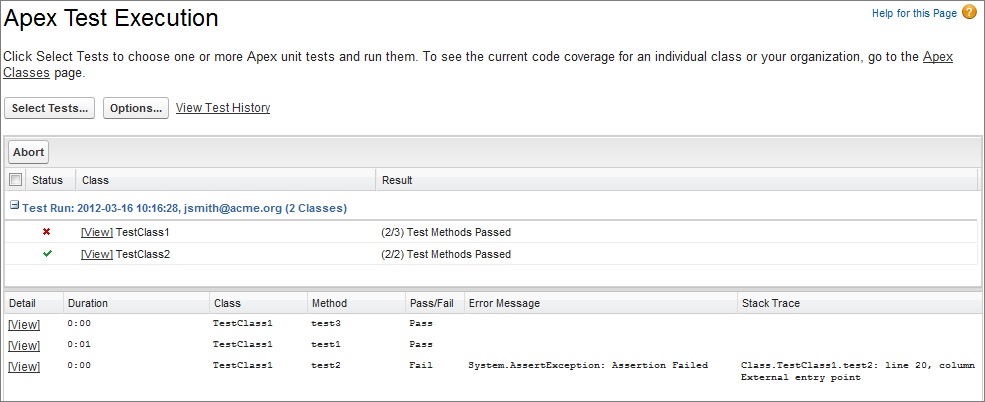
- From Setup, click .
- Click Select Tests....
- Select the tests to run. The list of tests includes only classes
that contain test methods.
- To select tests from an installed managed package, select its corresponding namespace from the drop-down list. Only the classes of the managed package with the selected namespace appear in the list.
- To select tests that exist locally in your organization, select [My Namespace] from the drop-down list. Only local classes that aren't from managed packages appear in the list.
- To select any test, select [All Namespaces] from the drop-down list. All the classes in the organization appear, whether or not they are from a managed package.
- Click Run.
After you run tests using the Apex Test Execution page, you can view code coverage details in the Developer Console.
From Setup, click to view all test results for your organization, not just tests that you have run. Test results are retained for 30 days after they finish running, unless cleared.
Running Tests Using the Force.com IDE
In addition, you can execute tests with the Force.com IDE (see https://developer.salesforce.com/page/Apex_Toolkit_for_Eclipse).
Running Tests Using the Force.com Developer Console
The Developer Console enables you to create test runs to execute tests in specific test classes, or to run all tests. The Developer Console runs tests asynchronously in the background allowing you to work in other areas of the Developer Console while tests are running. Once the tests finish execution, you can inspect the test results in the Developer Console. Also, you can inspect the overall code coverage for classes covered by the tests.
You can open the Developer Console in the Salesforce application from . For more details, check out the Developer Console documentation in the Salesforce online help.
Running Tests Using the API
1RunTestsResult[] runTests(RunTestsRequest ri)- Total number of tests that ran
- Code coverage statistics (described below)
- Error information for each failed test
- Information for each test that succeeds
- Time it took to run the test
For more information on runTests(), see the WSDL located at https://your_salesforce_server/services/wsdl/apex, where your_salesforce_server is equivalent to the server on which your organization is located, such as na1.salesforce.com.
Though administrators in a Salesforce production organization cannot make changes to Apex code using the Salesforce user interface, it is still important to use runTests() to verify that the existing unit tests run to completion after a change is made, such as adding a unique constraint to an existing field. Salesforce production organizations must use the compileAndTest SOAP API call to make changes to Apex code. For more information, see Deploying Apex.
For more information on runTests(), see SOAP API and SOAP Headers for Apex.
Running Tests Using ApexTestQueueItem
You can run tests asynchronously using ApexTestQueueItem and ApexTestResult. Using these objects and Apex code to insert and query the objects, you can add tests to the Apex job queue for execution and check the results of completed test runs. This enables you to not only start tests asynchronously but also schedule your tests to execute at specific times by using the Apex scheduler. See Apex Scheduler for more information.
To start an asynchronous execution of unit tests and check their results, use these objects:
- ApexTestQueueItem: Represents a single Apex class in the Apex job queue.
- ApexTestResult: Represents the result of an Apex test method execution.
Insert an ApexTestQueueItem object to place its corresponding Apex class in the Apex job queue for execution. The Apex job executes the test methods in the class. After the job executes, ApexTestResult contains the result for each single test method executed as part of the test.
To abort a class that is in the Apex job queue, perform an update operation on the ApexTestQueueItem object and set its Status field to Aborted.
If you insert multiple Apex test queue items in a single bulk operation, the queue items will share the same parent job. This means that a test run can consist of the execution of the tests of several classes if all the test queue items are inserted in the same bulk operation.
The maximum number of test queue items, and hence classes, that you can insert in the Apex job queue is the greater of 500 or 10 multiplied by the number of test classes in the organization. For sandbox and Developer Edition organizations, this limit is higher and is the greater of 500 or 20 multiplied by the number of test classes in the organization.
1swfobject.registerObject("clippy.codeblock-1", "9");public class TestUtil {
2
3    // Enqueue all classes ending in "Test".
4    public static ID enqueueTests() {
5        ApexClass[] testClasses =
6           [SELECT Id FROM ApexClass
7            WHERE Name LIKE '%Test'];
8        if (testClasses.size() > 0) {
9            ApexTestQueueItem[] queueItems = new List<ApexTestQueueItem>();
10            for (ApexClass cls : testClasses) {
11                queueItems.add(new ApexTestQueueItem(ApexClassId=cls.Id));
12            }
13
14            insert queueItems;
15
16            // Get the job ID of the first queue item returned.
17            ApexTestQueueItem item =
18               [SELECT ParentJobId FROM ApexTestQueueItem
19                WHERE Id=:queueItems[0].Id LIMIT 1];
20            return item.parentjobid;
21        }
22        return null;
23    }
24
25    // Get the status and pass rate for each class
26    // whose tests were run by the job.
27    // that correspond to the specified job ID.
28    public static void checkClassStatus(ID jobId) {
29        ApexTestQueueItem[] items =
30           [SELECT ApexClass.Name, Status, ExtendedStatus
31            FROM ApexTestQueueItem
32            WHERE ParentJobId=:jobId];
33        for (ApexTestQueueItem item : items) {
34            String extStatus = item.extendedstatus == null ? '' : item.extendedStatus;
35            System.debug(item.ApexClass.Name + ': ' + item.Status + extStatus);
36        }
37    }
38
39    // Get the result for each test method that was executed.
40    public static void checkMethodStatus(ID jobId) {
41        ApexTestResult[] results =
42           [SELECT Outcome, ApexClass.Name, MethodName, Message, StackTrace
43            FROM ApexTestResult
44            WHERE AsyncApexJobId=:jobId];
45        for (ApexTestResult atr : results) {
46            System.debug(atr.ApexClass.Name + '.' + atr.MethodName + ': ' + atr.Outcome);
47            if (atr.message != null) {
48                System.debug(atr.Message + '\n at ' + atr.StackTrace);
49            }
50        }
51    }
52}
53