


Chatter REST API Developer's Guide
 j
j
No Results
Search Tips:
- Please consider misspellings
- Try different search keywords
Working with Action Links
- ActionLink—An indicator on a feed element that targets an API, a Web page, or a file and is represented by a button in the Salesforce Chatter feed UI.
- AnchorAction—A preconfigured record action (such as Map, Read News, or View Website) in the Salesforce1 action bar.
- CustomButton—When clicked, opens a URL or a Visualforce page in a window or executes JavaScript.
- QuickAction—An action on the Chatter publisher on the home page, on the Chatter tab, in Chatter groups, and on record detail pages. Quick actions also appear in the action bar in Salesforce1. Quick actions are called publisher actions in Salesforce Help.
- StandardButton—A prebuilt Salesforce button such as New, Edit, and Delete.
| Resource | HTTP Methods | Tasks |
|---|---|---|
| /chatter/feed-elements/feedElementId/capabilities/associated-actions | GET | Get all the platform actions associated with a feed element. |
| /connect/action-link-group-definitions | POST | Create an action link group definition. |
| /connect/action-link-group-definitions/actionLinkGroupId | GET, DELETE | Get information about or delete an action link group definition through the connected app that created the action link group definition. Deleting an action link group definition removes all references to it from feed elements. |
| /connect/action-link-groups/actionLinkGroupId | GET | Get information about an action link group including state for the context user. |
| /connect/action-links/actionLinkId | GET, PATCH | Get information about or update the status of an action link. |
| /chatter/feed-elements | POST | Post a feed item with associated action link groups. Associate up to 10 action link groups with a feed item in the request body you pass in this POST request. |
| /connect/action-links/actionLinkId/diagnostic-info | GET | Get any diagnostic information that is returned from the REST endpoint when an action link has been executed. Diagnostic information is given only for users who can access the action link. |
There are many ways to use action links to integrate with the Chatter feed. Here are a few examples.
In this use case, a third-party app posted a feed item containing action links let a user
approve, reject, clone, or view a travel request: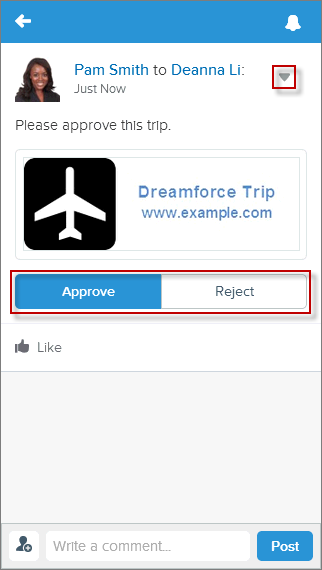
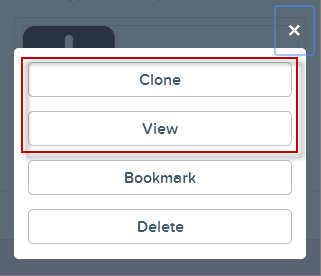
Define action links in groups. Action links within a group are mutually exclusive. You can associate up to 10 action link groups with a post. In this example, “Approve” and “Reject” are in one group and “Clone” and “View” are in another. Specify whether an action link group displays in the post or in the post’s drop-down menu. “Approve” and “Reject” display in the post. “Clone” and “View” display in the drop-down menu.
Action links are user-specific and can be private or public. In this example, Pam makes a
post to Deanna’s feed asking her to download some instructions and then place an order. Deanna
can see the “Order” and “Download” action links in the post in her feed: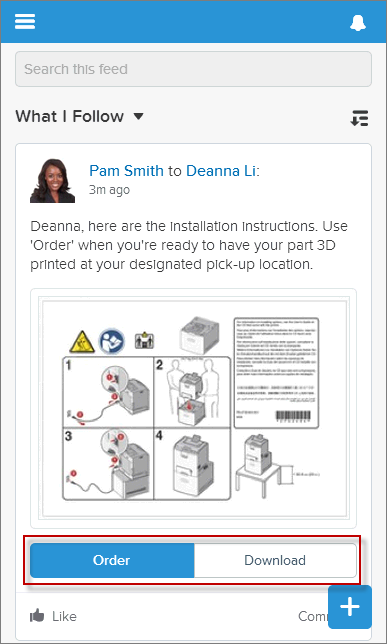
Pam can see the post, but she can see only the “Download” action link because she doesn’t
have permission to place the order:
Authentication and Security
Action links use HTTPS exclusively.
API details are stored with encryption, and obfuscated for clients.
1POST /connect/action-link-group-definitions
2
3{
4    "actionLinks": [
5    {
6       "actionType" : "Api",
7       "actionUrl" : "https://www.example.com/api/v1/cofirm",
8       "groupDefault" : "true",
9       "headers" : [
10       {
11          "name" : "Authorization",
12          "value" : "OAuth 00DRR0000000N0g!ARoAQMZyQtsP1Gs27EZ8hl7vdpYXH5O5rv1
13                        VNprqTeD12xYnvygD3JgPnNR._nmE6thZakAbBVJUsjUInMUaKMlkNKaWXdHO"
14       },
15       {
16          "name" : "Content-Type",
17          "value" : "application/json"
18       }],
19       "labelKey" : "Confirm",
20       "method" : "Post",
21       "requiresConfirmation" : "true"
22    }],
23    "executionsAllowed" : "OncePerUser",
24    "category" : "Primary",
25    "expirationDate" :  "2014-09-09T18:45:39.000Z"
26}
When you define an action link group, you must specify an expiration date (expirationDate). After that date, the action links in the group can’t be executed. It’s a good idea to set the expiration date of the action link group to the same value as the expiration date of the OAuth token so that users won’t try to execute the action link and get an OAuth error.
Although this example doesn’t include them, there are two additional properties you can use to secure an action link. Use the excludeUserId property to exclude a single user from executing an action. Use the userId property to specify the ID of a user who alone can execute the action. If you don’t specify a userId property or if you pass null, any user can execute the action. You can’t specify both excludeUserId and userId for an action link.
Versioning
To avoid issues due to upgrades or changing functionality in your API, we recommend using versioning when defining action links. For example, the actionUrl property in the Action Link Definition Input should look like https://www.example.com/api/v1/exampleResource. If your API isn’t versioned, you can use the expirationDate property of the Action Link Group Definition Input to avoid issues due to upgrades or changing functionality in your API.
Errors
Use the Action Link Diagnostic Information resource (/connect/action-links/actionLinkId/diagnostic-info) to return status codes and errors from executing Api and AsyncApi action links. Diagnostic info is given only for users who can access the action link.
Localized Labels
Action links use a predefined set of localized labels specified in the labelKey property of the Action Link Definition Input request body. (You can see an example in Authentication and Security.)
For a list of labels, see Action Links Labels.
Type of Action Links
- Api—The action link calls a synchronous API.
- ApiAsync—The action link calls an asynchronous API.
- Download—The action link downloads a file.
- Ui—The action link takes the user to a user interface.
Specify the action link type in the actionType property. You can see an example in Authentication and Security.
Different types of action links have different workflows to set the status. See /connect/action-links/actionLinkId for more information.