Salesforce Knowledge Developer Guide
 j
j
No Results
Search Tips:
- Please consider misspellings
- Try different search keywords
Newer Version Available
Add a Last Updated Promotions Box to the Visualforce Article Search Page
Finally, we'll add a Last Updated Promotions box.
- In the footer at the bottom of the Visualforce Article Search tab, click ArticleList to display the Visualforce development mode page editor.
- Delete all the existing markup in the Visualforce development mode page editor and replace it with the markup shown in the Visualforce Box Code Sample.
- Click Save (
 ).
).
Visualforce Box Code Sample
Lines in bold are described below the code sample.
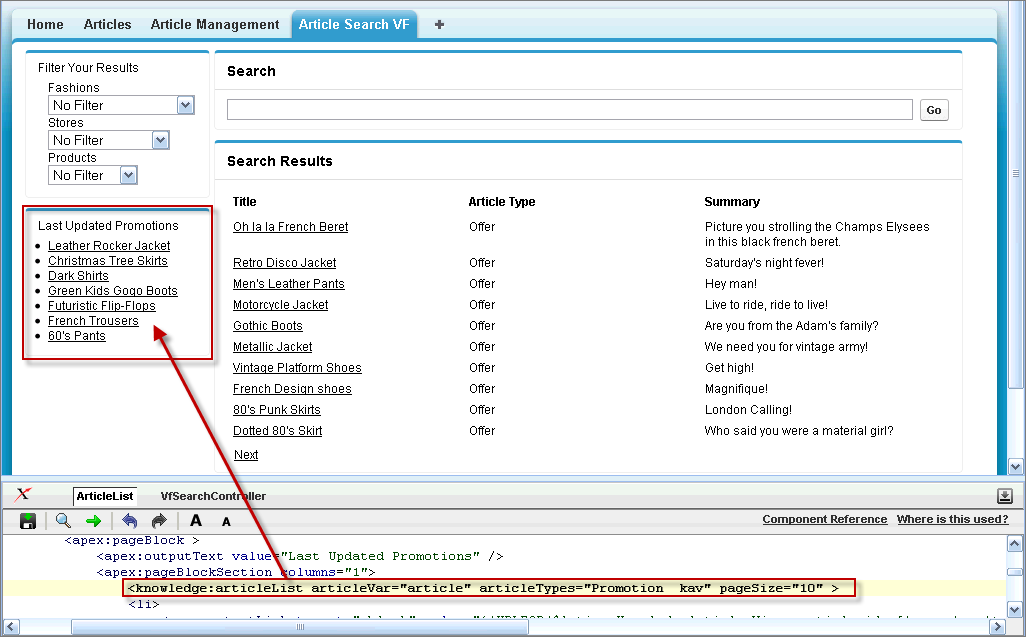
In the code fragment below, the <knowledge:articleList> tag retrieves by default any last published articles. The articleTypes attribute specifies that only Promotion articles are displayed in the Last Updated Promotions box.
Look at What We've Done
You can now see the Last Updated Promotions box on the left pane of the Visualforce Article Search page. This box displays any new or the most recently updated promotions.